





(An in-depth guide for site owners, developers & agencies)
When you run a WordPress site, there are many situations where you might want to disable login access for a specific user — without deleting their account entirely. Maybe the user has left your team, you still want their past posts attributed to them, but you don’t want them to sign-in any more. Or perhaps you’re in a staging/development mode and you want to temporarily restrict someone’s access. Whatever the case, this guide walks you through why, when, and how to disable login for a specific user in WordPress — including both plugin solutions and code-based methods.
Why Disable Login for a Specific User?
Before diving into solutions, let’s clarify why you might want to do this rather than simply deleting the user or changing their role.
1. Preserve Authorship While Revoking Access
If the user has authored posts, changed them, or is listed in author boxes, deleting them or changing the posts to another user may create unwanted side-effects. Disabling login keeps the account intact (and the posts attributed), but prevents further sign-ins.
2. Temporary Access Suspension
Maybe you onboarded a contractor or freelancer, and once they finish their work you want to revoke their login but keep the account for history or re-activation later.
3. Unpaid Invoices / Contractual Issues
As some plugin descriptions note: “you have a client who has an unpaid invoice” or a user whose access you need to cut off without messing with content.
4. Security & Compliance
Restricting access can be part of your user-lifecycle management. If someone changes roles, leaves, or moves on, you may want to lock their account rather than delete it.
5. Multi-Site / Large Team Management
In complex setups (e.g., agencies, multi-site networks) you may want fine-grained control over individual user access rather than a blanket “delete user”.
Two Main Approaches: Plugins vs Custom Code
There are two broad ways to disable login for a user:
-
Plugin method – easiest, minimal code, good for non-developers.
-
Custom code method – more flexible, no plugin overhead, ideal for developers comfortable with
functions.phpor a custom plugin.
We’ll cover both in detail.
Plugin Method: Use a Dedicated “Disable User Login” Plugin
If you prefer a ready-made solution, there are plugins that allow exactly this.
Recommended Plugin: Disable User Login
The plugin Disable User Login (available from WordPress.org) allows you to disable specific user accounts via a profile setting. You can download plugin from here
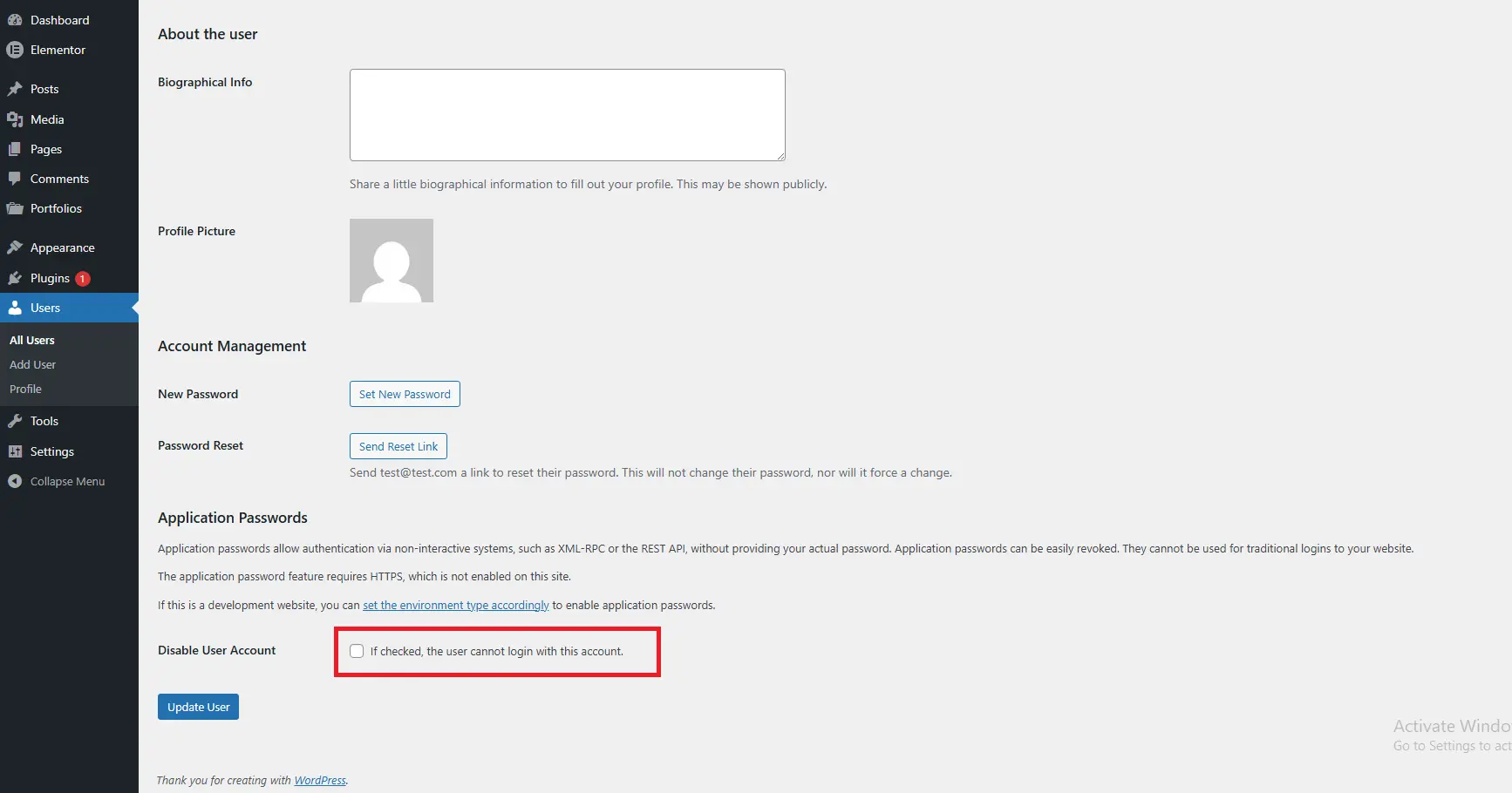
Once you downloaded and installed/activated plugin then rest is easy. Simply edit the user to whom you want to disable and check the Disable User Account checkbox like shown in below screenshot 1:
Key features:
-
Admin edits a user profile and checks a “Disable User Account” checkbox.
-
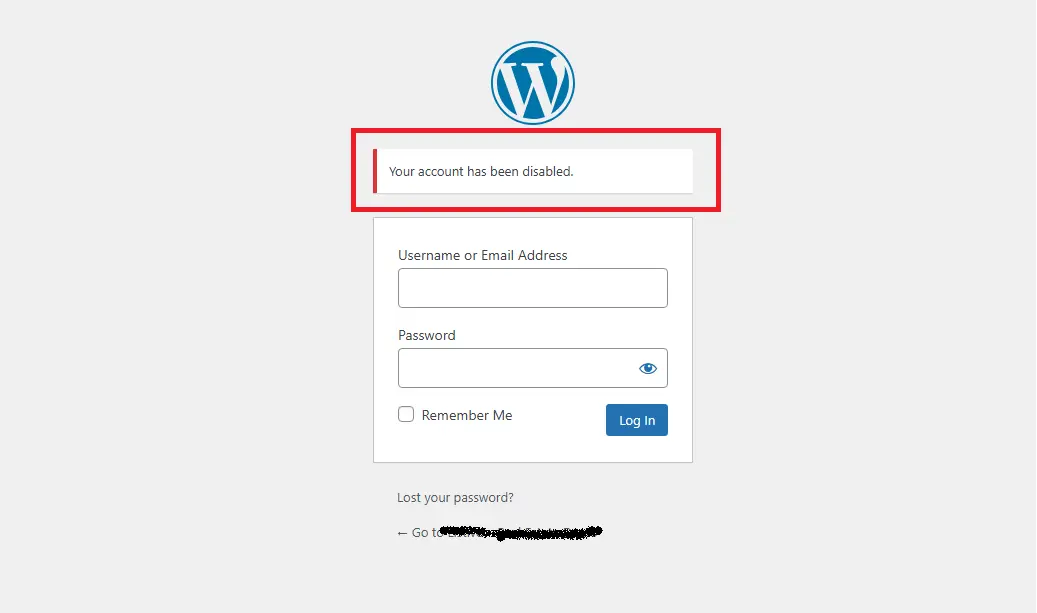
When disabled, the user cannot log in; attempts redirect back to login page with a message.
-
Works in bulk, supports multisite in newer versions.
-
Keeps posts, comments, history intact — only the login is disabled.
How to install & use:
-
Go to Plugins → Add New in your WordPress dashboard.
-
Search for “Disable User Login”.
-
Install and activate the plugin.
-
Edit the user you want to disable (Users → All Users → Edit).
-
Find the “Disable User Account” checkbox (visible only to admins). Check it and update the user.
-
Optionally configure message or redirect behaviour if plugin supports it.
Pros & Cons
Pros:
-
Fast and simple.
-
Minimal code required.
-
Reversible (just uncheck the box).
-
Ideal for non-coders or agencies.
Cons:
-
Plugin adds overhead (though minimal).
-
Less customiseable than full code.
-
Dependent on plugin maintenance and compatibility.
If your site demands a plugin-free or lightweight footprint, the code method next is the way to go.
Code Method: Disable User Login via Custom Snippet
For developers comfortable with WordPress hooks, you can disable login for specific users with custom code using the authenticate filter or other hooks — giving you full control.
Basic Concept
You intercept the login process (via authenticate or wp_login), detect the user you want to block, then return a WP_Error so the login fails (or log them out immediately). This prevents login but retains the user account.
Here’s a sample snippet you could drop into your theme’s functions.php or a custom plugin:
Simply copy the code above and paste it at the end of your theme’s functions.php file (or inside a custom plugin). Save the file, and the specified user will no longer be able to log in to your WordPress site.
Note:
Make sure to update the user ID in the code. For example, if you want to disable login for a user with the ID 20, replace 16 with 20.
If you want to disable login for multiple users, you can add their IDs to the array separated by commas. For example:
This will disable login access for users with IDs 16, 17, and 18. Once done, try to login with that user’s credentials and you will see notice like this:
Explanation:
-
Hook into
authenticate— this filter fires during login. -
Check if
$useris a real user object. -
Define which specific users are disabled (via ID or email).
-
If match found, return a
WP_Errorwith a message. -
Otherwise return the normal
$user. -
The login attempt will then fail for those users with the error message.
Variation: Redirect After Login Someone Tries
If you prefer to log the user out immediately after they log in (and redirect them back to the login page), you can use the following approach:
function wpthrill_block_login_and_logout( $user_login, $user ) {

// List of disabled user IDs
$disabled_user_ids = array( 123, 456 );

// Check if the logged-in user is in the disabled list
if ( in_array( $user->ID, $disabled_user_ids, true ) ) {

// Log the user out
wp_logout();

// Redirect them back to the login page with a custom message
wp_redirect( wp_login_url() . '?message=account_disabled' );
exit;
}
}

add_action( 'wp_login', 'wpthrill_block_login_and_logout', 10, 2 );
Explanation:
This method allows the user to log in initially, but immediately logs them out if their user ID matches one of the IDs in the $disabled_user_ids array. After logging them out, the code redirects the user back to the login page with a custom query parameter (message=account_disabled), which you can use to display a custom message on the login screen.
Important: Always make sure your own administrator account is not included in the disabled users list, otherwise you may lock yourself out of the site.
Temporary Disable User – WordPress Plugin
Plugin Code
Create a new file called:
temporary-disable-user.php
Then paste the following code inside it:
<?php
/**
 * Plugin Name: Temporary Disable User
 * Plugin URI: https://wpthrill.com
 * Description: Temporarily disable login for specific WordPress users by user ID.
 * Version: 1.0
 * Author: WPThrill
 * Author URI: https://wpthrill.com
 * License: GPL2+
 */

// Function to block a user by ID
function wpthrill_block_user_by_id( $user, $username, $password ) {

    // List of user IDs to block - EDIT THIS
    $blocked_ids = array( 16 ); // Add the IDs you want to block

    // Case 1: If WordPress already authenticated the user
    if ( is_a( $user, 'WP_User' ) ) {
        if ( in_array( $user->ID, $blocked_ids ) ) {
            return new WP_Error( 'blocked', 'Your account has been disabled.' );
        }
        return $user;
    }

    // Case 2: If we have username but no user object yet
    if ( ! empty( $username ) ) {

        // Try to get user by username or email
        if ( strpos( $username, '@' ) !== false ) {
            $user_data = get_user_by( 'email', $username );
        } else {
            $user_data = get_user_by( 'login', $username );
        }

        // If user found and is blocked, prevent login
        if ( $user_data && in_array( $user_data->ID, $blocked_ids ) ) {
            return new WP_Error( 'blocked', 'Your account has been disabled.' );
        }
    }

    // Case 3: Return whatever WordPress already determined
    return $user;
}

// Use priority 20 (after WordPress checks but before final authentication)
add_filter( 'authenticate', 'wpthrill_block_user_by_id', 20, 3 );
How to Create This Plugin
If your theme does not have a functions.php file or you are using a block theme (FSE), creating a small plugin is actually the best and safest method.
Follow these steps:
Step 1 — Create Plugin Folder
Go to:
Create a new folder:
Step 2 — Create Plugin File
Inside that folder create a file:
Paste the plugin code provided above.
Step 3 — Activate the Plugin
Go to your WordPress dashboard:
Find Temporary Disable User and click Activate.
Step 4 — Add User IDs to Block
Edit this line inside the plugin file:
Example for multiple users:
Those users will no longer be able to log in.
Why Using a Plugin Is Better Than functions.php
Using a plugin for this functionality is generally a better approach.
1. Theme Updates Won’t Remove It
If you add code in functions.php, it may disappear when the theme updates.
2. Works With Any Theme
Your functionality remains active even if you switch themes.
3. Cleaner Separation
Authentication logic belongs to site functionality, not theme design.
4. Safer for Block Themes (FSE)
Many modern block themes keep functions.php minimal, so plugins are preferred.
Important Warning
Always make sure you do not block your own administrator account, otherwise you may lock yourself out of the site.
If that happens, you would need to:
-
Disable the plugin via FTP
-
Or remove the blocked ID from the plugin file.
Notes & Best Practices
-
Child theme or custom plugin: Don’t add code to a parent theme directly, or you risk losing changes on update.
-
Localization: The
__(…)wrapper helps you translate the message if you run a multi-lingual site. -
Logging: If you want to track attempts by disabled users, you can integrate logging to a file or error log.
-
Performance: The snippet runs during every login. It’s lightweight, but test in staging if you have a busy site.
-
Capability vs ID: You can adapt logic to check
current_user_can( 'some_capability' )orin_array( 'role', $user->roles )if you want to disable an entire role instead of user IDs. For example: -
Multisite: If you are on a multisite network (
WP-MS), you may need to account foris_super_admin()and network-wide users.
Cleanup & Re-activation
When the time comes to allow login again, simply remove the user ID/email from your disabled list (or uncheck the box in the plugin method). Keep a record of who was disabled and why.
Which Method Should You Use?
Here’s a quick decision table to help you pick.
| Scenario | Recommendation |
|---|---|
| You are non-technical or just need a quick UI toggle | Use the plugin method — “Disable User Login” plugin. |
| You prefer no plugin overhead and want full control | Use the custom code snippet method. |
| You might disable many users or roles, or need a logging/audit trail | Custom code gives more flexibility to extend. |
| You want automatic triggers (e.g., disable when user role changes, or after a certain date) | Use custom code and hook into profile_update, cron, or custom meta. |
Additional Tips and Considerations
1. Inform the User (If Appropriate)
If the user will notice they can’t access the site, you may want to send them a polite email notifying them their access has been disabled and providing next steps (e.g., contact support). This improves transparency.
2. Use Custom User Meta for Flexibility
Instead of hard-coding IDs or emails, you can add a user meta field (e.g., login_disabled = true) and check for it in your code. Example:
Then you can toggle the meta via user edit screen or custom UI.
3. Preserve Comments, Posts, Affiliations
Disabling login avoids deleting or reassigning content. Good for audit, SEO, or history of the site.
4. Compatibility with Other Plugins
Check that disabling login doesn’t break linked services (e.g., WooCommerce, membership plugins). A disabled login might still allow access via REST API or other endpoints unless fully controlled.
5. Monitor Login Attempts
You might want to monitor failed login attempts from disabled users — could indicate an account is being targeted. Use security plugins or custom logging.
6. Role-Based Disabling
If you want to disable all users of a specific role (e.g., “contractor” or “former_employee”), you can adjust the code accordingly:
7. Provide a Backdoor or Admin Override
Always ensure there’s at least one super-admin user you can log in with. If you accidentally disable your only admin account, you may lock yourself out.
8. Audit & Documentation
Document who was disabled and why, especially if this is part of your agency process or client-handover. A short note in your project documentation helps future reference.
FAQ (Frequently Asked Questions)
Q1: Will disabling login delete the user or their content?
No. Disabling a login via the plugin or code means the user account remains in the database, and all their posts, comments, and affiliations remain intact. Only the ability to log in is revoked.
Q2: Can the user still register or create a new account?
Yes — disabling a specific user login doesn’t stop the site’s registration function unless you explicitly disable registration. They would just need to use another account or be re-enabled.
Q3: Does this work for multisite (network) installs of WordPress?
Yes — but you must check for is_super_admin() and network permissions if you are handling users across sites. Some plugins may not fully support multisite or may require network-wide settings.
Q4: If I disable a user, will they still appear in the “Authors” list or on posts they wrote?
Yes. Disabling login doesn’t modify the user’s published content; their name will still appear as the author unless you explicitly change it.
Q5: What happens if the disabled user tries to reset their password?
That depends on your code or plugin. It may allow password reset but still block login, or you may catch the reset attempt and deny it. In custom code you might add a hook such as allow_password_reset or control the send_password_change_email behavior.
Q6: Is there any risk of locking myself out as the admin?
Yes, if you disable your own account intentionally or accidentally. Always keep at least one super-admin account enabled, and preferably use a secure and unique administrator username.
Q7: Can I disable login for a user for a specific time period, for example 30 days?
Yes. With custom code you can check a user_meta field such as disable_until, store a timestamp, and disable login until that time passes. The plugin method may or may not support time-based disabling.
Q8: Does disabling login improve security?
Yes. Revoking access for inactive or risky accounts reduces the attack surface of your site. However, it should not replace other security practices such as strong passwords, two-factor authentication, and regular user audits.
Conclusion
Disabling login for a specific user in WordPress is a smart, controlled way to manage access without deleting accounts and losing history. Whether you choose a plugin (quick & easy) or a custom code approach (flexible & lightweight), you’ll gain much better user-access control for your site.
If you’re working with clients or a team, this becomes part of your operational playbook: when someone leaves, changes role, or shifts to “read-only,” you can flip a switch (or uncheck a box) and know their access is safely revoked — while maintaining their content and site integrity.
Feel free to bookmark this guide for your next site audit, handover, or building your internal “user off-boarding” process.
If you run into specific issues (e.g., multisite, membership plugins, REST API access), leave a comment or reach out and I’ll help you tailor the solution further.



