






Few things are more frustrating for a WordPress site owner than discovering that Google is indexing your staging site instead of your live website.
You deploy updates carefully, test changes on staging, push everything live… and then rankings drop. Pages disappear. Traffic declines. When you finally check Google Search Console, you see URLs like:
-
staging.example.com
-
example.com/staging
-
dev.example.com
-
example.test
Indexed instead of your actual live URLs.
If Google has already indexed your staging URLs and your rankings are dropping fast, this isn’t something to delay — in such cases, getting professional emergency WordPress support can help you fix indexing, canonical, and Search Console issues before long-term SEO damage sets in.
This is not just a technical mistake. It is a serious SEO issue that can lead to:
-
Duplicate content penalties
-
Index bloat
-
Loss of rankings
-
Cannibalization between staging and live URLs
-
De-indexing of your real pages
The good news is: this problem is 100% fixable if you act correctly and quickly.
In this complete guide, you’ll learn why Google indexes staging URLs, how to remove them safely, and how to protect your site permanently so this never happens again.
What Are Staging URLs?
A staging site is a clone of your live website used for:
-
Testing updates
-
Developing new features
-
Fixing bugs
-
Redesigning layouts
Common staging URL formats include:
-
staging.example.com
-
dev.example.com
-
example.com/staging
-
example.com/dev
-
example.local
-
example.test
Staging environments should never be accessible to search engines.
When Google indexes a staging site, it treats it like a real website — and that’s where problems begin.
Why Google Indexes Staging URLs Instead of Live Site
Google does not “accidentally” index pages. It indexes what it is allowed to crawl and understand as indexable.
Here are the most common real-world causes.
1. Staging Site Is Publicly Accessible
If your staging site:
-
Is not password protected
-
Does not block crawlers
-
Returns HTTP 200 status codes
Google will crawl it.
Many hosting providers create staging sites that are publicly accessible by default.
2. Missing or Incorrect robots.txt on Staging
If your staging site does not contain a blocking robots.txt file, Google assumes it’s allowed.
Bad example (staging site):
This tells Google everything is crawlable.
3. No “noindex” Meta Tag on Staging
Without this tag in the <head> section:
Google has no signal to stay away.
4. Staging URLs Linked Internally or Externally
If your staging URLs are:
-
Linked inside your live site
-
Linked in sitemaps
-
Accidentally shared publicly
Google will discover them.
5. XML Sitemap Contains Staging URLs
This is extremely common during migrations.
If your sitemap contains URLs like:
Google will prioritize those URLs.
6. Canonical Tags Point to Staging URLs
If your live site’s canonical tags point to staging URLs, you’re effectively telling Google:
“This staging page is the original.”
Example of a dangerous canonical:
7. Google Indexed Staging Before It Was Blocked
Even if you blocked the staging site later, Google may already have indexed it.
Blocking crawling does not remove indexed URLs automatically. Issues like missing noindex tags, incorrect canonicals, and exposed staging environments are among the most common on-page SEO mistakes WordPress users make, and they often lead to Google indexing the wrong version of a site.
How to Check If Google Is Indexing Your Staging Site
Method 1: Google Search Operator
Search:
or
If results appear, your staging site is indexed.
Method 2: Google Search Console
-
Open Google Search Console
-
Check Pages > Indexed
-
Look for:
-
Staging subdomains
-
Dev URLs
-
Duplicate pages
-
Method 3: URL Inspection Tool
Paste a staging URL into the URL Inspection tool and check its index status.
Immediate Damage Control (Do This First)
Before fixing long-term issues, stop further damage.
Step 1: Block Staging Site with Password Protection
This is the strongest and fastest solution.
If your staging site is password protected, Google cannot crawl it at all.
Most hosts like WP Engine, Kinsta, Cloudways, and SiteGround offer built-in password protection.
Step 2: Add noindex Meta Tag to Staging Site
Add this to the <head> section:
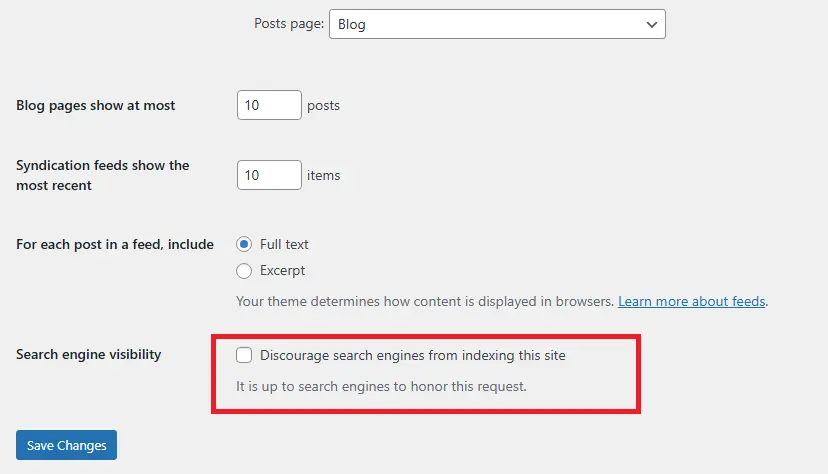
In WordPress, you can also enable:
Settings > Reading > Discourage search engines from indexing this site
Step 3: Block Staging via robots.txt
Create or edit robots.txt on staging:
This prevents crawling, but remember: robots.txt alone does not remove indexed pages.
How to Remove Staging URLs from Google Index
Once indexed, staging URLs must be actively removed.
Method 1: Google Search Console Removals Tool
-
Go to Google Search Console
-
Open Removals
-
Submit staging URL patterns:
-
staging.example.com -
/staging/
-
-
Choose “Remove all URLs with this prefix”
This is a temporary removal but useful for fast cleanup.
Method 2: Use 410 or 404 Status Codes
If you can safely do so, return a 410 Gone status for staging URLs.
Example using .htaccess:
410 signals Google that the page is permanently gone.
Method 3: Correct Canonical Tags on Live Site
Ensure every live page has a canonical pointing to itself.
Correct example:
Never reference staging URLs in canonicals.
Method 4: Fix XML Sitemap Immediately
Regenerate your sitemap and ensure:
-
Only live URLs exist
-
No staging subdomains
-
Correct protocol (https)
Then resubmit the sitemap in Google Search Console.
Prevent Google from Indexing Staging URLs Forever
Fixing the issue once is not enough. You must bulletproof your workflow. To avoid indexing issues like exposed staging URLs, duplicate content, and incorrect canonicals in the future, following an ultimate WordPress SEO checklist helps ensure every technical and on-page SEO setting is configured correctly from day one.
Best Practice 1: Never Use Search Console on Staging
Do not verify or submit sitemaps for staging sites.
Best Practice 2: Use Environment-Specific Configs
In wp-config.php, you can conditionally block staging:
Best Practice 3: Block Staging at Server Level
Server-level blocks are stronger than WordPress settings.
Example for NGINX:
Best Practice 4: Never Link to Staging URLs
Check:
-
Menus
-
Footer links
-
Widgets
-
CSS background images
-
JavaScript files
One accidental link can expose the staging site.
Best Practice 5: Use Separate Domains for Staging
Avoid subfolders like /staging.
Use completely isolated domains or local environments.
SEO Impact of Google Indexing Staging URLs
If left unresolved, this issue can cause:
-
Duplicate content across domains
-
Ranking loss for primary keywords
-
De-indexing of live pages
-
Crawl budget waste
-
Confused canonical signals
Google may choose the wrong version of your page to rank. One of the most common signals that triggers Google to prefer staging URLs is the duplicate without user-selected canonical issue, where Google is forced to choose between live and staging pages due to missing or incorrect canonical tags.
How Long Does It Take to Recover?
Recovery depends on:
-
How long staging URLs were indexed
-
How many pages were affected
-
Whether proper signals are restored
In most cases:
-
Initial cleanup: 1–2 weeks
-
Ranking stabilization: 4–8 weeks
The faster you act, the less damage you’ll see.
Common Mistakes to Avoid
-
Blocking staging only with robots.txt
-
Forgetting to fix canonicals
-
Leaving staging accessible after launch
-
Reusing sitemaps from staging
-
Assuming Google will “figure it out”
Google follows signals. If signals are wrong, rankings suffer.
Frequently Asked Questions
Why is Google indexing my staging site?
Because it is publicly accessible and not blocked with noindex, password protection, or server rules.
Will robots.txt remove staging URLs from Google?
No. robots.txt prevents crawling but does not remove already indexed URLs.
Should I use noindex or password protection?
Password protection is best. noindex is a secondary layer.
Can staging URLs harm my SEO?
Yes. They cause duplicate content, ranking loss, and index confusion.
How do I stop this permanently?
Block staging at server level, add noindex, fix canonicals, and never submit staging to Search Console.
Does Google penalize staging sites?
Google doesn’t penalize, but it can choose the wrong pages to rank, which has the same effect.



