
WordPress Settings Tutorial (2026): Every Setting Explained Step-by-Step

This guide is part of our complete WordPress tutorial series — a structured roadmap designed to take you from absolute beginner to advanced WordPress user step by step.
If you’re just starting your journey, we highly recommend following the tutorials in order so you build a strong foundation instead of jumping randomly between topics.
Start here: Complete WordPress Tutorial: Beginners to Experts
New to WordPress? Before choosing a theme, make sure you understand the difference between posts and pages. Read our full tutorial here: Posts vs Pages in WordPress – What’s the Difference?. If you’re completely new to WordPress, we recommend first reading our guide on What Is WordPress and How Does It Work? to understand the platform before diving into themes.
If you’ve just installed WordPress, staring at the left-hand menu, you’ve probably clicked on Settings and felt a wave of confusion. There are dozens of options, from “Site Title” to “Post via Email,” and it’s not always clear what they do or how they affect your site.
Welcome to the 2026 edition of the ultimate WordPress Settings tutorial. Whether you are building a blog, a business site, or an eCommerce store, getting these settings right from day one is crucial for your SEO, security, and user experience.
In this step-by-step guide, we will walk through every single sub-panel under Settings: General, Writing, Reading, Discussion, Media, Permalinks, and Privacy. By the end, you’ll have a fully optimized WordPress installation ready for the modern web.
Let’s dive in.
Pre-Flight Checklist
Before we start changing settings, ensure you have:
-
Administrator access to your WordPress dashboard.
-
A backup of your site (just in case). Plugins like UpdraftPlus are great for this.
-
A text editor to copy any important information (like the Privacy Policy page content).
Quick Setup Cheat Sheet (Recommended Settings for 2026)
If you just want the ideal configuration without reading everything in detail, here is a professional recommended setup used for most business and blog websites in 2026:
-
Homepage: Static page (for business sites)
-
Permalinks: Post Name structure
-
Search Engine Visibility: Unchecked
-
Default Post Category: Replace “Uncategorized”
-
Pingbacks / Trackbacks: Disabled
-
Comment Moderation: Enabled
-
Timezone: Set to your actual city
-
Site Address: Must use https://
Pro Insight: These settings create a strong foundation for SEO, security, and performance before you even install your first plugin.
1. General Settings
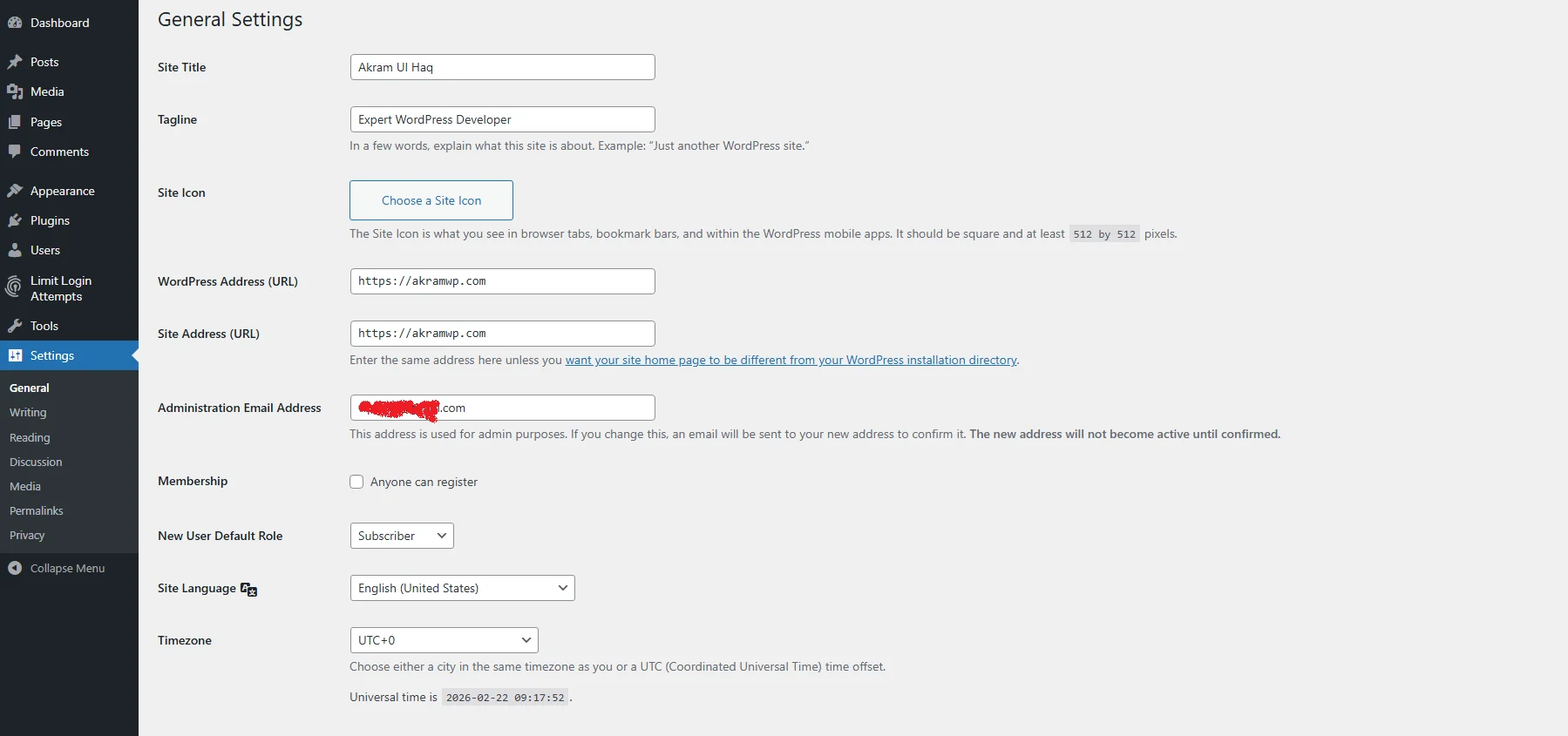
Location: Settings > General
These are the foundational settings for your site’s identity and location.
-
Site Title: This is your website’s name. It often appears in the browser tab and typically in the header of your theme.
-
Tagline: A short explanation of what your site is about. A classic example is “Just another WordPress site” which you should change immediately to something descriptive like “Handcrafted Vintage Furniture.”
-
WordPress Address (URL): The location where your WordPress core files are installed.
-
Site Address (URL): The location users type in to visit your site. Usually, these are the same unless you are installing WordPress in a subdirectory.
-
Administration Email Address: This is vital. This email is used for new user registration notifications, recovery emails, and update alerts. Ensure this is an email you check daily.
-
Membership: Check this box if you want to allow anyone to register as a user on your site. For a standard business site, keep this unchecked. If you are running a membership site, you will check this but manage it with a plugin.
-
New User Default Role: If registration is on, what access do they get? Subscriber is the safest default (they can only manage their profile).
-
Site Language: Sets the language for the WordPress admin interface.
-
Timezone: Crucial for scheduling posts. Set this to your city or a major city in your timezone (e.g., “New York” or “London”).
-
Date Format / Time Format: Choose how dates and times are displayed on your site. We recommend including the year to help with content archival.
-
Week Starts On: Sets the first day of the calendar in your admin panels.
2026 Pro Tip: Ensure your Site Address includes https:// if you have an SSL certificate installed (you should). This builds trust with visitors and is a Google ranking factor.
2. Writing Settings
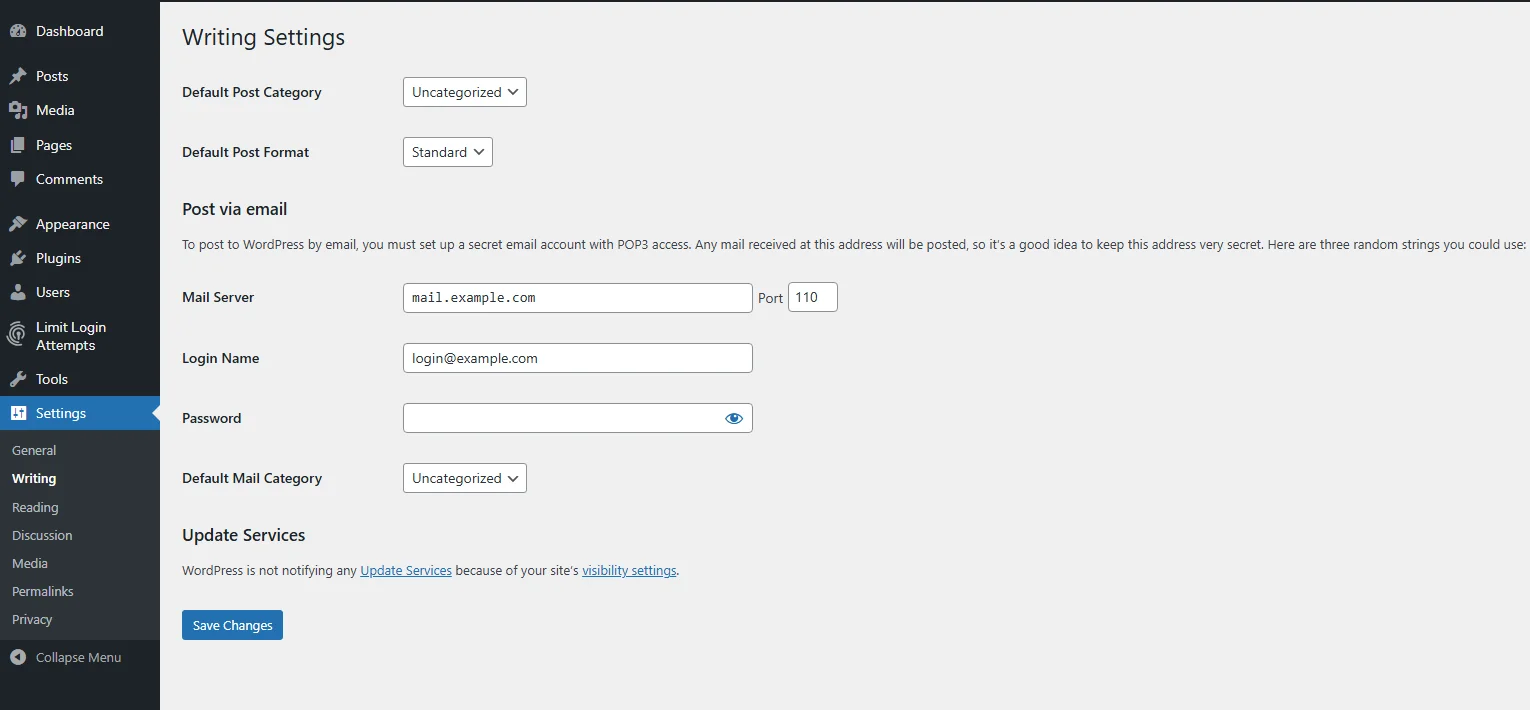
Location: Settings > Writing
These settings control your content creation experience and external publishing methods.
-
Default Post Category: If you forget to assign a category to a post, it goes here. It’s usually set to “Uncategorized.” It’s wise to create a general category like “News” or “Updates” and set that as the default instead.
-
Default Post Format: This depends entirely on your theme. Some themes use formats like “Gallery,” “Video,” or “Aside” to style posts differently. If your theme supports it, you can set a default.
-
Post via Email: This is a legacy feature that allows you to post to WordPress by sending an email. To use it, you need a secret email address provided by your hosting company. It’s rarely used in 2026 due to security concerns and the power of mobile apps, so you can likely ignore this.
-
Update Services: When you publish a new post, WordPress can ping external services (like search engines) to tell them your site has changed. The default list includes services like Ping-o-Matic. It’s generally safe to leave this as is.
3. Reading Settings
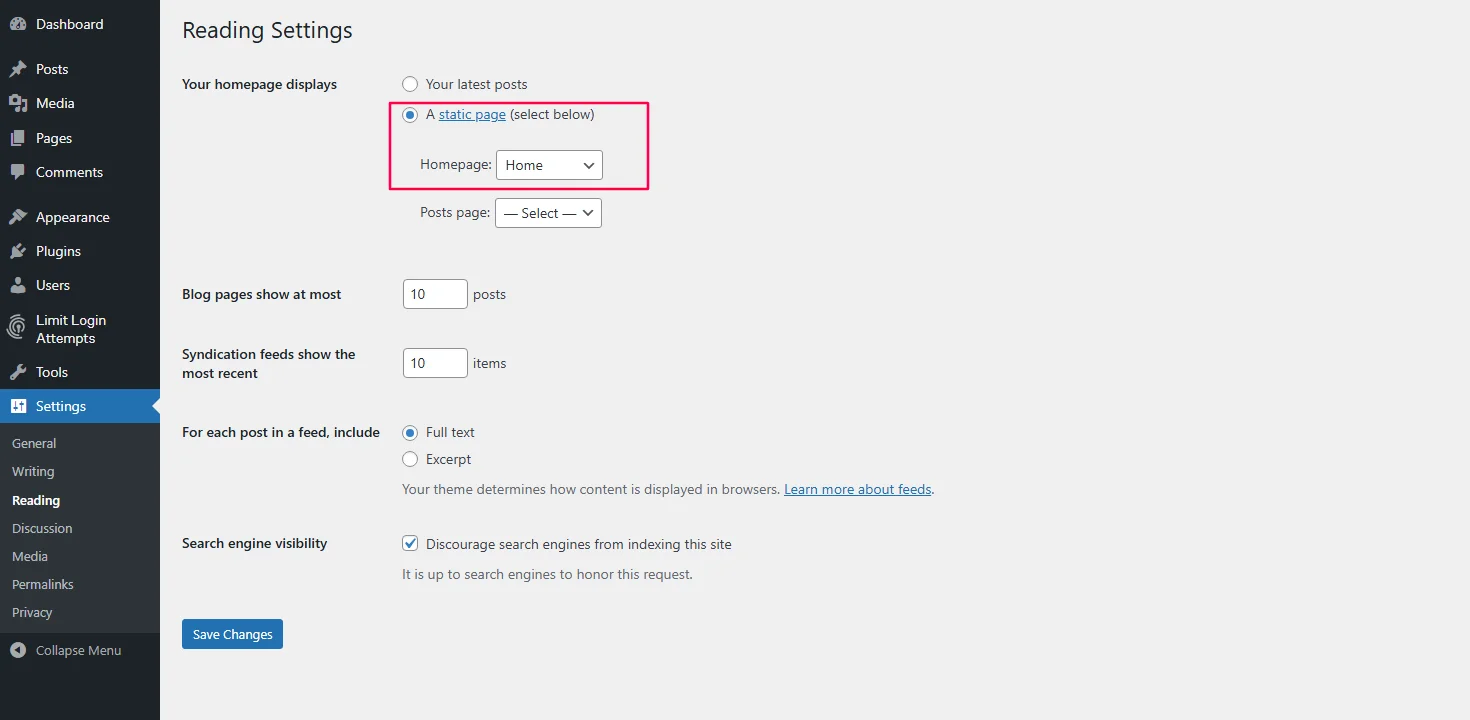
Location: Settings > Reading
This is one of the most important sections for controlling what visitors see on the front end of your site.
-
-
Your homepage displays:
-
Your latest posts: This sets your homepage as a traditional blog feed. Use this if you are a blogger or news site.
-
A static page: This lets you choose a specific page as your homepage and another as your posts page. This is the most common choice for businesses. You will create two pages first (e.g., “Home” and “Blog”) and then select them here.
-
-
Blog pages show at most: Controls how many posts appear on a single blog archive page. Fewer posts (like 5-7) can speed up load times.
-
Syndication feeds show the most recent: Controls how many posts are in your RSS feed.
-
For each post in a feed, include: Choose whether your RSS feed shows the full text or just a summary. Summary is slightly better for driving traffic from your feed back to your site, but Full Text is better for user experience for dedicated RSS readers.
-
Search Engine Visibility: Leave this box UNCHECKED. Checking this option adds a
noindexdirective that tells search engines not to index your site. -
Real-World Warning: I’ve personally seen business websites lose months of traffic because this box was accidentally left checked after migrating from a staging site to a live server. Everything looked fine on the surface, but Google was quietly instructed to ignore the entire website.
Only enable this option if you are building a private staging or development version of your site. Before launching any website publicly, always double-check that this box is unchecked.
-
4. Discussion Settings
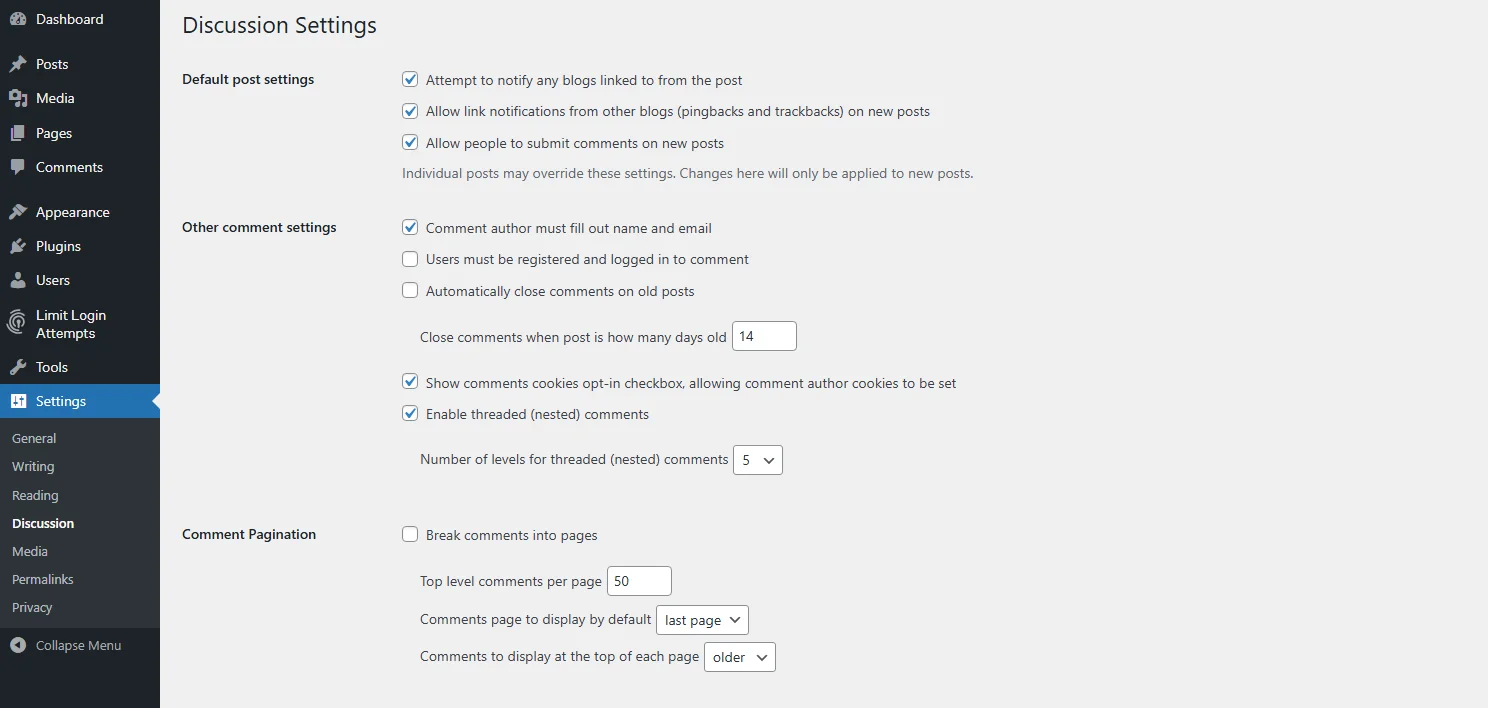
Location: Settings > Discussion
This panel controls how user interaction and comments work on your site. With the rise of social media, native comments are less common on business sites, but blogs still use them heavily.
-
Default post settings:
-
Attempt to notify any blogs linked to from the post: This sends a pingback to sites you link to. It can be considered spammy and creates extra noise. It is often recommended to uncheck this.
-
Allow link notifications from other blogs (pingbacks and trackbacks): Unless you have a specific reason to allow this, uncheck it. Pingback spam is a real problem.
-
-
Other comment settings:
-
Allow people to post comments on new articles: This is the master switch. Uncheck if you don’t want comments at all.
-
Comment author must fill out name and email: Keep this checked to cut down on spam.
-
Users must be registered and logged in to comment: Check this for extra security, but it will reduce comment volume.
-
-
Comment Moderation:
-
Comment must be manually approved: Keep this checked if you are worried about spam or inappropriate content.
-
Hold a comment in the queue if it contains ___ links: A common setting is 2 or 3. This catches spammers who try to drop multiple links.
-
-
Avatars: This uses the Gravatar service to show a user’s profile picture next to their comment. Choose a default avatar for users without one (the “Mystery Person” is common).
5. Media Settings
Location: Settings > Media
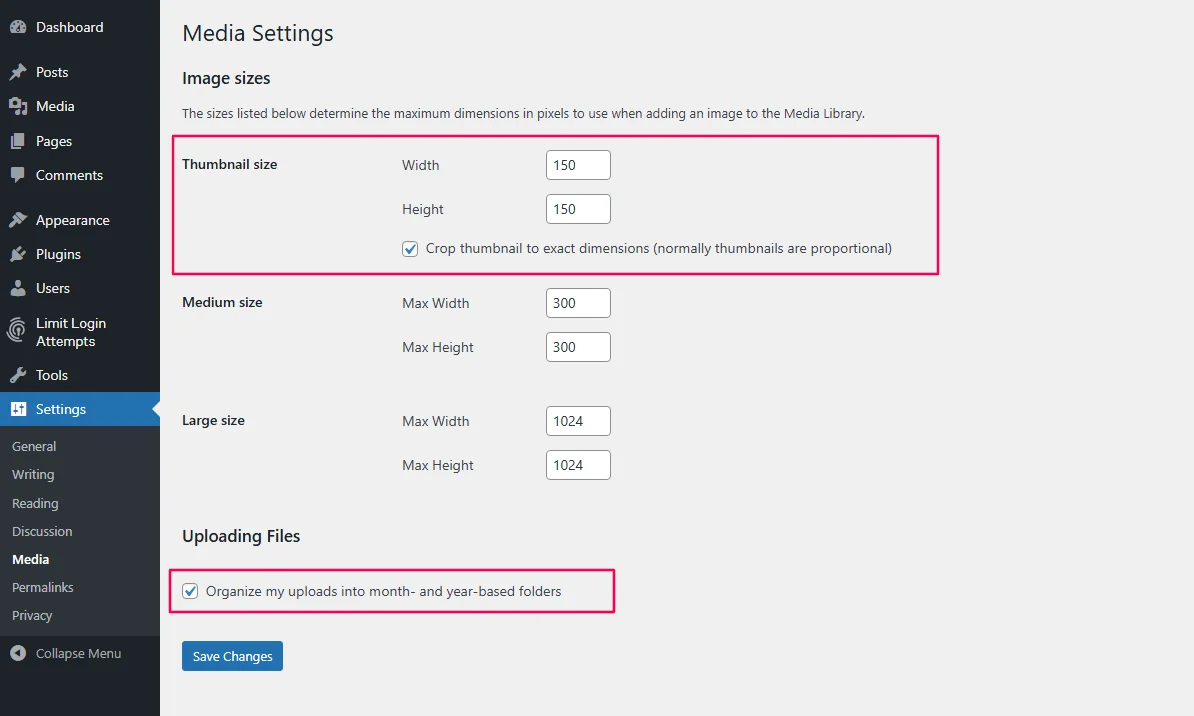
Here you define the default sizes for images you upload to your site.
-
Thumbnail size: Usually a small, cropped square. Used in many themes for post listings.
-
Medium size: The standard inline image size.
-
Large size: A bigger version for lightboxes or featured images.
2026 Optimization Tip: The biggest mistake users make here is setting these values too high.
-
If your theme’s content area is only 800px wide, setting “Large” to 1024px is wasteful.
-
Upload images at the exact dimensions you need them whenever possible.
-
These settings only affect images uploaded after you save the changes. Existing images are not retroactively resized.
6. Permalink Settings
Location: Settings > Permalinks
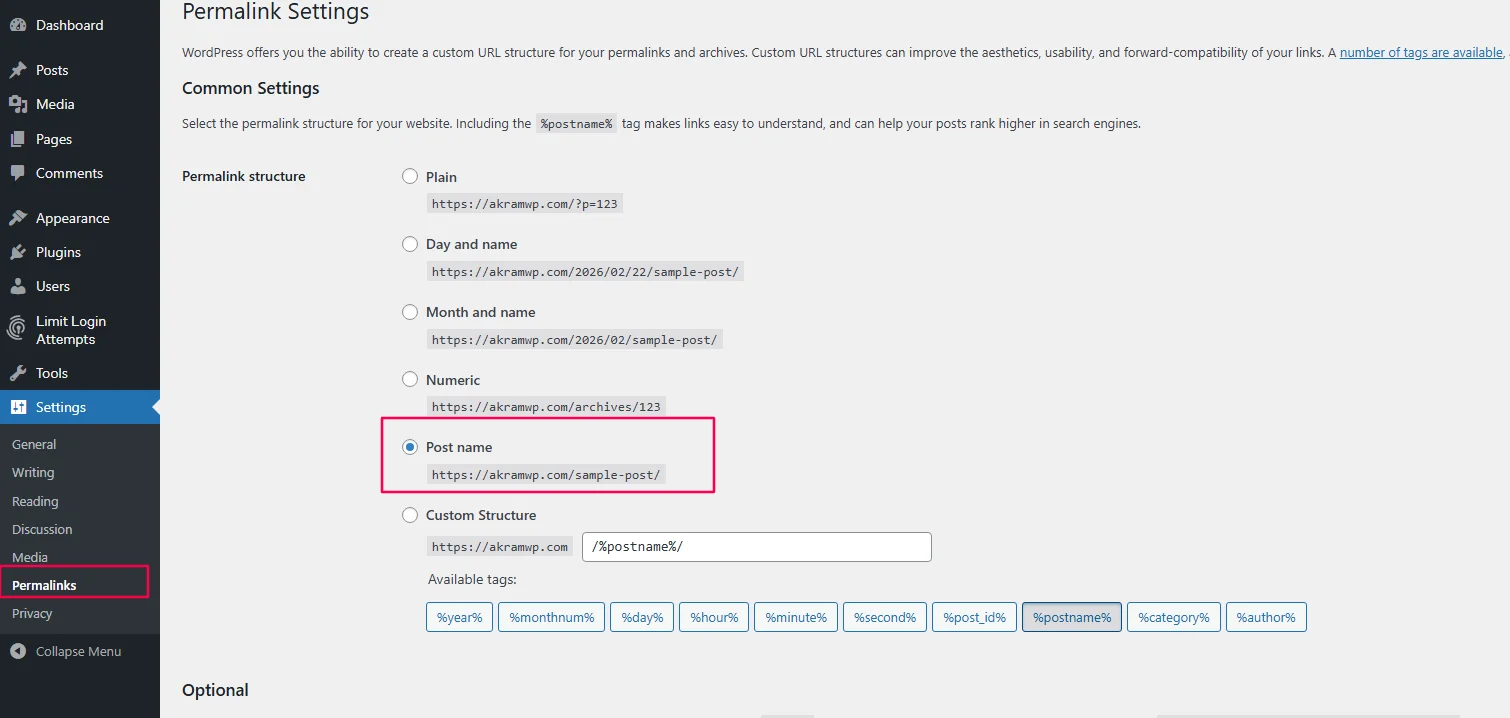
This is arguably the most critical SEO setting in WordPress. It defines the structure of your URLs.
-
Common Settings:
-
Plain:
https://yoursite.com/?p=123(Terrible for SEO. Do not use this.) -
Day and name:
https://yoursite.com/2026/01/21/sample-post/(Puts the date in the URL. This can make content look dated quickly.) -
Month and name: Similar to above.
-
Numeric: Not user-friendly.
-
Post name:
https://yoursite.com/sample-post/(This is the industry standard. It is clean, short, and contains your keywords. Choose this. )
-
Why “Post Name” Is Best for SEO in 2026:
-
Keyword clarity: Search engines instantly understand what the page is about.
-
Higher click-through rate: Clean URLs look more trustworthy in search results.
-
Future-proofing: URLs without dates don’t make evergreen content look outdated.
-
Better internal linking: Short URLs are easier to share and remember.
Important SEO Principle: Your permalink structure should be decided before publishing large amounts of content. Changing it later without proper 301 redirects can severely damage rankings.
Warning: If you are changing this on an existing site with lots of traffic, you must set up redirects from your old URLs to your new ones, otherwise you will get 404 errors. Yoast SEO or Rank Math can handle this for you.
-
Optional (Category & Tag Base):
You can change the word “category” in your URL to something else. For example, if you run a product site, you might changecategorytoproductsby typingproductsin the “Category base” field.
7. Privacy Settings
Location: Settings > Privacy
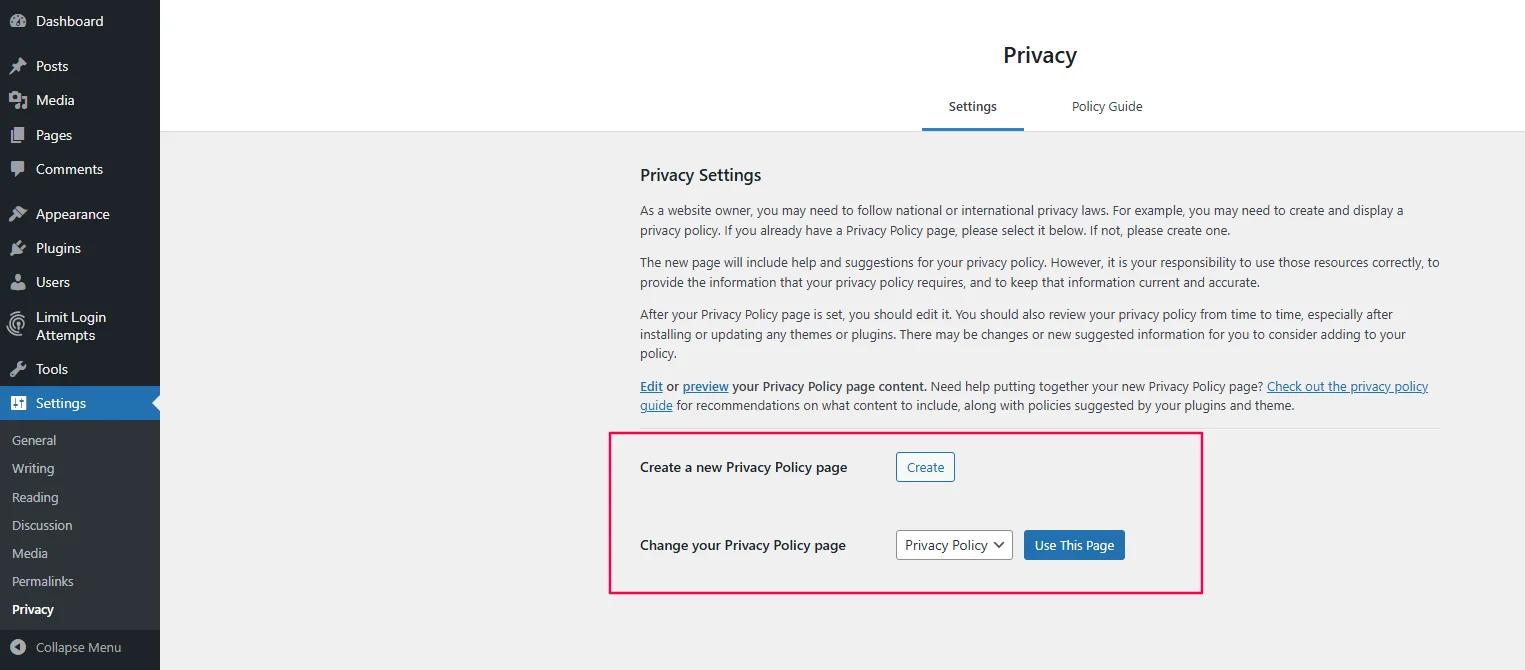
Added in later versions of WordPress, this panel helps you comply with data privacy laws like the GDPR.
-
Select a page: WordPress allows you to select a page that contains your Privacy Policy.
-
Create a new page: Click this button to have WordPress generate a sample Privacy Policy. It contains placeholder text that guides you on what information you need to include about cookies, data collection, and contact information.
-
Change your Privacy Policy page: Once the page is published, you can select it from the dropdown here. A special link to this page will then appear in your login and registration forms, fulfilling legal requirements.
Action Item: Even if you use the generated draft, you must review the text and customize it to fit your specific business practices (e.g., do you use Google Analytics? Mailchimp?).
Common WordPress Settings Mistakes to Avoid
Even experienced users sometimes misconfigure core settings. Here are the most common mistakes we see in 2026:
-
Leaving “Search Engine Visibility” checked: This accidentally blocks Google from indexing your site. Always verify this before launch.
-
Using the “Plain” permalink structure: URLs like
?p=123hurt SEO and look unprofessional. -
Forgetting to set timezone correctly: Scheduled posts may publish at the wrong time if timezone is incorrect.
-
Allowing open registration without protection: If “Anyone can register” is enabled without moderation, spam accounts can flood your website.
-
Oversized image settings: Setting large image sizes higher than your theme requires can slow down your site.
Pro Insight: Most WordPress problems don’t come from complex technical issues — they come from incorrect basic configuration. Getting Settings right from day one prevents future headaches.
Quick WordPress Settings Checklist (2026)
If you want a fast summary, here’s your final configuration checklist before launching your site:
-
Change the default Tagline (“Just another WordPress site”).
-
Set your Timezone correctly.
-
Choose “Post name” under Permalinks.
-
Leave “Search Engine Visibility” UNCHECKED.
-
Disable pingbacks and trackbacks.
-
Set a static homepage (for business sites).
-
Configure comment moderation rules.
-
Assign a proper Privacy Policy page.
-
Ensure your Site Address uses HTTPS.
Pro Tip: Review these settings every 6–12 months to ensure your site stays optimized as WordPress evolves.
Frequently Asked Questions
Q1: Why can’t I change my Permalinks from “Plain” to “Post name”?
A: If you get a 404 error after changing them, it’s usually a server issue. Your site needs a .htaccess file (on Apache servers) to process the pretty links. Make sure your WordPress files have permission to write to this file, or contact your host to check if mod_rewrite is enabled.
Q2: I changed my Media Settings, but my old images are still huge. Why?
A: WordPress only applies the Thumbnail, Medium, and Large size settings to images uploaded after the settings are saved. To regenerate sizes for old images, you need a plugin like “Regenerate Thumbnails.”
Q3: Do I need to allow comments on my business website?
A: Not necessarily. If you don’t have a blog or don’t want the spam headache, simply go to Settings > Discussion and uncheck “Allow people to post comments on new articles.” This disables the comment functionality globally.
Q4: What happens if I check “Search Engine Visibility”?
A: WordPress adds a meta tag to your site header that reads <meta name='robots' content='noindex' />. This tells Google and other search engines to remove your site from their index. Only use this for staging sites.
Conclusion
Configuring your WordPress settings might not be as glamorous as choosing a theme or installing plugins, but it is the foundation of a healthy website. By spending 15 minutes going through the General, Reading, Permalinks, and Privacy settings, you ensure your site is speaking the right language to both your visitors and search engines.
Have you ever made a mistake in your settings that broke your site? Let us know in the comments below! If you found this guide helpful, please share it with someone else building their first WordPress site.
Next Tutorial: WordPress Tools Menu Explained: Every Setting Made Simple
Previous Tutorial: What Is a WordPress Plugin? How to Install, Manage & Choose the Right Ones (2026 Guide)