





You’ve built a custom post type for your portfolio. Great! But right now, all your projects are just thrown into one big pile. There’s no way to separate web design projects from branding work or print designs.
That’s where taxonomies come in. Just starting ? Check full video tutorial here for better understanding of all the concepts.
Here’s the problem: Without taxonomies, your users can’t filter content. Your portfolio becomes a chaotic mess. Visitors can’t find what they’re looking for. And your carefully crafted projects get buried.
Here’s the solution: Custom taxonomies give you a powerful way to organize, filter, and display your content. They transform a simple list into a structured, navigable collection.
In this tutorial, you’ll master register_taxonomy()—WordPress’s function for creating custom organization systems. You’ll build a complete “Portfolio Categories” taxonomy that lets users group projects by type, client, or any way they want.
What We’re Building Today
We’re adding to our WP_Creative_Portfolio class:
class WP_Creative_Portfolio {

    public function __construct() {
        // From Video 3
        add_action('init', array($this, 'register_portfolio_cpt'));

        // TODAY'S ADDITION - Taxonomy registration
        add_action('init', array($this, 'register_portfolio_taxonomy'));
    }

    // From Video 3
    public function register_portfolio_cpt() { ... }

    // TODAY'S CODE
    public function register_portfolio_taxonomy() {
        // Taxonomy registration goes here
    }
}
By the end of this tutorial, you’ll have:
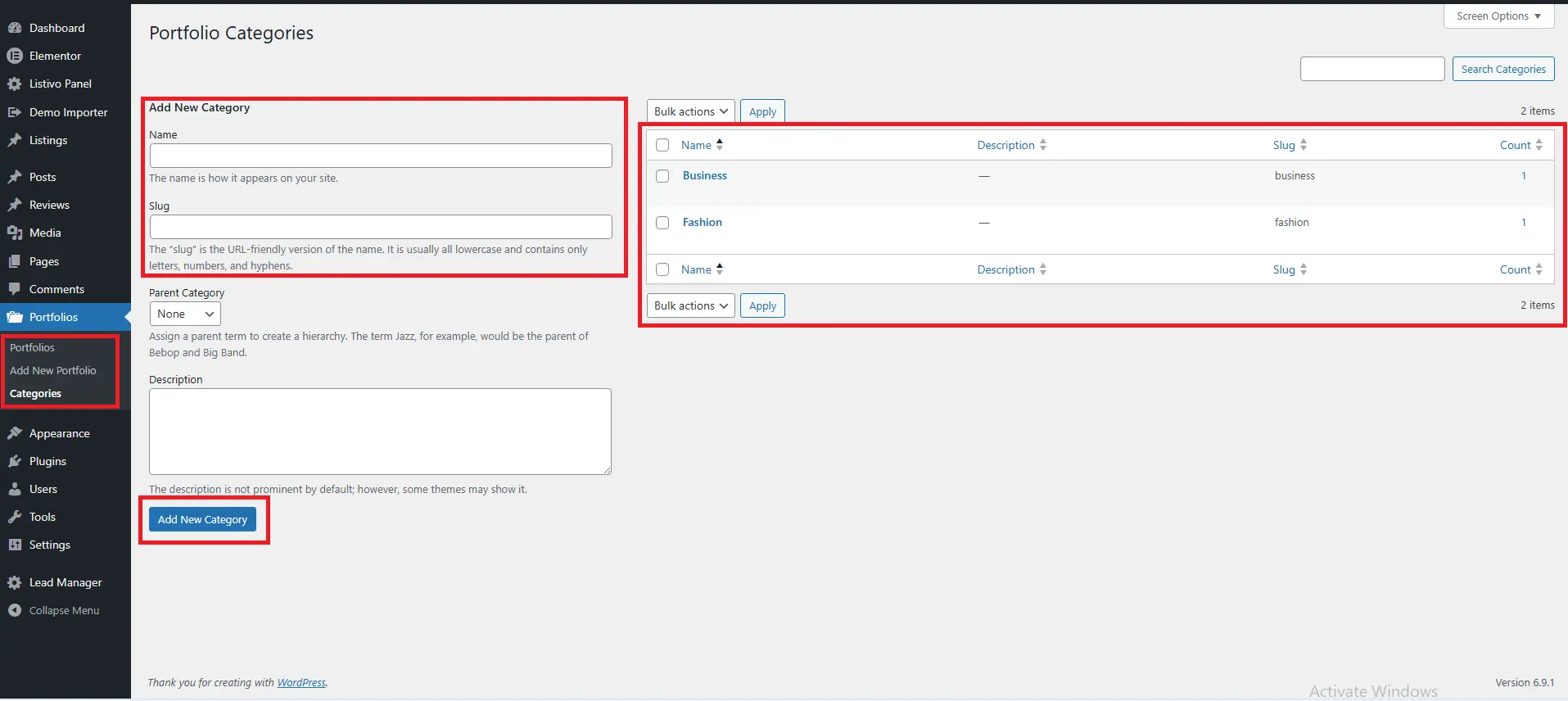
✅ A fully functional “Portfolio Categories” taxonomy
✅ Category selection in the portfolio editor
✅ Category archive pages (yoursite.com/portfolio-category/design/)
✅ Category column in the admin list table
✅ Gutenberg block support for categories
✅ Dynamic slug control from settings
What Exactly is a Taxonomy?
Let’s get technical (but stay practical).
In WordPress, a taxonomy is a way to group things. You already know two taxonomies:
-
Categories (hierarchical) – Like folders: “Design” can have “Web Design” as a child
-
Tags (non-hierarchical) – Like keywords: Just labels with no parent/child relationship
For our portfolio, we want hierarchical categories because:
-
Web Design → UI Design, UX Design, Responsive Design
-
Branding → Logo Design, Stationery, Brand Guidelines
-
Print → Brochures, Magazines, Packaging
This structure helps users drill down to exactly what they want.
The Complete Taxonomy Code
Update your includes/class-wp-creative-portfolio.php file. First, add the taxonomy method to your constructor:
public function __construct() {
    // Register CPT (from Video 3)
    add_action('init', array($this, 'register_portfolio_cpt'));

    // Register Taxonomy - ADD THIS LINE
    add_action('init', array($this, 'register_portfolio_taxonomy'));

    // Future methods will go here
}
Now add this complete method to your class:
/**
 * Register Portfolio Taxonomy (Categories)
 */
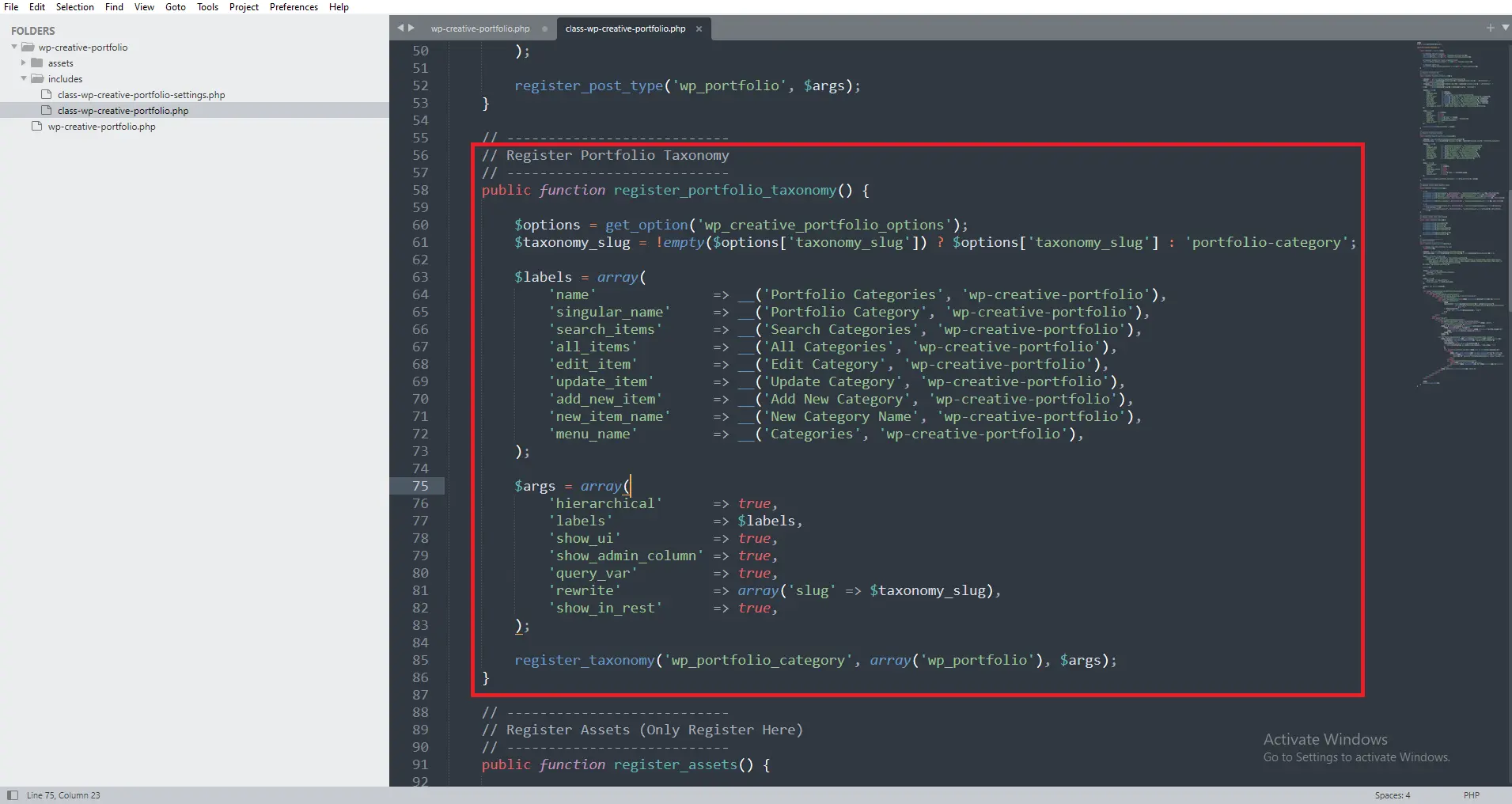
public function register_portfolio_taxonomy() {

    // Get settings for dynamic slug
    $options = get_option('wp_creative_portfolio_options');
    $taxonomy_slug = !empty($options['taxonomy_slug']) ? $options['taxonomy_slug'] : 'portfolio-category';

    // Labels control admin display
    $labels = array(
        'name'                       => _x( 'Portfolio Categories', 'taxonomy general name', 'wp-creative-portfolio' ),
        'singular_name'              => _x( 'Portfolio Category', 'taxonomy singular name', 'wp-creative-portfolio' ),
        'search_items'               => __( 'Search Categories', 'wp-creative-portfolio' ),
        'popular_items'              => __( 'Popular Categories', 'wp-creative-portfolio' ),
        'all_items'                  => __( 'All Categories', 'wp-creative-portfolio' ),
        'parent_item'                => __( 'Parent Category', 'wp-creative-portfolio' ),
        'parent_item_colon'          => __( 'Parent Category:', 'wp-creative-portfolio' ),
        'edit_item'                  => __( 'Edit Category', 'wp-creative-portfolio' ),
        'update_item'                => __( 'Update Category', 'wp-creative-portfolio' ),
        'add_new_item'               => __( 'Add New Category', 'wp-creative-portfolio' ),
        'new_item_name'              => __( 'New Category Name', 'wp-creative-portfolio' ),
        'separate_items_with_commas' => __( 'Separate categories with commas', 'wp-creative-portfolio' ),
        'add_or_remove_items'        => __( 'Add or remove categories', 'wp-creative-portfolio' ),
        'choose_from_most_used'      => __( 'Choose from most used categories', 'wp-creative-portfolio' ),
        'not_found'                  => __( 'No categories found.', 'wp-creative-portfolio' ),
        'no_terms'                   => __( 'No categories', 'wp-creative-portfolio' ),
        'menu_name'                  => __( 'Categories', 'wp-creative-portfolio' ),
        'items_list_navigation'      => __( 'Categories list navigation', 'wp-creative-portfolio' ),
        'items_list'                 => __( 'Categories list', 'wp-creative-portfolio' ),
        'back_to_items'              => __( '← Back to categories', 'wp-creative-portfolio' ),
    );

    // Arguments control taxonomy behavior
    $args = array(
        'labels'                => $labels,
        'hierarchical'          => true,      // Like categories (not tags)
        'public'                => true,
        'show_ui'               => true,      // Show in admin
        'show_admin_column'     => true,      // Show in post list table
        'show_in_nav_menus'     => true,      // Available in menus
        'show_tagcloud'         => false,     // No tag cloud for categories
        'show_in_rest'          => true,      // Gutenberg support
        'rest_base'             => 'portfolio-categories',
        'rest_controller_class' => 'WP_REST_Terms_Controller',
        'query_var'             => true,      // Allow querying by category
        'rewrite'               => array(
            'slug'         => $taxonomy_slug,
            'with_front'   => true,
            'hierarchical' => true,           // Allow nested URLs
        ),
    );

    // Register taxonomy for our portfolio post type
    register_taxonomy(
        'wp_portfolio_category',              // Taxonomy name
        array( 'wp_portfolio' ),              // Post types to attach to
        $args                                  // Arguments
    );
}
Deep Dive: Understanding register_taxonomy()
The register_taxonomy() function takes three parameters:
-
Taxonomy name –
'wp_portfolio_category'(unique, lowercase, underscores) -
Object type – Which post types use this taxonomy:
array('wp_portfolio') -
Arguments array – Configuration options
The Labels Array (Lines 13-37)
Labels control what users see when managing categories:
| Label | Purpose | Example |
|---|---|---|
name |
General name | “Portfolio Categories” |
singular_name |
Single item | “Portfolio Category” |
search_items |
Search button | “Search Categories” |
popular_items |
Most used view | “Popular Categories” |
all_items |
All items link | “All Categories” |
parent_item |
Parent dropdown | “Parent Category” |
edit_item |
Edit screen | “Edit Category” |
update_item |
Update button | “Update Category” |
add_new_item |
Add new screen | “Add New Category” |
menu_name |
Admin menu | “Categories” |
Why so many labels? WordPress uses each one in specific contexts. Providing them all makes your taxonomy feel like a native WordPress feature.
Critical Arguments Explained
hierarchical (Line 41)
'hierarchical' => true,
-
true = Categories (supports parent/child relationships)
-
false = Tags (flat structure, no hierarchy)
For portfolios, set this to true. Designers often want “Web Design” with subcategories like “UI Design” and “UX Design.”
show_admin_column (Line 44)
'show_admin_column' => true,
Adds a “Categories” column to your portfolio list table. Users can see categories at a glance and filter by clicking.
show_in_rest (Line 46)
'show_in_rest' => true,
Enables:
-
Gutenberg category selector
-
REST API endpoints (
/wp-json/wp/v2/wp_portfolio_category) -
Future block editor features
rewrite (Lines 50-54)
'rewrite' => array(
    'slug'         => $taxonomy_slug,  // URL slug
    'with_front'   => true,             // Respect permalink structure
    'hierarchical' => true,              // Allow nested URLs
),
With these settings:
-
Archive:
yoursite.com/portfolio-category/design/ -
Child category:
yoursite.com/portfolio-category/design/web/ -
With slug changed to “work-category”:
yoursite.com/work-category/design/
query_var (Line 49)
'query_var' => true,
Allows queries like:
yoursite.com/portfolio/?wp_portfolio_category=design
Useful for custom queries and AJAX filtering.
The register_taxonomy() Call (Lines 58-62)
register_taxonomy(
    'wp_portfolio_category',
    array( 'wp_portfolio' ),
    $args
);
Parameter 1: Taxonomy Name – 'wp_portfolio_category'
-
Must be unique (prefix with ‘wp_’ to avoid conflicts)
-
Use underscores, not hyphens
-
WordPress stores terms with this name in database
Parameter 2: Object Types – array('wp_portfolio')
-
Can attach to multiple post types:
array('wp_portfolio', 'post', 'page') -
Each post type gets the same categories (shared taxonomy)
Parameter 3: Arguments – $args array we defined
Testing Your Taxonomy
Step 1: Add the Code
Update your class file with the new method.
Step 2: Create Categories
-
Go to Portfolios → Categories
-
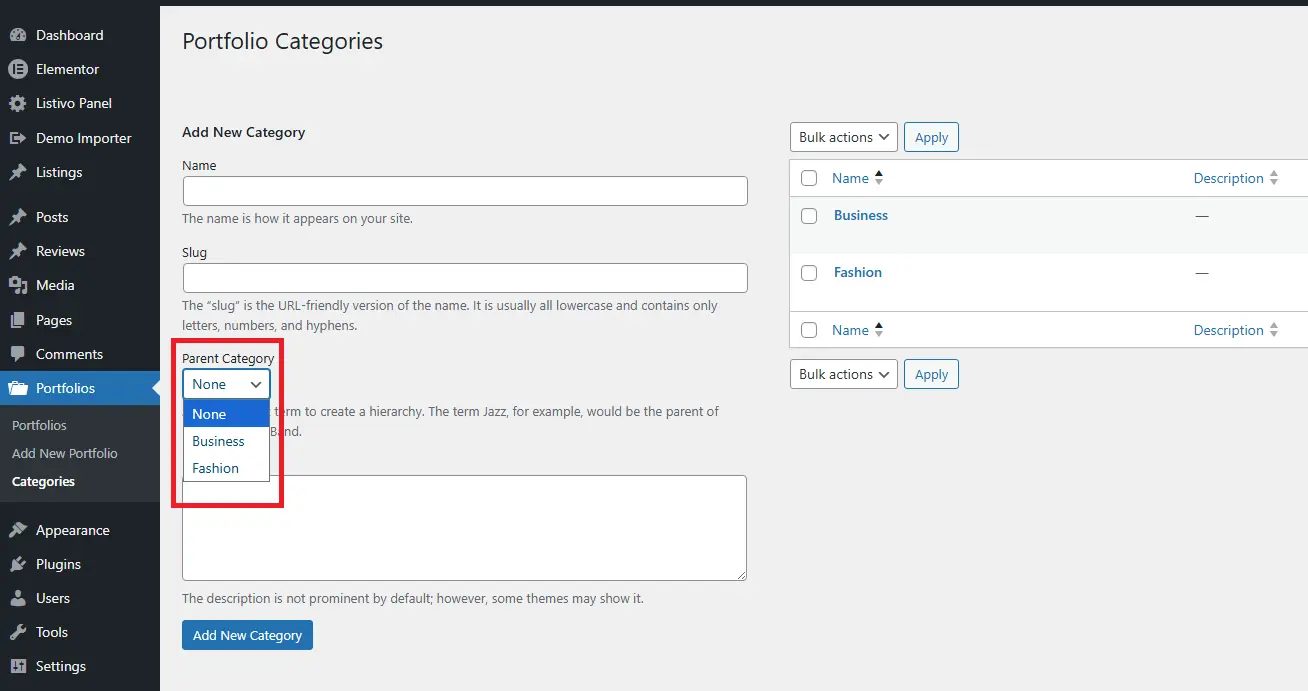
Add a parent category: “Web Design”
-
Add a child category: “UI Design” (select “Web Design” as parent)
-
Add another: “Branding”
-
Add another: “Print”
Step 3: Assign Categories to Portfolio Items
-
Edit your existing portfolio item (or create a new one)
-
In the “Categories” meta box, check some categories
-
Update/publish the item
Step 4: View Category Archives
-
Visit
yoursite.com/portfolio-category/web-design/ -
You should see all items in Web Design (including child UI Design items)
-
Visit
yoursite.com/portfolio-category/design/ui/ -
You should see only UI Design items
Step 5: Test Hierarchical URLs
If you created “UI Design” under “Web Design”:
-
yoursite.com/portfolio-category/web-design/ui/should work -
This requires
'hierarchical' => truein rewrite rules
Common Problems and Solutions
Problem: Categories Not Showing in Editor
Solution: Check these in order:
-
Did you register taxonomy for ‘wp_portfolio’ post type?
-
Is
show_ui => true? -
Is
show_in_rest => truefor Gutenberg? -
Clear browser cache
Problem: 404 on Category Archive Pages
Solution:
-
Go to Settings → Permalinks
-
Click “Save Changes” (flushes rewrite rules)
-
If using custom slug, ensure it’s not conflicting with pages
Problem: Parent/Child Categories Not Working
Solution: Verify:
-
'hierarchical' => truein arguments -
When creating categories, actually select a parent
-
In rewrite rules,
'hierarchical' => true
Problem: Categories Column Not Showing in Admin
Solution: Check 'show_admin_column' => true
Advanced: Multiple Taxonomies
You can register multiple taxonomies for the same post type. For portfolios, you might want:
// Project Type (hierarchical)
register_taxonomy('wp_portfolio_type', array('wp_portfolio'), $type_args);

// Skills Used (non-hierarchical like tags)
register_taxonomy('wp_portfolio_skill', array('wp_portfolio'), $skill_args);

// Clients (hierarchical)
register_taxonomy('wp_portfolio_client', array('wp_portfolio'), $client_args);
Each taxonomy gives users different ways to organize and filter content.
The Settings Connection
Remember this line:
$taxonomy_slug = !empty($options['taxonomy_slug']) ? $options['taxonomy_slug'] : 'portfolio-category';
In Video 10, we’ll build a settings page that lets users:
-
Change “portfolio-category” to “work-type” or “project-category”
-
Control URLs without touching code
-
Set other options like posts per page
This makes your plugin flexible without requiring coding knowledge.
What’s Happening in the Database
When you register a taxonomy, WordPress creates:
Terms table (wp_terms):
-
Stores category names and slugs
-
Each category gets a unique ID
Term taxonomy table (wp_term_taxonomy):
-
Links terms to taxonomies
-
Stores parent/child relationships
Term relationships table (wp_term_relationships):
-
Links terms to posts
-
Each post-category pairing is a row
Understanding this helps when writing custom queries (Video 7).
Performance Considerations
Taxonomies are efficient because:
-
Terms are cached (wp_cache)
-
Taxonomy queries use indexes
-
WordPress optimizes term counting
Best practices:
-
Use
'update_count_callback'for custom post types (WordPress handles this automatically) -
Don’t create thousands of terms (unlikely for portfolios)
-
Use
wp_set_object_terms()carefully in loops
Complete Class Code So Far
Here’s your updated class-wp-creative-portfolio.php with CPT and taxonomy:
<?php /** * Main portfolio functionality class * * @package WP_Creative_Portfolio */ if ( ! defined( 'ABSPATH' ) ) { exit; } class WP_Creative_Portfolio { /** * Constructor */ public function __construct() { // Register Custom Post Type add_action( 'init', array( $this, 'register_portfolio_cpt' ) ); // Register Taxonomy add_action( 'init', array( $this, 'register_portfolio_taxonomy' ) ); } /** * Register Portfolio Custom Post Type */ public function register_portfolio_cpt() { $options = get_option( 'wp_creative_portfolio_options' ); $plural = ! empty( $options['plural_name'] ) ? $options['plural_name'] : 'Portfolios'; $singular = ! empty( $options['singular_name'] ) ? $options['singular_name'] : 'Portfolio'; $slug = ! empty( $options['slug'] ) ? $options['slug'] : 'portfolio'; $labels = array( 'name' => $plural, 'singular_name' => $singular, 'add_new' => 'Add New', 'add_new_item' => 'Add New ' . $singular, 'edit_item' => 'Edit ' . $singular, 'new_item' => 'New ' . $singular, 'view_item' => 'View ' . $singular, 'search_items' => 'Search ' . $plural, 'not_found' => 'No ' . $plural . ' found', 'not_found_in_trash' => 'No ' . $plural . ' found in Trash', 'all_items' => 'All ' . $plural, 'menu_name' => $plural, 'name_admin_bar' => $singular, ); $args = array( 'labels' => $labels, 'public' => true, 'publicly_queryable' => true, 'show_ui' => true, 'show_in_menu' => true, 'query_var' => true, 'rewrite' => array( 'slug' => $slug, 'with_front' => true, 'pages' => true, 'feeds' => true, ), 'capability_type' => 'post', 'has_archive' => true, 'hierarchical' => false, 'menu_position' => 20, 'menu_icon' => 'dashicons-portfolio', 'supports' => array( 'title', 'editor', 'thumbnail', 'excerpt', 'custom-fields', 'revisions', ), 'show_in_rest' => true, 'rest_base' => 'portfolio', ); register_post_type( 'wp_portfolio', $args ); } /** * Register Portfolio Taxonomy */ public function register_portfolio_taxonomy() { $options = get_option( 'wp_creative_portfolio_options' ); $taxonomy_slug = !empty($options['taxonomy_slug']) ? $options['taxonomy_slug'] : 'portfolio-category'; $labels = array( 'name' => _x( 'Portfolio Categories', 'taxonomy general name', 'wp-creative-portfolio' ), 'singular_name' => _x( 'Portfolio Category', 'taxonomy singular name', 'wp-creative-portfolio' ), 'search_items' => __( 'Search Categories', 'wp-creative-portfolio' ), 'popular_items' => __( 'Popular Categories', 'wp-creative-portfolio' ), 'all_items' => __( 'All Categories', 'wp-creative-portfolio' ), 'parent_item' => __( 'Parent Category', 'wp-creative-portfolio' ), 'parent_item_colon' => __( 'Parent Category:', 'wp-creative-portfolio' ), 'edit_item' => __( 'Edit Category', 'wp-creative-portfolio' ), 'update_item' => __( 'Update Category', 'wp-creative-portfolio' ), 'add_new_item' => __( 'Add New Category', 'wp-creative-portfolio' ), 'new_item_name' => __( 'New Category Name', 'wp-creative-portfolio' ), 'separate_items_with_commas' => __( 'Separate categories with commas', 'wp-creative-portfolio' ), 'add_or_remove_items' => __( 'Add or remove categories', 'wp-creative-portfolio' ), 'choose_from_most_used' => __( 'Choose from most used categories', 'wp-creative-portfolio' ), 'not_found' => __( 'No categories found.', 'wp-creative-portfolio' ), 'no_terms' => __( 'No categories', 'wp-creative-portfolio' ), 'menu_name' => __( 'Categories', 'wp-creative-portfolio' ), 'items_list_navigation' => __( 'Categories list navigation', 'wp-creative-portfolio' ), 'items_list' => __( 'Categories list', 'wp-creative-portfolio' ), 'back_to_items' => __( '← Back to categories', 'wp-creative-portfolio' ), ); $args = array( 'labels' => $labels, 'hierarchical' => true, 'public' => true, 'show_ui' => true, 'show_admin_column' => true, 'show_in_nav_menus' => true, 'show_tagcloud' => false, 'show_in_rest' => true, 'rest_base' => 'portfolio-categories', 'query_var' => true, 'rewrite' => array( 'slug' => $taxonomy_slug, 'with_front' => true, 'hierarchical' => true, ), ); register_taxonomy( 'wp_portfolio_category', array( 'wp_portfolio' ), $args ); } }
Frequently Asked Questions
What’s the difference between categories and tags?
Categories are hierarchical (parent/child). Tags are flat. Use categories for structured organization, tags for flexible keywords.
Can I use the same taxonomy for multiple post types?
Yes! Pass an array: array(‘wp_portfolio’, ‘post’, ‘page’). All post types share the same categories.
How do I get terms for a specific post?
Use wp_get_post_terms( $post_id, ‘wp_portfolio_category’ ). We’ll use this in Video 7.
Can I have both categories and tags?
Absolutely. Register one hierarchical taxonomy and one non-hierarchical. Users can organize both ways.
What’s the maximum number of terms?
No hard limit, but performance degrades with tens of thousands. For portfolios, you’re safe.
Will categories work with my theme?
Category archives use standard template hierarchy. Most themes support them automatically.
Real-World Examples
Photography Portfolio:
-
Categories: Wedding, Portrait, Commercial, Event
-
Tags: Outdoor, Studio, Black and White, Color
Agency Portfolio:
-
Categories: Web Design, Branding, Marketing, Print
-
Subcategories: E-commerce, Corporate, Non-profit
Product Design Portfolio:
-
Categories: Consumer Products, Medical Devices, Furniture
-
Subcategories: Concept, Production, Award-winning
What’s Next?
Your portfolio plugin now has:
✅ Custom post type for projects (Video/Post 3)
✅ Categories for organization (Video/Post 4)
In Video/Post 5, you’ll learn how to properly load CSS and JavaScript. This is where most plugins fail—loading assets on every page. You’ll learn the WordPress way: register globally, enqueue only when needed.
Click here to watch on youtube
Troubleshooting Checklist
If something isn’t working:
-
Taxonomy registered on
inithook? -
Taxonomy attached to correct post type?
-
show_uiset to true? -
Flushed rewrite rules?
-
Created at least one term?
-
Assigned term to a post?
-
Checked category archive URL?
Share Your Progress!
You’ve now built the data structure for a complete portfolio plugin. This is the foundation everything else builds on.
Question for you: What categories would you create for your portfolio? Drop them in the comments! I’d love to see what you’re building.
Having issues? Paste your error message and what you’ve tried. I help every commenter.
Next: Video/Post 5 – Asset Management: Loading CSS and JavaScript the Right Way



