






You’ve done the hard work. You’ve built a custom post type for portfolio items. You’ve created categories to organize them. You’ve registered your assets and built a shortcode foundation.
But right now, your shortcode just shows placeholder text. “Portfolio items will appear here.” Not exactly impressive.
Today, that changes. Also, if you are new, check our full tutorial here to get full understanding about plugin development.
In this tutorial, you’ll finally bring your portfolio to life. You’ll use WP_Query to fetch actual portfolio items from the database. You’ll display them in a beautiful grid. You’ll add category filter buttons so users can sort by project type. And you’ll integrate with the lightbox so images pop up beautifully.
By the end, your plugin will be fully functional—ready to use on real client sites.
What We’re Building Today
We’re replacing that placeholder text with a real portfolio grid. Here’s what your render_portfolio() method will do:
-
Query portfolio items using
WP_Query -
Get all categories for filter buttons
-
Loop through items and display each one
-
Add category classes for JavaScript filtering
-
Include lightbox links for images
-
Reset post data to prevent conflicts
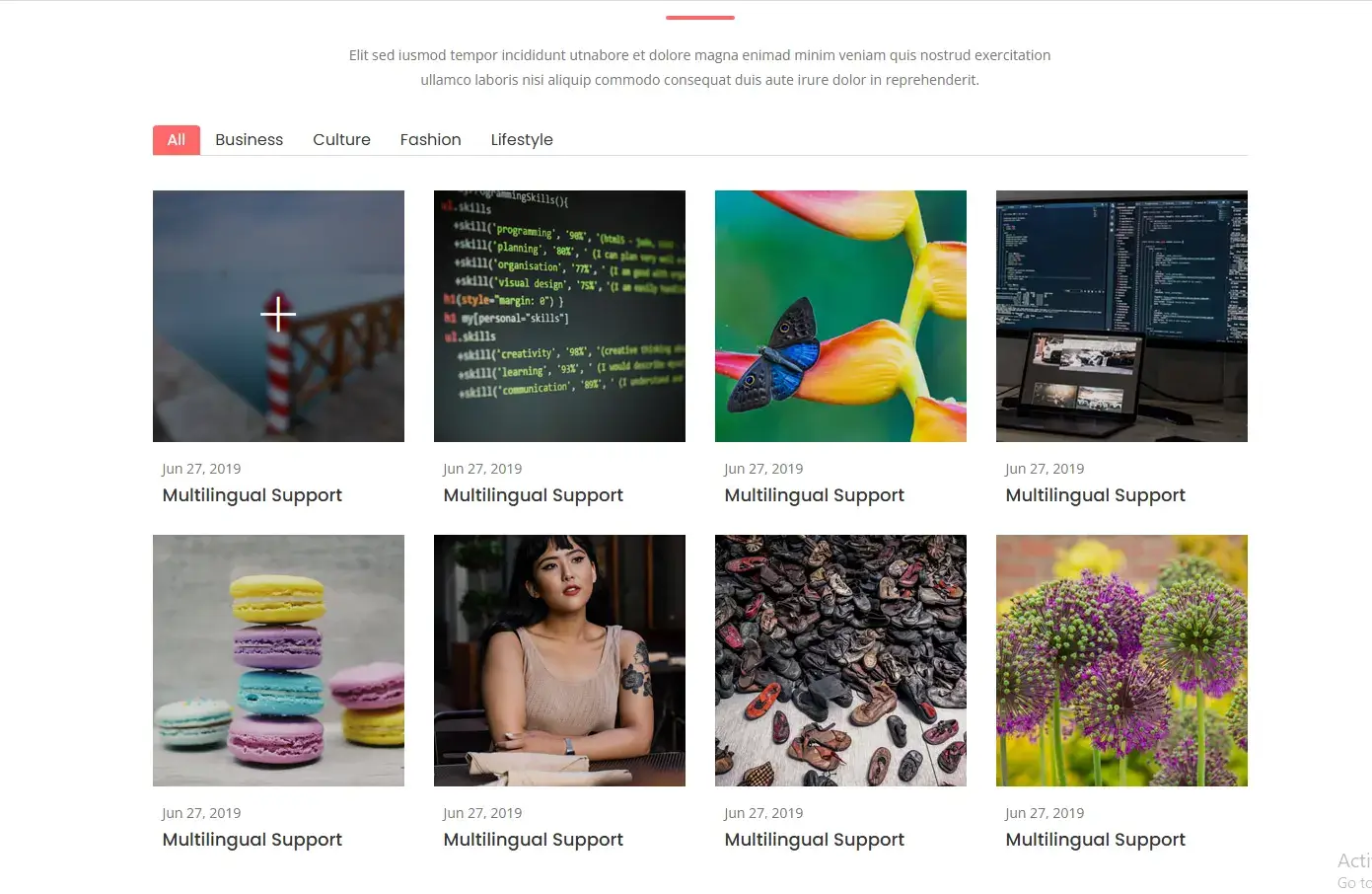
Understanding WP_Query
WP_Query is WordPress’s most powerful class for fetching content. Unlike get_posts(), it gives you access to the Loop—the familiar have_posts() and the_post() functions you know from theme development.
Basic query for our portfolio:
$args = array(
    'post_type'      => 'wp_portfolio',
    'posts_per_page' => -1, // Get all items
    'post_status'    => 'publish',
);

$query = new WP_Query($args);

if ($query->have_posts()) :
    while ($query->have_posts()) : $query->the_post();
        // Display each item
    endwhile;
    wp_reset_postdata();
endif;
The Complete Updated Shortcode
Replace your existing render_portfolio() method with this complete code:
/**
 * Render the portfolio shortcode
 *
 * @param array $atts Shortcode attributes
 * @return string HTML output
 */
public function render_portfolio($atts) {

    // =============================================
    // 1. ENQUEUE ASSETS (ONLY WHEN SHORTCODE IS USED)
    // =============================================
    self::enqueue_assets();

    // =============================================
    // 2. GET SETTINGS FROM DATABASE
    // =============================================
    $options = get_option('wp_creative_portfolio_options');
    $posts_per_page = !empty($options['posts_per_page']) ? intval($options['posts_per_page']) : -1;

    // =============================================
    // 3. DEFINE SHORTCODE ATTRIBUTES WITH DEFAULTS
    // =============================================
    $atts = shortcode_atts(
        array(
            'title'       => __('My Portfolio', 'wp-creative-portfolio'),
            'description' => __('Check out my latest work', 'wp-creative-portfolio'),
            'category'    => '',
            'columns'     => 3,
            'count'       => $posts_per_page,
        ),
        $atts,
        'wp_creative_portfolio'
    );

    // =============================================
    // 4. SANITIZE ATTRIBUTES
    // =============================================
    $title       = sanitize_text_field($atts['title']);
    $description = sanitize_textarea_field($atts['description']);
    $category    = sanitize_title($atts['category']);
    $columns     = intval($atts['columns']);
    $count       = intval($atts['count']);

    // Validate columns (ensure between 1-4)
    if ($columns < 1 || $columns > 4) {
        $columns = 3;
    }

    // =============================================
    // 5. GET CATEGORIES FOR FILTER BUTTONS
    // =============================================
    $tax_args = array(
        'taxonomy'   => 'wp_portfolio_category',
        'hide_empty' => true, // Only show categories with items
    );

    // If specific category requested, only get that one
    if (!empty($category)) {
        $tax_args['slug'] = $category;
    }

    $terms = get_terms($tax_args);

    // =============================================
    // 6. BUILD WP_QUERY ARGUMENTS
    // =============================================
    $args = array(
        'post_type'      => 'wp_portfolio',
        'posts_per_page' => $count,
        'post_status'    => 'publish',
        'orderby'        => 'date',
        'order'          => 'DESC',
    );

    // Add category filter if specified
    if (!empty($category)) {
        $args['tax_query'] = array(
            array(
                'taxonomy' => 'wp_portfolio_category',
                'field'    => 'slug',
                'terms'    => $category,
            ),
        );
    }

    // =============================================
    // 7. RUN THE QUERY
    // =============================================
    $query = new WP_Query($args);

    // =============================================
    // 8. START OUTPUT BUFFERING
    // =============================================
    ob_start();
    ?>

    <div class="wp-creative-portfolio" data-columns="<?php echo esc_attr($columns); ?>">

        <?php if (!empty($title) || !empty($description)) : ?>
        <div class="portfolio-header">

            <?php if (!empty($title)) : ?>
                <h2 class="portfolio-title"><?php echo esc_html($title); ?></h2>
            <?php endif; ?>

            <?php if (!empty($description)) : ?>
                <div class="portfolio-description">
                    <p><?php echo esc_html($description); ?></p>
                </div>
            <?php endif; ?>

        </div>
        <?php endif; ?>

        <!-- Category Filter Buttons -->
        <?php if (empty($category) && !empty($terms) && !is_wp_error($terms)) : ?>
        <ul class="portfolio-filter">
            <li class="filter-active">
                <a href="#" data-filter="*"><?php esc_html_e('All', 'wp-creative-portfolio'); ?></a>
            </li>
            <?php foreach ($terms as $term) : ?>
                <li>
                    <a href="#" data-filter=".<?php echo esc_attr($term->slug); ?>">
                        <?php echo esc_html($term->name); ?>
                    </a>
                </li>
            <?php endforeach; ?>
        </ul>
        <?php endif; ?>

        <!-- Portfolio Grid -->
        <div class="portfolio-grid">

            <?php if ($query->have_posts()) : ?>

                <?php while ($query->have_posts()) : $query->the_post(); ?>

                    <?php
                    // Get categories for this item (for filter classes)
                    $item_categories = get_the_terms(get_the_ID(), 'wp_portfolio_category');
                    $filter_classes = '';

                    if ($item_categories && !is_wp_error($item_categories)) {
                        foreach ($item_categories as $cat) {
                            $filter_classes .= $cat->slug . ' ';
                        }
                    }

                    // Get featured image URL
                    $thumbnail_url = get_the_post_thumbnail_url(get_the_ID(), 'large');
                    $full_image_url = get_the_post_thumbnail_url(get_the_ID(), 'full');

                    // If no featured image, use placeholder
                    if (empty($thumbnail_url)) {
                        $thumbnail_url = 'https://via.placeholder.com/600x400?text=' . urlencode(get_the_title());
                        $full_image_url = $thumbnail_url;
                    }
                    ?>

                    <div class="portfolio-item <?php echo esc_attr($filter_classes); ?>">
                        <div class="portfolio-item-inner">

                            <figure class="portfolio-image">
                                <img src="<?php echo esc_url($thumbnail_url); ?>"
                                     alt="<?php the_title_attribute(); ?>">

                                <div class="portfolio-overlay">
                                    <a href="<?php echo esc_url($full_image_url); ?>"
                                       class="portfolio-lightbox"
                                       data-rel="prettyPhoto[portfolio]"
                                       title="<?php the_title_attribute(); ?>">
                                        <i class="ti-plus"></i>
                                    </a>
                                </div>
                            </figure>

                            <div class="portfolio-content">
                                <span class="portfolio-date"><?php echo get_the_date(); ?></span>
                                <h3 class="portfolio-title">
                                    <a href="<?php the_permalink(); ?>">
                                        <?php the_title(); ?>
                                    </a>
                                </h3>
                            </div>

                        </div>
                    </div>

                <?php endwhile; ?>

                <?php wp_reset_postdata(); ?>

            <?php else : ?>

                <p class="portfolio-no-items">
                    <?php esc_html_e('No portfolio items found.', 'wp-creative-portfolio'); ?>
                </p>

            <?php endif; ?>

        </div><!-- .portfolio-grid -->

    </div><!-- .wp-creative-portfolio -->

    <?php
    // =============================================
    // 9. RETURN THE BUFFERED CONTENT
    // =============================================
    return ob_get_clean();
}
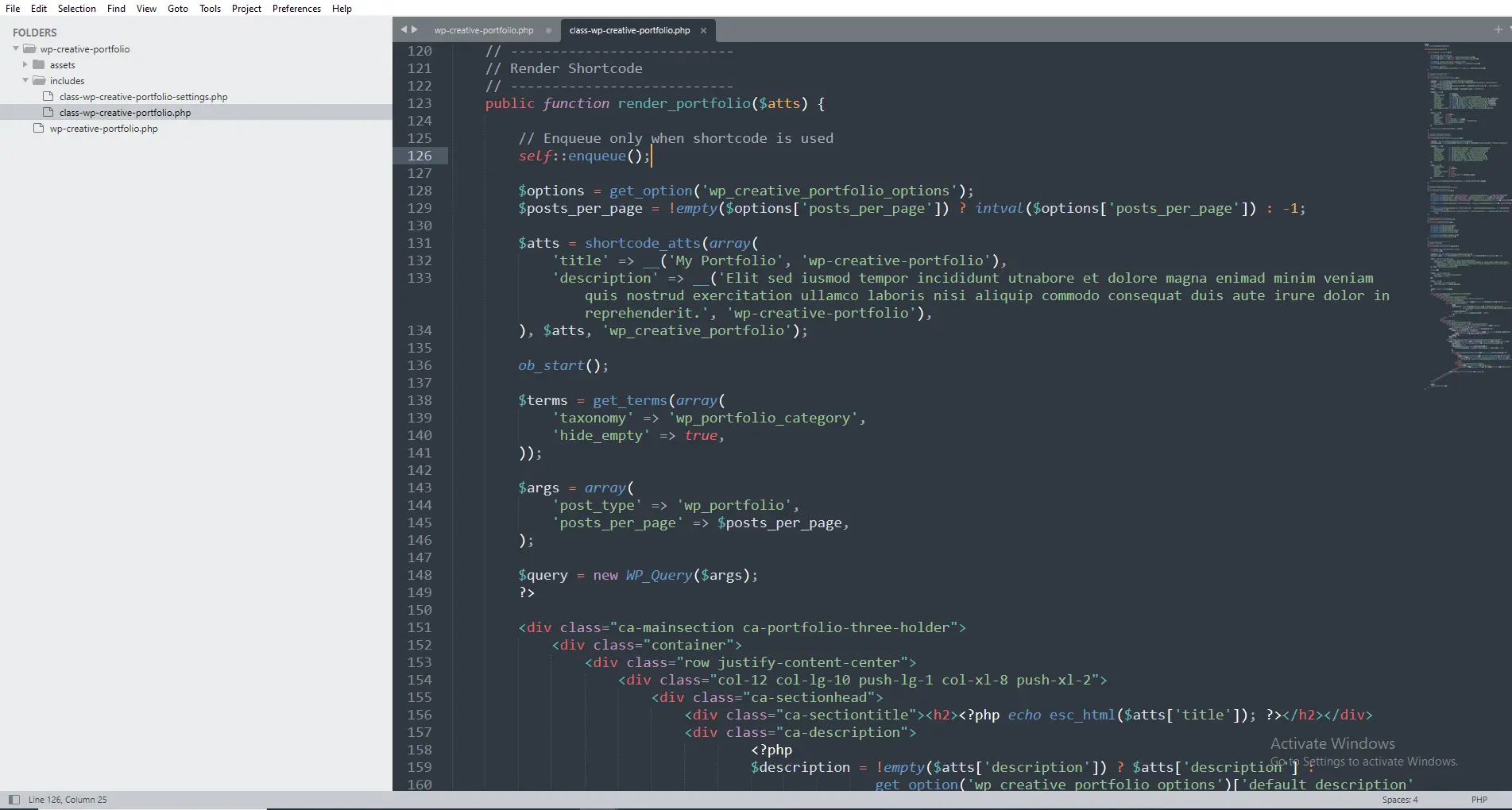
Figure 2: The complete shortcode method with WP_Query and grid display
Breaking Down the Query
Basic Query Arguments
$args = array(
    'post_type'      => 'wp_portfolio',      // Our custom post type
    'posts_per_page' => $count,               // From shortcode attribute
    'post_status'    => 'publish',            // Only published items
    'orderby'        => 'date',                // Newest first
    'order'          => 'DESC',                // Descending order
);
Available orderby options:
-
date– By publish date -
title– Alphabetical by title -
rand– Random order (fun for portfolios!) -
menu_order– Custom order (if you add page attributes)
Category Filtering with Tax Query
if (!empty($category)) {
    $args['tax_query'] = array(
        array(
            'taxonomy' => 'wp_portfolio_category',
            'field'    => 'slug',              // We're using slug
            'terms'    => $category,           // Category from shortcode
        ),
    );
}
This adds a filter to show only items from a specific category. When a user uses [wp_creative_portfolio category="web-design"], they’ll only see web design projects.
Getting Categories for Filter Buttons
Before displaying items, we need to get all categories for the filter buttons:
$tax_args = array(
    'taxonomy'   => 'wp_portfolio_category',
    'hide_empty' => true, // Only show categories with items
);

$terms = get_terms($tax_args);
Why hide_empty? It prevents showing categories that have no portfolio items. Cleaner UI.
Then we display them as filter buttons:
<ul class="portfolio-filter">
    <li class="filter-active">
        <a href="#" data-filter="*">All</a>
    </li>
    <?php foreach ($terms as $term) : ?>
        <li>
            <a href="#" data-filter=".<?php echo esc_attr($term->slug); ?>">
                <?php echo esc_html($term->name); ?>
            </a>
        </li>
    <?php endforeach; ?>
</ul>
The Portfolio Item Loop
Inside the loop, we display each portfolio item:
while ($query->have_posts()) : $query->the_post();

    // Get categories for this item
    $item_categories = get_the_terms(get_the_ID(), 'wp_portfolio_category');
    $filter_classes = '';

    if ($item_categories && !is_wp_error($item_categories)) {
        foreach ($item_categories as $cat) {
            $filter_classes .= $cat->slug . ' ';
        }
    }

    // Get featured image
    $thumbnail_url = get_the_post_thumbnail_url(get_the_ID(), 'large');
    $full_image_url = get_the_post_thumbnail_url(get_the_ID(), 'full');
    ?>

    <div class="portfolio-item <?php echo esc_attr($filter_classes); ?>">
        <!-- Item content -->
    </div>

<?php endwhile; ?>
Understanding the Filter Classes
The $filter_classes variable adds category slugs as CSS classes:
<div class="portfolio-item web-design branding">
The JavaScript filtering library (in your plugins.js) looks for these classes. When someone clicks “Web Design”, it hides all items without the web-design class.
Featured Image Handling
We handle images carefully:
// Get featured image URLs
$thumbnail_url = get_the_post_thumbnail_url(get_the_ID(), 'large');
$full_image_url = get_the_post_thumbnail_url(get_the_ID(), 'full');

// If no featured image, use placeholder
if (empty($thumbnail_url)) {
    $thumbnail_url = 'https://via.placeholder.com/600x400?text=' . urlencode(get_the_title());
    $full_image_url = $thumbnail_url;
}
Why both sizes?
-
large– For the grid display (faster loading) -
full– For the lightbox popup (full resolution)
Placeholder fallback: If a user forgets to set a featured image, we show a placeholder with the project title. Much better than a broken image icon.
The Lightbox Integration
Look at the overlay link:
<a href="<?php echo esc_url($full_image_url); ?>"
   class="portfolio-lightbox"
   data-rel="prettyPhoto[portfolio]"
   title="<?php the_title_attribute(); ?>">
    <i class="ti-plus"></i>
</a>
This works with the PrettyPhoto library (in your plugins.js) to create a beautiful lightbox popup when someone clicks the plus icon.
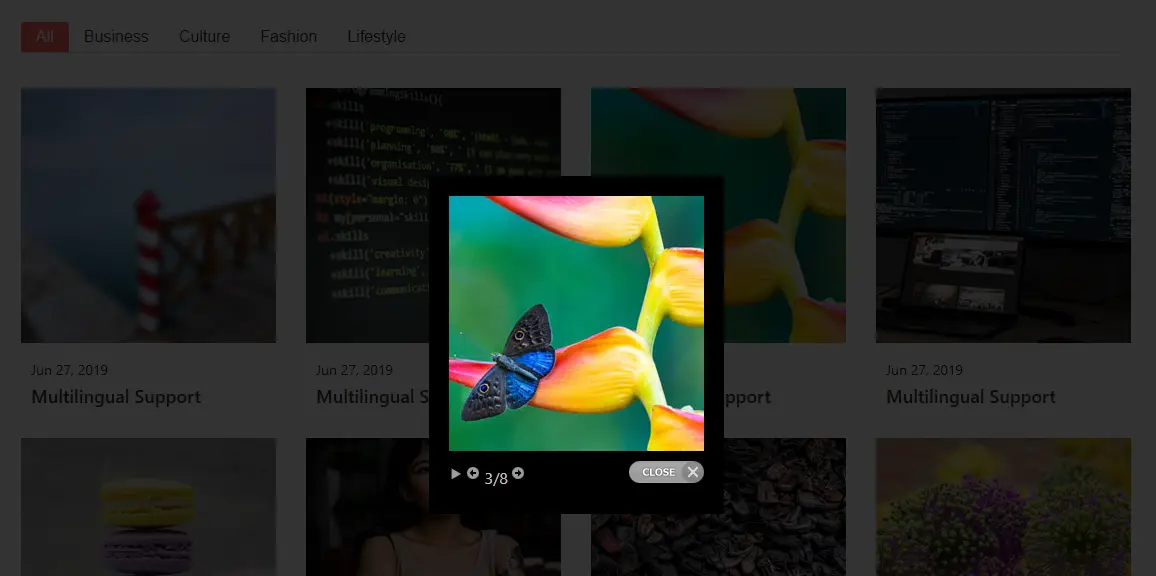
*Figure 4: Lightbox popup displaying the full-size portfolio image*
Resetting Post Data
After any custom query, ALWAYS reset post data:
<?php wp_reset_postdata(); ?>
Why this matters: Without resetting, subsequent WordPress functions (like the_title() outside your loop) would use the last post from your query instead of the main query. This breaks themes and other plugins.
Complete Class Integration
Here’s how your render_portfolio() method fits into the complete class:
class WP_Creative_Portfolio {

    public function __construct() {
        add_action('init', array($this, 'register_portfolio_cpt'));
        add_action('init', array($this, 'register_portfolio_taxonomy'));
        add_action('wp_enqueue_scripts', array($this, 'register_assets'));
        add_shortcode('wp_creative_portfolio', array($this, 'render_portfolio'));
    }

    public function register_portfolio_cpt() { /* from Video 3 */ }

    public function register_portfolio_taxonomy() { /* from Video 4 */ }

    public function register_assets() { /* from Video 5 */ }

    public static function enqueue_assets() { /* from Video 5 */ }

    public function render_portfolio($atts) { /* the complete method above */ }
}
Testing Your Portfolio Grid
Step 1: Create Test Data
Create at least 6 portfolio items across different categories:
-
2 items in “Web Design”
-
2 items in “Branding”
-
2 items in “Print”
Make sure each has a featured image.
Step 2: Add the Shortcode
Create a page with [wp_creative_portfolio]
Step 3: Test Filtering
-
Click “All” – should show all 6 items
-
Click “Web Design” – should show only 2 items
-
Click “Branding” – should show only 2 items
-
Click “Print” – should show only 2 items
Step 4: Test Lightbox
-
Hover over any portfolio item
-
Click the plus icon that appears
-
Lightbox should open with full-size image
-
Navigation arrows should let you browse all items
Step 5: Test with Attributes
Try different shortcode variations:
[wp_creative_portfolio title="Web Design Work" category="web-design" columns="2" count="4"]
[wp_creative_portfolio columns="4" count="8"]
[wp_creative_portfolio category="branding"]
Common Problems and Solutions
Problem: No Items Showing
Check:
-
Do you have published portfolio items?
-
Is
posts_per_pageset correctly? (-1 shows all) -
Check browser console for JavaScript errors
-
Verify
WP_Queryarguments withvar_dump($query)
Problem: Filter Buttons Don’t Work
Check:
-
Are category classes being added? (Inspect element)
-
Is plugins.js loading? (Network tab)
-
Check for JavaScript errors in console
-
Verify isotope/ filtering library is present
Problem: Images Not Showing
Check:
-
Did you set featured images?
-
Check image URLs in browser (right-click → Open in new tab)
-
Verify file permissions on uploads folder
-
Check if placeholder appears (means no featured image)
Problem: Lightbox Not Working
Check:
-
Is prettyPhoto included in plugins.js?
-
Check
data-rel="prettyPhoto[portfolio]"attribute -
Verify full-size image URL exists
-
Check for JavaScript conflicts
Problem: Layout Broken/Masonry Not Working
Check:
-
Are all CSS files loading?
-
Check for column classes in grid items
-
Verify isotope initialization in main.js
-
Check for CSS conflicts with theme
Performance Considerations
Your current implementation is efficient because:
-
Assets load conditionally – Only on pages with shortcode
-
One database query –
WP_Queryis optimized -
No image resizing – Using WordPress image sizes
-
Caching ready – WordPress transients could be added for high-traffic sites
Potential optimizations for later:
// Add caching for categories
$terms = get_transient('wpcp_portfolio_categories');
if (false === $terms) {
    $terms = get_terms($tax_args);
    set_transient('wpcp_portfolio_categories', $terms, HOUR_IN_SECONDS);
}
Advanced: Customizing the Grid
Your users can already customize with shortcode attributes. Here are examples:
Two-Column Grid
[wp_creative_portfolio columns="2"]
Four-Column Grid with Specific Count
[wp_creative_portfolio columns="4" count="8"]
Single Category Portfolio
[wp_creative_portfolio title="Branding Projects" category="branding"]
Minimal Portfolio (No Title/Description)
[wp_creative_portfolio title="" description=""]
Complete Code Reference
Here’s your complete render_portfolio() method for easy copy-pasting:
public function render_portfolio($atts) {

    // Enqueue assets
    self::enqueue_assets();

    // Get settings
    $options = get_option('wp_creative_portfolio_options');
    $posts_per_page = !empty($options['posts_per_page']) ? intval($options['posts_per_page']) : -1;

    // Shortcode attributes
    $atts = shortcode_atts(
        array(
            'title'       => __('My Portfolio', 'wp-creative-portfolio'),
            'description' => __('Check out my latest work', 'wp-creative-portfolio'),
            'category'    => '',
            'columns'     => 3,
            'count'       => $posts_per_page,
        ),
        $atts,
        'wp_creative_portfolio'
    );

    // Sanitize
    $title       = sanitize_text_field($atts['title']);
    $description = sanitize_textarea_field($atts['description']);
    $category    = sanitize_title($atts['category']);
    $columns     = intval($atts['columns']);
    $count       = intval($atts['count']);

    // Validate columns
    if ($columns < 1 || $columns > 4) {
        $columns = 3;
    }

    // Get categories for filter
    $tax_args = array(
        'taxonomy'   => 'wp_portfolio_category',
        'hide_empty' => true,
    );

    if (!empty($category)) {
        $tax_args['slug'] = $category;
    }

    $terms = get_terms($tax_args);

    // Query arguments
    $args = array(
        'post_type'      => 'wp_portfolio',
        'posts_per_page' => $count,
        'post_status'    => 'publish',
        'orderby'        => 'date',
        'order'          => 'DESC',
    );

    if (!empty($category)) {
        $args['tax_query'] = array(
            array(
                'taxonomy' => 'wp_portfolio_category',
                'field'    => 'slug',
                'terms'    => $category,
            ),
        );
    }

    $query = new WP_Query($args);

    ob_start();
    ?>

    <div class="wp-creative-portfolio" data-columns="<?php echo esc_attr($columns); ?>">

        <?php if (!empty($title) || !empty($description)) : ?>
        <div class="portfolio-header">
            <?php if (!empty($title)) : ?>
                <h2 class="portfolio-title"><?php echo esc_html($title); ?></h2>
            <?php endif; ?>
            <?php if (!empty($description)) : ?>
                <div class="portfolio-description">
                    <p><?php echo esc_html($description); ?></p>
                </div>
            <?php endif; ?>
        </div>
        <?php endif; ?>

        <?php if (empty($category) && !empty($terms) && !is_wp_error($terms)) : ?>
        <ul class="portfolio-filter">
            <li class="filter-active">
                <a href="#" data-filter="*"><?php esc_html_e('All', 'wp-creative-portfolio'); ?></a>
            </li>
            <?php foreach ($terms as $term) : ?>
                <li>
                    <a href="#" data-filter=".<?php echo esc_attr($term->slug); ?>">
                        <?php echo esc_html($term->name); ?>
                    </a>
                </li>
            <?php endforeach; ?>
        </ul>
        <?php endif; ?>

        <div class="portfolio-grid">

            <?php if ($query->have_posts()) : ?>

                <?php while ($query->have_posts()) : $query->the_post(); ?>

                    <?php
                    $item_categories = get_the_terms(get_the_ID(), 'wp_portfolio_category');
                    $filter_classes = '';
                    if ($item_categories && !is_wp_error($item_categories)) {
                        foreach ($item_categories as $cat) {
                            $filter_classes .= $cat->slug . ' ';
                        }
                    }

                    $thumbnail_url = get_the_post_thumbnail_url(get_the_ID(), 'large');
                    $full_image_url = get_the_post_thumbnail_url(get_the_ID(), 'full');

                    if (empty($thumbnail_url)) {
                        $thumbnail_url = 'https://via.placeholder.com/600x400?text=' . urlencode(get_the_title());
                        $full_image_url = $thumbnail_url;
                    }
                    ?>

                    <div class="portfolio-item <?php echo esc_attr($filter_classes); ?>">
                        <div class="portfolio-item-inner">
                            <figure class="portfolio-image">
                                <img src="<?php echo esc_url($thumbnail_url); ?>"
                                     alt="<?php the_title_attribute(); ?>">
                                <div class="portfolio-overlay">
                                    <a href="<?php echo esc_url($full_image_url); ?>"
                                       class="portfolio-lightbox"
                                       data-rel="prettyPhoto[portfolio]"
                                       title="<?php the_title_attribute(); ?>">
                                        <i class="ti-plus"></i>
                                    </a>
                                </div>
                            </figure>
                            <div class="portfolio-content">
                                <span class="portfolio-date"><?php echo get_the_date(); ?></span>
                                <h3 class="portfolio-title">
                                    <a href="<?php the_permalink(); ?>">
                                        <?php the_title(); ?>
                                    </a>
                                </h3>
                            </div>
                        </div>
                    </div>

                <?php endwhile; ?>

                <?php wp_reset_postdata(); ?>

            <?php else : ?>

                <p class="portfolio-no-items">
                    <?php esc_html_e('No portfolio items found.', 'wp-creative-portfolio'); ?>
                </p>

            <?php endif; ?>

        </div><!-- .portfolio-grid -->

    </div><!-- .wp-creative-portfolio -->

    <?php
    return ob_get_clean();
}
Frequently Asked Questions
What’s the difference between wp_enqueue_script and wp_register_script?
wp_register_script() adds the script to WordPress’s registry but doesn’t output it. wp_enqueue_script() actually outputs the script tag. You must register before enqueuing.
Can I enqueue without registering?
Yes! wp_enqueue_script() registers automatically if the handle isn’t found. But it’s better to register separately for organization.
How do I know if my assets are loading?
Use browser DevTools (F12) → Network tab. Reload the page and look for your CSS/JS files.
What if my JavaScript depends on jQuery?
Add ‘jquery’ to the dependencies array. WordPress loads jQuery automatically.
Should I load all CSS files or combine them?
During development, keep them separate for easier debugging. For production, consider combining and minifying.
How do I add inline CSS or JS?
Use wp_add_inline_style() or wp_add_inline_script() after enqueuing.
What’s a handle?
A unique identifier for your asset. Use it to reference the asset elsewhere.
Performance Checklist
-
Assets load only on pages with shortcode
-
One database query for items
-
One database query for categories
-
Image sizes optimized (large for grid, full for lightbox)
-
No PHP notices or warnings
-
Reset post data after custom query
-
Placeholder images for missing featured images
What’s Next?
Your plugin is now fully functional! Users can:
✅ Create portfolio items (Video 3)
✅ Organize with categories (Video 4)
✅ Display with shortcode (Video 6-7)
In Video 8, you’ll learn how to make your plugin production-ready with security best practices. You’ll understand why we’ve been using esc_html(), esc_attr(), and sanitize_text_field() throughout—and what else you need to protect your users.
Watch Video/Post 8 – WordPress Plugin Security & Best Practices (coming soon)
Share Your Success!
You’ve just built a complete, functional WordPress plugin from scratch. That’s huge!
Share your portfolio URL in the comments! I’d love to see what you’ve built. Having issues? Post your code and I’ll help troubleshoot.



