





Last Updated: February 6, 2026
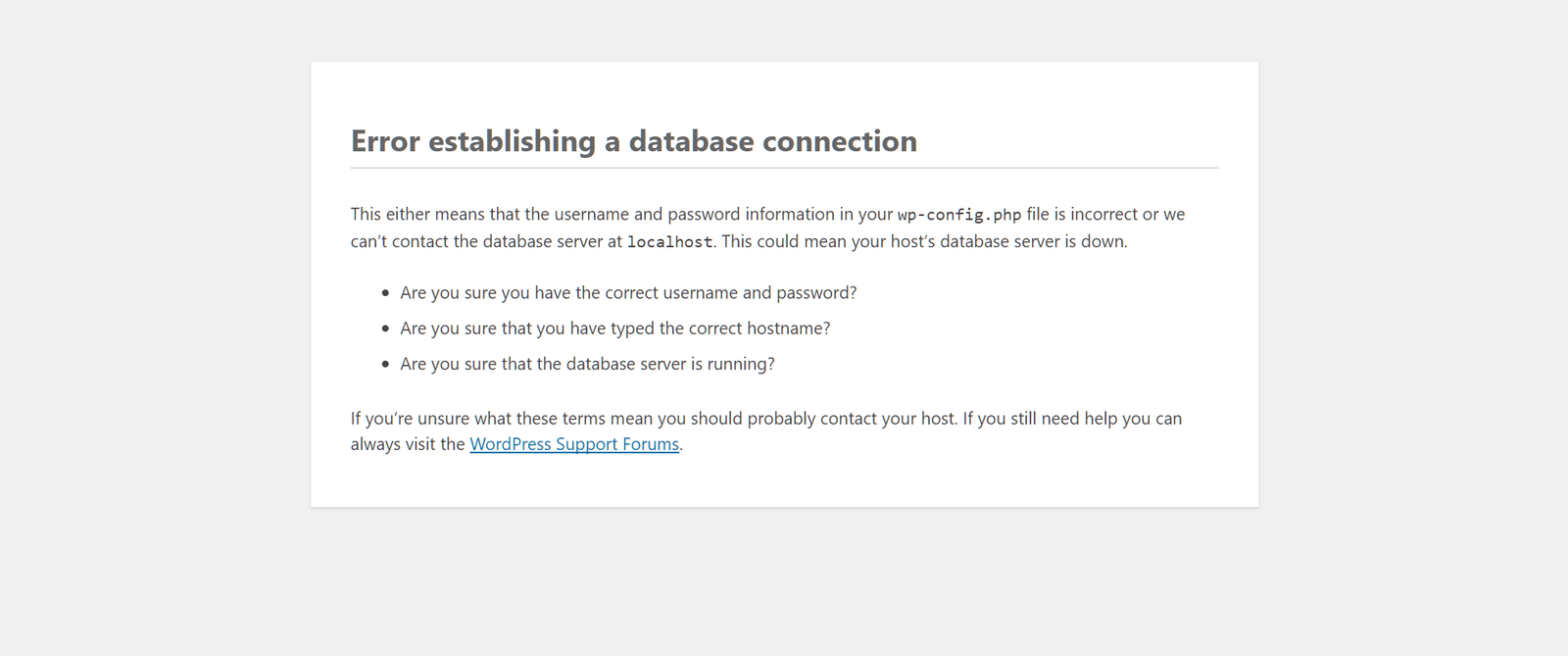
Few WordPress errors are as alarming as “Error Establishing a Database Connection.”
This message means your site can’t communicate with its database, and until it’s fixed, your entire website is down.
In this guide, we’ll walk you through exactly how to troubleshoot and fix this error — whether you’re a beginner or an advanced user — using proven methods used by WordPress experts.
Quick Fix Checklist (TL;DR)
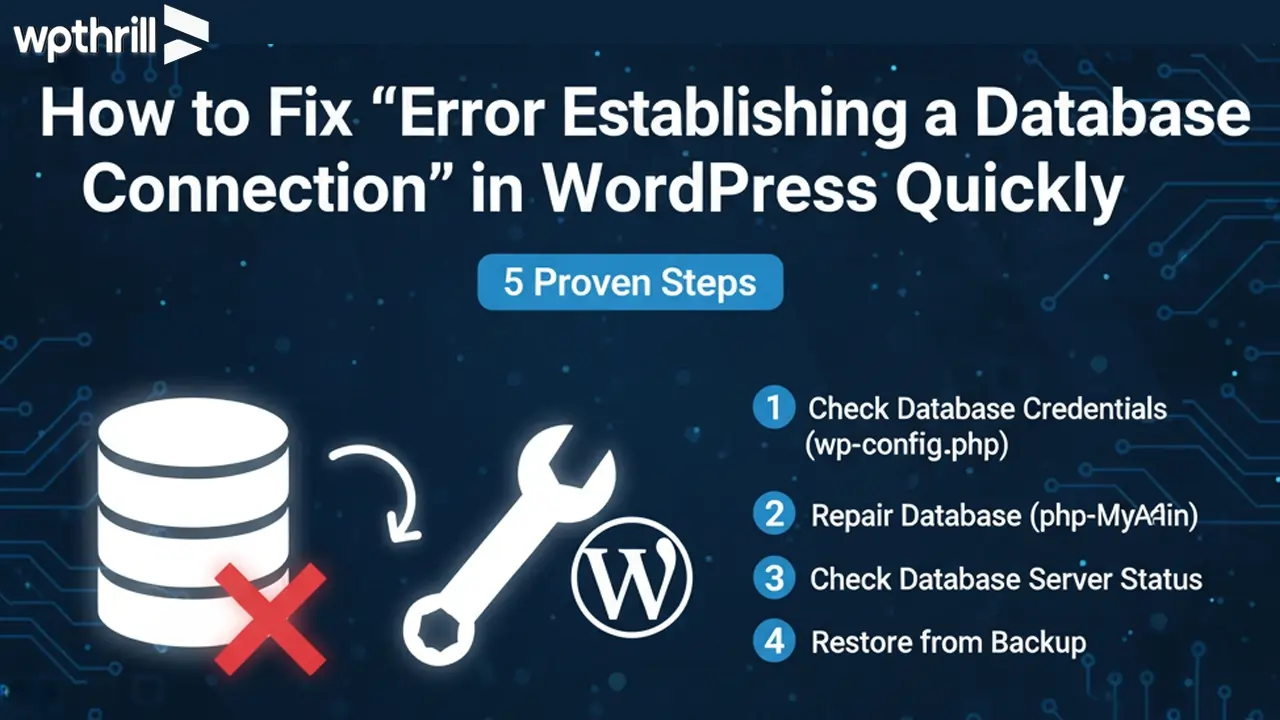
- Check your wp-config.php for correct database credentials.
- Repair your database using WordPress or WP-CLI.
- Check MySQL server status — contact hosting if down.
- Reduce server overload: upgrade hosting, use caching plugins like WP Rocket or W3 Total Cache, or enable a CDN like Cloudflare.
- Restore from your most recent backup if needed. Step-by-step guide here.
For detailed step-by-step instructions, read the full guide below.
What Causes “Error Establishing a Database Connection” in WordPress?
WordPress stores all your content (posts, pages, settings) in a MySQL/MariaDB database.
If WordPress can’t connect to that database, it throws this error. Common causes include:
-
-
Wrong database credentials (DB name, username, password, host)
-
Corrupted database tables
-
Database server downtime
-
-
Too much traffic overloading the server
-
Damaged WordPress core files. In some cases, a hacked or compromised WordPress site can also break the database connection. If you suspect malware, follow our full guide on how to clean a hacked WordPress site without losing SEO.
Quick Checklist Before You Start
Before making changes:
-
Backup your site files and database
-
Have access to cPanel / hosting account
-
Have FTP/SFTP or File Manager access
-
Keep your hosting support contact ready
1. Check Database Credentials in wp-config.php
Your database credentials live inside the wp-config.php file.
If they’re incorrect, WordPress can’t connect.
Steps:
-
Access your site via FTP or cPanel’s File Manager.
-
Locate and open the
wp-config.phpfile (in your root WordPress folder). -
Look for these lines:
-
Compare these details with the actual database credentials in your hosting control panel (cPanel → MySQL Databases).
-
Correct any mismatches, save the file, and refresh your site.
💡 Pro Tip: Some hosts use a different DB host (not localhost). Check your host’s documentation.
2. Repair WordPress Database
If the credentials are correct but the error persists, your database might be corrupted.
Steps:
-
Edit
wp-config.phpand add this line above the line that says/* That's all, stop editing! */:
-
Visit:
-
Choose Repair Database (or Repair + Optimize).
-
Once done, remove the repair line from
wp-config.phpfor security. For a deeper understanding of why WordPress databases get corrupted, how to prevent it, and detailed fixes, check out our guide on WordPress database corruption: causes, prevention & fixes.
3. Check MySQL Server Status
Sometimes the MySQL server is down due to maintenance or overload.
-
If you have multiple websites on the same server, see if they’re also showing the error.
-
If yes → it’s likely a hosting/server issue. Contact your hosting support.
-
If only one site is affected → continue troubleshooting.
4. Fix WordPress Database Connection Errors from Server Overload
A sudden traffic spike can overload your hosting plan, causing MySQL to stop responding.
Quick Fixes:
-
Upgrade to a better hosting plan or VPS.
-
Use caching plugins like WP Rocket or W3 Total Cache.
-
Enable a CDN like Cloudflare to reduce server load. For a complete list of reliable caching solutions, check out our guide on the best WordPress caching plugins to improve performance and reduce server load.
5. Restore WordPress from Backup
If none of the above works, restore your site from the most recent backup. For an easy and automated solution, learn how to backup WordPress to Google Drive automatically so you always have a secure copy ready.
-
Use hosting backups (many hosts keep daily copies).
-
Or restore from your plugin backup (UpdraftPlus, Jetpack, BlogVault, etc.). If you’re unsure how to restore your site safely, check out our step-by-step guide on how to restore WordPress site from backup manually.
6. Advanced Fix with WP-CLI
If you have SSH access, you can check the database connection with:
If issues are found:
This method is faster and doesn’t require editing wp-config.php.
How to Prevent Database Connection Errors in WordPress
-
Keep WordPress, themes, and plugins updated.
-
Use reliable hosting with strong uptime guarantees.
-
Optimize your database regularly with plugins like WP-Optimize.
-
Implement security measures to prevent hacking attempts. For a full list of reliable options, check out our guide on the best WordPress security plugins to protect your site from hacks, malware, and unauthorized access.
Final Thoughts
The Error Establishing a Database Connection is scary — but in most cases, it’s a simple fix.
By following the steps above, you can get your site back online in minutes. And if you’re still stuck, your hosting provider can often resolve the issue quickly. If none of these fixes work or you need an expert to resolve the issue immediately, you can hire me through Emergency WordPress Support to get your site fixed fast and safely.
💬 Have you ever faced this error? Share your experience in the comments below — your tip might help someone else.
Related Guides
- WordPress Database Corruption: Causes, Prevention & Fixes
- How to Clean a Hacked WordPress Site Without Losing SEO
- WooCommerce Database Optimization for Large Stores
- Move Your WordPress Site to a New Host (Zero Downtime Guide)
- Best WordPress Caching Plugins to Reduce Server Load
Frequently Asked Questions
What causes the ‘Error Establishing a Database Connection’ in WordPress?
This error happens when WordPress cannot communicate with your MySQL/MariaDB database. Common causes include incorrect database credentials, corrupted database tables, server downtime, or high traffic overload.
How do I fix this error?
Check your wp-config.php file for correct database credentials, repair the database, check server status, reduce server overload, or restore from backup. Advanced users can use WP-CLI commands.
Can I repair the WordPress database manually?
Yes. Add define(‘WP_ALLOW_REPAIR’, true); in wp-config.php and visit yourwebsite.com/wp-admin/maint/repair.php. Remove the line after repair.
How can I prevent this error in the future?
Keep WordPress, themes, and plugins updated, use reliable hosting, optimize your database regularly, and implement security measures.



