






So you’ve decided to build your first WordPress plugin. Congratulations! You’re about to learn one of the most valuable skills in the WordPress ecosystem.
This is the second post in our Plugin Development Tutorial series. If you’d like a complete overview and access to the full step-by-step series, you can explore it here: WordPress Plugin Development Tutorial Series
But here’s what most tutorials don’t tell you: the main plugin file is more important than all the fancy features combined.
Why? Because if WordPress can’t read your plugin header correctly, your plugin simply won’t work. No error messages. No warnings. Just… nothing.
In this tutorial, you’ll master the main plugin file—the foundation every WordPress plugin is built upon. You’ll understand exactly what each line does, why it matters, and how to structure your files for professional results.
By the end, you’ll have a properly configured main plugin file that’s secure, translation-ready, and follows WordPress coding standards. Then you’ll be ready to add actual functionality in the upcoming tutorials.
What We’re Building
Remember our goal: a complete portfolio plugin called “WP Creative Portfolio Pro.” Today, we’re laying the foundation:
wp-creative-portfolio/
├── wp-creative-portfolio.php (← YOU ARE HERE)
├── includes/
├── assets/
└── languages/
This single file tells WordPress:
-
Who created this plugin
-
What it does
-
Which version it is
-
Where to find translations
-
Whether someone can access it directly
Get this right, and everything else becomes easier.
The Complete Main Plugin File
Here’s the complete code for your main plugin file. Don’t just copy-paste—read the explanations below to understand what each part does:
<?php
/**
 * Plugin Name: WP Creative Portfolio Pro
 * Plugin URI:  https://wpthrill.com
 * Description: A complete portfolio plugin with categories, lightbox, and shortcodes. Perfect for designers, photographers, and agencies.
 * Version:     1.0.0
 * Author:      Akram Ul Haq
 * Author URI:  https://wpthrill.com
 * License:     GPL v2 or later
 * License URI: https://www.gnu.org/licenses/gpl-2.0.html
 * Text Domain: wp-creative-portfolio
 * Domain Path: /languages
 *
 * @package WP_Creative_Portfolio
 */

// Prevent direct access - security first!
if ( ! defined( 'ABSPATH' ) ) {
    exit; // Exit if accessed directly
}

// Define plugin constants for easy reference throughout your code
define( 'WPCP_VERSION', '1.0.0' );
define( 'WPCP_PLUGIN_FILE', __FILE__ );
define( 'WPCP_PLUGIN_DIR', plugin_dir_path( __FILE__ ) );
define( 'WPCP_PLUGIN_URL', plugin_dir_url( __FILE__ ) );

/**
 * Load plugin text domain for translations
 * This makes your plugin ready for international users
 */
function wp_creative_portfolio_load_textdomain() {
    load_plugin_textdomain(
        'wp-creative-portfolio',
        false,
        dirname( plugin_basename( __FILE__ ) ) . '/languages'
    );
}
add_action( 'plugins_loaded', 'wp_creative_portfolio_load_textdomain' );

Note: In WordPress version 6.9, this above code is no more required!

// Include our main plugin classes
require_once WPCP_PLUGIN_DIR . 'includes/class-wp-creative-portfolio.php';
require_once WPCP_PLUGIN_DIR . 'includes/class-wp-creative-portfolio-settings.php';

/**
 * Plugin Activation Hook
 * Runs when plugin is activated
 */
function wp_creative_portfolio_activate() {

    // Set default options if none exist
    if ( false === get_option( 'wp_creative_portfolio_options' ) ) {
        $defaults = array(
            'plural_name'     => __( 'Portfolios', 'wp-creative-portfolio' ),
            'singular_name'   => __( 'Portfolio', 'wp-creative-portfolio' ),
            'slug'            => 'portfolio',
            'taxonomy_slug'   => 'portfolio-category',
            'posts_per_page'  => 9
        );
        update_option( 'wp_creative_portfolio_options', $defaults );
    }

    // Load plugin class to register post types before flushing
    $plugin = new WP_Creative_Portfolio();
    $plugin->register_portfolio_cpt();
    $plugin->register_portfolio_taxonomy();

    // Flush rewrite rules so custom post type URLs work immediately
    flush_rewrite_rules();
}
register_activation_hook( __FILE__, 'wp_creative_portfolio_activate' );

/**
 * Plugin Deactivation Hook
 * Runs when plugin is deactivated
 */
function wp_creative_portfolio_deactivate() {
    flush_rewrite_rules();
}
register_deactivation_hook( __FILE__, 'wp_creative_portfolio_deactivate' );

/**
 * Initialize the plugin
 * Creates instances of our main classes
 */
function run_wp_creative_portfolio_pro() {
    new WP_Creative_Portfolio();
    new WP_Creative_Portfolio_Settings();
}
run_wp_creative_portfolio_pro();
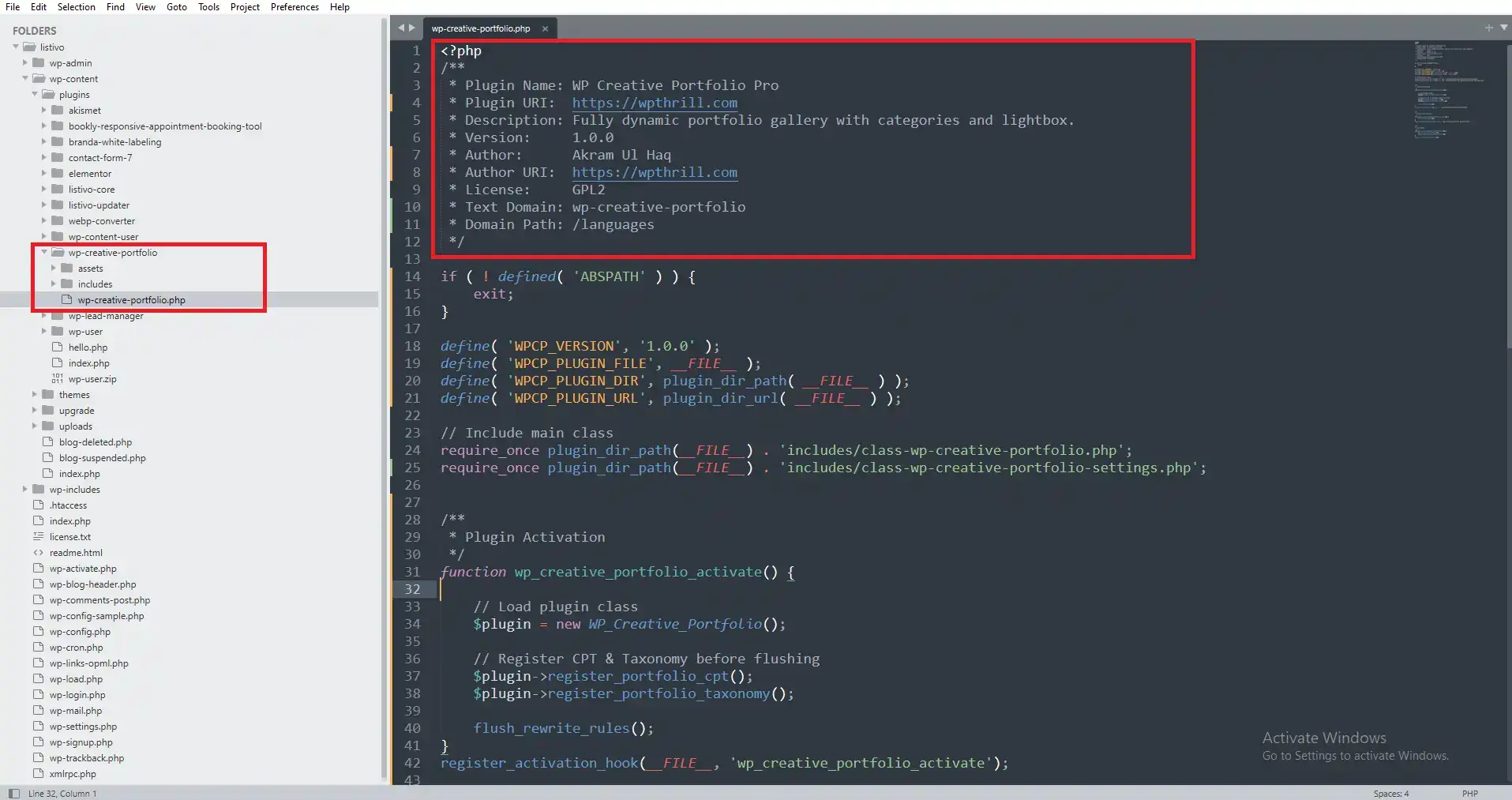
Deep Dive: The Plugin Header (Lines 3-14)
WordPress reads the comment block at the top of your main file to display information in the admin panel. Each line serves a specific purpose:
Plugin Name (Required)
Plugin Name: WP Creative Portfolio Pro
This is what users see in Plugins → Installed Plugins. Make it descriptive but concise. Include your brand if you have one.
Plugin URI (Recommended)
Plugin URI: https://wpthrill.com
Link to your plugin’s website or documentation page. WordPress makes this clickable in the admin. If you’re building for clients, use your portfolio site.
Description (Required)
Description: A complete portfolio plugin with categories, lightbox, and shortcodes. Perfect for designers, photographers, and agencies.
This appears under your plugin name. Include keywords users might search for. Keep it under 150 characters for best display.
Version (Required)
Version: 1.0.0
Follow semantic versioning: MAJOR.MINOR.PATCH. Start at 1.0.0 for first release. WordPress uses this to manage updates.
Author (Recommended)
Author: Your Name
Claim your work! If you’re a company, use your company name.
Author URI (Recommended)
Author URI: https://wpthrill.com
Link to your website. Great for building your brand with every installation.
License (Required for WordPress.org)
License: GPL v2 or later
WordPress requires GPL compatibility. This ensures your plugin can be freely distributed.
License URI (Required for WordPress.org)
License URI: https://www.gnu.org/licenses/gpl-2.0.html
Link to the full license text.
Text Domain (Required for Translations)
Text Domain: wp-creative-portfolio
This must match your plugin’s folder name and the text domain used in translation functions. We’ll use this throughout our code.
Domain Path (Required for Translations)
Domain Path: /languages
Tells WordPress where to find translation files inside your plugin folder.
Security First: The ABSPATH Check (Lines 17-19)
if ( ! defined( 'ABSPATH' ) ) {
    exit;
}
This tiny block is your first line of defense. Here’s why it matters:
The Threat: Someone could access your plugin file directly via browser:
https://yoursite.com/wp-content/plugins/wp-creative-portfolio-pro/wp-creative-portfolio.php
Without protection, they might see error messages or—worse—execute code in an insecure context.
The Protection: ABSPATH is a constant WordPress defines in wp-config.php. It’s only available when WordPress is fully loaded. If someone accesses your file directly, ABSPATH isn’t defined, and the script exits silently.
Pro Tip: Put this at the top of EVERY PHP file in your plugin. We’ll do this for all our class files too.
Smart Constants (Lines 22-25)
define( 'WPCP_VERSION', '1.0.0' );
define( 'WPCP_PLUGIN_FILE', __FILE__ );
define( 'WPCP_PLUGIN_DIR', plugin_dir_path( __FILE__ ) );
define( 'WPCP_PLUGIN_URL', plugin_dir_url( __FILE__ ) );
Constants make your code maintainable and portable:
WPCP_VERSION: Update version in one place. Use it when enqueuing assets to bust caches.
WPCP_PLUGIN_FILE: Reference the main file anywhere. Useful for hooks that need the plugin file path.
WPCP_PLUGIN_DIR: Server path to your plugin. Use this for including files:
require_once WPCP_PLUGIN_DIR . 'includes/some-file.php';
WPCP_PLUGIN_URL: Web URL to your plugin. Use this for assets:
wp_enqueue_style( 'my-style', WPCP_PLUGIN_URL . 'assets/css/style.css' );
Translation Readiness (Lines 28-37)
function wp_creative_portfolio_load_textdomain() {
    load_plugin_textdomain(
        'wp-creative-portfolio',
        false,
        dirname( plugin_basename( __FILE__ ) ) . '/languages'
    );
}
add_action( 'plugins_loaded', 'wp_creative_portfolio_load_textdomain' );
Note: In current WordPress version (6.9) this above translation code is not required. This makes your plugin usable worldwide:
Why it matters: WordPress powers 43% of the web—in hundreds of languages. Without translation support, non-English speakers can’t use your plugin.
How it works: When WordPress loads your plugin, it checks the /languages folder for translation files. If someone has installed, say, the French translation, WordPress automatically loads it.
What you’ll do: Throughout our code, we’ll wrap text in __( 'Text', 'wp-creative-portfolio' ) functions. The translation system replaces “Text” with the translated version.
Including Class Files (Lines 40-41)
require_once WPCP_PLUGIN_DIR . 'includes/class-wp-creative-portfolio.php';
require_once WPCP_PLUGIN_DIR . 'includes/class-wp-creative-portfolio-settings.php';
We keep our main file clean by moving functionality into classes:
-
class-wp-creative-portfolio.phphandles portfolio display, post types, and shortcodes -
class-wp-creative-portfolio-settings.phpmanages the admin settings page
Why separate files? Organization, maintainability, and performance. WordPress only loads these files when needed.
Activation Hook Explained (Lines 44-68)
function wp_creative_portfolio_activate() {
    // Set defaults if needed
    if ( false === get_option( 'wp_creative_portfolio_options' ) ) {
        $defaults = array(
            'plural_name'     => __( 'Portfolios', 'wp-creative-portfolio' ),
            'singular_name'   => __( 'Portfolio', 'wp-creative-portfolio' ),
            'slug'            => 'portfolio',
            'taxonomy_slug'   => 'portfolio-category',
            'posts_per_page'  => 9
        );
        update_option( 'wp_creative_portfolio_options', $defaults );
    }

    // Register post types
    $plugin = new WP_Creative_Portfolio();
    $plugin->register_portfolio_cpt();
    $plugin->register_portfolio_taxonomy();

    // Fix 404 errors
    flush_rewrite_rules();
}
register_activation_hook( __FILE__, 'wp_creative_portfolio_activate' );
The activation hook runs once when someone activates your plugin:
Setting defaults: We check if settings exist. If not, we create sensible defaults. This ensures new users have a working plugin immediately.
Registering before flushing: WordPress needs to know about your post types BEFORE flushing rewrite rules. Otherwise, it won’t create rules for them.
Flush rewrite rules: This fixes the dreaded 404 error on custom post type archives. Without this, users would see “Page not found” when visiting /portfolio/.
Deactivation Hook (Lines 71-75)
function wp_creative_portfolio_deactivate() {
    flush_rewrite_rules();
}
register_deactivation_hook( __FILE__, 'wp_creative_portfolio_deactivate' );
When someone deactivates your plugin, we clean up:
Why flush on deactivation: WordPress removes your post types, so we need to clean up the rewrite rules they created. This keeps the system tidy.
Important: We DON’T delete user data on deactivation. That would be disastrous! Data deletion only happens if the user uninstalls (we’ll handle that separately).
Initializing the Plugin (Lines 78-83)
function run_wp_creative_portfolio_pro() {
    new WP_Creative_Portfolio();
    new WP_Creative_Portfolio_Settings();
}
run_wp_creative_portfolio_pro();
This starts our plugin:
Why a function: Wrapping initialization in a function prevents variable leakage into the global namespace.
Creating instances: This calls the constructors of our main classes, which hook into WordPress actions and filters.
Common Mistakes Beginners Make
Mistake 1: Missing the Opening PHP Tag
// BAD - no opening tag
/**
 * Plugin Name: My Plugin
 */
// GOOD
<?php
/**
 * Plugin Name: My Plugin
 */
Without <?php, WordPress treats your file as plain text. Nothing works.
Mistake 2: Trailing Spaces After Closing Tag
<?php
// Plugin code...
?> [space here]
If you use a closing ?>, any spaces after it cause “headers already sent” errors. Best practice: omit the closing tag entirely.
Mistake 3: Direct File Access
// BAD - anyone can access directly
class My_Plugin {
    // code
}
// GOOD - protected
if ( ! defined( 'ABSPATH' ) ) exit;
class My_Plugin {
    // code
}
Mistake 4: Hardcoding Paths
// BAD - breaks if site moves
wp_enqueue_style( 'style', '/wp-content/plugins/my-plugin/style.css' );
// GOOD - uses constant
wp_enqueue_style( 'style', WPCP_PLUGIN_URL . 'assets/css/style.css' );
Testing Your Main Plugin File
Before moving on, verify everything works:
-
Check for syntax errors:
-
Go to Plugins → Installed Plugins
-
Find your plugin – it should display correctly
-
No PHP errors? Good!
-
-
Test the activation hook:
-
Deactivate your plugin (if active)
-
Reactivate it
-
Check your database for
wp_creative_portfolio_options(use phpMyAdmin or a plugin like WP Data Access)
-
-
Verify constants:
Add this temporarily to your theme’sfunctions.phpor use a plugin like Code Snippets:add_action( 'init', function() { if ( defined( 'WPCP_VERSION' ) ) { echo 'Plugin version: ' . WPCP_VERSION; } });
Visit your site – you should see the version number.
The Professional Touch: Documentation Block
Notice the documentation block at the top:
/**
 * @package WP_Creative_Portfolio
 */
This helps tools like PHPDocumentor generate documentation. It also tells WordPress (and other developers) that this file belongs to your plugin package.
What’s Next?
Your foundation is solid! You now have:
✅ A properly formatted plugin header
✅ Security protection against direct access
✅ Useful constants for paths and URLs
✅ Translation readiness
✅ Activation/deactivation hooks
✅ A clean structure for adding features
In next post, we’ll create our first custom post type. You’ll learn how to register the “Portfolio” post type, add featured image support, and make it visible in the WordPress admin.
Frequently Asked Questions
Q: Can I rename my plugin folder?
A: Yes, but update any references. The folder name should match your text domain for consistency.
Q: What if I don’t need translations?
A: Still include the text domain code! It’s a best practice, and your plugin might be used by someone who needs translations.
Q: Why use require_once instead of include?
A: require_once stops execution if the file is missing (fatal error). include only warns (continues execution). For critical class files, you want the fatal error—it tells you immediately something’s wrong.
Q: Should I use a prefix on all my functions?
A: Yes! WordPress has thousands of functions. Without a unique prefix (like wp_creative_portfolio_), you risk conflicts with other plugins or WordPress core.
Action Steps
-
Create the main plugin file with the code above
-
Create the empty folder structure (includes/, assets/, languages/)
-
Activate your plugin (it’s safe—no visible changes yet) (You should see error until includes folder is empty as we are calling classes in the main file through require)
-
Verify no errors appear (here errors should be there and you have to fix those at your own, tip is those files are not there for you yet! )
-
Leave a comment below with any questions
Complete Code Reference
Here’s your complete main plugin file for easy copy-pasting:
<?php
/**
 * Plugin Name: WP Creative Portfolio Pro
 * Plugin URI:  https://wpthrill.com
 * Description: A complete portfolio plugin with categories, lightbox, and shortcodes. Perfect for designers, photographers, and agencies.
 * Version:     1.0.0
 * Author:      Your Name
 * Author URI:  https://wpthrill.com
 * License:     GPL v2 or later
 * License URI: https://www.gnu.org/licenses/gpl-2.0.html
 * Text Domain: wp-creative-portfolio
 * Domain Path: /languages
 *
 * @package WP_Creative_Portfolio
 */

if ( ! defined( 'ABSPATH' ) ) {
    exit;
}

define( 'WPCP_VERSION', '1.0.0' );
define( 'WPCP_PLUGIN_FILE', __FILE__ );
define( 'WPCP_PLUGIN_DIR', plugin_dir_path( __FILE__ ) );
define( 'WPCP_PLUGIN_URL', plugin_dir_url( __FILE__ ) );

/**
 * Load plugin text domain
 */
function wp_creative_portfolio_load_textdomain() {
    load_plugin_textdomain(
        'wp-creative-portfolio',
        false,
        dirname( plugin_basename( __FILE__ ) ) . '/languages'
    );
}
add_action( 'plugins_loaded', 'wp_creative_portfolio_load_textdomain' );

// Include main classes
require_once WPCP_PLUGIN_DIR . 'includes/class-wp-creative-portfolio.php';
require_once WPCP_PLUGIN_DIR . 'includes/class-wp-creative-portfolio-settings.php';

/**
 * Activation hook
 */
function wp_creative_portfolio_activate() {
    if ( false === get_option( 'wp_creative_portfolio_options' ) ) {
        $defaults = array(
            'plural_name'     => __( 'Portfolios', 'wp-creative-portfolio' ),
            'singular_name'   => __( 'Portfolio', 'wp-creative-portfolio' ),
            'slug'            => 'portfolio',
            'taxonomy_slug'   => 'portfolio-category',
            'posts_per_page'  => 9
        );
        update_option( 'wp_creative_portfolio_options', $defaults );
    }

    $plugin = new WP_Creative_Portfolio();
    $plugin->register_portfolio_cpt();
    $plugin->register_portfolio_taxonomy();

    flush_rewrite_rules();
}
register_activation_hook( __FILE__, 'wp_creative_portfolio_activate' );

/**
 * Deactivation hook
 */
function wp_creative_portfolio_deactivate() {
    flush_rewrite_rules();
}
register_deactivation_hook( __FILE__, 'wp_creative_portfolio_deactivate' );

/**
 * Initialize plugin
 */
function run_wp_creative_portfolio_pro() {
    new WP_Creative_Portfolio();
    new WP_Creative_Portfolio_Settings();
}
run_wp_creative_portfolio_pro();
Next Tutorial: Creating Custom Post Types
Now that your foundation is solid, you’re ready to add real functionality. In the next tutorial, you’ll learn:
-
How to register a custom post type
-
Understanding the
register_post_type()parameters -
Adding featured image support
-
Making your post type Gutenberg-compatible
-
Testing your first portfolio items
Did you find this tutorial helpful? Share it with another WordPress developer who’s just starting out. Have questions? Drop them in the comments—I read every one and help troubleshoot.



