





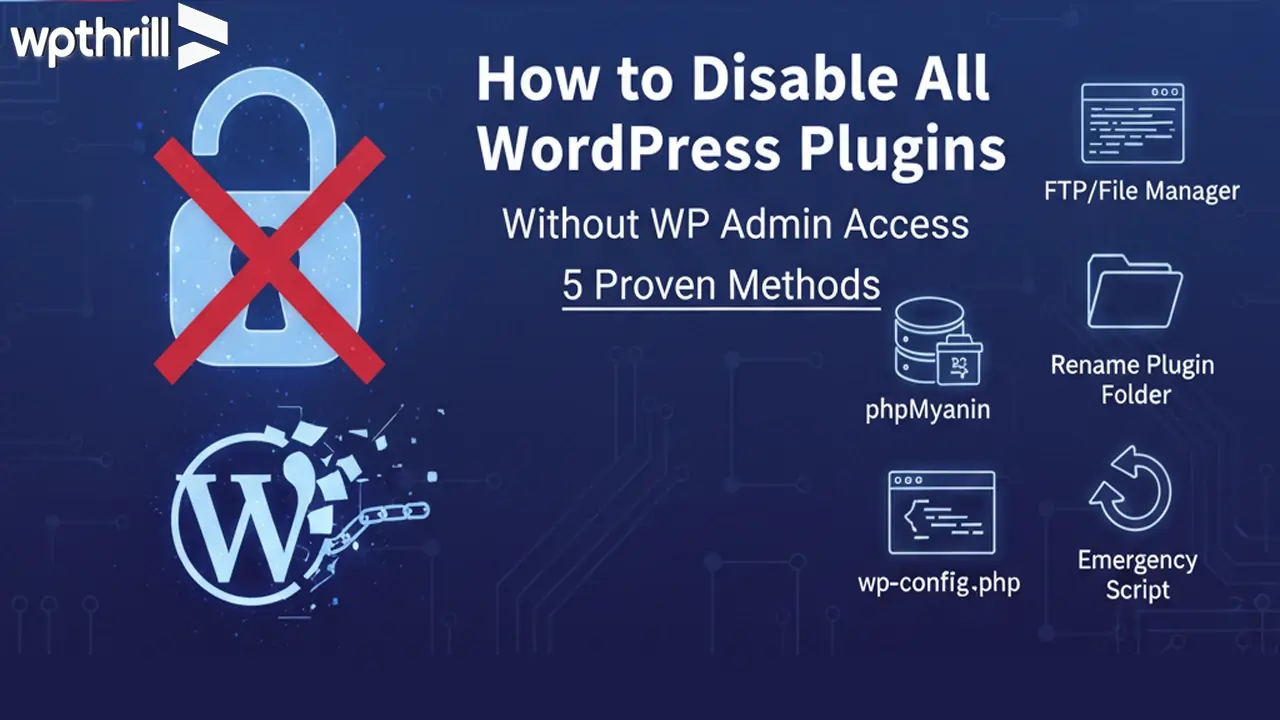
Running a WordPress site is fun until something breaks. One of the most common issues is a plugin conflict—your site suddenly goes down, the dashboard becomes inaccessible, or you’re stuck with the dreaded “white screen of death.” If your site is completely down and you need immediate help, you can hire emergency WordPress support to get your site back online quickly.
In such cases, you can’t log into the WP Admin area to deactivate plugins the usual way. But don’t worry—there are several safe methods to disable all WordPress plugins without WP Admin access.
This guide will walk you through five proven methods, step by step. By the end, you’ll know exactly how to get your site back online quickly.
Why You May Need to Disable Plugins Without WP Admin
Before diving into the solutions, let’s understand common scenarios where this becomes necessary:
-
White Screen of Death (WSOD): A faulty plugin update crashes the site. A faulty plugin update can crash the site, resulting in the dreaded WordPress White Screen of Death. If this happens, you may not be able to access WP Admin, making these methods essential.
-
Admin Login Issues: You’re locked out of the dashboard after installing a plugin. You’re locked out of the dashboard after installing a plugin or due to other login issues. Learn how to recover a locked WordPress admin account step by step if you can’t log in.
-
Performance Issues: Plugins consume excessive server resources, making wp-admin inaccessible. Sometimes plugin conflicts lead to memory errors; learn how to fix WordPress memory exhausted error effectively.
-
Debugging: You want to identify which plugin is causing conflicts. You want to identify which plugin is causing conflicts. You can also enable WordPress debug mode to find errors and pinpoint the problem quickly.
In short, if you can’t log into WordPress, you’ll need one of these methods. If your site is still not showing correctly, caching plugins might be interfering. Check out our list of best WordPress caching plugins to optimize your site’s performance.
Method 1: Disable Plugins via FTP (File Transfer Protocol)
This is the most popular and safest way to disable all plugins when locked out of WP Admin.
Step 1: Connect to Your Site via FTP
-
Use an FTP client like FileZilla or your hosting’s File Manager in cPanel.
-
Enter your hosting credentials and connect.
Step 2: Navigate to the Plugins Folder
-
Go to:
Step 3: Rename the Plugins Folder
-
Find the plugins folder.
-
Right-click and rename it to:
Once renamed, WordPress automatically deactivates all plugins.
Step 4: Test Your Site
-
Reload your site.
-
If the issue is resolved, rename the folder back to
pluginsand then reactivate plugins one by one inside WP Admin to find the culprit.
Best for: Beginners. Quick and effective.
Method 2: Disable Plugins via phpMyAdmin (Database Method)
If FTP isn’t available, you can disable plugins directly in the WordPress database using phpMyAdmin. When editing database tables, there’s always a small risk of data corruption if something goes wrong. For a detailed breakdown of common WordPress database issues and how to prevent or fix them, see WordPress database corruption causes, prevention & fixes.
Note: Be cautious—always back up your database first.
Step 1: Access phpMyAdmin
-
Log in to your hosting panel (cPanel, CyberPanel, Plesk, etc.).
-
Open phpMyAdmin.
Step 2: Select Your Database
-
Click your WordPress database (if unsure, check
wp-config.phpforDB_NAME).
Step 3: Locate the Options Table
-
Find the table named:
(Note: The prefix “wp_” may be different on your site.)
Step 4: Edit the Active Plugins Row
-
Search for
active_pluginsin theoption_namecolumn. -
Edit the row.
-
Clear the value in
option_valuefield and save.
This disables all active plugins at once.
Best for: Intermediate users. Useful when FTP isn’t accessible.
Method 3: Disable Plugins via WP-CLI (Command Line)
If you have SSH access, WP-CLI is the fastest way to disable plugins.
Step 1: Connect to Your Server
-
Use SSH from your terminal or hosting SSH access.
Step 2: Navigate to WordPress Directory
Step 3: Run the WP-CLI Command
This instantly deactivates every plugin.
Best for: Developers and advanced users. Extremely fast.
Method 4: Disable Plugins by Editing wp-config.php
This is a less-known trick but works if you can edit files.
Step 1: Access Your Site via FTP or File Manager
-
Go to:
Step 2: Edit wp-config.php
-
Add this line before
/* That's all, stop editing! Happy publishing. */
By pointing WordPress to a non-existent folder, all plugins are effectively disabled.
Best for: Quick fixes when you don’t want to rename folders manually.
Method 5: Disable Plugins via Recovery Mode (WordPress 5.2+)
Since WordPress 5.2, there’s a built-in Recovery Mode.
How It Works
-
If a plugin causes a fatal error, WordPress sends an email to the site admin.
-
The email includes a special login link to access Recovery Mode.
-
You can then log in and disable the problematic plugin.
Best for: Latest WordPress versions. Safe and admin-friendly.
Which Method Should You Use?
| Method | Difficulty | Best For |
|---|---|---|
| FTP | Easy | Beginners, quick fixes |
| phpMyAdmin | Medium | No FTP access |
| WP-CLI | Advanced | Developers, fast execution |
| wp-config.php | Medium | Quick file-based workaround |
| Recovery Mode | Very Easy | WordPress 5.2+ fatal errors |
Pro Tips to Prevent Future Plugin Conflicts
-
Test Plugins on a Staging Site before updating or installing new ones.
-
Keep WordPress Core & Plugins Updated to the latest versions.
-
Use Reputable Plugins Only (avoid nulled or poorly-coded plugins).
-
Limit the Number of Plugins – quality over quantity.
-
Regular Backups – always keep a backup ready.
FAQs
1. Will disabling plugins delete my settings?
No. Disabling only turns off functionality. Your settings remain intact unless you uninstall a plugin.
2. Can I disable just one plugin without WP Admin?
Yes. Instead of renaming the entire plugins folder, just rename the folder of the specific plugin.
3. What if my hosting doesn’t give FTP or phpMyAdmin?
Ask your hosting support to disable plugins for you—they usually can.
Final Thoughts
When your WordPress site crashes due to a plugin issue, it can feel overwhelming. But with the above five proven methods, you can easily disable all WordPress plugins without WP Admin access and get your site running again.
The FTP method is the most beginner-friendly, while WP-CLI is the fastest for developers. Once your site is back, always troubleshoot plugin conflicts systematically and follow best practices to prevent future downtime.
By mastering these techniques, you’ll not only save time but also ensure your WordPress site remains reliable and professional.



