





Building a WordPress website without a plan is like driving across the country without a GPS. You might eventually get somewhere, but it probably won’t be where you intended to go, and you will definitely waste time (and money) on the way. After building dozens of WordPress websites for clients and personal projects, I’ve noticed one common mistake: beginners jump straight into themes and plugins without a clear plan. Professional developers and agencies never start this way — they always plan first, build second.
Most beginners fail at WordPress not because the software is hard to use, but because they skip the foundational strategy. They get distracted by fancy themes and shiny plugins before defining what the site actually needs to do.
This guide is your blueprint. We are going to put the blinders on and focus purely on the planning phase. By the end of this post, you will have a complete roadmap for your website, ensuring that when you finally log in to WordPress, every decision you make is intentional.
Think of this guide as your complete WordPress tutorial roadmap for beginners to experts — a blueprint to follow before you install themes or plugins.
Why Planning Your WordPress Website Is More Important Than Design
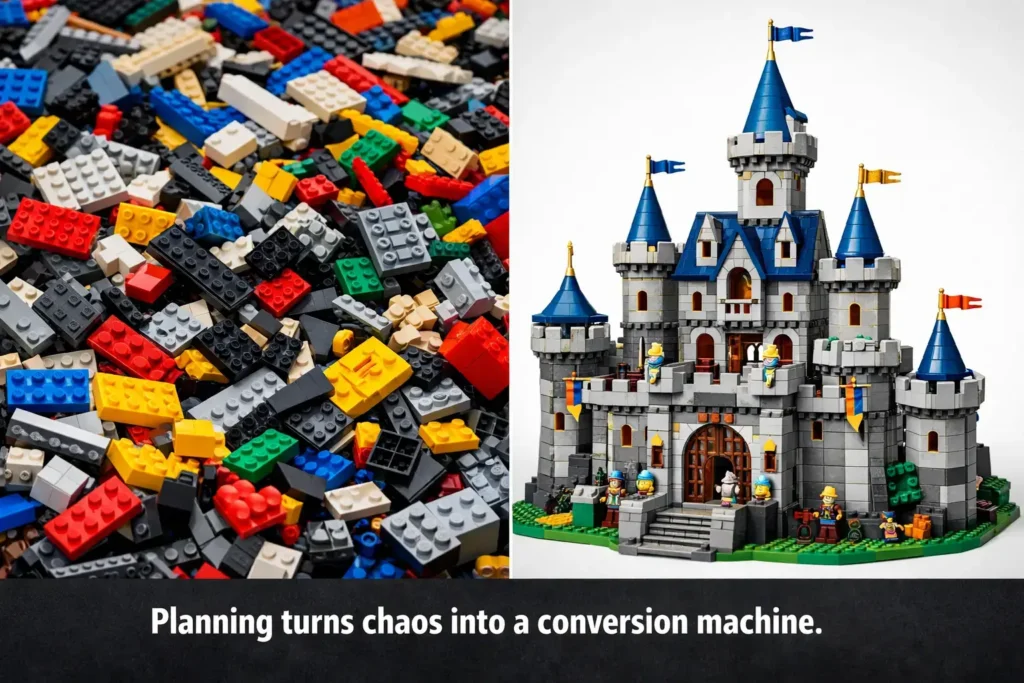
Before we dive into the “how,” let’s briefly touch on the “why.” A proper plan acts as your project’s constitution. It:
-
Saves Money: You buy only the plugins and themes you actually need.
-
Saves Time: You won’t spend weeks moving menus around because you already know the structure.
-
Improves SEO: Search engines love well-structured, logical websites.
-
Enhances User Experience: Visitors can find what they are looking for intuitively.
Step 1: Define the Purpose of Your WordPress Website
If you don’t know what success looks like, you cannot build a site to achieve it. You need to define the primary purpose of your site. Is it to:
-
Sell products? (E-commerce)
-
Generate leads? (Service business)
-
Share knowledge? (Blog)
-
Build a community? (Forum/Membership)
Most failed websites don’t fail because of design — they fail because their purpose isn’t clear from the beginning. Also, consider who will manage your site. Learn about WordPress User Roles and Permissions to assign tasks correctly.
The 30-Second Pitch
Try to summarize your website in one sentence.
-
Bad: “I need a site for my bakery.”
-
Good: “I need a website to display my daily cupcake menu and allow local customers to place orders for pickup.”
This “Good” sentence immediately tells us we need a menu system and a simple ordering plugin, not a full e-commerce shipping solution.
Action Item: Write down your site’s primary goal and keep it somewhere visible. Refer back to it whenever you are tempted to add a “cool but unnecessary” feature.
Step 2: Choose the Right Domain Name and Hosting for Your WordPress Site
You cannot plan a website without knowing where it will live. Your domain name (the URL) and hosting (the server space) are technical foundations, but they require strategic thought.
Picking a Domain
-
Brandable over Keyword-heavy: In 2024, a unique brand name (e.g., “Ola’s Kitchen”) often beats “BestChocolateCakeNYC.com” (which looks spammy).
-
Short and Typo-proof: Avoid complicated spellings.
-
Use .com or .org: Stick to the most common TLDs (Top Level Domains) for credibility.
Picking a Host
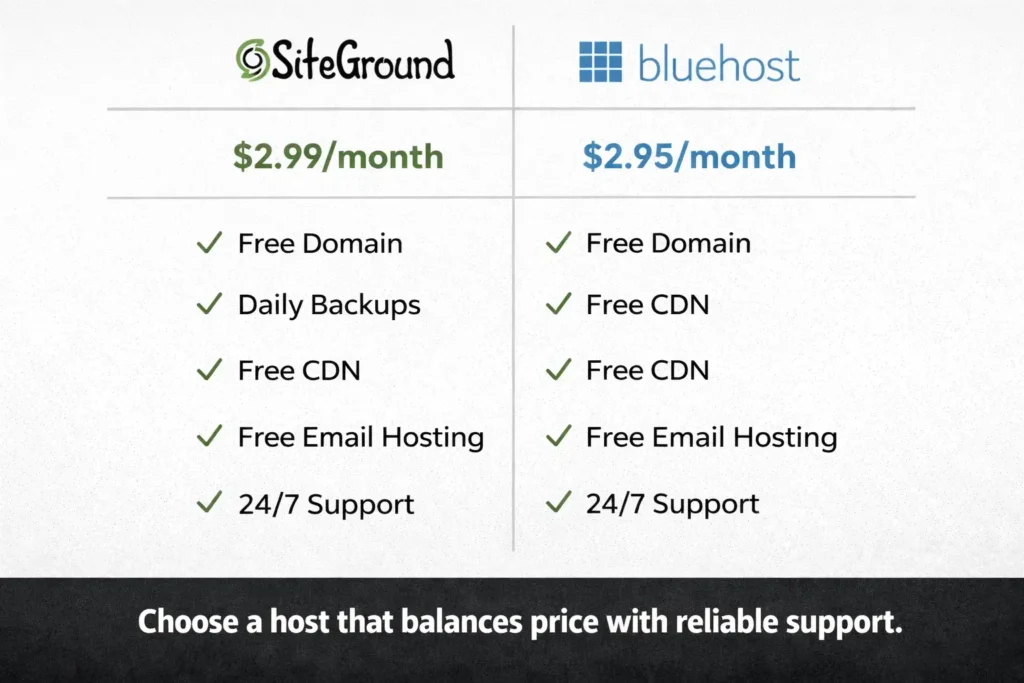
For beginners, the host you choose impacts your speed and uptime. Do not pick the cheapest $1/month host you find on a banner ad. Look for hosts that offer:
-
One-click WordPress installation.
-
Good support (chat or phone).
-
SSL Certificate included (the padlock in the browser).
Step 3: Create a WordPress Sitemap and Site Structure
This is the core of your plan. You wouldn’t build a house without a floorplan, so don’t build a site without a Sitemap. This is a hierarchical list of all the main sections (pages) of your site. Professional developers never build menus first — they design the sitemap first.
Think of it like a filing cabinet:
-
Drawer 1: About Us (Main Page)
-
Drawer 2: Services (Parent Page)
-
Folder 1: Web Design (Child Page)
-
Folder 2: SEO (Child Page)
-
-
Drawer 3: Blog (Parent Page)
-
Folder 1: Category: News
-
Folder 2: Category: Tips
-
How to Create Your Sitemap
-
Grab a pen and paper or open a spreadsheet.
-
List your Top-Level Pages (Home, About, Services, Blog, Contact).
-
Under “Services,” list all the specific sub-pages you need.
-
Think about your footer links (Privacy Policy, Terms, etc.).
Why this matters for the planning phase: Once you install WordPress, this sitemap becomes your main menu. You will know exactly how many pages to create.
Example Sitemap for a Consultant:
-
Home
-
About Sarah
-
Services
-
Leadership Coaching
-
Team Workshops
-
Keynote Speaking
-
-
Blog
-
Leadership Tips
-
Case Studies
-
-
Contact
-
(Footer) Privacy Policy
Step 4: Plan Your WordPress Content and Required Features
If you’re unsure whether a section should be a blog post or a page, read Posts vs Pages in WordPress: What’s the Difference? for clarity. This is where we bridge the gap between design and function.
| Page Name | Main Goal | Content Needed | Feature/Plugin Required |
|---|---|---|---|
| Homepage | Introduce brand | Headline, services, CTA | Page builder |
| About | Build trust | Story, team info | Basic page |
| Contact | Get inquiries | Contact form | Form plugin |
| Blog | Share articles | Posts | SEO plugin |
The Content Checklist
For each page in your sitemap, ask:
-
What is the goal of this page? (e.g., The “Services” page goal is to get the user to click “Book Now.”)
-
What content is needed? (e.g., Service descriptions, pricing tables, client logos, a video explanation).
-
What functionality is needed? (e.g., A contact form, a booking calendar, a photo gallery).
Choosing Features (Plugins)
WordPress uses plugins for extra features. During the planning phase, research plugins based on your functionality needs. Do not install them yet, just identify them.
If you’re unsure about plugins, see What Is a WordPress Plugin? How to Install & Manage for beginners.
-
Need a Contact Form? -> You will likely use WPForms or Fluent Forms.
-
Need SEO? -> You will use Yoast SEO or Rank Math.
-
Need a Gallery? -> You might use Envira Gallery or Modula.
Action Item: Create a spreadsheet with three columns: Page Name | Content Needed | Plugin Required.
Step 5: Choose the Right WordPress Theme for Your Site Structure
Most beginners pick a theme because it looks “cool” on the demo. This is a trap. You must pick a theme based on whether it supports the functionality and structure you planned in Steps 3 and 4. Before buying, understand what a WordPress theme is and how it works to match your planned structure.
The Block Theme Revolution
WordPress now uses the Full Site Editing (FSE) system with blocks. If you are starting fresh in 2024, look for a “Block Theme” (like Twenty Twenty-Four or Kadence). These are more flexible and future-proof.
Theme Checklist
-
Does it support the layout you need (e.g., full-width pages, a specific number of columns)?
-
Is it lightweight and fast? (Check reviews).
-
Does it work with your must-have plugins?
Crucial Tip: Never buy a theme until you have confirmed it works with your planned content structure.
Step 6: Wireframe Your WordPress Website Layout
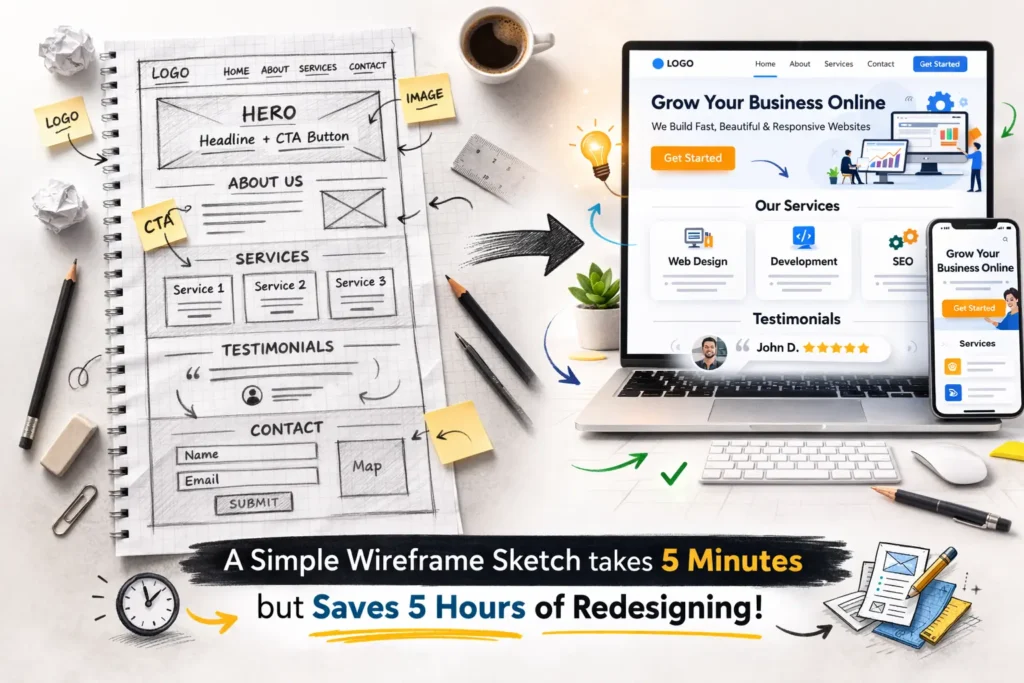
Before you touch a computer mouse in WordPress, grab a pencil. Sketching your key pages (Homepage, single Service page) is the final checkpoint.
You don’t need to be an artist. Draw boxes.
-
Box at the top: The Header (Logo and Menu).
-
Big box in the middle: The Hero Section (Headline and Button).
-
Three smaller boxes: The Services offered.
-
Box at the bottom: The Footer.
This is called Wireframing. It allows you to plan the hierarchy of information. It ensures the most important element (your Call to Action) is above the fold and visible.
Step 7: WordPress Pre-Launch Checklist Before Going Live
You have planned the goal, structure, content, features, and design. Now you are ready to build. Before you click “Install WordPress,” set up these three things to keep your project organized:
-
A Content Folder: Create a folder on your computer for this project. Inside, create sub-folders:
Images,Drafts,Videos. Start saving your assets here now. -
A Style Guide: Decide on 2-3 brand colors and 1-2 fonts. Having this decided beforehand stops you from changing your mind 50 times while building.
-
A Timeline: Be realistic. Planning a website takes 1-2 days. Building it takes 1-2 weeks. Set your expectations now.
Conclusion: Build Your WordPress Website with Confidence
Planning a WordPress website isn’t the boring part; it’s the empowering part. By following this blueprint, you are no longer a beginner hoping for the best. You are a project manager with a clear vision.
Now that you understand how to properly plan a WordPress website, the next step is choosing the right domain name and hosting provider. In the next tutorial, we’ll turn this plan into a real, live website — step by step.
Ready to execute your plan? Grab our [Internal Link: WordPress Launch Checklist] to guide you through the actual build phase.
WordPress Website Planning FAQ
How long does it take to plan a WordPress website?
For a standard small business site or blog (5–10 pages), the planning phase should take between 2 and 4 hours. If you are building an e-commerce store with 100 products, planning will take longer due to product categorization and structure decisions.
Do I need a sitemap if my site is only one page?
Yes, absolutely. Even a one-page site (often called a “One-Pager”) has sections. Your sitemap simply lists those sections: Hero, About, Services, Testimonials, and Contact. This helps you plan the content order and user flow clearly.
What is the difference between a theme and a plugin?
Think of a WordPress Theme as the exterior paint and wallpapers of your house. It controls how things look. Think of Plugins as the appliances and plumbing. They control what the website can do (for example, handling forms, SEO, or bookings). Proper planning requires you to consider both design and functionality.
Should I plan for mobile users?
100% yes. Over 60% of global web traffic now comes from mobile devices. Your planning should ensure that the content hierarchy you sketch (especially during wireframing) makes sense on smaller screens. While most modern WordPress themes are responsive by default, your content structure still needs to be clear and concise.
Do I really need to plan before building a WordPress website?
Yes. Planning prevents design confusion, plugin overload, structural mistakes, and costly changes later in the development process.
What is the most important part of website planning?
Defining your website’s primary goal and creating a clear sitemap. Without these two foundations, every design and plugin decision becomes random.
Next Tutorial: How to Choose the Perfect Domain Name (7 Proven Tips for 2026)
Previous Tutorial: WordPress Media Library Explained: Complete Beginner’s Guide (2026 Step-by-Step Tutorial)



