






Here’s a scenario every WordPress developer has faced:
You build a beautiful plugin with stunning CSS animations and smooth JavaScript interactions. You test it thoroughly. Everything works perfectly.
Then your client installs it on their live site… and nothing works. The styles are broken. The JavaScript throws errors. Or worse—their entire site crashes.
What happened? You loaded your assets incorrectly. Check our full plugin development series here.
Here’s the hard truth: How you load CSS and JavaScript determines whether your plugin helps or hurts a WordPress site. Load them wrong, and you’ll cause conflicts, break themes, or slow down the entire website.
Load them right, and your plugin will work seamlessly with any theme, any other plugin, and any WordPress setup.
In this tutorial, you’ll master WordPress asset enqueuing. You’ll learn the difference between registering and enqueuing, how to manage dependencies, and how to load assets ONLY when your plugin is actually being used.
The Problem with Most Plugin Asset Loading
Most beginner plugins do this:
// BAD - Loads on EVERY page
add_action('wp_enqueue_scripts', function() {
    wp_enqueue_style('my-plugin-style', plugins_url('style.css', __FILE__));
    wp_enqueue_script('my-plugin-script', plugins_url('script.js', __FILE__), array('jquery'));
});
This loads your CSS and JavaScript on every single page of the WordPress site—even pages that don’t use your plugin.
If your portfolio plugin loads 5 CSS files and 2 JavaScript files on every page, you’ve just added 7 HTTP requests to every page load. On a blog post. On the contact page. On the privacy policy page. None of which need your portfolio styles.
This is why WordPress sites get slow—too many plugins loading assets everywhere.
The WordPress Way: Register vs Enqueue
WordPress provides two steps for loading assets:
| Step | Function | When to Use |
|---|---|---|
| Register | wp_register_style() / wp_register_script() |
Tell WordPress about your asset (load once) |
| Enqueue | wp_enqueue_style() / wp_enqueue_script() |
Actually output the asset (load when needed) |
Think of it like a library:
-
Register = Adding a book to the catalog (the book exists, but no one has checked it out)
-
Enqueue = Someone checks out the book (now it’s actually used)
This two-step system lets you:
-
Register all your assets once (so WordPress knows about them)
-
Enqueue them only when your shortcode, widget, or block is present
What We’re Building Today
Update your WP_Creative_Portfolio class with asset registration:
class WP_Creative_Portfolio {

    public function __construct() {
        // From Video 3
        add_action('init', array($this, 'register_portfolio_cpt'));

        // From Video 4
        add_action('init', array($this, 'register_portfolio_taxonomy'));

        // TODAY'S ADDITION - Register assets
        add_action('wp_enqueue_scripts', array($this, 'register_assets'));

        // Future shortcode (Video 6)
        // add_shortcode('wp_creative_portfolio', array($this, 'render_portfolio'));
    }

    // TODAY'S CODE
    public function register_assets() {
        // Register all CSS and JavaScript here
    }

    // Helper method to enqueue when needed
    public static function enqueue_assets() {
        // Actually load the assets
    }
}
Setting Up Your Assets Folder
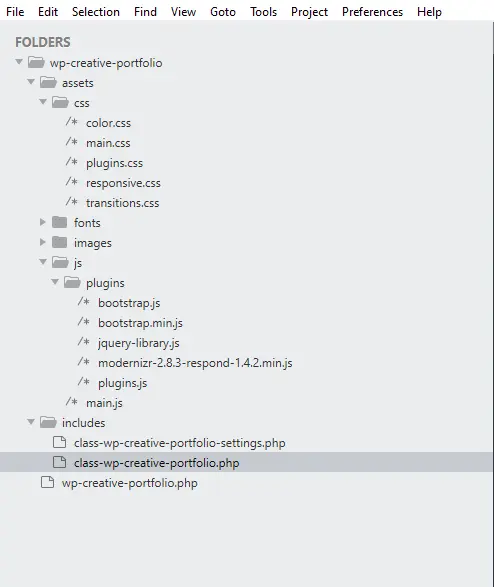
First, make sure your assets folder structure is ready:
wp-creative-portfolio/
├── assets/
│   ├── css/
│   │   ├── plugins.css      (third-party CSS)
│   │   ├── main.css          (your custom CSS)
│   │   ├── color.css         (color schemes)
│   │   ├── transitions.css   (animations)
│   │   └── responsive.css    (mobile styles)
│   └── js/
│       ├── plugins/
│       │   └── plugins.js    (third-party JS like isotope, lightbox)
│       └── main.js            (your custom JavaScript)
Getting the Assets
For this tutorial, you’ll need the actual CSS and JavaScript files. If you haven’t already, download the course assets package:
Download the Course Files
To follow along, you’ll need the HTML template files that provide our CSS styling and JavaScript. These aren’t the focus of the tutorial (we’re learning PHP/WordPress), so you can download the complete asset package here:
Enter your details below to receive the HTML ZIP file instantly via email. In the next lesson, we’ll use this HTML to build a fully functional WordPress plugin step by step.
The package includes:
-
Complete CSS files for a modern portfolio grid
-
JavaScript for filtering and lightbox (using Isotope and PrettyPhoto)
-
All dependencies properly configured
Extract the ZIP and copy the contents to your plugin’s assets folder.
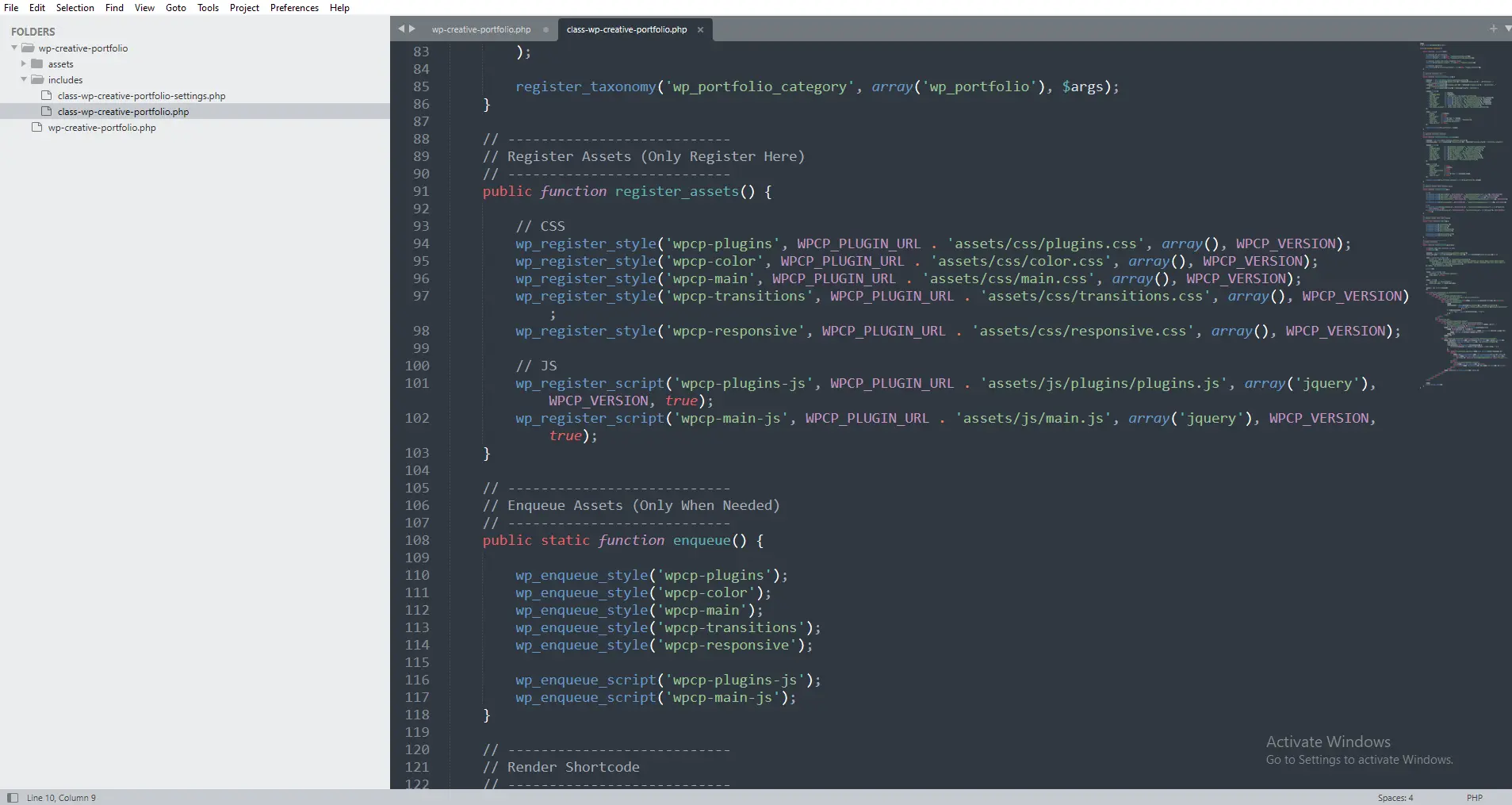
The Complete Asset Registration Code
Add this method to your WP_Creative_Portfolio class:
/**
 * Register CSS and JavaScript files
 *
 * This runs on every page load, but only REGISTERS the files.
 * They won't be loaded until we explicitly enqueue them.
 */
public function register_assets() {

    // =============================================
    // REGISTER CSS FILES
    // =============================================

    // Plugins CSS (third-party libraries like lightbox, isotope)
    wp_register_style(
        'wpcp-plugins',                                   // Handle
        WPCP_PLUGIN_URL . 'assets/css/plugins.css',       // Source
        array(),                                           // Dependencies
        WPCP_VERSION,                                      // Version
        'all'                                              // Media
    );

    // Main color scheme (can be customized later)
    wp_register_style(
        'wpcp-color',
        WPCP_PLUGIN_URL . 'assets/css/color.css',
        array('wpcp-plugins'),                             // Depends on plugins CSS
        WPCP_VERSION,
        'all'
    );

    // Main styles
    wp_register_style(
        'wpcp-main',
        WPCP_PLUGIN_URL . 'assets/css/main.css',
        array('wpcp-color'),                               // Depends on color.css
        WPCP_VERSION,
        'all'
    );

    // Transitions and animations
    wp_register_style(
        'wpcp-transitions',
        WPCP_PLUGIN_URL . 'assets/css/transitions.css',
        array('wpcp-main'),                                // Depends on main.css
        WPCP_VERSION,
        'all'
    );

    // Responsive styles (mobile, tablet)
    wp_register_style(
        'wpcp-responsive',
        WPCP_PLUGIN_URL . 'assets/css/responsive.css',
        array('wpcp-main'),                                // Depends on main.css
        WPCP_VERSION,
        'all'
    );

    // =============================================
    // REGISTER JAVASCRIPT FILES
    // =============================================

    // Register jQuery (WordPress includes it, but we'll declare dependency)
    // No need to register jQuery - WordPress does it automatically

    // Plugins JS (isotope, prettyPhoto, etc.)
    wp_register_script(
        'wpcp-plugins-js',                                 // Handle
        WPCP_PLUGIN_URL . 'assets/js/plugins/plugins.js',  // Source
        array('jquery'),                                    // Dependencies
        WPCP_VERSION,                                       // Version
        true                                                // Load in footer
    );

    // Main custom JavaScript
    wp_register_script(
        'wpcp-main-js',
        WPCP_PLUGIN_URL . 'assets/js/main.js',
        array('jquery', 'wpcp-plugins-js'),                 // Depends on plugins JS
        WPCP_VERSION,
        true                                                // Load in footer
    );

    // Localize script to pass PHP data to JavaScript
    wp_localize_script(
        'wpcp-main-js',                                     // Handle
        'wpcp_ajax',                                         // Object name in JS
        array(
            'ajax_url' => admin_url('admin-ajax.php'),      // URL for AJAX requests
            'nonce'    => wp_create_nonce('wpcp_nonce'),    // Security nonce
            'plugin_url' => WPCP_PLUGIN_URL,                 // Plugin URL for images
        )
    );
}
Breaking Down wp_register_style()
wp_register_style(
    'wpcp-plugins',                               // $handle
    WPCP_PLUGIN_URL . 'assets/css/plugins.css',   // $src
    array(),                                       // $deps
    WPCP_VERSION,                                  // $ver
    'all'                                          // $media
);
| Parameter | Example | Purpose |
|---|---|---|
$handle |
'wpcp-plugins' |
Unique identifier. Use this to enqueue later. |
$src |
WPCP_PLUGIN_URL . 'assets/css/plugins.css' |
Full URL to the file. Use constants, never hardcode. |
$deps |
array('wpcp-color') |
Dependencies that must load first. |
$ver |
WPCP_VERSION |
Version number for cache busting. |
$media |
'all' |
Media type: ‘all’, ‘screen’, ‘print’, etc. |
Breaking Down wp_register_script()
wp_register_script(
    'wpcp-main-js',                               // $handle
    WPCP_PLUGIN_URL . 'assets/js/main.js',        // $src
    array('jquery', 'wpcp-plugins-js'),            // $deps
    WPCP_VERSION,                                  // $ver
    true                                           // $in_footer
);
| Parameter | Example | Purpose |
|---|---|---|
$handle |
'wpcp-main-js' |
Unique identifier |
$src |
WPCP_PLUGIN_URL . 'assets/js/main.js' |
Full URL to the file |
$deps |
array('jquery', 'wpcp-plugins-js') |
Scripts that must load first |
$ver |
WPCP_VERSION |
Version for cache busting |
$in_footer |
true |
Load in footer (better performance) |
The Enqueue Method
Now add this helper method to actually load the assets when needed:
/**
 * Enqueue assets when needed
 *
 * Call this method only when your shortcode, widget, or block is present.
 * This ensures assets load ONLY on pages that use your plugin.
 */
public static function enqueue_assets() {

    // Enqueue CSS (by handle - registered earlier)
    wp_enqueue_style('wpcp-plugins');
    wp_enqueue_style('wpcp-color');
    wp_enqueue_style('wpcp-main');
    wp_enqueue_style('wpcp-transitions');
    wp_enqueue_style('wpcp-responsive');

    // Enqueue JavaScript
    wp_enqueue_script('wpcp-plugins-js');
    wp_enqueue_script('wpcp-main-js');

    // Note: We don't need to enqueue jQuery - WordPress does it automatically
    // when we declare it as a dependency
}
Why Static Method?
Notice we made enqueue_assets() static:
public static function enqueue_assets() { ... }
This allows us to call it without instantiating the class:
// If we have an instance
$portfolio = new WP_Creative_Portfolio();
$portfolio->enqueue_assets(); // Works, but requires instance

// Static call - no instance needed!
WP_Creative_Portfolio::enqueue_assets(); // Better!
We’ll use this in our shortcode (Video 6) to load assets only when the shortcode is present.
Understanding Dependencies
Look at our dependency chain:
plugins.css (no dependencies)
    ↓
color.css (depends on plugins.css)
    ↓
main.css (depends on color.css)
    ↓
transitions.css (depends on main.css)
responsive.css (depends on main.css)
And for JavaScript:
jQuery (included by WordPress)
    ↓
plugins.js (depends on jQuery)
    ↓
main.js (depends on jQuery and plugins.js)
Why dependencies matter:
When you enqueue main.js, WordPress automatically:
-
Checks if jQuery is loaded (if not, loads it)
-
Checks if
plugins.jsis loaded (if not, loads it) -
Loads
main.jslast
This ensures everything works in the correct order.
The Power of wp_localize_script()
wp_localize_script(
    'wpcp-main-js',
    'wpcp_ajax',
    array(
        'ajax_url' => admin_url('admin-ajax.php'),
        'nonce'    => wp_create_nonce('wpcp_nonce'),
        'plugin_url' => WPCP_PLUGIN_URL,
    )
);
This creates a JavaScript object available in your main.js:
// In main.js, you can now use:
console.log(wpcp_ajax.ajax_url);    // https://yoursite.com/wp-admin/admin-ajax.php
console.log(wpcp_ajax.nonce);        // 1234567890abcdef
console.log(wpcp_ajax.plugin_url);   // https://yoursite.com/wp-content/plugins/wp-creative-portfolio-pro/

// Use for AJAX requests
jQuery.post(wpcp_ajax.ajax_url, {
    action: 'filter_portfolio',
    nonce: wpcp_ajax.nonce,
    category: 'design'
}, function(response) {
    // Handle response
});
This is how you securely pass PHP data to JavaScript.
Testing Your Asset Loading
Step 1: Verify Registration (No Output Yet)
Add this temporarily to your theme’s functions.php or use a plugin like Code Snippets:
add_action('wp_head', function() {
    global $wp_scripts, $wp_styles;

    echo '<h3>Registered Styles:</h3>';
    foreach($wp_styles->registered as $handle => $data) {
        if (strpos($handle, 'wpcp-') === 0) {
            echo $handle . '<br>';
        }
    }

    echo '<h3>Registered Scripts:</h3>';
    foreach($wp_scripts->registered as $handle => $data) {
        if (strpos($handle, 'wpcp-') === 0) {
            echo $handle . '<br>';
        }
    }
});
You should see:
-
wpcp-plugins
-
wpcp-color
-
wpcp-main
-
wpcp-transitions
-
wpcp-responsive
-
wpcp-plugins-js
-
wpcp-main-js
Step 2: Test Manual Enqueuing
Add this temporarily to force enqueue:
add_action('wp_enqueue_scripts', function() {
    WP_Creative_Portfolio::enqueue_assets();
}, 100);
Now check your page source. You should see all CSS and JavaScript files loaded.
Step 3: Verify Conditional Loading
Remove the temporary code. Check page source again—assets should be gone. Perfect! They’re registered but not loaded.
Common Mistakes and How to Avoid Them
Mistake 1: Loading Assets on Every Page
// BAD
add_action('wp_enqueue_scripts', array($this, 'register_assets'));
add_action('wp_enqueue_scripts', array($this, 'enqueue_assets')); // Wrong!

// GOOD
add_action('wp_enqueue_scripts', array($this, 'register_assets'));
// Only enqueue when needed (shortcode, widget, etc.)
Mistake 2: Hardcoding Paths
// BAD - breaks if site moves or plugin renamed
wp_enqueue_style('style', '/wp-content/plugins/my-plugin/style.css');

// GOOD - uses constants
wp_enqueue_style('style', WPCP_PLUGIN_URL . 'assets/css/style.css');
Mistake 3: Forgetting Dependencies
// BAD - main.js might load before jQuery
wp_register_script('main-js', 'main.js', array(), '1.0.0');

// GOOD - declares dependency
wp_register_script('main-js', 'main.js', array('jquery'), '1.0.0');
Mistake 4: Loading in Header (Blocking Rendering)
// BAD - blocks page rendering
wp_register_script('script', 'script.js', array(), '1.0.0', false);

// GOOD - loads in footer, doesn't block rendering
wp_register_script('script', 'script.js', array(), '1.0.0', true);
Mistake 5: Not Versioning Assets
// BAD - browser caches forever
wp_register_style('style', 'style.css');

// GOOD - version changes, cache busts
wp_register_style('style', 'style.css', array(), WPCP_VERSION);
Performance Best Practices
1. Combine Files in Production
For better performance, combine CSS files and minify them. But during development, keep them separate for easier debugging.
2. Use CDN for Popular Libraries
If your plugins.js includes jQuery plugins, consider loading jQuery from a CDN:
wp_deregister_script('jquery');
wp_register_script('jquery', 'https://cdnjs.cloudflare.com/ajax/libs/jquery/3.6.0/jquery.min.js', array(), '3.6.0', true);
Warning: This can cause conflicts with themes that expect WordPress jQuery. Use cautiously.
3. Defer Non-Critical JavaScript
Add defer or async attributes:
add_filter('script_loader_tag', function($tag, $handle) {
    if ('wpcp-plugins-js' === $handle) {
        return str_replace(' src', ' defer src', $tag);
    }
    return $tag;
}, 10, 2);
4. Load CSS in Header, JS in Footer
Always set $in_footer to true for JavaScript unless absolutely necessary in header.
Updated Class with Asset Methods
Here’s your complete WP_Creative_Portfolio class with asset registration:
<?php
/**
 * Main portfolio functionality class
 *
 * @package WP_Creative_Portfolio
 */

if ( ! defined( 'ABSPATH' ) ) {
    exit;
}

class WP_Creative_Portfolio {

    /**
     * Constructor
     */
    public function __construct() {
        // Register Custom Post Type
        add_action( 'init', array( $this, 'register_portfolio_cpt' ) );

        // Register Taxonomy
        add_action( 'init', array( $this, 'register_portfolio_taxonomy' ) );

        // Register assets (but don't enqueue yet)
        add_action( 'wp_enqueue_scripts', array( $this, 'register_assets' ) );

        // Future shortcode
        // add_shortcode( 'wp_creative_portfolio', array( $this, 'render_portfolio' ) );
    }

    /**
     * Register Portfolio Custom Post Type
     */
    public function register_portfolio_cpt() {
        // Code from Video 3
    }

    /**
     * Register Portfolio Taxonomy
     */
    public function register_portfolio_taxonomy() {
        // Code from Video 4
    }

    /**
     * Register CSS and JavaScript files
     */
    public function register_assets() {

        // CSS
        wp_register_style(
            'wpcp-plugins',
            WPCP_PLUGIN_URL . 'assets/css/plugins.css',
            array(),
            WPCP_VERSION,
            'all'
        );

        wp_register_style(
            'wpcp-color',
            WPCP_PLUGIN_URL . 'assets/css/color.css',
            array('wpcp-plugins'),
            WPCP_VERSION,
            'all'
        );

        wp_register_style(
            'wpcp-main',
            WPCP_PLUGIN_URL . 'assets/css/main.css',
            array('wpcp-color'),
            WPCP_VERSION,
            'all'
        );

        wp_register_style(
            'wpcp-transitions',
            WPCP_PLUGIN_URL . 'assets/css/transitions.css',
            array('wpcp-main'),
            WPCP_VERSION,
            'all'
        );

        wp_register_style(
            'wpcp-responsive',
            WPCP_PLUGIN_URL . 'assets/css/responsive.css',
            array('wpcp-main'),
            WPCP_VERSION,
            'all'
        );

        // JavaScript
        wp_register_script(
            'wpcp-plugins-js',
            WPCP_PLUGIN_URL . 'assets/js/plugins/plugins.js',
            array('jquery'),
            WPCP_VERSION,
            true
        );

        wp_register_script(
            'wpcp-main-js',
            WPCP_PLUGIN_URL . 'assets/js/main.js',
            array('jquery', 'wpcp-plugins-js'),
            WPCP_VERSION,
            true
        );

        // Localize script with PHP data
        wp_localize_script(
            'wpcp-main-js',
            'wpcp_ajax',
            array(
                'ajax_url' => admin_url('admin-ajax.php'),
                'nonce'    => wp_create_nonce('wpcp_nonce'),
                'plugin_url' => WPCP_PLUGIN_URL,
            )
        );
    }

    /**
     * Enqueue assets when needed
     */
    public static function enqueue_assets() {

        wp_enqueue_style('wpcp-plugins');
        wp_enqueue_style('wpcp-color');
        wp_enqueue_style('wpcp-main');
        wp_enqueue_style('wpcp-transitions');
        wp_enqueue_style('wpcp-responsive');

        wp_enqueue_script('wpcp-plugins-js');
        wp_enqueue_script('wpcp-main-js');
    }
}
Frequently Asked Questions
What’s the difference between wp_enqueue_script and wp_register_script?
wp_register_script() adds the script to WordPress’s registry but doesn’t output it. wp_enqueue_script() actually outputs the script tag. You must register before enqueuing.
Can I enqueue without registering?
Yes! wp_enqueue_script() registers automatically if the handle isn’t found. But it’s better to register separately for organization.
How do I know if my assets are loading?
Use browser DevTools (F12) → Network tab. Reload the page and look for your CSS/JS files.
What if my JavaScript depends on jQuery?
Add ‘jquery’ to the dependencies array. WordPress loads jQuery automatically.
Should I load all CSS files or combine them?
During development, keep them separate for easier debugging. For production, consider combining and minifying.
How do I add inline CSS or JS?
Use wp_add_inline_style() or wp_add_inline_script() after enqueuing.
What’s a handle?
A unique identifier for your asset. Use it to reference the asset elsewhere.
Real-World Testing Scenarios
Test 1: Theme Conflict
Activate different WordPress themes (Twenty Twenty-Four, Astra, GeneratePress) and verify your assets load correctly and don’t break theme styling.
Test 2: Plugin Conflict
Install other popular plugins (WooCommerce, Contact Form 7, Elementor) and verify no JavaScript errors occur.
Test 3: Mobile Responsiveness
Test on mobile devices or use Chrome DevTools device toolbar. Ensure responsive.css is working.
Test 4: Caching
Test with caching plugins (W3 Total Cache, WP Rocket). Ensure version numbers update when you change WPCP_VERSION.
What’s Next?
Your plugin now has:
✅ Custom post type (Video 3)
✅ Categories (Video 4)
✅ Proper asset loading (Video 5)
In Video 6, you’ll create your first shortcode. You’ll learn how to use add_shortcode(), handle attributes, and most importantly—load your assets ONLY when the shortcode is present.
[BUTTON: Watch Video 6 – How to Create a WordPress Shortcode]
Troubleshooting Checklist
If assets aren’t loading:
-
Is
register_assets()hooked towp_enqueue_scripts? -
Are file paths correct? Check browser console for 404 errors.
-
Is
enqueue_assets()being called? -
Check dependencies—are required scripts loading first?
-
Clear browser cache and any caching plugins.
-
Enable WP_DEBUG to see PHP errors.
-
Check browser console for JavaScript errors.
Quick Reference: Asset Functions
| Function | Purpose |
|---|---|
wp_register_style() |
Register CSS file |
wp_register_script() |
Register JavaScript file |
wp_enqueue_style() |
Load CSS file |
wp_enqueue_script() |
Load JavaScript file |
wp_localize_script() |
Pass PHP data to JavaScript |
wp_add_inline_style() |
Add inline CSS |
wp_add_inline_script() |
Add inline JavaScript |
wp_deregister_style() |
Remove registered CSS |
wp_deregister_script() |
Remove registered JavaScript |
Performance Checklist
-
Assets registered, not automatically enqueued
-
JavaScript loaded in footer (
trueparameter) -
Dependencies properly declared
-
Version numbers for cache busting
-
No hardcoded paths
-
CSS loaded conditionally (shortcode/widget)
-
JavaScript localized for AJAX/security
Share Your Progress!
You’ve now learned one of the most important WordPress development skills. Proper asset loading separates amateur plugins from professional ones.
Question: What other assets would you want to load in your plugins? Custom fonts? Google Maps? Drop your ideas in the comments!
Having trouble? Post your code and what’s not working. I help every commenter get their assets loading correctly.



