





Have you ever wondered how websites are built? Maybe you’ve heard the name “WordPress” thrown around, but you’re not quite sure what it actually is. You’re not alone.
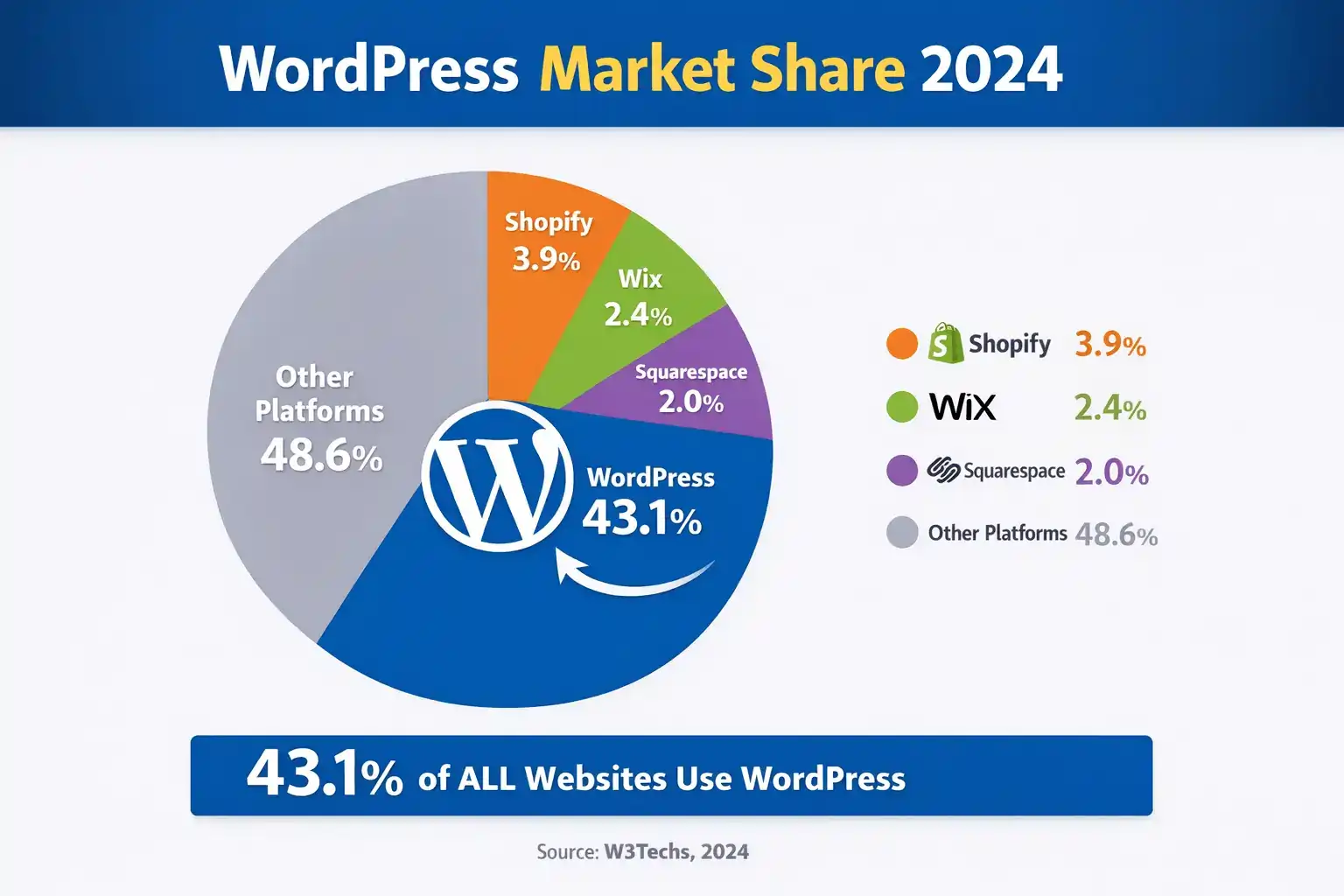
Here’s a surprising fact: WordPress powers over 43% of all websites on the internet. That’s right—nearly half the websites you visit daily are built on WordPress. From small personal blogs to massive news sites like TechCrunch, from Fortune 500 companies to online stores—WordPress is everywhere.
But what exactly is WordPress? Is it software? A website builder? A coding platform? And most importantly—can you use it to build your own website without learning complex programming?
In this complete beginner’s guide, I’ll answer all these questions and more. By the time you finish reading, you’ll understand exactly what WordPress is, how it works behind the scenes, and whether it’s the right choice for your website project.
I’ve worked with WordPress for over 10+ years, built WooCommerce stores, optimized performance issues, and solved real-world client problems.
Let’s dive in.
What Is WordPress? The Simple Definition
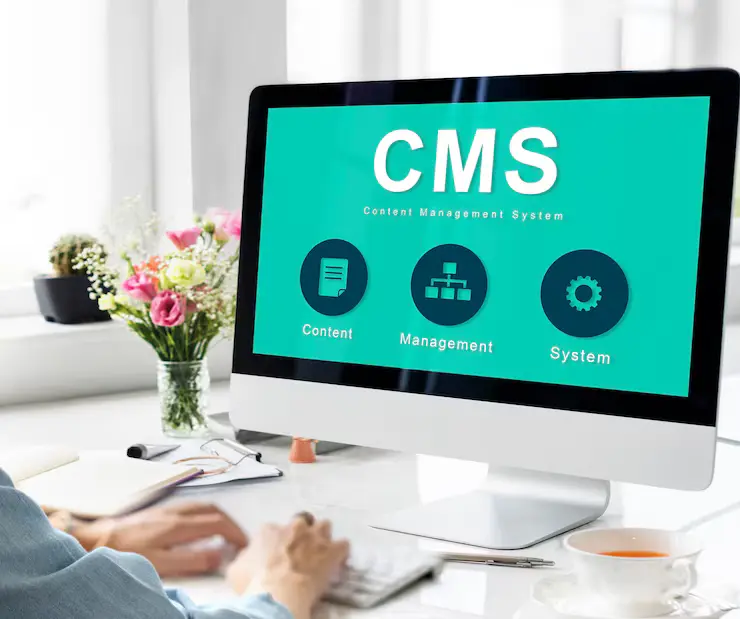
At its core, WordPress is a content management system (CMS) . That’s a fancy way of saying it’s software that helps you create, manage, and publish content on the internet without needing to write code from scratch.
Think of WordPress as the engine behind your website. Just like your car’s engine powers the vehicle while you focus on driving, WordPress powers your website while you focus on creating content and growing your audience.
Here’s what makes WordPress special:
-
It’s free – You don’t pay a cent for the WordPress software itself
-
It’s open-source – Thousands of developers worldwide contribute to making it better
-
It’s beginner-friendly – You don’t need to know HTML, CSS, or PHP to use it
-
It’s incredibly powerful – From simple blogs to complex eCommerce stores, WordPress does it all
But WordPress wasn’t always this powerful. Let’s take a quick look at where it came from.
A Brief History of WordPress
WordPress started in 2003 as a simple blogging platform. Two developers, Matt Mullenweg and Mike Little, wanted to create an elegant, well-architected personal publishing system.
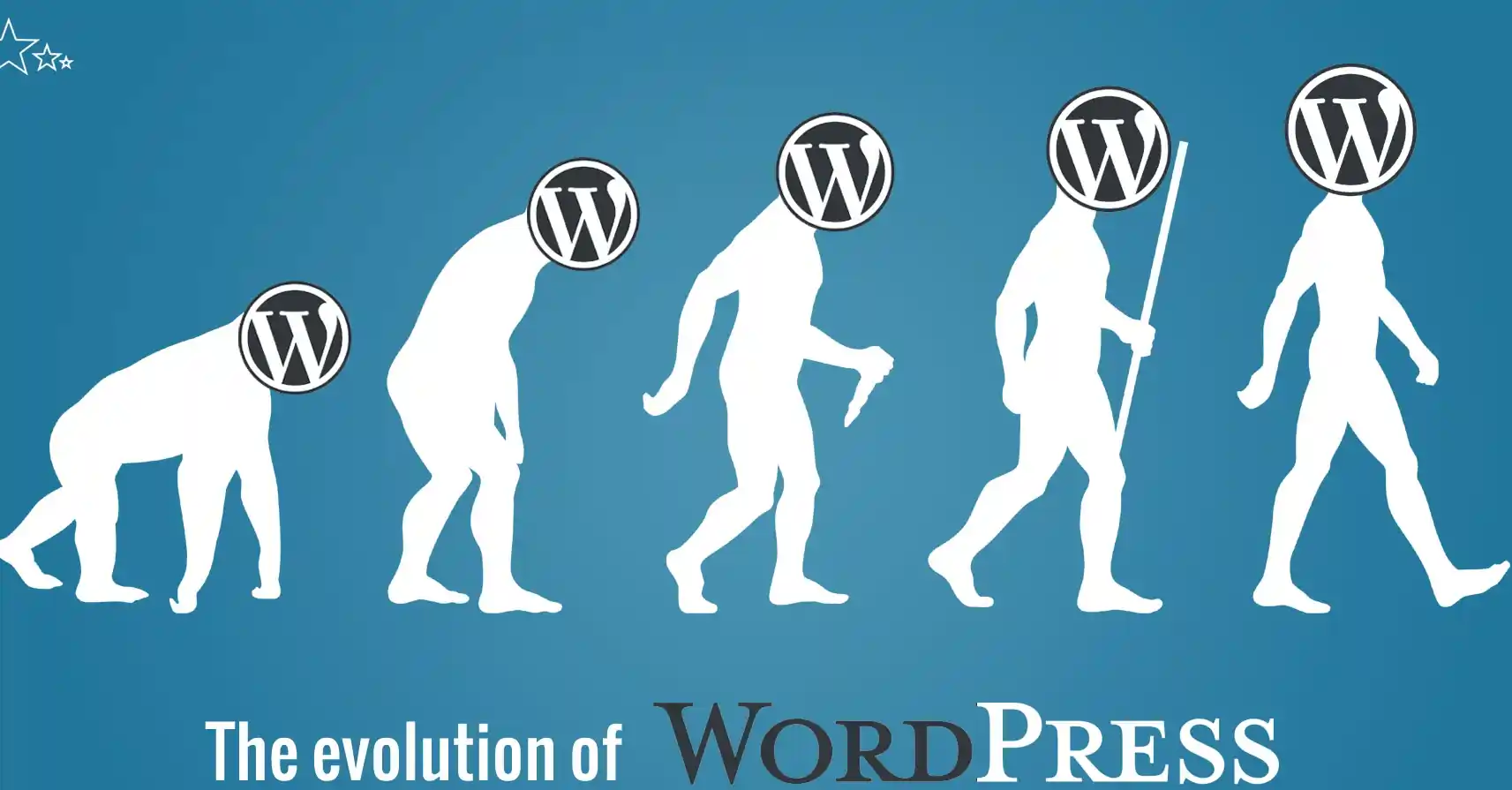
What began as a fork of an existing blogging tool called b2/cafelog has grown into the world’s most popular website platform. Here’s how it evolved:
-
2003: WordPress 0.7 released – basic blogging functionality
-
2004: Plugin system introduced – developers could now extend WordPress
-
2005: Theme system added – designers could create custom looks
-
2010: WordPress 3.0 – merged with WordPress MU, enabling multisite networks
-
2018: Gutenberg block editor – completely revolutionized content creation
-
2024+: Full Site Editing – control every part of your site visually
- 2026+ : WordPress is matured enough with Gutenberg and Full Site Editing
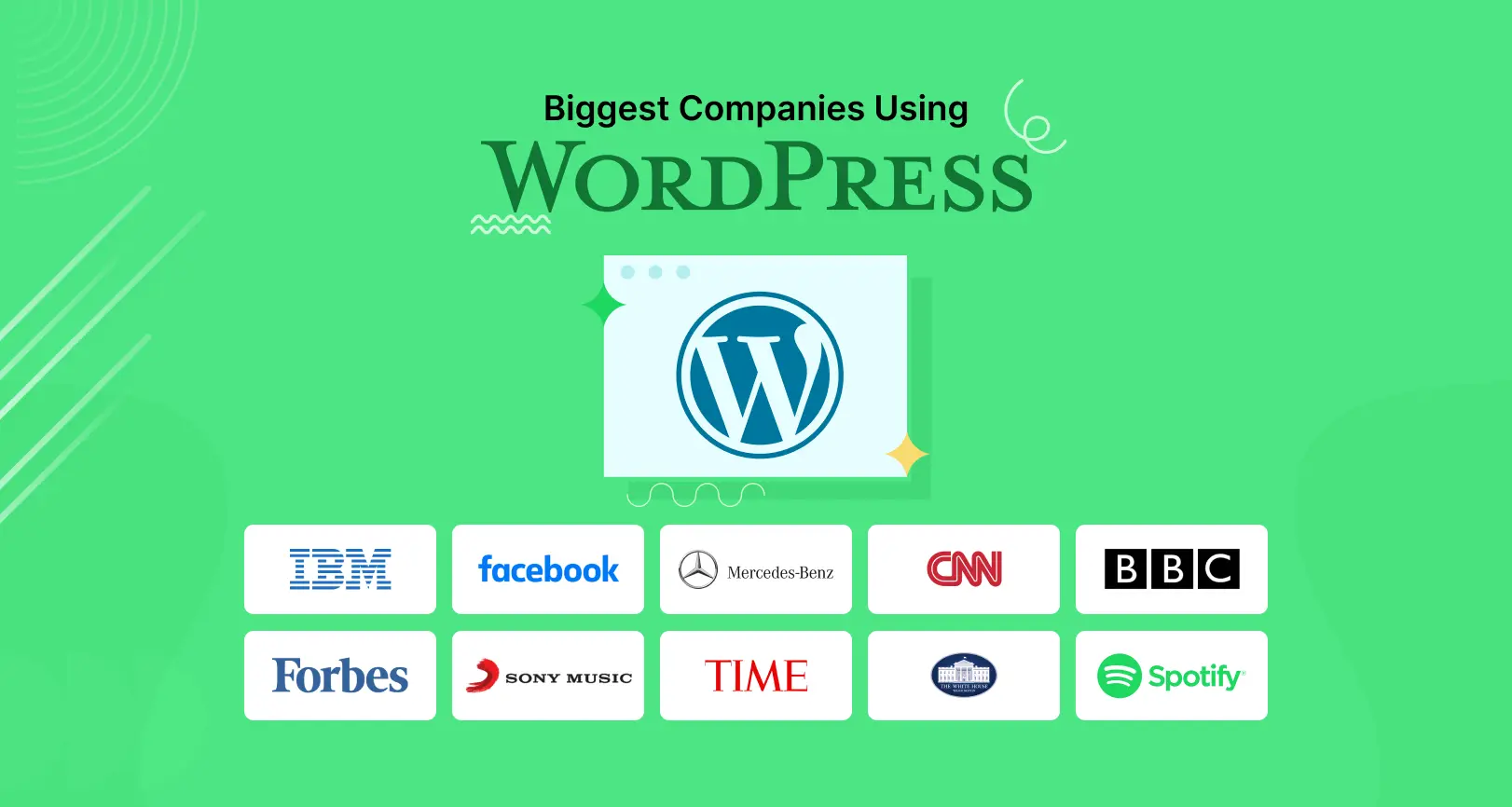
Today, WordPress isn’t just for bloggers. It’s used by:
-
The White House (.gov websites)
-
Sony (entertainment)
-
The New York Times (news)
-
Etsy (eCommerce)
-
Microsoft (tech)
WordPress.com vs WordPress.org: The Critical Difference
Before we go further, we need to clear up one of the biggest sources of confusion for beginners: WordPress.com vs WordPress.org.
They sound almost identical, but they’re completely different things. Understanding this distinction will save you hours of frustration later.
WordPress.org (Self-Hosted WordPress)
WordPress.org is where you download the actual WordPress software. This is the “real” WordPress that powers 43% of the web.
With WordPress.org:
-
You download the software for free
-
You need your own domain name (like yoursite.com)
-
You need web hosting (a server that stores your files)
-
You have complete control over everything
-
You can install any theme or plugin
-
You can monetize your site however you want
-
You own 100% of your data
Think of WordPress.org like buying a piece of land. You build your own house, you own it completely, and you can do whatever you want with it.
If you want full control and serious growth, self-hosted WordPress is the smarter long-term choice.
WordPress.com (Hosted Platform)
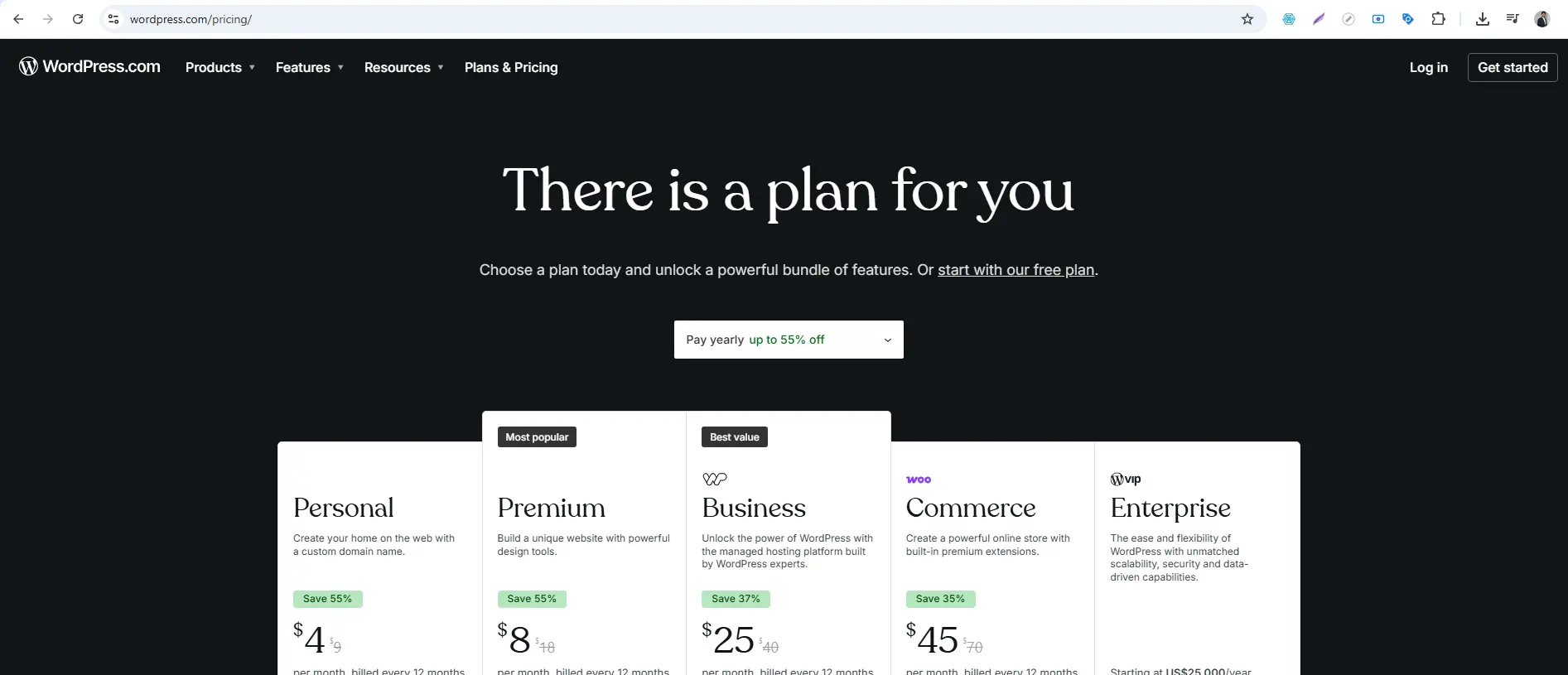
WordPress.com is a commercial service run by the company Automattic (founded by the same people behind WordPress). They host your website for you on their servers.
With WordPress.com:
-
You can start for free (with limitations)
-
They provide hosting automatically
-
You have limited control (especially on free plans)
-
You can’t install custom plugins (on lower plans)
-
You can’t monetize with ads (on free plans)
-
WordPress.com can show their ads on your site
Think of WordPress.com like renting an apartment. It’s easier to move in, but you have rules to follow and you don’t truly own it.
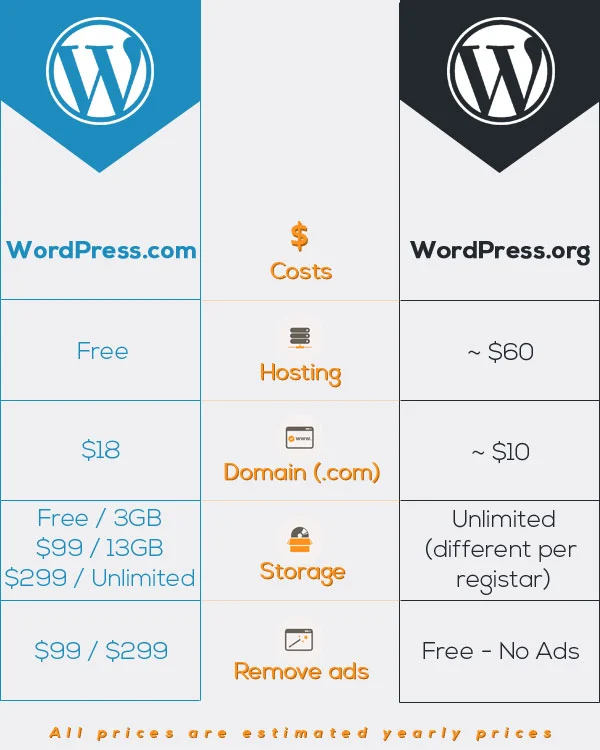
Which should you choose? For this tutorial series, we’ll focus on WordPress.org because it gives you full control and is what most professionals use. But if you’re just experimenting, WordPress.com is fine to start.
How Does WordPress Actually Work?
Now let’s peek under the hood. How does WordPress take your content and turn it into a beautiful website?
WordPress works through a combination of three main components working together:
1. The Core Software (The Engine)
The WordPress core is the main software that handles all the basic functionality. It’s written in a programming language called PHP and uses MySQL for the database.
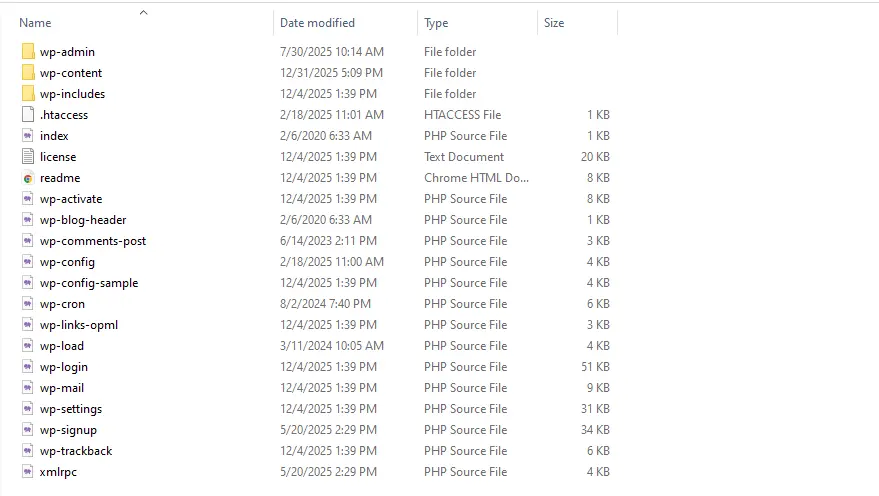
When you download WordPress from WordPress.org, you’re getting the core files that include:
-
wp-admin – The dashboard you log into
-
wp-content – Where your themes, plugins, and uploads live
-
wp-includes – Core functions that make everything work
2. The Database (The Brain)
WordPress uses a MySQL database to store all your content. When you write a blog post, WordPress doesn’t save it as an HTML file. Instead, it stores the text, dates, categories, and other information in database tables.
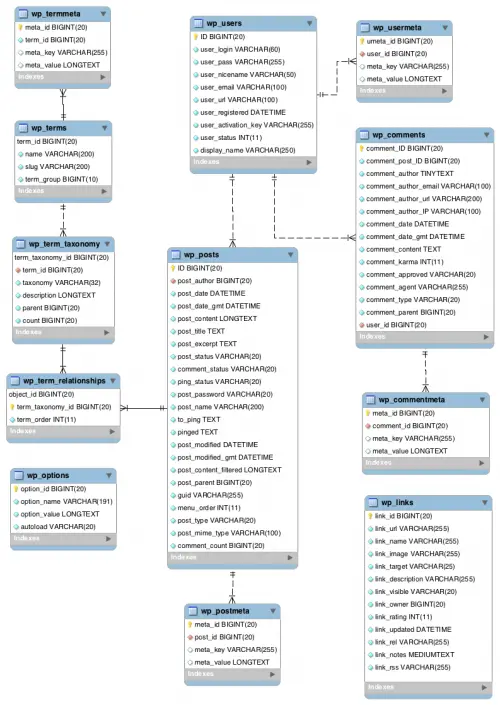
The database stores:
-
Posts and pages
-
User information
-
Comments
-
Settings and configurations
-
Plugin data
When someone visits your site, WordPress pulls this information from the database and displays it according to your theme’s design. Learn to keep your database lean with How to Optimize WordPress Database for Faster Performance .
3. The File System (The Storage)
Your WordPress installation also includes files stored directly on your server:
-
Images and media you upload
-
Theme files that control design
-
Plugin files that add features
-
Core WordPress files
How It All Works Together
Here’s what happens when someone visits your WordPress website:
-
The Request – A visitor types your URL into their browser
-
Server Processing – The request goes to your web host’s server
-
WordPress Boots Up – The server runs the WordPress core files
-
Database Query – WordPress asks the database: “What content should I show for this URL?”
-
Theme Assembly – WordPress takes that content and inserts it into your theme’s template
-
HTML Generation – WordPress generates a complete HTML page
-
Delivery – The finished page is sent to the visitor’s browser
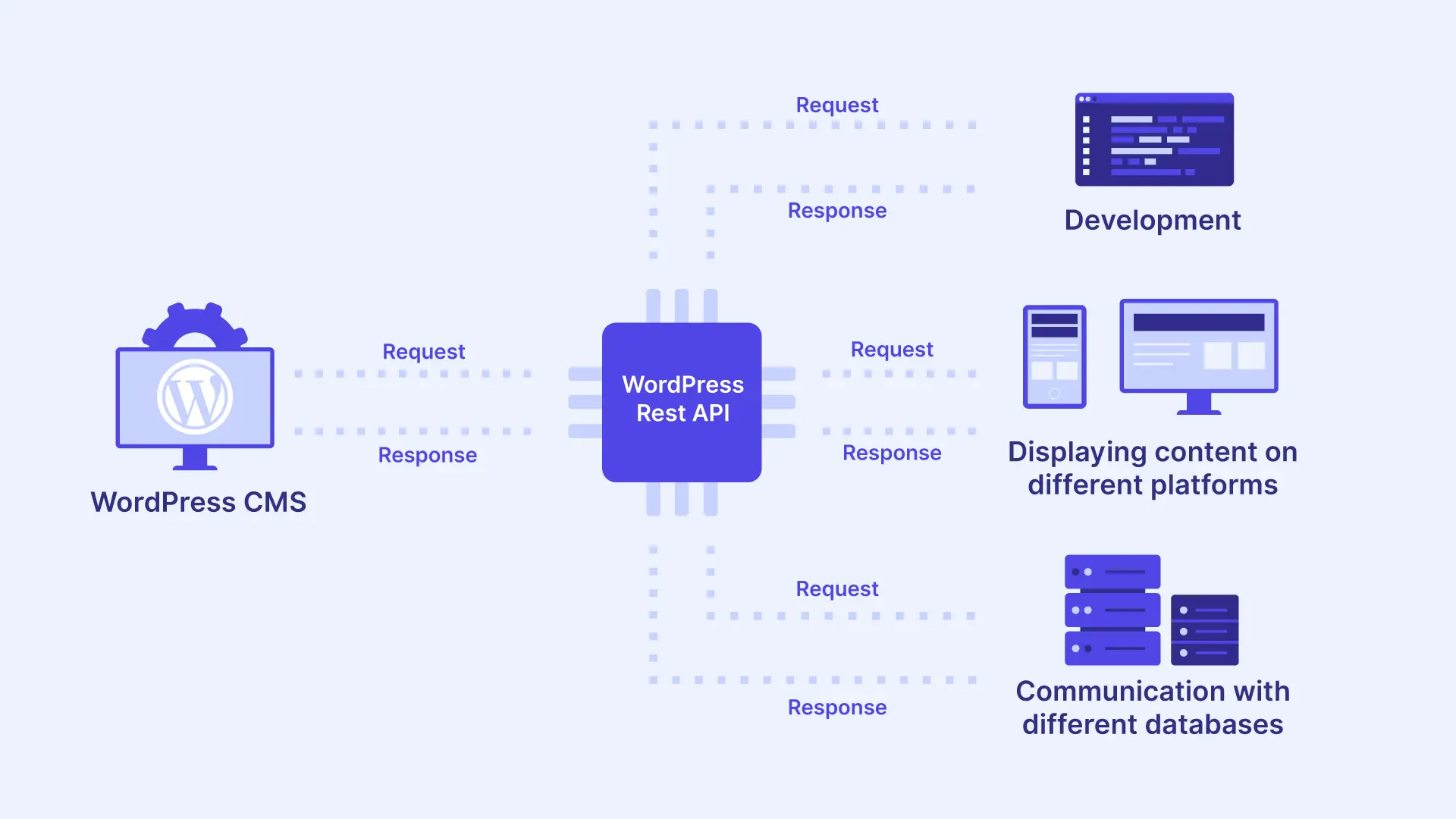
All of this happens in milliseconds. Pretty amazing, right?
Key Components of a WordPress Website
To really understand how WordPress works, you need to know its main building blocks.
WordPress Themes (The Design)
A theme controls how your website looks. It’s a collection of files that determine the layout, colors, fonts, and overall visual appearance.
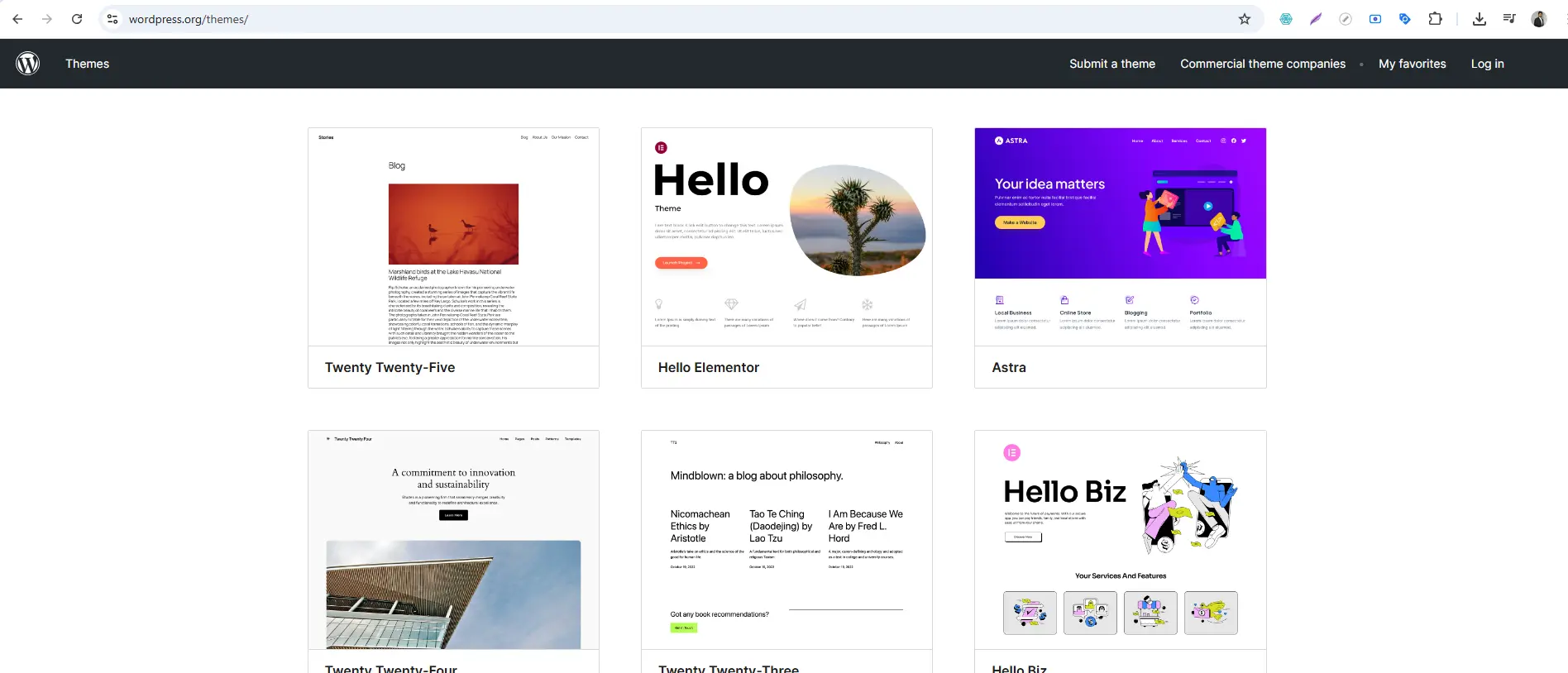
Themes can be:
-
Free – Thousands available in the WordPress directory
-
Premium – Paid themes with more features and support
-
Custom – Built specifically for your needs
Think of a theme like your website’s clothing. You can change the look completely without changing the content underneath. Before choosing a theme, see our comparison of Top WordPress Page Builders
WordPress Plugins (The Features)
Plugins add functionality to your WordPress site. Want a contact form? There’s a plugin for that. Want to sell products? Plugin. Want to improve SEO? Plugin. Start with these essential tools: 7 Best Caching Plugins for WordPress and 10 Best Security Plugins
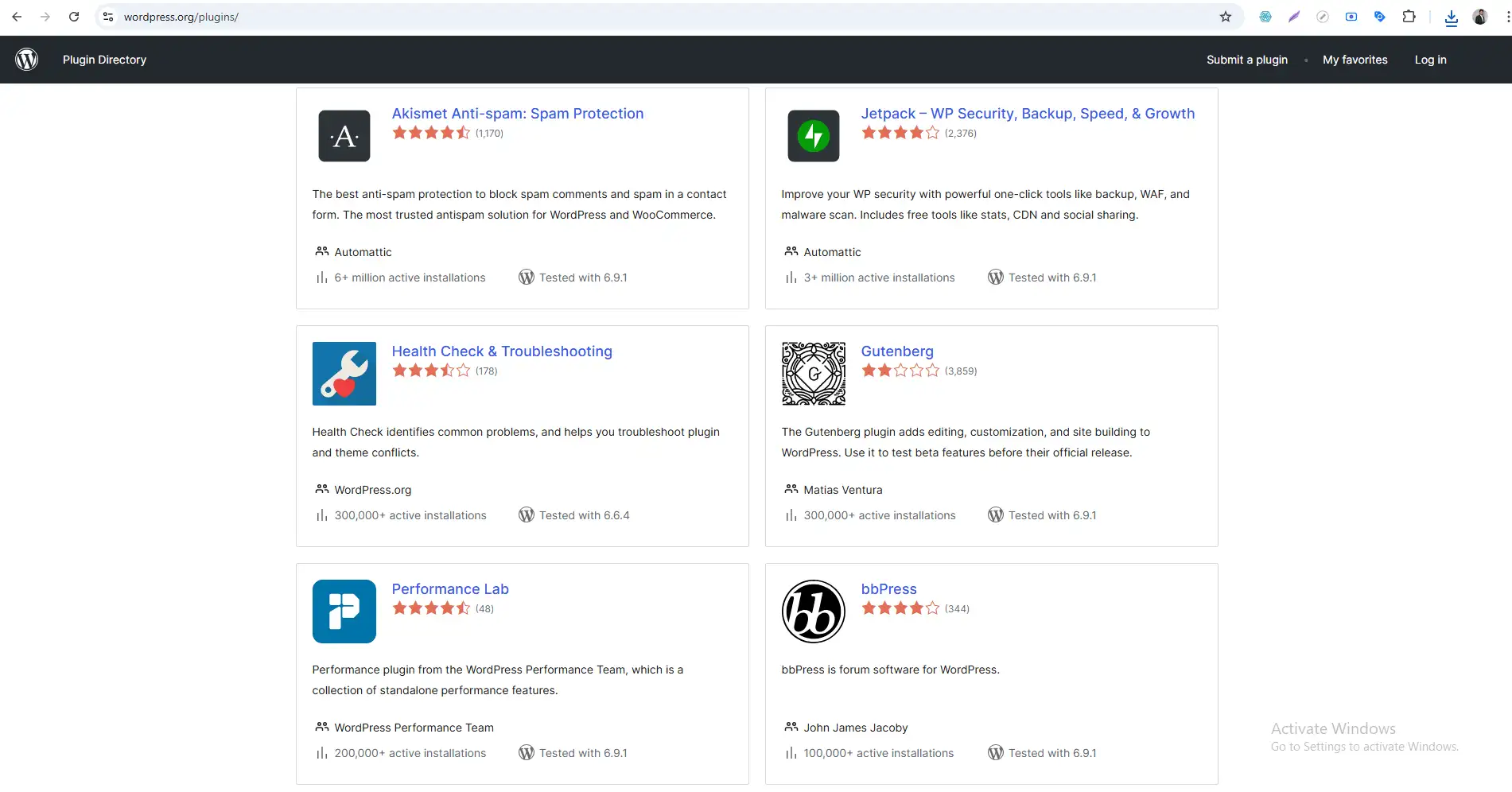
Plugins are what make WordPress incredibly flexible. There are over 60,000 free plugins available, plus thousands of premium ones.
Common plugin uses:
-
Contact forms (Contact Form 7, WPForms)
-
SEO (Yoast SEO, Rank Math)
-
Security (Wordfence, Sucuri)
-
Performance (W3 Total Cache, WP Rocket)
-
eCommerce (WooCommerce)
-
Page builders (Elementor, Beaver Builder)
WordPress Posts vs Pages (The Content)
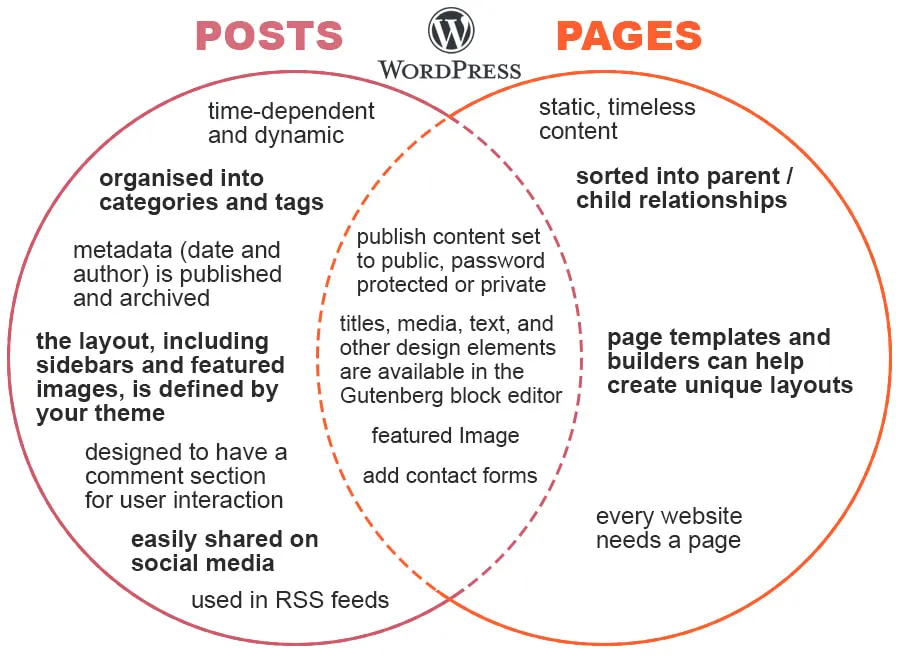
WordPress separates content into two main types:
Posts are time-based entries that appear in reverse chronological order. They’re perfect for:
-
Blog articles
-
News updates
-
Any content that’s organized by date
Pages are static, timeless content. They’re used for:
-
About pages
-
Contact pages
-
Privacy policies
-
Homepages
Users and Roles (The People)
WordPress has a built-in user management system with different permission levels:
-
Administrator – Full access to everything
-
Editor – Can publish and manage anyone’s posts
-
Author – Can publish and manage their own posts
-
Contributor – Can write but not publish posts
-
Subscriber – Can only manage their profile
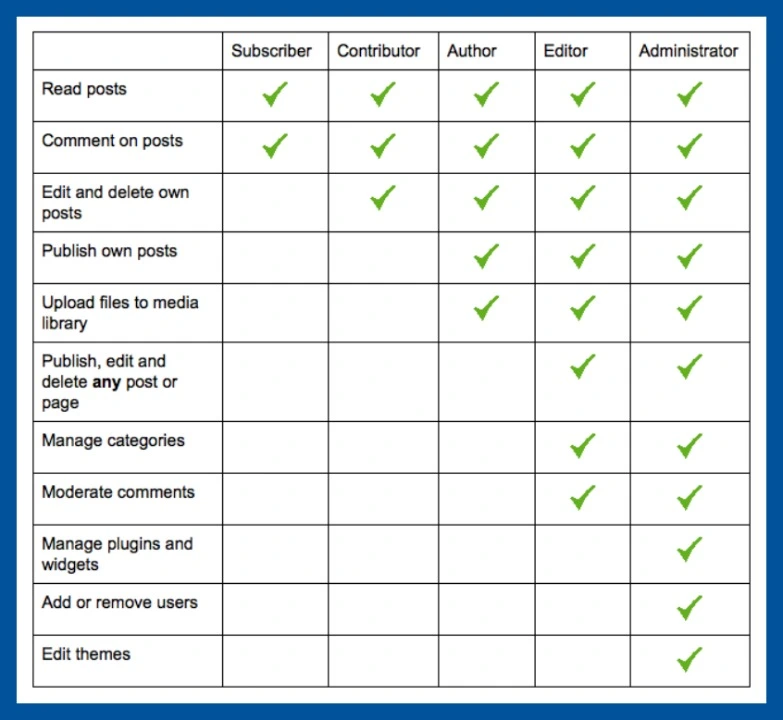
This makes WordPress perfect for multi-author websites and businesses.
Why Choose WordPress? 10 Compelling Reasons
Still wondering if WordPress is right for you? Here are ten reasons why millions choose WordPress:
1. It’s Free (As in Freedom)
WordPress is free to download, use, and modify. No licensing fees, no subscription costs, no hidden charges. You only pay for hosting and domain (which you need for any website).
2. Complete Ownership
You own 100% of your content and data. Unlike platforms like Wix or Squarespace, you can move your WordPress site anywhere at any time.
3. Massive Community
With millions of users worldwide, you’ll never be stuck. Questions get answered quickly in forums, Facebook groups, and WordPress meetups.
4. SEO-Friendly
WordPress is built with search engines in mind. Clean code, customizable permalinks, and powerful SEO plugins make it easy to rank on Google.
5. Unlimited Customization
With thousands of themes and plugins, you can build literally anything. No platform offers more flexibility.
6. Mobile Responsive
Most WordPress themes are mobile-friendly out of the box, ensuring your site looks great on phones and tablets.
7. Regular Updates
WordPress is constantly improved with security patches and new features. The open-source model means thousands of eyes reviewing every line of code.
8. Monetization Freedom
Want to run ads? Sell products? Offer memberships? WordPress never restricts how you make money from your site.
9. Scalability
WordPress grows with you. Start with a small blog, scale to thousands of visitors, then millions. WordPress handles it all.
10. Future-Proof
Because WordPress is open-source and widely adopted, it’s not going anywhere. Your investment in learning WordPress pays off for years. Make your WordPress site even more SEO-friendly with our Ultimate WordPress SEO Checklist .
What Can You Build with WordPress?
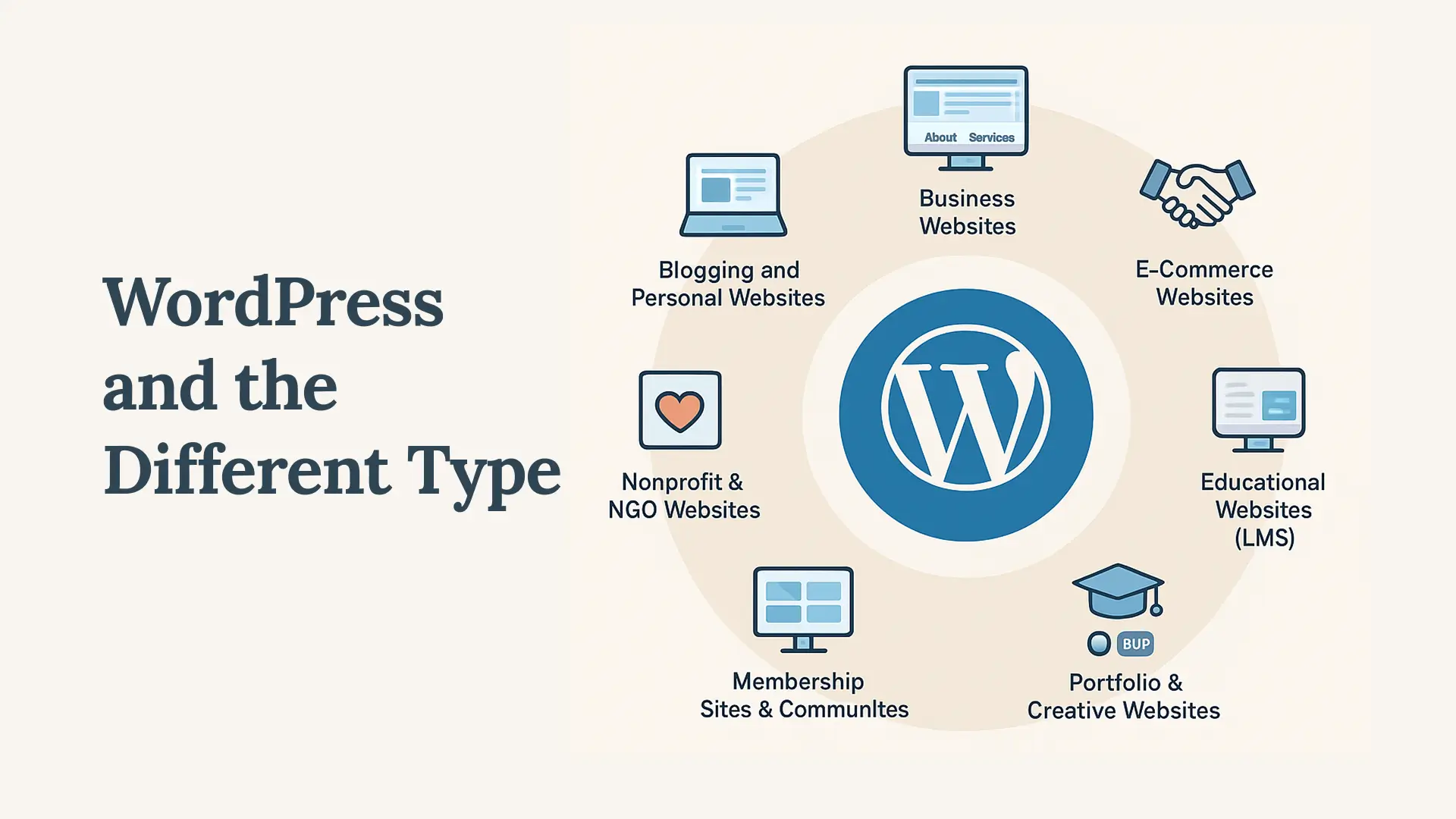
The possibilities are truly endless. Here are just some types of websites you can create:
Blogs and Personal Websites
The original use case, still the easiest way to start sharing your thoughts with the world.
Business Websites
Professional websites for companies of all sizes, from local restaurants to global corporations.
eCommerce Stores
With WooCommerce (a WordPress plugin), you can sell physical products, digital downloads, services, and more.
Portfolio Websites
Showcase your creative work—photography, design, art, writing.
Membership Sites
Create premium content that users pay to access.
Online Courses
Build and sell educational courses with LMS plugins.
Forums and Communities
Create discussion boards where users can interact.
News and Magazine Sites
Publish large volumes of content with complex categorization.
Nonprofit Websites
Perfect for organizations with fundraising needs.
Multisite Networks
Run multiple websites from a single WordPress installation.
Common Myths About WordPress (Debunked)
Let’s clear up some misconceptions beginners often have:
Myth 1: “WordPress is only for blogs”
Reality: While WordPress started as blogging software, it’s now a full CMS that powers every type of website imaginable.
Myth 2: “WordPress isn’t secure”
Reality: WordPress core is very secure. Security issues usually come from outdated versions, weak passwords, or poorly coded plugins/themes.
Myth 3: “You need to know code to use WordPress”
Reality: You can build a complete website without writing a single line of code. Coding knowledge just gives you more control.
Myth 4: “WordPress is slow”
Reality: A properly optimized WordPress site can load faster than custom-coded sites. Performance depends on hosting, theme, and optimization. See exactly how to fix performance issues in our guide: How to Optimize WordPress for Largest Contentful Paint (LCP)
Myth 5: “WordPress is just for small sites”
Reality: WordPress powers enterprise-level sites including TechCrunch, Sony, and The White House.
“Want to go beyond the basics? Learn how to Secure WordPress Without Security Plugins using our ultimate hardening guide.”
What You’ll Need to Start with WordPress
Ready to build your first WordPress site? Here’s what you need:
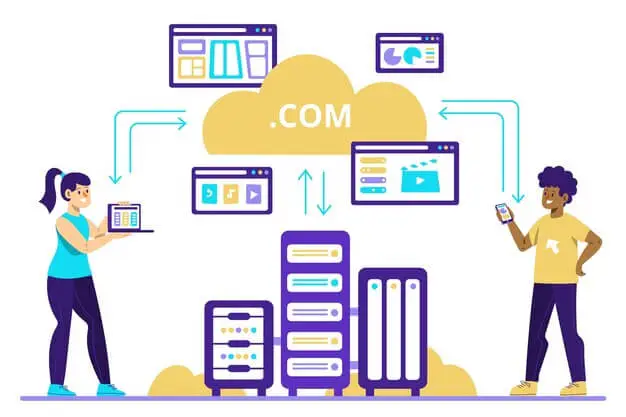
1. Domain Name
Your website’s address (example: yoursite.com). Costs around $10-15 per year.
2. Web Hosting
A server that stores your website files. Costs around $3-10 per month for beginners.
3. WordPress Software
Free from WordPress.org.
4. About 30 Minutes
That’s all it takes to install WordPress with most hosting providers.
In the next post ([Link to “How to Install WordPress Step by Step”]), I’ll show you exactly how to get WordPress installed and running on your domain.
WordPress Terminology Cheat Sheet
Before you go, here’s a quick reference of terms you’ll encounter:
| Term | Definition |
|---|---|
| CMS | Content Management System – software that helps you manage website content |
| Dashboard | The admin area where you manage your WordPress site |
| Theme | Controls your site’s design and layout |
| Plugin | Adds specific features and functionality |
| Posts | Time-based content (blog articles) |
| Pages | Static content (About, Contact) |
| Widgets | Small blocks that add features to sidebars |
| Menus | Navigation links for your site |
| Permalinks | The permanent URLs for your posts and pages |
| Categories | Broad groupings for your posts |
| Tags | Specific keywords for your posts |
Summary: Is WordPress Right for You?
WordPress is the world’s most popular website platform for good reason. It’s:
-
Free to use
-
Flexible enough for any project
-
Beginner-friendly with no coding required
-
Powerful enough for enterprise sites
-
Supported by a massive community
If you want to build a website that you truly own and control, WordPress is the best choice available today. In our next tutorial, we’ll tackle one of the most confusing topics for beginners: WordPress.com vs WordPress.org – What’s the Difference? This knowledge is crucial before you start building.
Frequently Asked Questions
Q: Is WordPress really free?
A: Yes, the WordPress software itself is completely free. You only pay for domain name and hosting (which you need for any website). Some premium themes and plugins cost money, but there are thousands of free options.
Q: Do I need to learn coding to use WordPress?
A: No coding is required to build a basic WordPress website. You can create pages, write posts, and customize design using visual editors. Coding knowledge is only needed for advanced customization.
Q: How much does it cost to start a WordPress website?
A: You can start for as little as $3-5 per month for hosting plus $10-15 per year for a domain name. Many hosting companies offer free domains for the first year.
Q: Is WordPress secure?
A: WordPress core is very secure when kept updated. Security issues usually come from weak passwords, outdated plugins, or poor-quality themes. Following security best practices keeps your site safe.
Q: Can I make money with WordPress?
A: Absolutely! WordPress powers millions of money-making websites through advertising, affiliate marketing, selling products, memberships, online courses, and more. There’s no restriction on monetization.
Q: What’s the difference between WordPress.com and WordPress.org?
A: WordPress.org gives you the self-hosted software with complete control. WordPress.com is a hosted service with limitations. For full flexibility, WordPress.org is recommended.
Ready to Start Your WordPress Journey?
Now you understand what WordPress is and how it works. The next step is getting it installed on your domain. Before that we’ll cover in more details like which platform to choose from. There are two options which we’ll cover in details in the next tutorial.
Next Tutorial: WordPress.com vs WordPress.org – What’s the Difference?
Have questions about WordPress? Drop them in the comments below, and I’ll help you out! In case comments are disabled, you can reach us through our contact page form.



