





This guide is part of our complete WordPress tutorial series — a structured roadmap designed to take you from absolute beginner to advanced WordPress user step by step.
If you’re just starting your journey, we highly recommend following the tutorials in order so you build a strong foundation instead of jumping randomly between topics.
Start here: Complete WordPress Tutorial: Beginners to Experts
New to WordPress? Before choosing a theme, make sure you understand the difference between posts and pages. Read our full tutorial here: Posts vs Pages in WordPress – What’s the Difference?. If you’re completely new to WordPress, we recommend first reading our guide on What Is WordPress and How Does It Work? to understand the platform before diving into themes.
1. What Is a WordPress Plugin?
Plugins can make or break your WordPress site. Learn which ones to pick, how to install them safely, and how to leverage 2026’s latest AI tools to supercharge your website. Your WordPress website functions exactly the same way.
When you first install WordPress, you receive what developers call the “core” software. This core handles the fundamentals: publishing content, managing users, and displaying pages. It is reliable, secure, and functional. However, the digital landscape of 2026 demands far more than basic functionality. Visitors expect interactive forms, lightning-fast loading speeds, personalized recommendations, and seamless shopping experiences.
This is where the magic happens. WordPress plugins serve as your digital toolkit, allowing you to add, modify, or enhance features without touching a single line of code. They bridge the gap between a basic website and a powerful online presence.
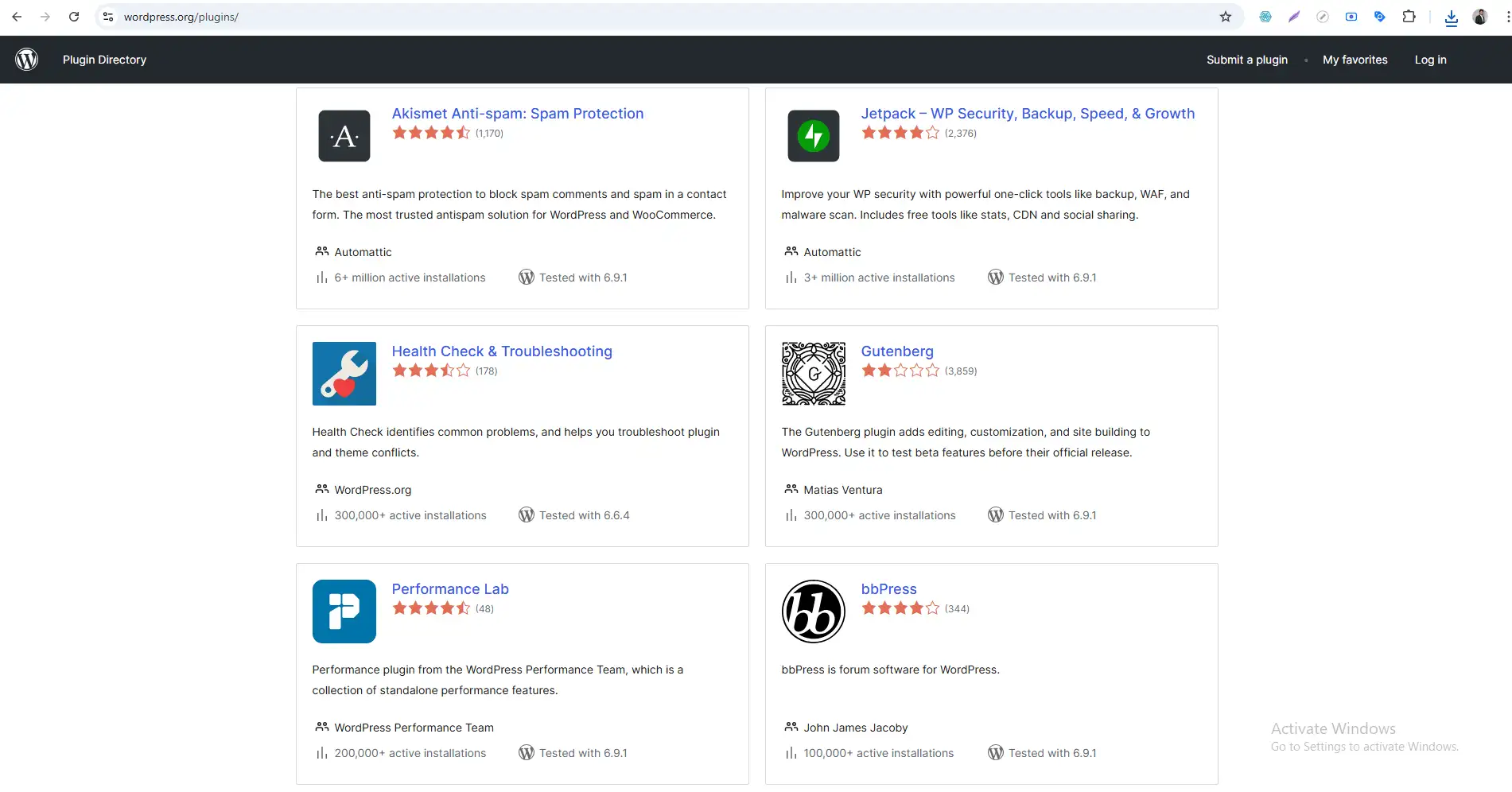
Throughout this comprehensive guide, we will explore the ecosystem of WordPress plugins from every angle. You will learn not just the “how,” but the “why” behind plugin selection, installation, and ongoing maintenance. By the end, you will possess the knowledge to make informed decisions that keep your site secure, fast, and feature-rich.
2. How WordPress Plugins Work
To truly understand plugins, we need to peek behind the curtain. When you install a plugin, you are adding a specific set of instructions to your website’s files. These instructions, written primarily in PHP (the programming language WordPress is built on), integrate with the core software to create new behaviors.
Think of it this way: WordPress core provides the stage, the lighting, and the seating. A plugin brings in the actors, the props, and the script. Together, they create a performance your audience will remember.
The Technical Reality of Plugins in 2026
The plugin landscape has matured significantly. Today’s plugins often function as sophisticated bridges between your WordPress installation and external services.
-
Hybrid Plugins: Many modern plugins don’t store all their functionality on your server. Instead, they connect to cloud-based platforms. For example, a booking plugin might display a calendar on your site while processing payments and availability through secure external servers. This approach reduces the load on your hosting and enhances security.
-
AI Integration Layers: Plugins now frequently serve as interfaces for artificial intelligence. A content creation plugin might send your topic idea to an AI engine and receive well-structured draft content in return, all within your WordPress editor.
-
API Connectors: The rise of headless WordPress and third-party services means many plugins exist solely to connect your site to platforms like CRM systems, email marketing tools, or analytics dashboards.
Understanding this evolution helps you appreciate that plugins are no longer simple add-ons. They are sophisticated pieces of digital infrastructure that extend your website’s capabilities far beyond your server’s limitations.
3. Types of WordPress Plugins
The WordPress plugin repository contains hundreds of thousands of options, which can feel overwhelming. To navigate this ecosystem effectively, it helps to understand the main categories of plugins and what they accomplish.
Performance and Speed Optimization
In 2026, website speed remains a critical ranking factor and user experience metric. Performance plugins focus on making your site load faster through various techniques:
-
-
Caching: These plugins create static copies of your dynamic pages and serve them to visitors, reducing the processing power required for each visit.
-
Image Optimization: Modern image plugins automatically compress pictures when you upload them, sometimes converting them to next-generation formats like WebP without losing quality.
-
-
Database Cleaning: Over time, WordPress databases accumulate clutter like post revisions, spam comments, and transients. Optimization plugins clean this automatically.
In 2026, website speed remains a critical ranking factor and user experience metric. Performance plugins focus on making your site load faster through various techniques, such as caching, image optimization, and database cleaning. For additional strategies beyond plugins, check out our WordPress Optimization Tips.
Security and Maintenance
The digital security landscape evolves constantly. Security plugins act as your dedicated protection team:
-
Firewall Protection: They monitor incoming traffic and block malicious requests before they reach your site.
-
Login Hardening: These tools prevent brute force attacks by limiting login attempts and adding two-factor authentication.
-
Malware Scanning: Regular scans check your files for suspicious code and alert you immediately if something appears compromised.
Functionality Enhancers
This broad category includes plugins that add specific features to your site:
-
Form Builders: Create contact forms, registration forms, surveys, and quizzes with drag-and-drop interfaces.
-
E-commerce Solutions: Transform your site into a fully functional online store with product listings, shopping carts, and payment processing.
-
Membership Systems: Restrict content to registered users and create subscription tiers.
-
Learning Management Systems: Build and sell online courses directly from WordPress.
Design and Customization
While themes control your site’s overall appearance, design plugins allow granular control:
-
Page Builders: Visual editing tools that let you design complex layouts without code.
-
Custom Fonts and Icons: Add typography and visual elements beyond your theme’s defaults.
-
Popup Builders: Create targeted messages for email signups, promotions, or important announcements.
Search Engine Optimization
Visibility on search engines requires ongoing effort. SEO plugins assist by:
-
Content Analysis: Evaluating your posts for readability and keyword optimization.
-
Technical SEO Management: Generating sitemaps and managing meta tags.
-
Schema Markup: Adding structured data that helps search engines understand your content.
4. How to Install WordPress Plugin: Three Pathways to Adding Plugins
Now that you understand what plugins do, let’s walk through the practical process of adding them to your site. WordPress offers multiple installation methods, each suited to different situations.
Pathway One: The Native Repository Search
This method works for the vast majority of free plugins available through the official WordPress directory.
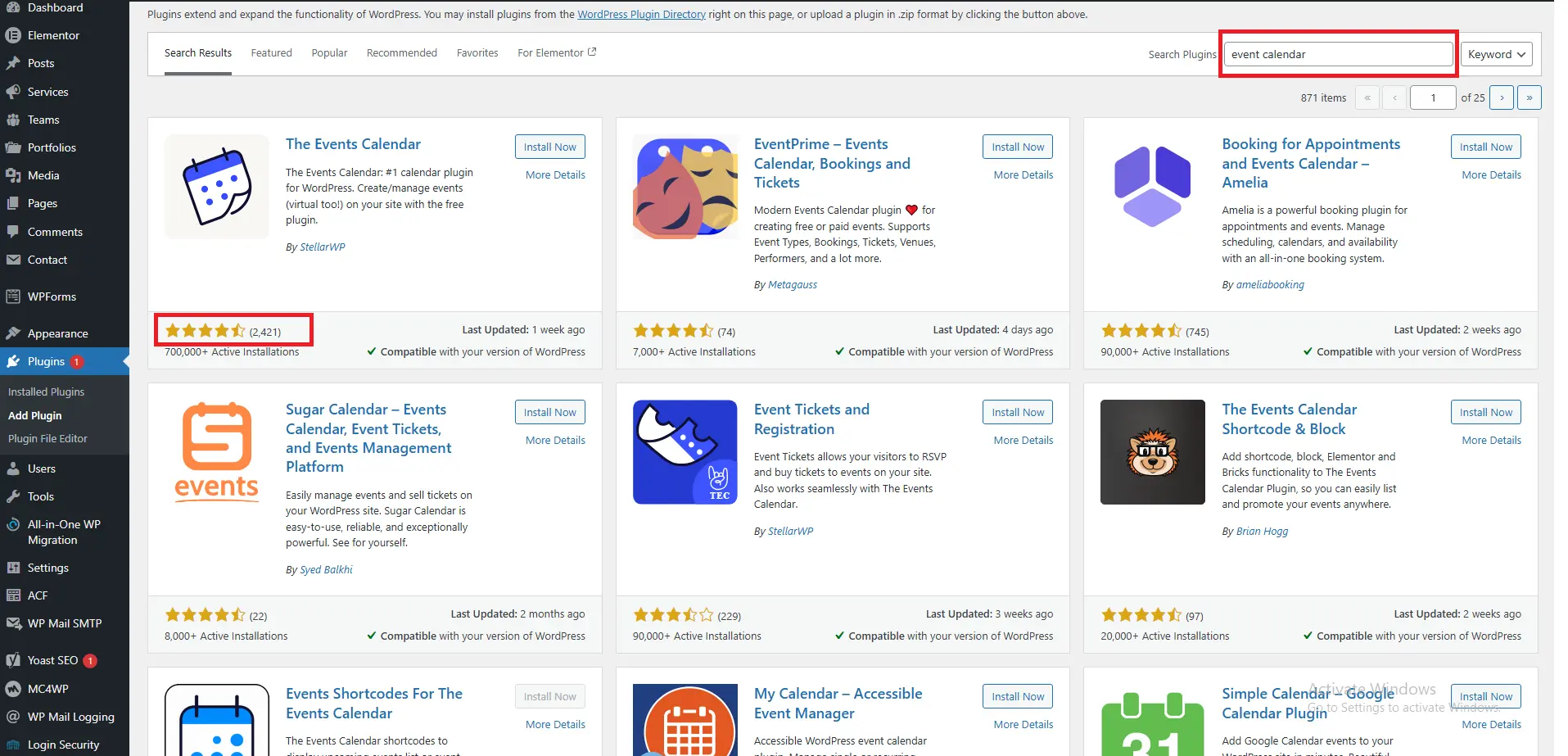
Begin by logging into your WordPress administration panel. Look at the left-hand sidebar menu and hover over “Plugins.” Click on “Add New Plugin” from the submenu that appears.
You will arrive at a page displaying featured, popular, and recommended plugins. However, the real power lies in the search bar at the top right corner. Type what you need—perhaps “event calendar” or “social media feed”—and press enter.
The repository will display results matching your search term. Each listing shows the plugin name, a brief description, ratings, active installation count, and compatibility information. This transparency helps you make informed decisions before installing anything.
When you find a promising option, click the “Install Now” button. WordPress will fetch the plugin files from the repository and place them in the correct directory. Within seconds, the button changes to “Activate.” Click it to enable the plugin’s functionality on your site.
Pathway Two: Manual Upload for Premium Purchases
Premium plugins from third-party developers rarely appear in the WordPress repository. Instead, you purchase them directly from developer websites and receive a download link.
After purchasing, you will typically download a ZIP file to your computer. This compressed file contains all the plugin’s code and assets. To install it:
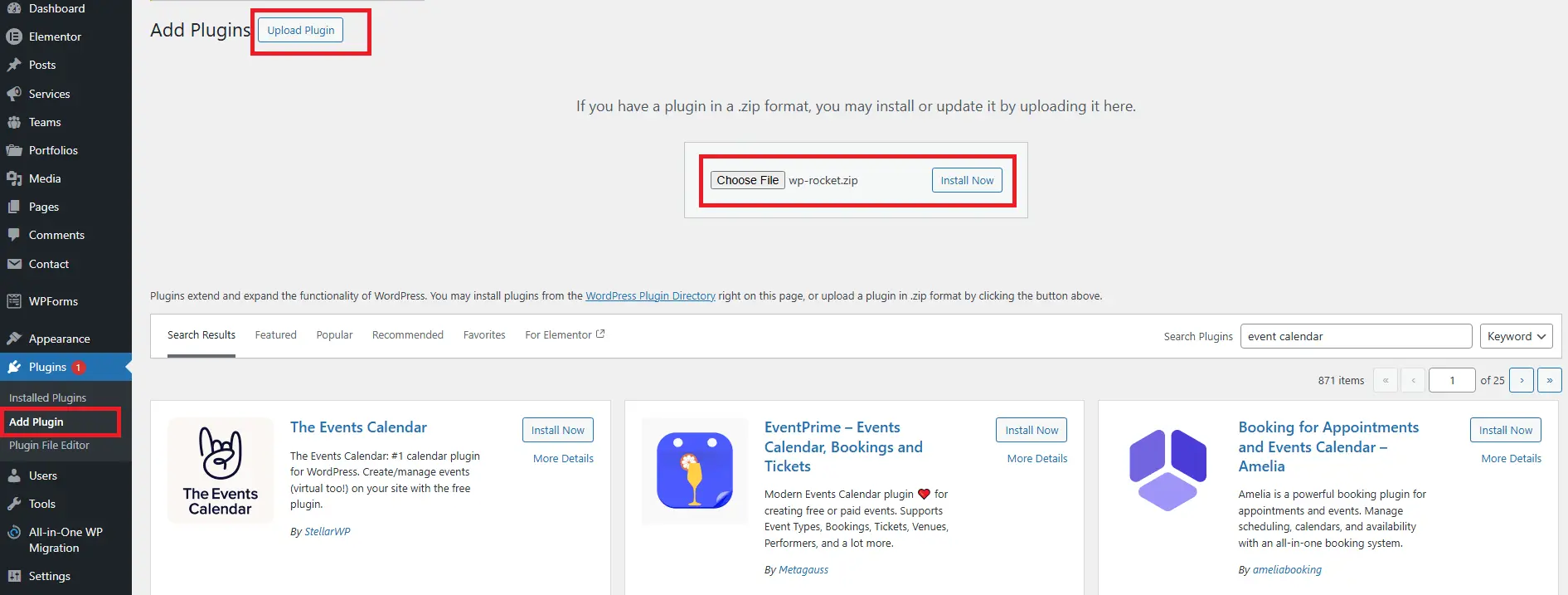
Navigate again to “Plugins > Add New” in your dashboard. Look for the “Upload Plugin” button at the top of the page—it sits next to the search bar. Clicking it reveals a file upload field.
Select the ZIP file you downloaded and click “Install Now.” WordPress handles the extraction and placement of files automatically. Once complete, you will see the activation button. Click it, and your premium plugin becomes active and ready for configuration.
Important Note: Never purchase plugins from untrusted sources. Stick to established marketplaces like CodeCanyon or well-known developer websites. Avoid “nulled” or cracked premium plugins entirely—they frequently contain malicious code that compromises your site.
Pathway Three: File Transfer Protocol for Advanced Users
Sometimes you cannot access your WordPress dashboard. Perhaps you locked yourself out accidentally, or you are migrating a site to new hosting. In these situations, FTP provides a reliable installation method.
You will need an FTP client like FileZilla and your hosting account’s FTP credentials (username, password, and server address). Connect to your server and navigate to the directory containing your WordPress installation. Look for the “wp-content” folder, then the “plugins” folder inside it.
On your computer, extract the plugin ZIP file you downloaded. You should now have a folder containing PHP files, possibly with subfolders for assets. Drag this entire folder into the “plugins” folder on your server.
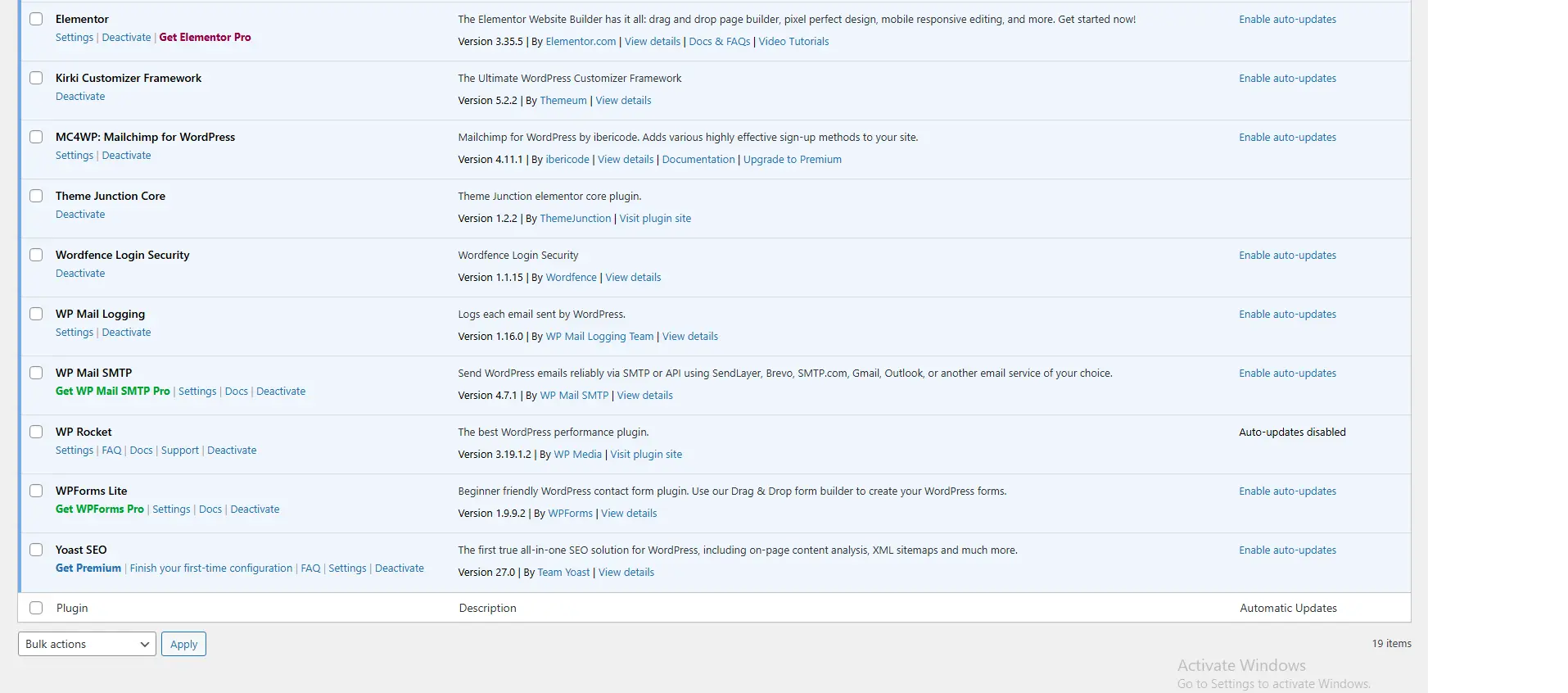
Once the transfer completes, return to your WordPress dashboard. Navigate to “Plugins > Installed Plugins.” Your manually uploaded plugin will appear in the list, ready for activation just like any other.
5. How to Choose the Right WordPress Plugin
With thousands of plugins available, selecting the right ones requires a systematic approach. Installing poorly coded or outdated plugins risks slowing your site, creating security vulnerabilities, or causing conflicts with other software. Use this framework to evaluate every plugin before installation.
The Compatibility Check
WordPress releases major updates several times yearly. Plugin developers must update their code to maintain compatibility. Before installing anything, verify when the developer last updated the plugin.
Look at the “Last Updated” date on the plugin’s WordPress.org page or the developer’s website. If the date exceeds six months, proceed with caution. While some stable plugins require infrequent updates, extended inactivity might indicate abandonment.
Additionally, check the “Tested up to” field. This indicates the latest WordPress version the developer has verified compatibility with. Ideally, this should match or be very close to your WordPress version.
The Popularity Indicator
While popularity alone doesn’t guarantee quality, it provides valuable context. Plugins with hundreds of thousands of active installations have undergone extensive real-world testing. Bugs and security issues typically surface quickly in widely used plugins, leading to faster fixes.
Look for the “Active Installations” statistic on WordPress.org. Plugins showing 10,000+ active installs generally indicate reliable, well-maintained code. For premium plugins, check review counts and community forum activity.
The Support Assessment
Even excellent plugins occasionally cause problems. When issues arise, responsive support makes all the difference.
For repository plugins, examine the support forum. Look at recent threads: Are users getting responses? Are the responses helpful? Do unresolved issues pile up? A healthy support forum suggests an engaged developer who cares about user experience.
Premium plugins should offer clear support channels—ticket systems, email addresses, or live chat. Research response times through reviews before purchasing.
The Code Quality Check
You don’t need to read code to assess quality. Instead, look for signs of professional development:
-
Clear Documentation: Well-written plugins include detailed instructions, setup guides, and FAQ sections.
-
Regular Changelogs: Developers who maintain changelogs demonstrate commitment to transparency and improvement.
-
No “Bloat”: Read the feature list carefully. Does the plugin do ten things when you only need two? Feature-bloated plugins often slow your site. Seek specialized alternatives when possible.
6. Free vs Premium WordPress Plugins: Which One Should You Choose?
Money inevitably enters the plugin conversation. Understanding the economics helps you allocate your budget wisely while avoiding unnecessary expenses.
The Free Plugin Landscape
Thousands of excellent free plugins power websites across the internet. These tools typically offer core functionality sufficient for most users. Free plugins thrive because:
-
Community Contribution: Many developers release free plugins as contributions to the WordPress community, building reputation and helping others.
-
Freemium Models: Developers offer basic versions freely while charging for advanced features. This lets you test functionality before committing financially.
-
Simplicity: Free plugins often focus on doing one thing exceptionally well, avoiding feature bloat.
When Free Becomes Insufficient
As your website grows, you may encounter limitations that justify premium investments:
-
Scale Requirements: Free plugins might limit the number of form entries, products, or visitors you can handle.
-
Support Needs: When your business depends on specific functionality, guaranteed support response times become valuable.
-
Advanced Features: E-commerce sites often need specialized payment gateways, shipping calculators, or inventory management that only premium versions offer.
-
Integration Requirements: Connecting WordPress to external business systems (CRMs, email marketing platforms, accounting software) frequently requires premium plugins.
The Investment Perspective
Consider premium plugins as business investments rather than expenses. A $100 plugin that enables $1,000 in monthly sales pays for itself quickly. Similarly, a $50 security plugin preventing a single hack saves thousands in recovery costs.
However, resist the temptation to over-invest. Start with free plugins, identify genuine limitations, and upgrade strategically when the return on investment becomes clear.
Here’s a snapshot of popular WordPress plugins evaluated on key factors: update frequency, support quality, and code efficiency.
| Plugin Name | Updated Recently | Support Quality | Code Efficiency |
|---|---|---|---|
| Yoast SEO | ✔ Yes, updated monthly | ✔ Excellent (Active support forum & tickets) | ✔ Lightweight, optimized for performance |
| WPForms | ✔ Yes, updated every 2 months | ✔ Very good (Support tickets & tutorials) | ✔ Efficient, minimal bloat |
| WooCommerce | ✔ Yes, updated frequently with WordPress releases | ✔ Excellent (Large community + dedicated support) | ✔ Optimized but can be heavy with extensions |
| WP Rocket | ✔ Yes, updated regularly | ✔ Excellent (Dedicated support) | ✔ Highly efficient caching engine |
| Wordfence Security | ✔ Yes, frequent security updates | ✔ Very good (Community + premium support) | ✔ Moderate, can increase server load with scans |
7. How to Maintain and Update WordPress Plugins Safely
Installing plugins marks the beginning, not the end, of your relationship with them. Ongoing maintenance ensures continued performance, security, and compatibility.
The Update Discipline
Plugin updates serve three critical purposes:
-
Security Patches: Developers fix vulnerabilities discovered since the previous version.
-
Compatibility Adjustments: Updates ensure plugins work with the latest WordPress core and PHP versions.
-
Feature Improvements: Developers refine functionality based on user feedback.
Establish a regular update routine. For most sites, checking updates weekly works well. Before updating critical plugins, consider backing up your site. While updates rarely cause problems, having a restore option provides peace of mind.
The Deactivation Decision
Over time, you will inevitably try plugins that don’t meet your needs. Perhaps you installed a gallery plugin but later switched to a different solution. What happens to the abandoned plugin?
Deactivating the plugin turns it off but leaves its files on your server. While harmless in the short term, abandoned files create two problems:
-
Security Risk: If someone discovers a vulnerability in an inactive plugin, your site remains exposed even though you aren’t using it.
-
Update Clutter: Your updates list fills with plugins you no longer use, making it harder to spot important updates for active tools.
The solution is simple: delete unused plugins completely. WordPress removes all associated files, eliminating the risk. Any data the plugin created remains in your database unless you specifically remove it.
The Performance Audit
Schedule quarterly plugin audits for your website. During these audits:
-
Review all active plugins and confirm you still need each one.
-
Check update status for everything remaining.
-
Test your site speed before and after any major changes.
-
Verify that forms, e-commerce functions, and interactive features work correctly.
8. Essential WordPress Plugins Every New Website Should Install
Before adding any other functionality, establish basic protection. A security plugin monitors login attempts, blocks malicious traffic, and alerts you to suspicious activity. Recommended options include Wordfence, Sucuri, and Solid Security (formerly iThemes Security). For a complete list of top-performing security plugins, see Best WordPress Security Plugins While every site has unique requirements, certain plugin categories benefit almost every WordPress installation. Consider this starter pack as you build your site foundation.
| Category | Free Plugin Example | Premium Plugin Example |
|---|---|---|
| Security | Wordfence | Sucuri |
| Performance | LiteSpeed Cache | WP Rocket |
| Backup | UpdraftPlus | BackupBuddy |
| SEO | Rank Math | Yoast SEO |
| Forms | Contact Form 7 | WPForms |
Security Foundation
Before adding any other functionality, establish basic protection. A security plugin monitors login attempts, blocks malicious traffic, and alerts you to suspicious activity. Wordfence, Sucuri, and Solid Security (formerly iThemes Security) represent reliable options with free tiers.
Performance Foundation
Speed impacts user experience and search rankings. A caching plugin reduces server load and delivers pages faster to visitors. WP Rocket offers premium simplicity, while LiteSpeed Cache and W3 Total Cache provide powerful free alternatives depending on your hosting environment.
Backup Foundation
Website disasters happen—hosting failures, update conflicts, or human errors. Regular backups ensure you can restore your site quickly. UpdraftPlus simplifies scheduled backups to cloud storage services like Google Drive or Dropbox. Verify your backup system works by performing test restores periodically.
SEO Foundation
Search engines need help understanding your content. An SEO plugin guides you through optimization best practices. Rank Math has gained popularity for its user-friendly interface and integrated features, while Yoast SEO remains a trusted veteran with extensive documentation.
Form Foundation
Every site needs communication channels. A form builder creates contact forms, feedback surveys, and registration pages. WPForms offers intuitive drag-and-drop construction with pre-built templates for common scenarios.
Image Foundation
Unoptimized images slow websites dramatically. An image optimization plugin automatically compresses uploads without visible quality loss. Smush and Imagify integrate seamlessly into your media workflow.
9. How to Identify and Fix Plugin Conflicts in WordPress
Even with careful selection, plugins occasionally conflict with each other or with your theme. Understanding how to identify and resolve conflicts saves hours of frustration.
Recognizing Conflict Symptoms
Plugin conflicts manifest in various ways:
-
White Screen of Death: Your site displays nothing, just a blank white page.
-
Broken Layouts: Design elements shift, menus disappear, or styling breaks unexpectedly.
-
Functionality Failure: Forms stop submitting, carts won’t process, or search returns no results.
-
Error Messages: PHP warnings, database errors, or cryptic codes appear on screen or in logs.
The Diagnostic Process
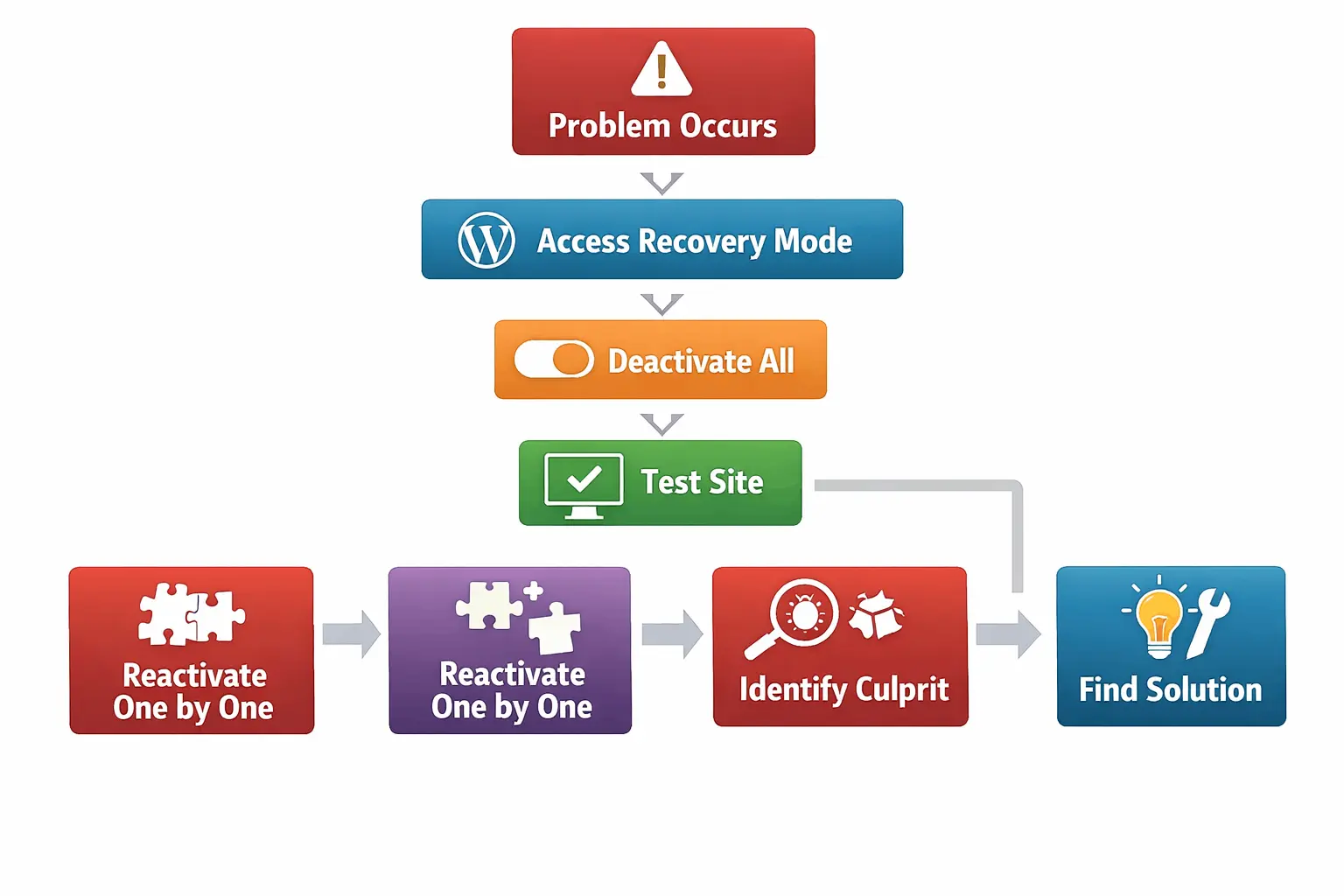
When conflicts arise, follow this systematic approach:
-
Stay Calm: Remember that almost all conflicts resolve with methodical troubleshooting.
-
Access Recovery Mode: WordPress includes a recovery mode that lets you deactivate problematic plugins even when you can’t access the dashboard normally.
-
Deactivate Everything: If recovery mode fails, use FTP to rename the “plugins” folder temporarily. This deactivates all plugins at once and usually restores site access. If recovery mode fails, use FTP to rename the ‘plugins’ folder temporarily. This deactivates all plugins at once and usually restores site access. For a detailed guide on disabling plugins without accessing the admin dashboard, see How to Disable WordPress Plugins Without Admin
-
Reactivate Methodically: Rename your plugins folder back to its original name. Then, reactivate plugins one by one, testing your site after each activation. When the problem reappears, you’ve identified the culprit.
-
Seek Alternatives: Once identified, check if the problematic plugin has updates. If not, search for alternative plugins providing similar functionality.
10. Modern WordPress Plugin Capabilities in 2026: AI, Automation & Compliance
As we navigate 2026, plugin capabilities continue expanding. Understanding current trends helps you leverage the latest innovations for your website.
Artificial Intelligence Integration
AI plugins now handle tasks previously requiring human intervention. Content generators produce drafts based on your outlines. Image creators generate unique visuals from text descriptions. Chatbots provide 24/7 customer support with increasingly natural conversations.
Automation Workflows
Modern plugins connect your WordPress site to automation platforms like Zapier and Make. These connections trigger actions across your digital ecosystem—when someone fills a form on your site, they automatically receive a welcome email, get added to your CRM, and appear in your newsletter list.
Privacy Compliance Tools
With evolving global privacy regulations, compliance plugins automatically handle cookie consent, data access requests, and privacy policy updates. These tools reduce legal risk while maintaining user trust.
Accessibility Checkers
Inclusive design matters legally and ethically. Accessibility plugins scan your content for barriers and suggest improvements, helping you reach wider audiences while meeting regulatory requirements.
11. Building Your WordPress Plugin Philosophy for Long-Term Success
As you gain experience with WordPress, you will develop your own approach to plugins. Consider adopting these guiding principles:
Principle of Necessity
Only install plugins that serve clear, documented purposes. Each additional plugin introduces potential complexity, conflict risk, and maintenance requirements. Question every installation: “Does my site genuinely need this functionality?”
Principle of Minimalism
When multiple plugins offer similar features, choose the simplest option that meets your requirements. Lightweight, focused plugins typically outperform feature-heavy alternatives in speed and reliability.
Principle of Renewal
Regularly reassess your plugin choices. The plugin that served you perfectly two years ago may now have superior alternatives. Stay open to improvement while avoiding unnecessary change.
Principle of Education
Take time to understand your essential plugins beyond basic setup. Knowing configuration options, troubleshooting steps, and advanced features maximizes your investment and reduces dependence on external help.
12. Conclusion: Maximizing Your WordPress Site’s Potential with Smart Plugin Choices
WordPress plugins represent one of the platform’s greatest strengths. They democratize web development, allowing anyone with a vision to create sophisticated online experiences without technical degrees or coding bootcamps.
Throughout this guide, we’ve explored what plugins truly are—not just code packages, but enablers of possibility. We’ve examined installation methods for every situation, evaluation frameworks for smart selection, and maintenance strategies for long-term success.
As you continue your WordPress journey, remember that plugins serve your goals rather than defining them. Your website exists to communicate, sell, educate, or connect. Plugins provide the tools you need. They help you communicate, sell, educate, or connect more effectively.
Start with fundamentals, add functionality intentionally, maintain diligently, and never stop learning. The WordPress ecosystem evolves constantly, and staying curious ensures your site evolves with it.
Your website represents your digital presence—your corner of the internet. With thoughtful plugin choices, that corner becomes exactly what you envision.
Frequently Asked Questions
Q1: Can plugins damage my WordPress site?
While rare with well-coded plugins from reputable sources, poorly developed or incompatible plugins can cause display issues or functionality problems. Always maintain current backups and test updates on staging sites when possible. Following proper selection and maintenance practices minimizes risks significantly.
Q2: How do I know if a plugin is slowing my site?
Use performance testing tools like GTmetrix or Google PageSpeed Insights before and after installing new plugins. Compare loading times and page size metrics. Most testing tools highlight which resources (including plugin assets) contribute most to loading delays.
Q3: What happens to my content if I delete a plugin?
Content depends on the plugin type. Form entries stored in your database may remain after plugin deletion, while content created through page builder plugins may revert to standard HTML or disappear entirely. Research each plugin’s data handling before deletion and consult documentation for migration options.
Q4: Is there a maximum recommended number of plugins?
No fixed number exists. Some sites run 40 plugins smoothly while others struggle with 10. Code quality, hosting resources, and plugin interactions matter more than quantity. Focus on necessity and quality rather than counting installations.
Q5: Should I update plugins immediately when notifications appear?
Immediate updates work well for security patches. For major feature updates, waiting a few days allows early adopters to identify potential issues. Monitor update announcements and consider testing on staging environments before applying significant changes to live sites.
Q6: Can I use plugins from any website?
Only download plugins from trusted sources—the official WordPress repository, established marketplaces like CodeCanyon, or well-known developer websites. Downloading plugins from unfamiliar sites risks installing malware, backdoors, or unauthorized code that compromises your entire website.
Next Tutorial: WordPress Settings Tutorial (2026): Every Setting Explained Step-by-Step
Previous Tutorial: WordPress Themes Explained: Classic, Block, FSE & How to Choose the Right One



