





This guide is part of our complete WordPress tutorial series — a structured roadmap designed to take you from absolute beginner to advanced WordPress user step by step.
If you’re just starting your journey, we highly recommend following the tutorials in order so you build a strong foundation instead of jumping randomly between topics.
Start here: Complete WordPress Tutorial: Beginners to Experts
New to WordPress? Before choosing a theme, make sure you understand the difference between posts and pages. Read our full tutorial here: Posts vs Pages in WordPress – What’s the Difference?. If you’re completely new to WordPress, we recommend first reading our guide on What Is WordPress and How Does It Work? to understand the platform before diving into themes.
For beginners, the concept of a theme can be confusing. Is it a plugin? Is it a layout builder? The short answer is that a theme dictates everything your visitors see when they land on your site. However, the landscape of WordPress themes has changed dramatically over the last few years. With the introduction of Full Site Editing (FSE) and Block Themes, choosing the right theme is more important than ever. In this comprehensive guide, we will cover what a WordPress theme is, the technical difference between Classic and Block themes, the different types available, and a step-by-step guide on how to choose the right one for your project.
Your WordPress theme is the visual foundation of your website. Whether you’re building a personal blog, business website, portfolio, or WooCommerce store, the theme determines your layout structure, typography, colors, spacing, and overall user experience. Choosing the right WordPress theme is not just about design—it directly affects performance, SEO, and how visitors interact with your site.
What is a WordPress Theme?
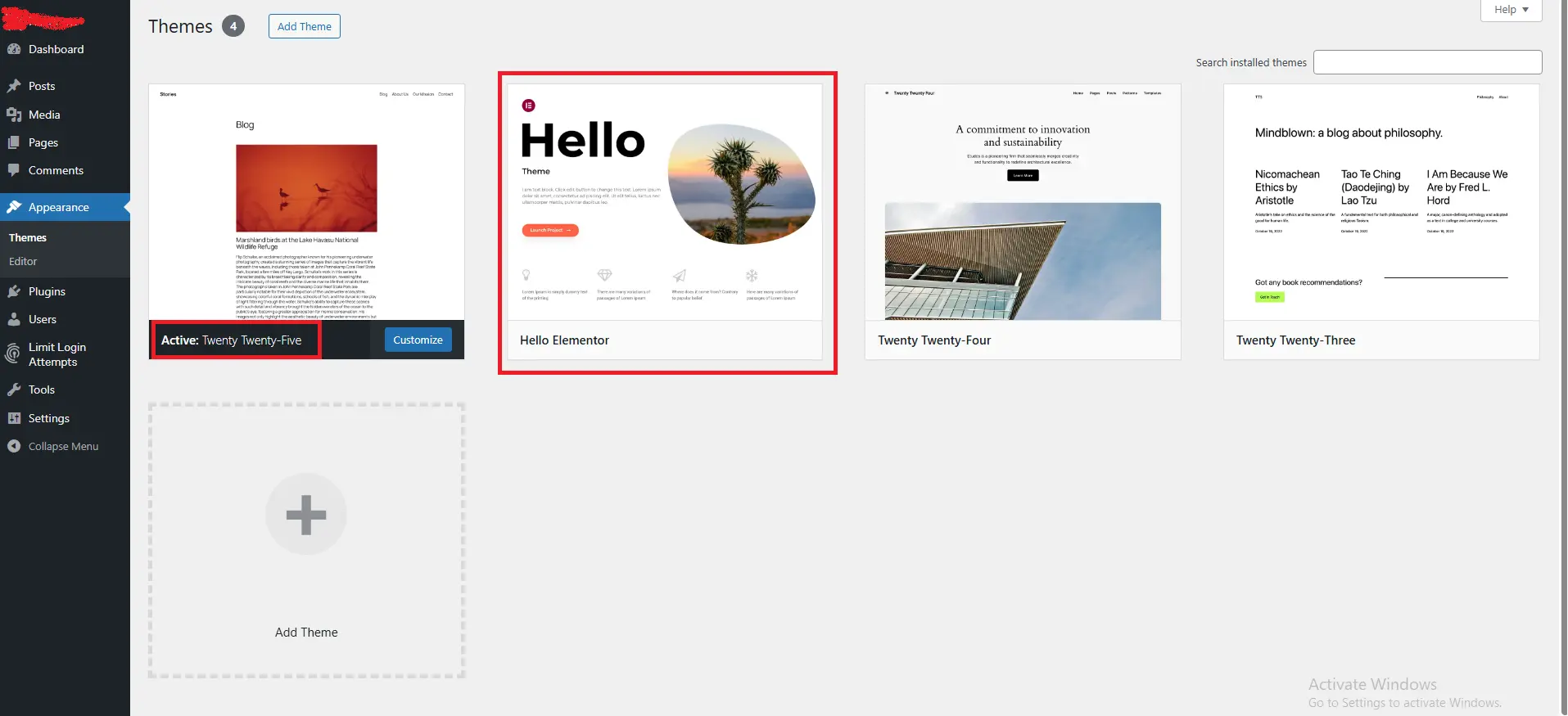
A WordPress theme is a collection of files that work together to create the visual design and layout of a website. These files include template files (like header.php, footer.php, and single.php), stylesheets (style.css), and potentially JavaScript files for interactivity.
Important: The template files mentioned above (such as header.php and single.php) apply to classic themes. Block themes built for Full Site Editing use a completely different structure based on templates, template parts, and theme.json.
When you log into your WordPress dashboard, the content you write (your text, images, and videos) is stored in the database. When a visitor comes to your site, WordPress pulls that content and inserts it into the theme’s template files to generate an HTML page that is sent to the user’s browser.
Key functions of a theme include:
-
Layout Structure: Controlling where the sidebar appears, how many columns the content has, and the width of the page.
-
Visual Design: Defining colors, fonts, button styles, and spacing.
-
Responsiveness: Ensuring the site looks good on desktops, tablets, and phones.
-
Template Hierarchy: Telling WordPress which file to use for specific types of content (e.g., use
single.phpfor a single blog post).
Classic Themes vs. Block Themes (The Shift to FSE)
To understand the current market, you must understand the major evolution happening in WordPress. There are two primary “eras” of themes.
| Feature | Classic Themes | Block Themes (FSE) |
|---|---|---|
| Editing Method | Customizer + Page Builders | Full Site Editor |
| Structure | PHP Template Files | Block Templates + theme.json |
| Header/Footer Editing | Limited without code | Fully editable visually |
| Performance | Can be heavier with builders | Generally lightweight |
| Future Support | Legacy architecture | Actively evolving |
Classic Themes
Classic themes rely on the WordPress Customizer (the live preview panel) for modifications. They are built using PHP template files. Classic themes typically use the WordPress Customizer for design adjustments such as logo upload, color changes, typography settings, and layout tweaks. The structure is largely controlled by PHP template files, meaning deeper customization often requires editing code or creating a child theme.
If you wanted to create a custom homepage layout with a classic theme, you typically had to:
-
Install a separate page builder plugin (like Elementor, Beaver Builder, or WPBakery).
-
Create a child theme and write custom code.
Pros: Huge library of legacy options, mature ecosystem.
Cons: Heavier reliance on plugins for design, slower performance if bloated page builders are used.
Block Themes (Full Site Editing)
Introduced with WordPress 5.9 and 6.0, Block Themes are built for the Site Editor. Instead of just editing post content with blocks, you can now edit your entire site—headers, footers, sidebars, and templates—using the same block interface. Working with the block editor? You may occasionally encounter the Block Editor Showing JSON Error on Save issue — we have a complete guide to fix that.
Block themes are powered by a configuration file called theme.json, which controls global styles such as typography, color palettes, spacing, and layout settings. Instead of traditional PHP template files like header.php or single.php, block themes use editable templates and template parts inside the Site Editor. This allows you to visually modify headers, footers, and entire page structures without touching code.
Pros:
-
Native Performance: Built into WordPress core, usually lighter and faster.
-
Consistency: The same editing experience for posts, pages, and global site elements.
-
Future-Proof: As WordPress evolves, block themes will gain more features.
Cons: Fewer legacy options (though growing rapidly), slight learning curve for users accustomed to page builders.
If you are starting a website today, it is highly recommended to use a Block Theme (like Twenty Twenty-Four, Kadence, or Blockbase) to take advantage of Full Site Editing.
When You Might Still Use a Classic Theme
While block themes represent the future of WordPress, there are situations where using a classic theme still makes sense.
-
Large Legacy Websites: If your website has been running for years on a classic theme with custom PHP templates, switching may require significant redevelopment.
-
Heavy Page Builder Usage: If your site relies heavily on Elementor, Beaver Builder, or other page builders, a classic theme designed for those tools may offer better compatibility.
-
Custom Development Requirements: Some advanced projects still depend on highly customized template structures that are easier to manage within classic themes.
Different Types of WordPress Themes
Beyond the technical classification of Classic vs. Block, we categorize themes by their purpose and flexibility.
1. Multi-Purpose Themes
These are the “Swiss Army Knives” of themes. They are designed to be flexible enough to create any type of website—from a blog to an eCommerce store to a news portal.
-
Examples: Astra, GeneratePress, Kadence, Divi, OceanWP.
-
Best For: Developers and DIY builders who want maximum control and the ability to scale a site into different niches over time.
-
Pros: Extensive customization options, huge library of pre-built starter sites, strong community support.
-
Cons: Can be overwhelming for absolute beginners due to the sheer number of options.

2. Niche Themes
Niche themes are built specifically for one industry or purpose. They come pre-styled with layouts that suit that industry.
-
Examples: A theme specifically for “Restaurants” (with menu layouts), “Real Estate Agents” (with property listing styles), or “Gyms” (with class schedules).
-
Best For: Business owners who want a site that looks the part immediately and don’t want to spend weeks tweaking design settings.
-
Pros: Very specific layouts save time. Often includes demo content that you can simply replace with your own.
-
Cons: Difficult to repurpose. If you buy a restaurant theme and later want to run a tech blog, you will likely need to buy a new theme.
3. Framework Themes
Framework themes are the “bare bones.” They provide the underlying code and structure but offer very little styling out of the box.
-
Examples: Genesis Framework, Thematic.
-
Best For: Developers who want to build custom sites from scratch without reinventing the wheel regarding security and code standards.
-
Pros: Extremely clean code, fast loading, highly secure.
-
Cons: Requires coding knowledge to set up; not recommended for non-developers.
4. Page Builder Compatible Themes
While most themes claim to work with page builders, some are “built for” them. These themes often strip away the theme’s own layout options to give full control to the page builder plugin.
-
Examples: Themes built specifically for Elementor or Beaver Builder.
-
Best For: Users who are already committed to a specific page builder and want a seamless experience.
-
Pros: Deep integration with the builder tool, no conflicting layout settings.
-
Cons: Ties you to that specific page builder ecosystem.
How to Choose the Right WordPress Theme (5 Key Factors)
Choosing a theme based on how it looks in a screenshot is the #1 mistake beginners make. You must look under the hood. Here is how to evaluate a theme before you hit “Install.”
1. Speed and Performance (Google Core Web Vitals)
A beautiful theme that loads slowly will kill your traffic and SEO. Google prioritizes fast sites. For comprehensive performance optimization, explore our detailed guides:
- How to Optimize Core Web Vitals in WordPress
- How to Reduce Time to First Byte (TTFB)
- 25 WordPress Optimization Tips You Should Apply
-
How to Check: Run the theme demo URL through GTmetrix or Google PageSpeed Insights.
-
What to Look For: A score of 85+ on mobile and desktop. Look for themes that advertise “lightweight” or “optimized for performance.”
2. Support and Updates
WordPress updates its core software regularly. If your theme isn’t updated in tandem, your site can break or become a security risk. If your site does break after a theme update, don’t panic. Check our guides on fixing the 500 Internal Server Error and resolving the White Screen of Death — two common issues after theme updates.
-
How to Check: Look at the theme’s listing on WordPress.org or the commercial seller’s page. Check the “Last Updated” date. Read the reviews regarding support response times.
-
What to Look For: A theme updated within the last 2-3 months and active support forums.
3. Customization Options
Does the theme allow you to change colors and fonts without coding? Does it support the Full Site Editor?
-
How to Check: Look at the theme’s feature list.
-
What to Look For: Support for the WordPress Customizer or Site Editor. Look for typography controls and color palettes.
4. Plugin Compatibility
Your theme needs to play nice with essential plugins, especially WooCommerce (if you’re selling products), SEO plugins (like Yoast or Rank Math), and Contact Forms.
-
How to Check: Read the theme documentation or description.
-
What to Look For: Explicit mentions of “WooCommerce ready” or “SEO friendly.”
5. Demo Content / Starter Sites
Staring at a blank canvas is hard. The best modern themes offer one-click demo import.
-
How to Check: Look for a “Demos” or “Starter Sites” tab on the theme’s website.
-
What to Look For: A demo that closely resembles the layout you want for your own site. If you import it, you simply replace the text and images.
Best WordPress Themes in 2026 (Quick Recommendations)
If you are starting a new website in 2026, here are some reliable and performance-focused WordPress themes worth considering:
-
-
Best Free Block Theme: Twenty Twenty-Five – Fully compatible with the Site Editor and ideal for modern websites.
-
Best Lightweight Multi-Purpose Theme: Astra – Known for speed and extensive starter templates.
-
Best Developer-Friendly Theme: GeneratePress – Clean codebase and strong performance optimization.
-
Best WooCommerce Theme: Kadence – Deep WooCommerce integration and strong customization options.
-
Conclusion
Your WordPress theme is the visual foundation of your website. It shapes first impressions, influences performance, and determines how easily you can customize your design as your site grows. Always prioritize speed, regular updates, and long-term flexibility over flashy demo designs.
For new websites in 2026 and beyond, block themes built for Full Site Editing offer the most future-proof approach. However, classic themes remain viable for legacy projects and specific development workflows. Take time to test demos, analyze performance scores, and choose a theme that aligns with your long-term goals.
FAQ Section (Schema Markup Ready)
What is the difference between a WordPress theme and a plugin?
A theme controls the presentation of your content (how it looks). A plugin adds functionality (what it does). For example, a theme makes your contact page look visually appealing, but a plugin (like Contact Form 7) makes the contact form actually function.
Can I change my WordPress theme without losing content?
Yes, your content (posts, pages, images) is stored in the database and will remain safe. However, your site layout and widgets might move around because the new theme structures content differently. You may need to reconfigure your menus and sidebars after switching.
Are free WordPress themes safe?
Yes, if they are downloaded from the official WordPress.org repository. These themes are reviewed by the WordPress team. Be very cautious of “free” themes downloaded from random websites, as they may contain malicious code.
What is a child theme and do I need one?
A child theme inherits the functionality and styling of another theme (the parent theme). If you plan to write custom code (CSS/PHP), you should use a child theme. This ensures that when you update the parent theme, your custom code is not overwritten.
Do I need a separate theme for mobile devices?
No. Modern WordPress themes are responsive. This means they automatically adjust the layout to look good on desktops, tablets, and phones using fluid grids and flexible images.
Next Tutorial: What Are Plugins in WordPress – Must Plugins to Have?
Previous Tutorial: Posts vs Pages in WordPress: What’s the Difference? (Explained for Beginners)



