





This guide is part of our complete WordPress tutorial series — a structured roadmap designed to take you from absolute beginner to advanced WordPress user step by step.
If you’re just starting your journey, we highly recommend following the tutorials in order so you build a strong foundation instead of jumping randomly between topics.
Start here: Complete WordPress Tutorial: Beginners to Experts
New to WordPress? Before choosing a theme, make sure you understand the difference between posts and pages. Read our full tutorial here: Posts vs Pages in WordPress – What’s the Difference?. If you’re completely new to WordPress, we recommend first reading our guide on What Is WordPress and How Does It Work? to understand the platform before diving into themes.
If you have ever navigated to the left-hand sidebar of your WordPress admin area, you have likely glanced at the Tools menu and thought, “I’ll come back to that later.” For many beginners, it looks like a technical back-end area reserved for developers. However, the WordPress Tools menu is actually a powerhouse of utility features designed to help you maintain, troubleshoot, and move your website content with ease.
In this guide, WordPress Tools Menu Explained – Every Setting Made Simple, we will demystify every single option under this tab. Whether you need to create a backup, check why your site is slow, or import content from another platform, the Tools menu is your go-to destination.
Let’s dive in and make these settings simple.
What is the WordPress Tools Menu?
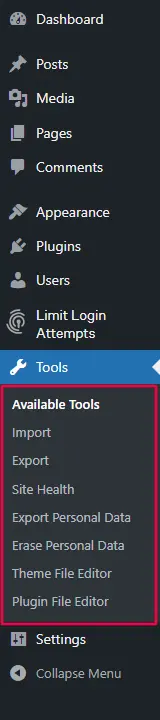
By default, the Tools menu is located in the WordPress admin dashboard sidebar. It contains several core features that allow you to manage data and site functionality. Depending on the plugins you have installed, you may see additional items here, but the core WordPress installation always includes the following sub-menu items:
-
-
-
-
Available Tools
-
Import
-
Export
-
Site Health
-
Export Personal Data
-
Erase Personal Data
-
Theme File Editor
-
Plugin File Editor
-
-
-
Why Should You Care About the Tools Menu?
You might never use this menu on a daily basis, but when you need it, it is a lifesaver. It helps you:
-
Migrate your website from a local server to a live host.
-
Switch from Blogger or Squarespace to WordPress.
-
Diagnose performance issues when your site crashes.
-
Reset specific features without touching code.
1. Available Tools: The Underutilized Helper
When you first click on Tools > Available Tools, the page might look sparse. By default, WordPress only includes one tool here: Categories and Tags Converter.
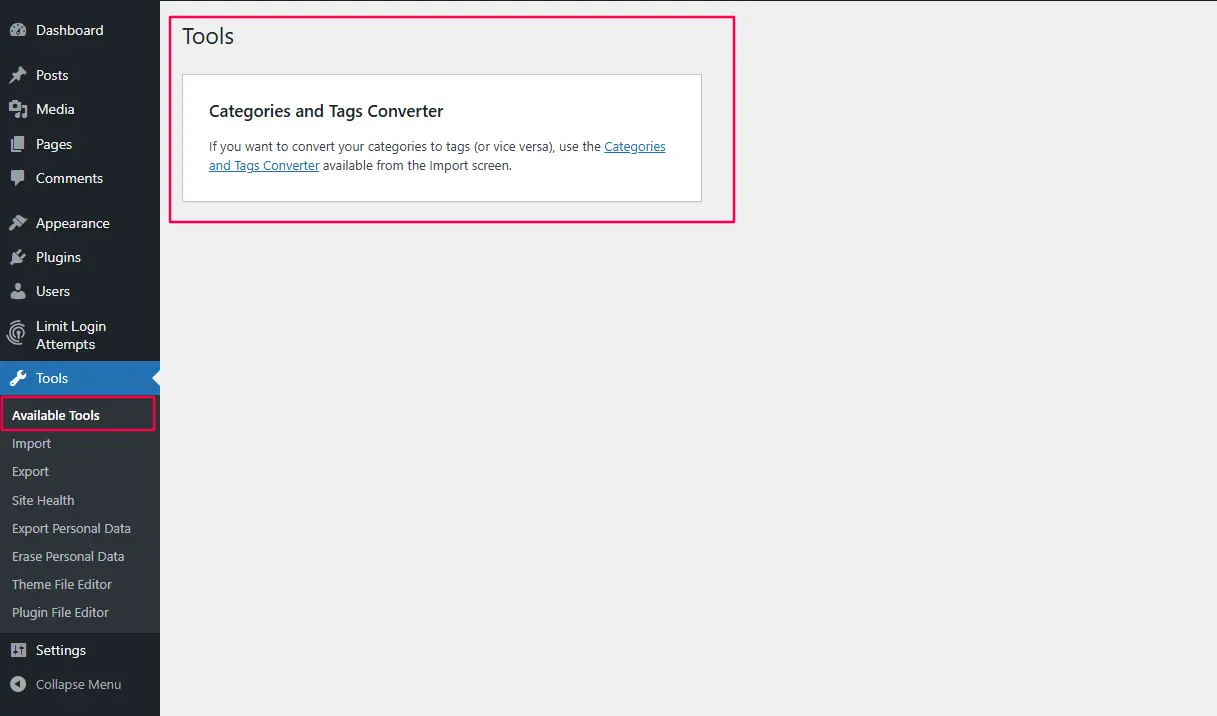
The Categories and Tags Converter Explained
As your blog grows, your content strategy might change. You might realize that a “Tag” you have been using (like “News”) would actually be better as a “Category” to organize your content structure.
How it works:
This tool allows you to bulk convert tags into categories and vice versa.
-
Select the conversion direction (e.g., Tags to Categories).
-
Select the specific tags you want to convert.
-
Click “Convert.”
Important Note: This merges the terms. If you convert a tag named “Recipes” into a category, any posts tagged with “Recipes” will then be assigned to the “Recipes” category. It cleans up your taxonomy without requiring you to edit 50 posts individually.
2. The Export Tool: Safeguarding Your Content
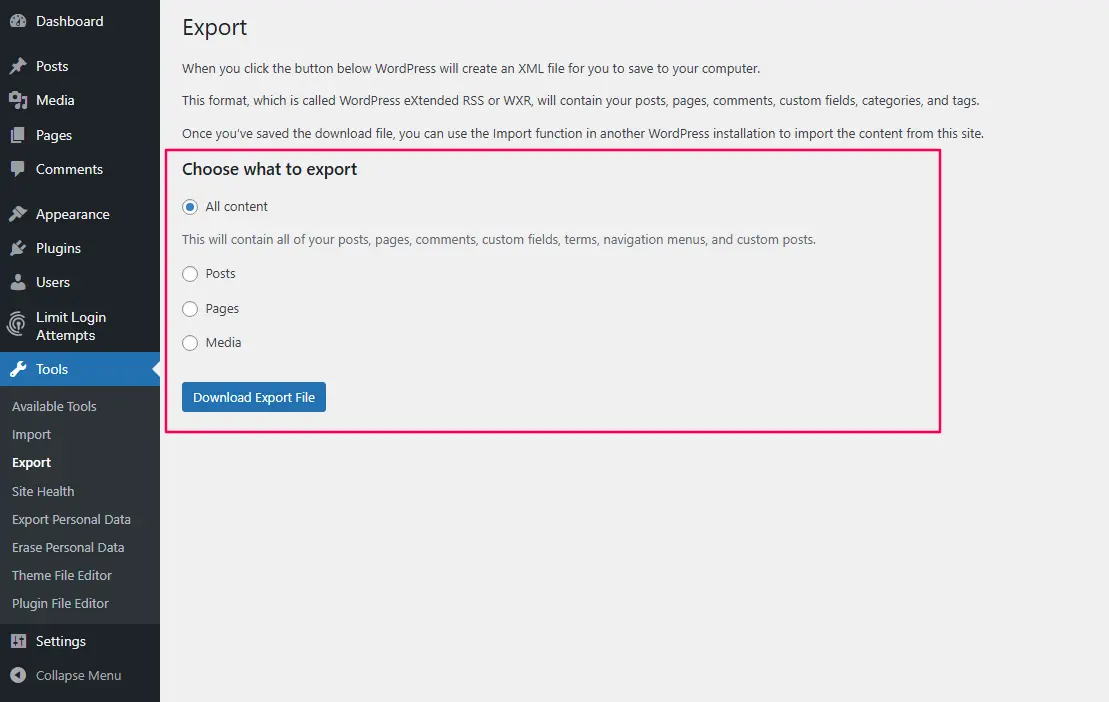
The Export tool is one of the most critical functions in WordPress. Located under Tools > Export, this feature allows you to download all of your website’s content into an XML file, commonly known as a WXR (WordPress eXtended RSS) file.
What Does an Export File Contain?
When you export “All Content,” the file includes:
-
Posts: All your blog articles, including the body copy, excerpts, and custom fields.
-
Pages: All your static pages (About, Contact, etc.).
-
Media: The attachment metadata (links to images, but not always the physical image files in bulk exports without plugins).
-
Comments, Custom Fields, Terms, and Menus.
When to Use Export
-
Manual Backups: While you should use a plugin for full site backups (including themes and plugins), exporting your content gives you a portable backup of your writing.
-
Migration: Moving to a new domain or a new host? Export your content to import it on the new site.
-
Creating a Staging Site: You can export a copy of your content to test on a staging environment.
Pro Tip: If you only need to move your blog posts, choose “Posts” from the dropdown to make the file smaller and more manageable.
3. The Import Tool: Your Gateway from Other Platforms
The Import tool is the welcoming committee of WordPress. Found under Tools > Import, this is where you bring content into WordPress from other systems.
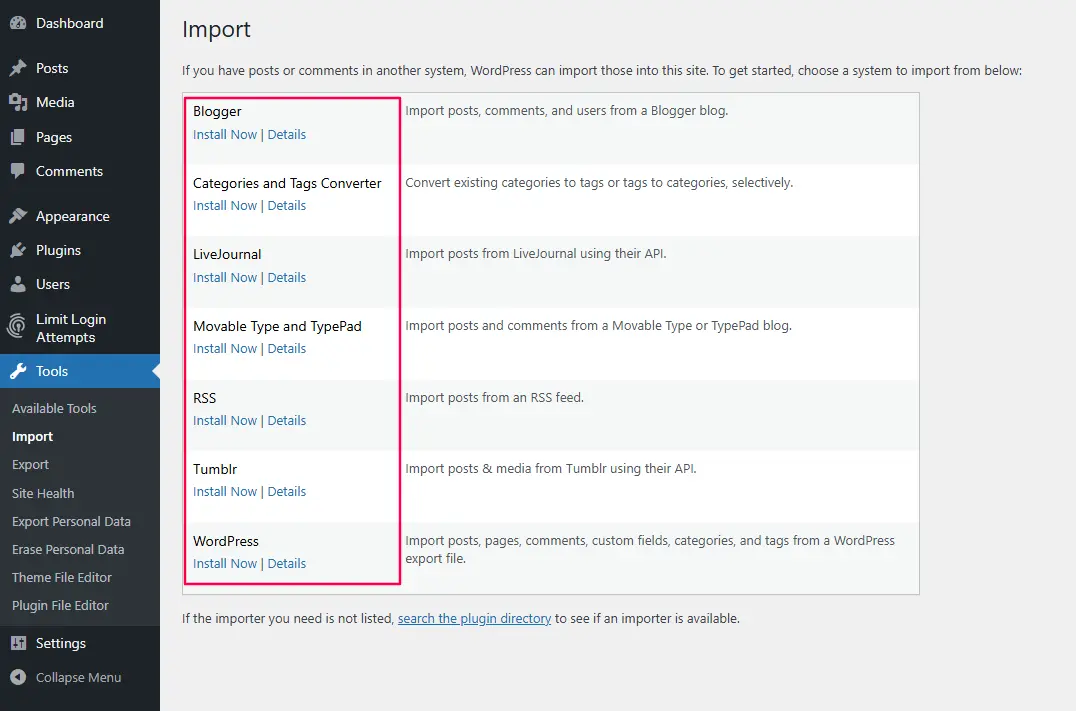
By default, WordPress doesn’t come with all importers pre-installed to keep the core software lean. You will see a list of popular platforms (Blogger, Tumblr, LiveJournal, etc.). To use them, you click “Install Now” next to the corresponding importer. Once installed, it becomes a functioning tool within this menu.
The Most Common Importer: WordPress
If you are merging two WordPress sites or restoring an export file, you use the “WordPress” importer.
-
Install the Importer: Click “Install Now” under WordPress.
-
Run the Importer: After installation, a new link appears to “Run Importer.”
-
Upload the File: You select the WXR file you downloaded from the Export tool.
-
Assign Authors: You can map the old posts’ authors to existing users on the new site or create a new user.
Importing from Medium, Blogger, or Squarespace
Switching to WordPress is common, and the Import tool makes it possible. Each importer translates the other platform’s formatting into WordPress blocks and taxonomies.
4. Site Health: The Diagnostic Center
Introduced in WordPress 5.2, Site Health (located under Tools > Site Health) is arguably the most important feature in this menu for site maintenance. It acts as a built-in diagnostic system.
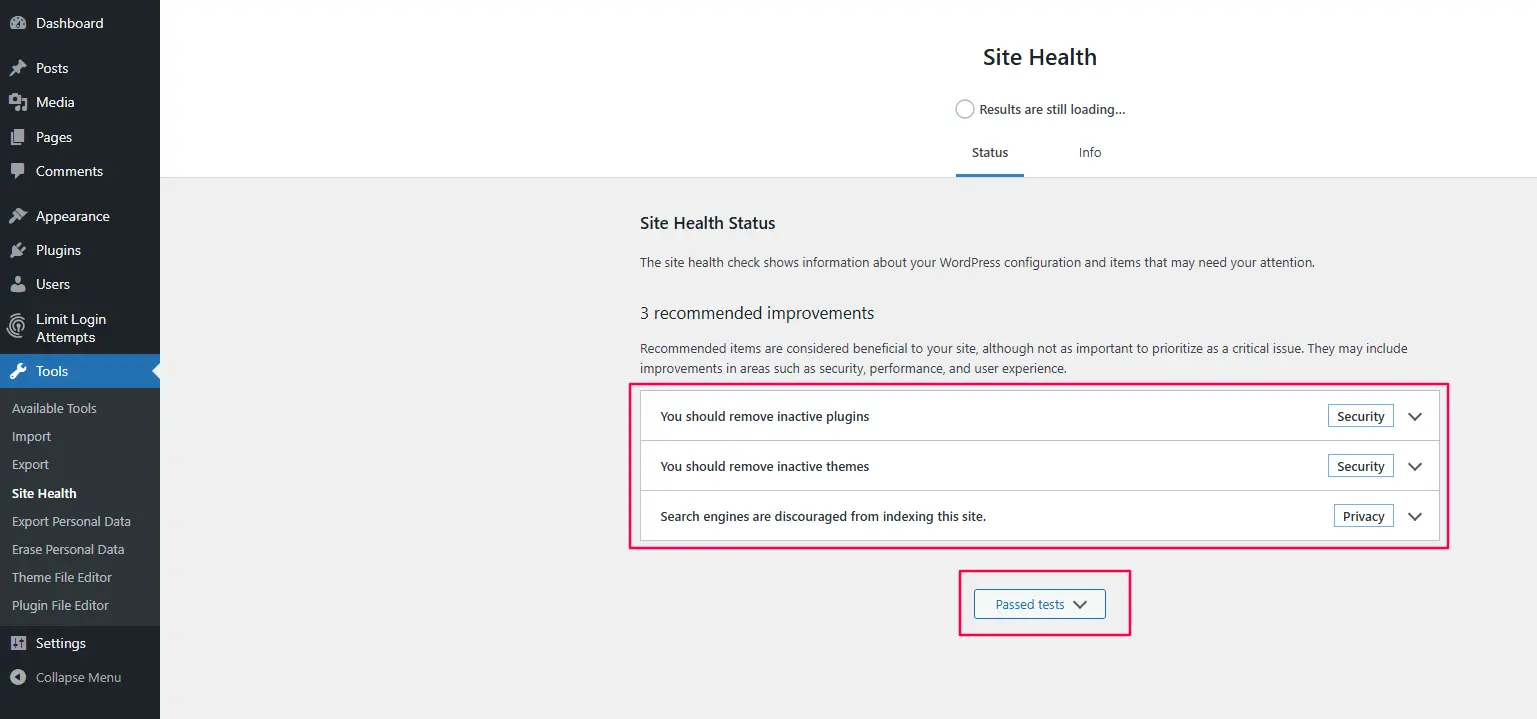
The Site Health screen is split into two main tabs: Status and Info.
Status Tab
This tab runs a series of tests on your WordPress configuration. It checks:
-
PHP Version: Is your PHP version supported and secure?
-
Database Updates: Are there any pending database upgrades?
-
Plugin and Theme Compatibility: Are your plugins compatible with your WordPress version?
-
Site Connectivity: Can WordPress communicate with the outside world (important for automatic updates)?
It gives each test a status of “Good,” “Recommended,” or “Critical.”
-
Critical Issues: These need immediate attention. For example, if a PHP function required by your theme is disabled, your site could break.
-
Recommended Improvements: These are optimizations, like enabling automatic updates for security or increasing your PHP memory limit.
Info Tab
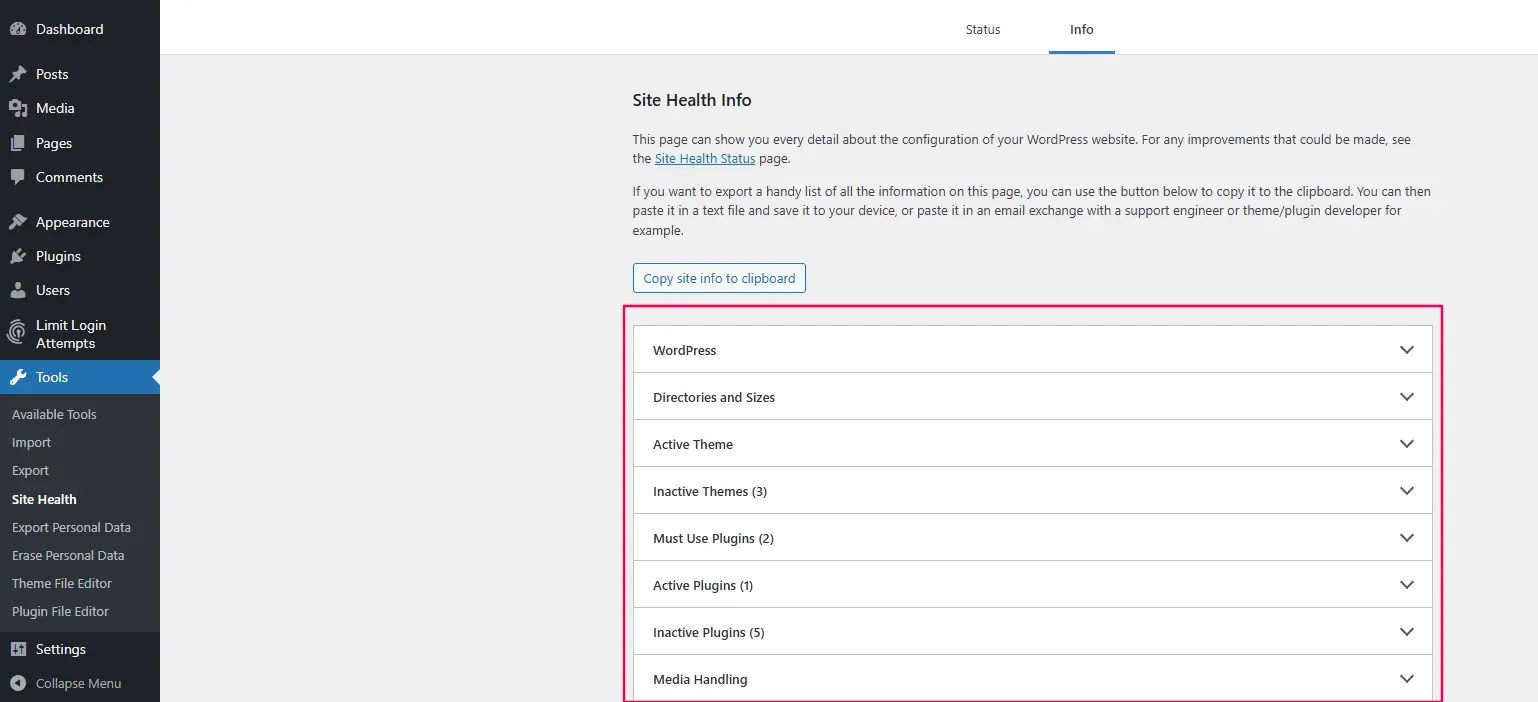
The Info tab is a comprehensive report of everything about your site. It includes directories for:
-
WordPress Constants: Configuration settings defined in your wp-config.php file.
-
File System Permissions: Who can read or write to your files.
-
Database Details: The size and version of your database.
-
Cron Jobs: Scheduled WordPress tasks (like checking for updates or publishing scheduled posts).
If you ever need to ask for help in a WordPress support forum, you can click the “Copy site info to clipboard” button in the Info tab and paste it into your support request. This gives the helper a complete view of your setup without you having to type it out.
Bonus: Why Do I See Other Tools?
If you have installed popular plugins like Yoast SEO, WooCommerce, or Jetpack, you might notice extra items under the Tools menu, such as:
-
Yoast SEO: Adds “SEO Data Optimization” and “Import/Export” tools.
-
WooCommerce: Adds a full suite of tools for managing product data, system status reports, and logs.
-
WP Rocket: Adds options for cache file management and optimization exports.
These plugins extend the Tools menu to give you quick access to their specific maintenance features. The logic remains the same: the Tools menu is the home for configuration, data management, and troubleshooting.
Frequently Asked Questions
Q1: Where is the Tools menu in WordPress?
The Tools menu is located in the left-hand sidebar of your WordPress administration dashboard. By default, it is usually positioned between the “Settings” menu and the “Plugins” menu (depending on your user permissions and installed plugins).
Q2: Can I use the Export tool to backup my entire website?
The Export tool only backs up your content (posts, pages, comments, and media metadata). It does not back up your installed plugins, themes, or WordPress core files. For a complete website backup, you should use a backup plugin or your hosting control panel.
Q3: How do I import posts from another WordPress site?
Go to Tools > Import on your new site. Click “Install Now” under the “WordPress” importer if it isn’t already installed. After installation, click “Run Importer,” upload the XML file you exported from your old site, and assign the posts to a user.
Q4: What is Site Health in WordPress used for?
Site Health is a diagnostic tool that checks for common configuration errors and security issues. It tests your PHP version, database performance, and plugin compatibility, helping you ensure your site runs smoothly and securely.
Q5: Why is there a “Categories and Tags Converter” tool?
This tool allows you to change the way you organize your content. If you have been using a word as a tag but later decide it would be more useful as a category (for organizational or SEO purposes), this tool lets you convert all instances of that tag into a category instantly.



