





In this complete beginner guide, you’ll learn what each WordPress user role can and cannot do, how to assign permissions safely, and how to avoid common security mistakes.
This guide is part of our complete WordPress tutorial series — a structured roadmap designed to take you from absolute beginner to advanced WordPress user step by step.
If you’re just starting your journey, we highly recommend following the tutorials in order so you build a strong foundation instead of jumping randomly between topics.
Start here: Complete WordPress Tutorial: Beginners to Experts
New to WordPress? Before choosing a theme, make sure you understand the difference between posts and pages. Read our full tutorial here: Posts vs Pages in WordPress – What’s the Difference?. If you’re completely new to WordPress, we recommend first reading our guide on What Is WordPress and How Does It Work? to understand the platform before diving into themes.
If you run a WordPress website, eventually you will need to let other people log in. Maybe you have a guest blogger who needs to write posts, a photographer who needs to upload images, or a virtual assistant who helps with customer support.
But here is the golden rule of website security: Never give anyone more access than they absolutely need.
Giving someone the wrong access level is like giving the keys to your entire house to someone who just needed to water your plants. They might accidentally (or intentionally) delete years of hard work.
That is where WordPress User Roles come in. WordPress comes with a built-in system that allows you to grant specific permissions to specific people. You can let someone write articles without letting them change your website’s theme.
In this beginner-friendly guide, we will break down every single WordPress user role, what they can do, and how to manage them safely. If you searched for “WordPress user roles explained”, “difference between Author and Editor”, or “which user role should I use in WordPress?”, this guide will give you a complete, practical answer with real examples.
Why does this matter so much?
Because one wrong user role can destroy your website.
If you accidentally give Administrator access to someone who only needed to publish blog posts, they can:
-
Delete your entire website
-
Install malicious plugins
-
Change your theme
-
Lock you out of your own site
Understanding WordPress user roles and permissions is not just about organization — it is about security, stability, and long-term growth.
What Are WordPress User Roles and Permissions? (Roles vs Capabilities Explained)
Before we dive into the specific roles, let’s look at the hierarchy.
WordPress user management is built on two concepts: Roles and Capabilities.
-
Capabilities: These are specific actions a user can perform. Examples include
edit_posts,delete_pages,install_plugins, ormoderate_comments. -
Roles: A role is a collection of capabilities. Instead of assigning 20 different capabilities to each person manually, you just assign them a role (e.g., “Editor”).
Think of it like a hotel key card. A guest (Subscriber) can only open their hotel room door. A cleaner (Author) can open multiple rooms but cannot access the manager’s office. The General Manager (Administrator) has a key that opens every door in the building.
Quick Answer: What Are WordPress User Roles?
WordPress user roles are predefined permission levels that control what users can and cannot do inside your website dashboard. Each role (Subscriber, Contributor, Author, Editor, Administrator, and Super Admin) comes with a specific set of capabilities.
The 6 Default WordPress User Roles Explained
By default, WordPress comes with six distinct user roles. Let’s explore them from the least powerful to the most powerful.
1. Subscriber
-
The “Read-Only” User
-
Primary Use Case: Allowing users to access restricted content or manage their own profile.
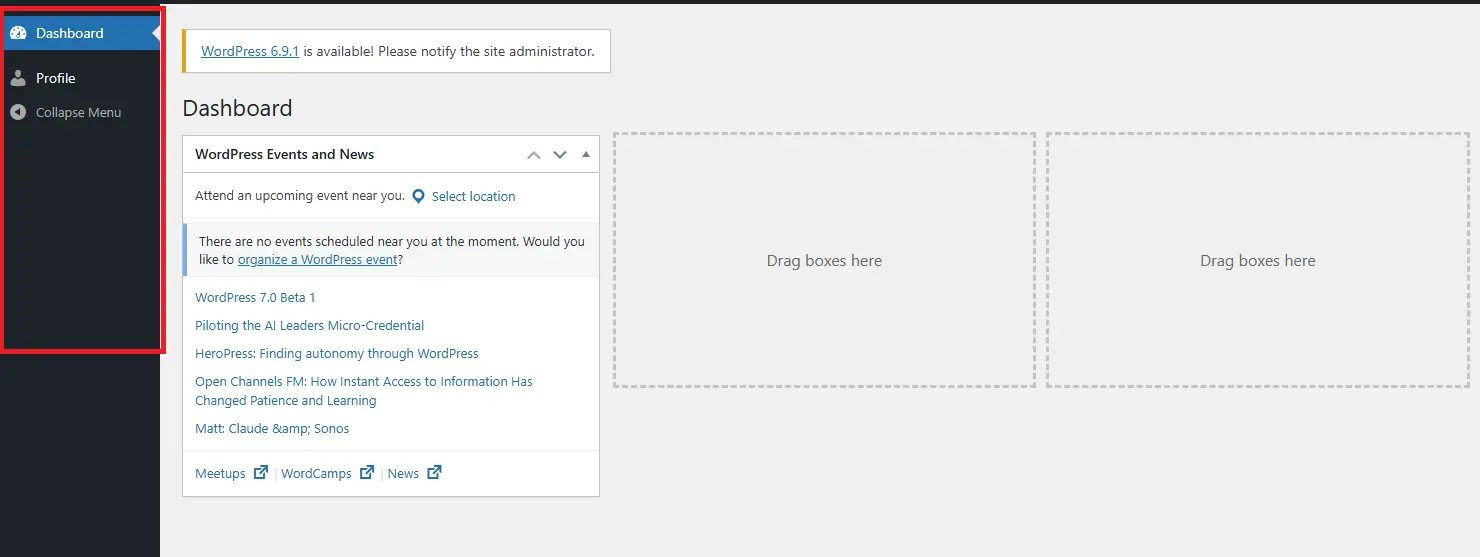
A Subscriber is the most limited role. Their primary capability is managing their own profile. They can log in, update their password, and change how their name is displayed on the site.
What they CAN do:
-
Read posts/pages (like any visitor).
-
Edit their own user profile (name, password, email).
-
Read private posts if you have a membership plugin granting them access.
What they CANNOT do:
-
Write posts.
-
Upload files.
-
See the WordPress admin dashboard beyond their profile page.
2. Contributor
-
The “Draft Writer”
-
Primary Use Case: Guest writers or new team members you don’t fully trust yet.
Contributors can write and manage their own posts, but with a major catch: They cannot publish them. They can only save drafts. Furthermore, they cannot upload images or files (which can be frustrating, as they have to write without seeing media).
What they CAN do:
-
Create new posts.
-
Edit their own posts (while in draft status).
-
Delete their own posts (while in draft status).
What they CANNOT do:
-
Publish any post.
-
Upload images or files.
-
Edit posts written by other users.
-
Delete published posts.
3. Author
-
The “Self-Publisher”
-
Primary Use Case: Regular bloggers or single-contributor sites where you trust the writer to hit “Publish.”
Authors can write, upload files, and publish their own posts. This is a significant step up from Contributors. Once a post is published, however, they can still edit and delete it.
What they CAN do:
-
Create, edit, publish, and delete their own posts.
-
Upload files (images, documents) to their own posts.
-
View their own stats (if using Jetpack or similar).
What they CANNOT do:
-
Edit or delete posts written by other users.
-
Create new pages (Pages are usually for static content like “About Us”).
-
Change site settings or install plugins.
-
Moderate comments (they can see comments on their own posts but often cannot delete others’ comments).
⚠️ Warning: Because Authors can publish and delete their own posts, a disgruntled Author could delete all their content and leave holes in your site.
4. Editor
-
The “Content Manager”
-
Primary Use Case: Managing a team of writers. This is your second-in-command for content.
Editors have power over all content on the site. They are like the managers of a newspaper. They can write, edit, publish, and delete any post or page on the site, regardless of who wrote it.
What they CAN do:
-
Edit, publish, and delete any post or page.
-
Moderate comments (approve, delete, spam).
-
Manage categories and tags.
-
Upload files to any post.
What they CANNOT do:
-
Change site settings (General, Reading, Permalinks).
-
Install or delete plugins and themes.
-
Add or delete users.
5. Administrator
-
The “God Mode” User (on a single site)
-
Primary Use Case: The website owner or lead developer.
On a standard WordPress installation, the Administrator has absolute power. They can do everything. They can delete every post, change every setting, install plugins, and even delete the entire theme.
What they CAN do:
-
Everything mentioned in previous roles.
-
Install, activate, and delete plugins and themes.
-
Add, edit, or delete other users (even other Administrators).
-
Update WordPress core.
-
Change all site settings.
⚠️ Security Warning: You should only have one or two Administrator accounts. If a hacker gains access to an Administrator account, they own your website completely. If you’re serious about security, read our complete guide on Best WordPress Security Plugins.
6. Super Admin (Multisite Networks)
-
The “Network God”
-
Primary Use Case: Managing a WordPress Multisite network (like WordPress.com itself).
If you use WordPress Multisite (a network of sites), the Super Admin role sits above the standard Administrator. They manage the entire network.
What they CAN do:
-
Create and delete new sites in the network.
-
Install network-wide plugins and themes.
-
Manage users across the entire network.
Quick Comparison Table
| Role | Write Own Posts | Publish Own Posts | Upload Files | Edit Others’ Posts | Moderate Comments | Install Plugins | Edit Users |
|---|---|---|---|---|---|---|---|
| Super Admin | ✅ | ✅ | ✅ | ✅ | ✅ | ✅ (Network) | ✅ |
| Administrator | ✅ | ✅ | ✅ | ✅ | ✅ | ✅ | ✅ |
| Editor | ✅ | ✅ | ✅ | ✅ | ✅ | ❌ | ❌ |
| Author | ✅ | ✅ | ✅ | ❌ | Limited | ❌ | ❌ |
| Contributor | ✅ | ❌ | ❌ | ❌ | ❌ | ❌ | ❌ |
| Subscriber | ❌ | ❌ | ❌ | ❌ | ❌ | ❌ | ❌ |
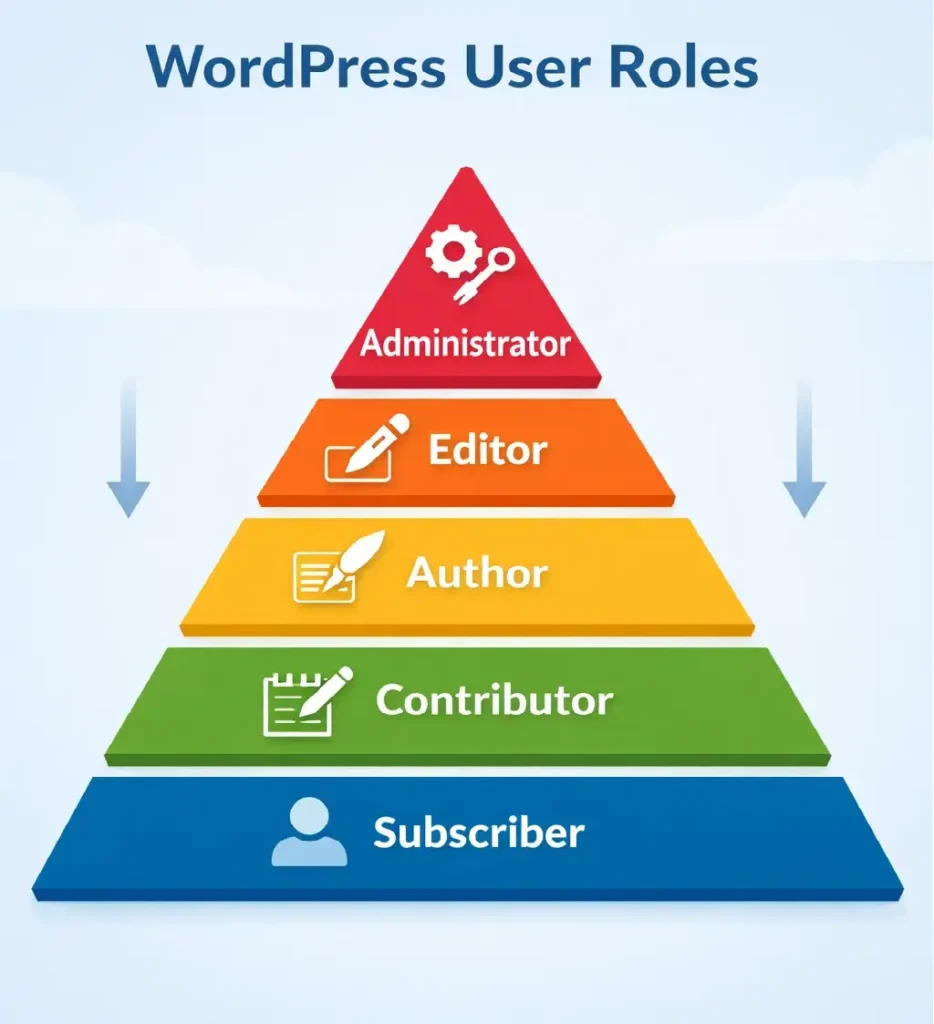
WordPress User Roles Hierarchy (From Lowest to Highest)
Here is the complete hierarchy of WordPress user roles from least powerful to most powerful:
- Subscriber – Basic profile access only.
- Contributor – Can write drafts but cannot publish.
- Author – Can publish and manage their own posts.
- Editor – Can manage all posts and pages.
- Administrator – Full site control.
- Super Admin – Network-level control (Multisite only).
Understanding this hierarchy helps you quickly choose the correct role without over-assigning permissions.
Which WordPress User Role Should You Use? (Real-Life Scenarios)
Choosing the right role depends on what the person actually needs to do. Here are common real-world examples:
-
Guest Blogger: Assign Contributor. They can write but cannot publish without approval.
-
Trusted Blog Writer: Assign Author. They can publish their own posts.
-
Content Manager: Assign Editor. They can manage all posts and pages.
-
Virtual Assistant Managing Comments: Editor (if comment moderation is required).
-
WooCommerce Store Staff: Assign Shop Manager (created by WooCommerce).
-
Website Owner: Administrator.
If you are ever unsure, follow the principle of least privilege: start with the lowest role and upgrade only if necessary.
How to Add a New User and Assign a Role
Adding a new user to your WordPress site is straightforward.
-
Log in to your WordPress Admin Dashboard.
-
Hover over Users in the left-hand menu and click Add New.
-
Fill in the required fields:
-
Username (required)
-
Email (required)
-
First Name / Last Name (optional)
-
Website (optional)
-
Password (generate a strong one)
-
-
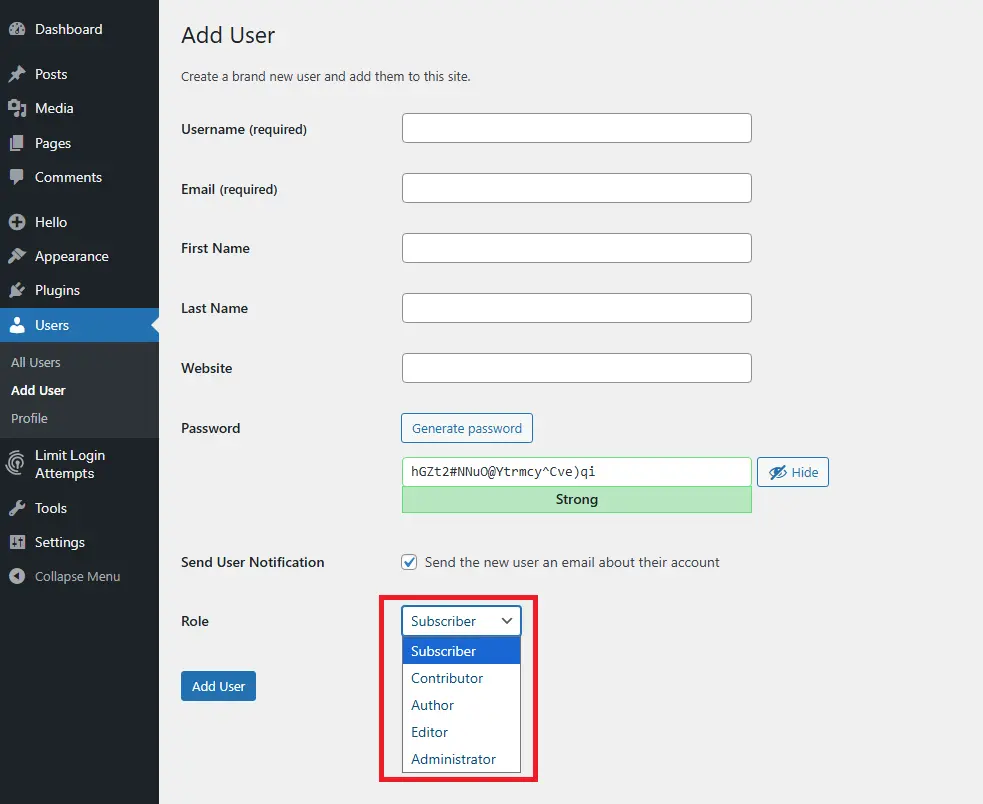
Look for the Role dropdown menu. This is the most important part.
-
Select the appropriate role based on our guide above (e.g., Editor, Author).
-
Click the Add New User button.
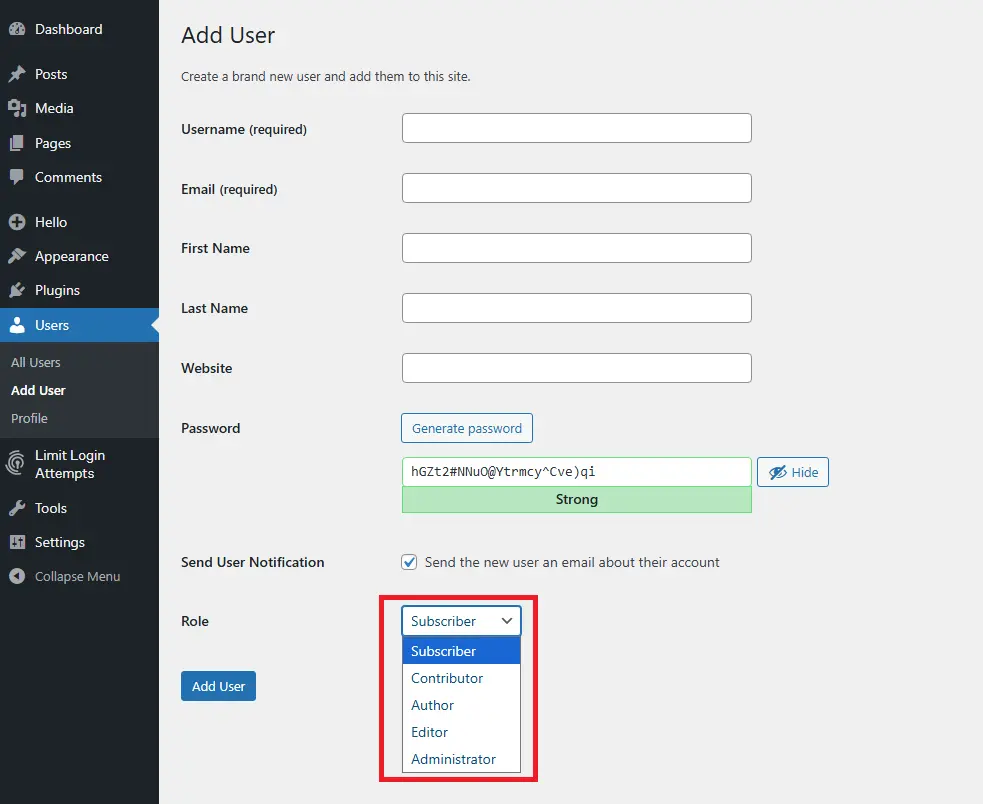
The new user will receive an email with login details. They will only see the dashboard menu items allowed by their role.
Advanced: Custom Roles (Why You Might Need a Plugin)
The default roles are great, but sometimes they don’t fit perfectly. For example, what if you want an “Author” who can upload files but cannot delete published posts? You can’t do that with default WordPress.
For that, you need a plugin to create Custom Roles.
Popular Plugins for Managing User Roles:
-
User Role Editor: A free plugin that lets you add or remove specific capabilities from any role.
-
Members: Another free option by the creator of the popular “Members” plugin.
-
PublishPress Capabilities: Great for fine-tuning content permissions.
Example Use Case:
Let’s say you have a “Shop Manager” on your WooCommerce store. WooCommerce actually adds its own custom roles (like “Customer” and “Shop Manager”) to handle e-commerce permissions. The Shop Manager can manage products and orders but cannot touch your blog posts or website appearance.
Why User Roles Are Critical for WordPress Security
Many WordPress hacks happen because too many users have Administrator access. Hackers often target weak passwords on high-privilege accounts.
By limiting permissions correctly, you reduce the damage even if an account is compromised.
A hacked Subscriber account is manageable. A hacked Administrator account can destroy your entire website.
Best Practices for User Role Management
To keep your WordPress site secure and organized, follow these golden rules:
-
The Principle of Least Privilege: Always start with the lowest possible role and upgrade only if necessary. Start a guest blogger as a Contributor, not an Author.
-
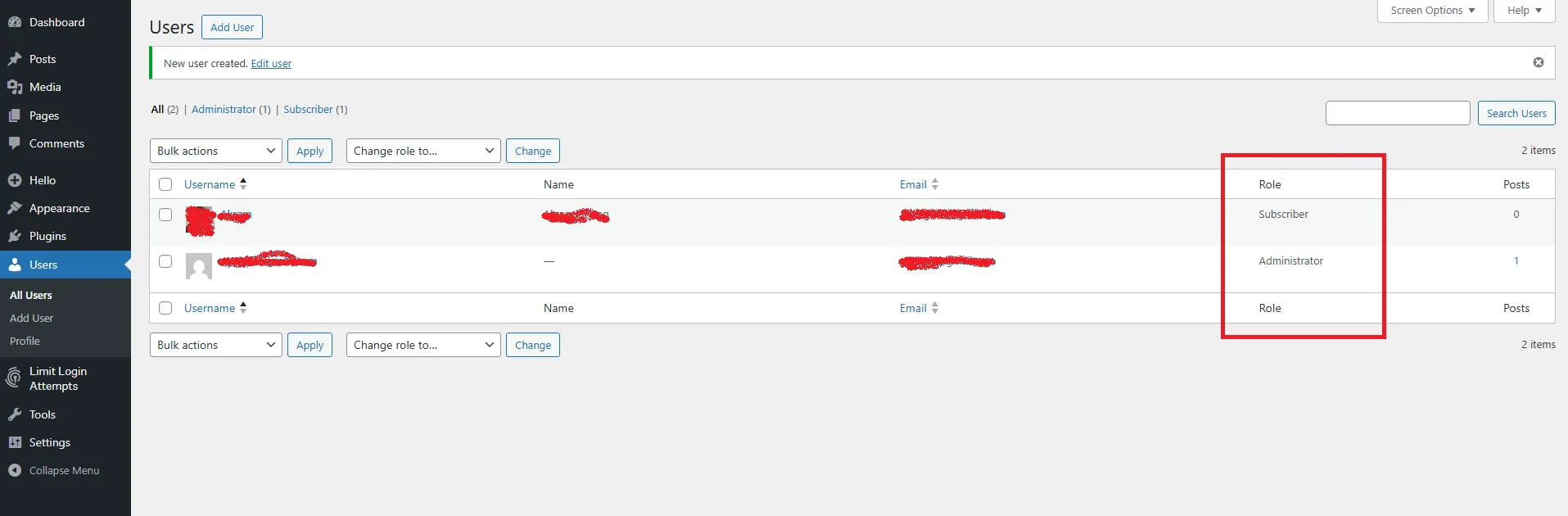
Audit Your Users Regularly: Go to Users > All Users once a quarter. Delete any old or unused accounts. Are there former employees still listed as Administrators?
-
Never Use “Admin” as a Username: Do not use the username “admin” or “administrator.” This is the first thing hackers try. Create a unique username for your main Administrator account.
-
Use Strong Passwords: An Editor with a weak password is a security risk. Use a password manager.
-
Watch Out for Authors: Remember that Authors can upload files. While they usually upload images, a malicious Author could upload a malicious PHP file disguised as an image if your security settings are lax. Good security plugins usually block this.
Common WordPress User Role Mistakes to Avoid
- Giving Administrator access to freelance writers.
- Keeping old employee accounts active.
- Using weak passwords on high-level roles.
- Assuming Authors cannot delete content (they can delete their own posts).
People Also Ask About WordPress User Roles
What is the most powerful user role in WordPress?
The most powerful role on a single WordPress site is Administrator. On a Multisite network, Super Admin is the highest-level role.
Can an Editor delete an Administrator?
No. Editors cannot manage users. Only Administrators (or Super Admins in Multisite) can edit or delete other users.
Is it safe to give Author access in WordPress?
Author access is generally safe for trusted writers, but they can publish and delete their own posts. Always assign the lowest role necessary.
Frequently Asked Questions
Q1: Can I change my own user role?
Yes, if you are an Administrator. Go to Users > All Users, hover over your own username, and click Edit. Under the “Role” dropdown, you can select a new role for yourself. Be careful—if you remove your Administrator role, you might not be able to get it back without another Admin user.
Q2: What is the difference between an Author and an Editor in WordPress?
An Author can only manage their own posts (publish, delete, edit). An Editor can manage all posts and pages on the site, regardless of who wrote them. Editors cannot change site settings, but they have full control over content.
Q3: Why can’t my Contributor upload images?
This is a default WordPress restriction. Contributors have the upload_files capability set to false for security reasons. To allow this, you would need to use a custom role plugin like “User Role Editor” to add that capability to the Contributor role.
Q4: How do I give someone access only to WooCommerce orders?
You don’t need to assign them an Administrator role. WooCommerce creates its own role called Shop Manager. Assign this role to the user. They will be able to manage products and orders but will not have access to your blog posts, plugins, or theme settings.
Q5: What happens to posts if I delete an Author?
WordPress handles this gracefully. When you delete a user who has written content, WordPress will ask you what to do with their posts. You can either delete all the posts or attribute them to another existing user.
Q6: Can I create custom user roles in WordPress without coding?
Yes. You can use plugins like User Role Editor or Members to create completely custom roles and modify capabilities without writing any code.
Reviewed & Updated: February 2026
This guide is regularly updated to reflect the latest WordPress core changes and security best practices.



