





Last updated: April 7, 2026 – tested on WordPress 6.9
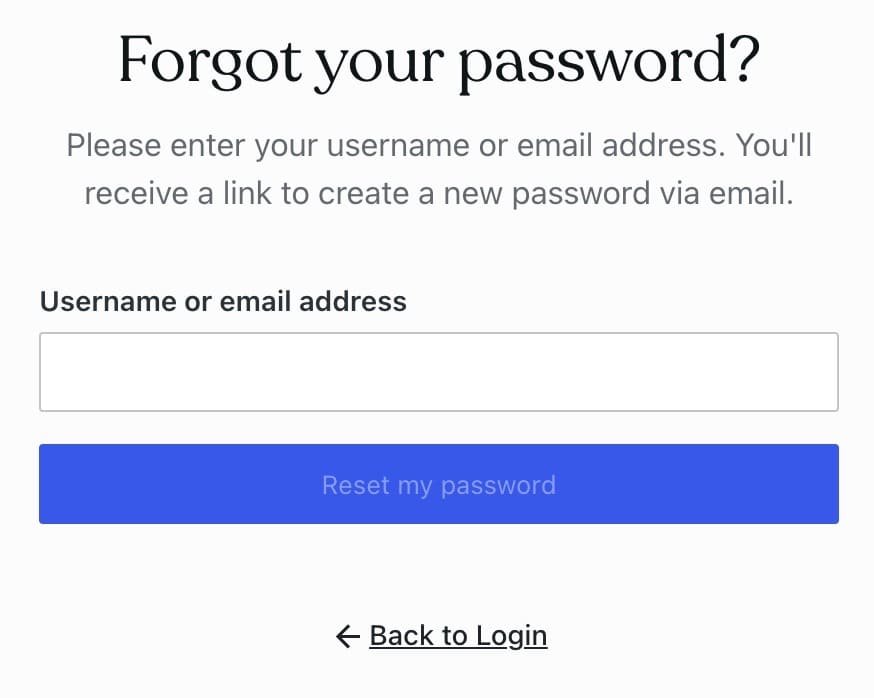
If you’ve lost access to your WordPress password but the “Lost your password?” email isn’t working, don’t panic.
If you still have access to your site’s filesystem (via FTP, cPanel, or SSH) and/or the database (via phpMyAdmin or a similar tool), you can easily reset it manually.
Below are all the proven methods, step-by-step.
1. Reset via phpMyAdmin (Direct Database Edit)
If you have database access through phpMyAdmin:
-
Log into phpMyAdmin in your hosting control panel.
-
Select your WordPress database from the left sidebar.
-
Click on the table called
wp_users(your prefix may differ, e.g.,wp8x_users). -
Find your user row and click Edit.
-
In the
user_passfield:-
Change the function dropdown to MD5.
-
Enter your new password in plain text (e.g.,
MyNewPassword!).
-
-
Click Go to save.
2026 update: Using MD5 in phpMyAdmin is only a temporary step to regain access.
WordPress automatically re-hashes the password using modern secure hashing (bcrypt-based) the moment you log in successfully.
This means:
-
MD5 is safe only for emergency recovery
-
Your password is not stored as MD5 long-term
-
After logging in, WordPress replaces it with a stronger hash automatically
Best practice: Once logged in, immediately change your password again from
Users → Profile to force a fresh secure hash.
💡 Example SQL if you want to run it directly:
Now you can log in with your new password. To prevent potential database issues that could lock you out in the future, check out our guide on WordPress database corruption: causes, prevention & fixes.
2. Reset via functions.php
If you have filesystem access, you can temporarily add code to your theme’s functions.php file to change the password.
-
Connect via FTP or File Manager in cPanel.
-
Navigate to:
-
Open
functions.php. -
Add this code at the very top:
-
Replace
MyNewPassword!with your desired password. -
Replace
1with your user ID (find inwp_userstable).
-
Save and upload the file.
-
Log into WordPress with the new password.
-
Important: Remove the code immediately after logging in — leaving it there is a security risk.
3. Create a New Admin User via functions.php
If your admin account is broken, you can create a brand-new administrator account:
-
Add the code to
functions.php. -
Visit your site once (this triggers the function).
-
Log in with the new credentials.
-
Remove the code from
functions.phpafter logging in.
4. Using WP-CLI (If You Have SSH Access)
If your hosting supports WP-CLI, you can reset the password with a single command:
Replace 1 with the correct user ID, which you can find by:
5. Reset via Emergency Password Reset Script
If you can’t modify theme files easily, you can upload a standalone script to your WordPress root.
-
Create a file named
emergency.phpin your WordPress root folder. -
Paste this code:
-
Visit
https://yoursite.com/emergency.phpin your browser. -
Delete the file immediately after use.
- If these methods seem too technical or you want a guaranteed fast solution, you can hire me through Emergency WordPress Support to reset your password and secure your site safely.
Security Precautions After Reset
-
Delete any custom code/scripts used for password reset.
-
Change your password again inside WordPress to a stronger one.
-
If email isn’t working, set up SMTP email with plugins like WP Mail SMTP to ensure future password recovery works.
-
Consider enabling Two-Factor Authentication (2FA) for better security — here’s a step-by-step guide on how to set up WordPress Two-Factor Authentication (2FA) to protect your admin account.
-
Another common issue is spam users being auto-created on WordPress, which can compromise your site’s security. Learn how to stop WordPress auto-creating spam users to keep your site safe.
Frequently Asked Questions
Q1: Can I safely use MD5 to reset my WordPress password?
Yes, but only as a temporary emergency step. WordPress will automatically rehash your password with a modern secure hash (bcrypt) after you log in.
Q2: What if I don’t have database access?
You can reset the password via functions.php or upload an emergency password reset script if you have filesystem access. WP-CLI is another option if your host allows SSH access.
Q3: How do I prevent future password recovery issues?
Set up SMTP email with a plugin like WP Mail SMTP to ensure WordPress emails work reliably. Enabling Two-Factor Authentication (2FA) also improves account security.
Q4: Is it safe to create a new admin user if I’m locked out?
Yes, but remove the code immediately after logging in. Leaving temporary admin-creation code in functions.php is a security risk.
Q5: Can I hire someone to fix this if I’m not comfortable doing it myself?
Absolutely. You can hire professional help, for example via our Emergency WordPress Support page, to safely reset your password.
Final Thoughts
Losing your WordPress password when email recovery is broken isn’t the end of the world — as long as you have filesystem or database access.
Choose the method you’re most comfortable with, reset your password, and lock your site down again immediately.



