






So you’ve installed WordPress (or someone installed it for you). If you haven’t installed WordPress yet, follow our complete step-by-step installation guide here:
How to Install WordPress Step by Step, and now you’re staring at your beautiful website. But wait—how do you actually get inside and start building?
Every WordPress website has a secret backdoor. It’s called the wp-admin or WordPress admin dashboard, and it’s where all the magic happens. This is where you’ll write posts, install plugins, change your theme, and control everything about your site.
In this complete beginner’s guide, I’ll show you:
-
Exactly how to find your WordPress login page
-
The 5 different ways to access wp-admin
-
What to do if you forgot your password
-
How to fix common login problems
-
Security tips to keep your admin area safe
-
What to do AFTER you login
By the time you finish reading, you’ll be logged into your WordPress dashboard with confidence. Let’s get started!
What Is WordPress Admin (wp-admin)?
Before we dive into the login process, let’s understand what we’re actually trying to access.
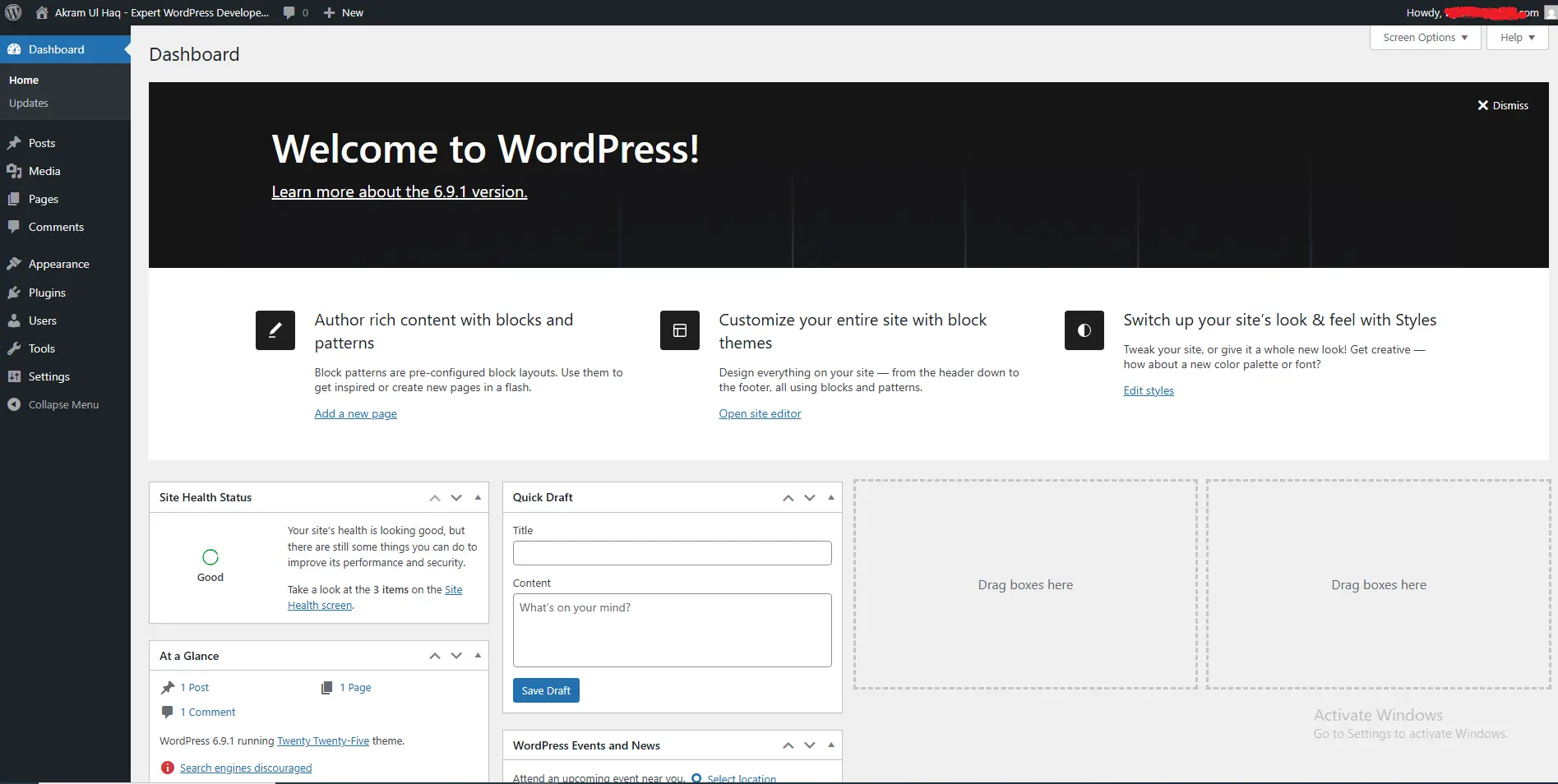
The WordPress admin area (also called wp-admin, WordPress dashboard, or backend) is the control center of your website. Think of it as the cockpit of an airplane—this is where the pilot (that’s you!) controls everything.
From your WordPress admin, you can:
| What You Can Do | Where to Find It |
|---|---|
| Write and publish blog posts | Posts → Add New |
| Create pages (About, Contact, etc.) | Pages → Add New |
| Change how your site looks | Appearance → Themes |
| Add features like contact forms | Plugins → Add New |
| Manage user accounts | Users → All Users |
| Change site title and tagline | Settings → General |
| Install SEO tools | Plugins → Add New → Search “Yoast” |
The admin area is password protected for a reason—it’s the most powerful part of your website. Anyone who accesses it can change everything, delete content, or even completely break your site. That’s why we keep it locked behind a login screen.
How to Find Your WordPress Login URL (The Easy Way)
This is the #1 question beginners ask: “Where do I go to log in?”
The WordPress login page has a standard address. Here are the most common URLs to try:
Method 1: The Standard Login URLs
Try adding these to the end of your website address:
yoursite.com/wp-admin
yoursite.com/wp-login.php
yoursite.com/login
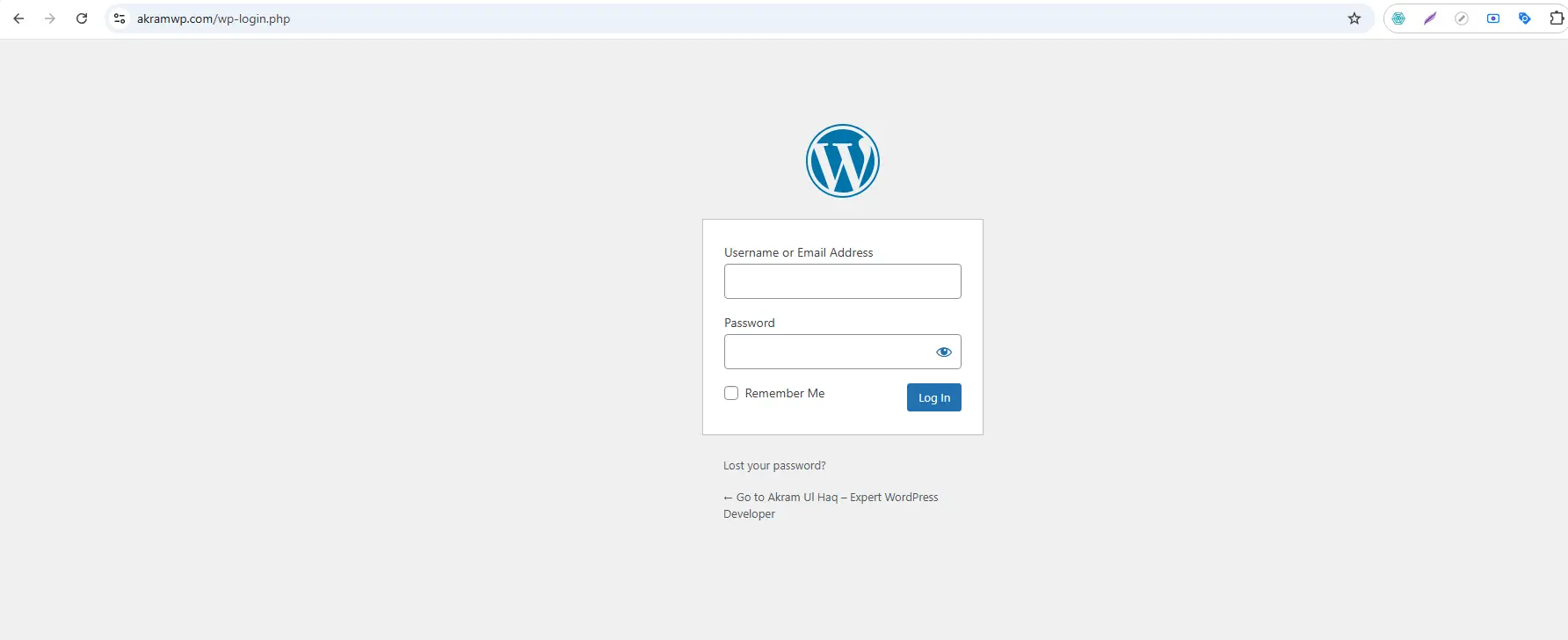
For example:
-
If your site is
www.myawesomeblog.com, try:-
www.myawesomeblog.com/wp-admin -
www.myawesomeblog.com/wp-login.php
-
What happens:
When you visit either of these addresses, WordPress automatically redirects you to the login page.
Method 2: Look for the Login Link on Your Site
Most WordPress themes include a login link somewhere on your site:
-
Go to your website’s homepage
-
Look in the:
-
Footer (bottom of the page)
-
Header (top right corner)
-
Sidebar (often says “Meta” or “Login”)
-
Navigation menu
-
If you see “Log in,” “Site Admin,” or “Dashboard” – click it! It’ll take you straight to the login page.
Method 3: Use the Secret Admin Bar Trick
If you’re already logged into any WordPress site (even a different one), WordPress adds a special admin bar to the top of your screen.
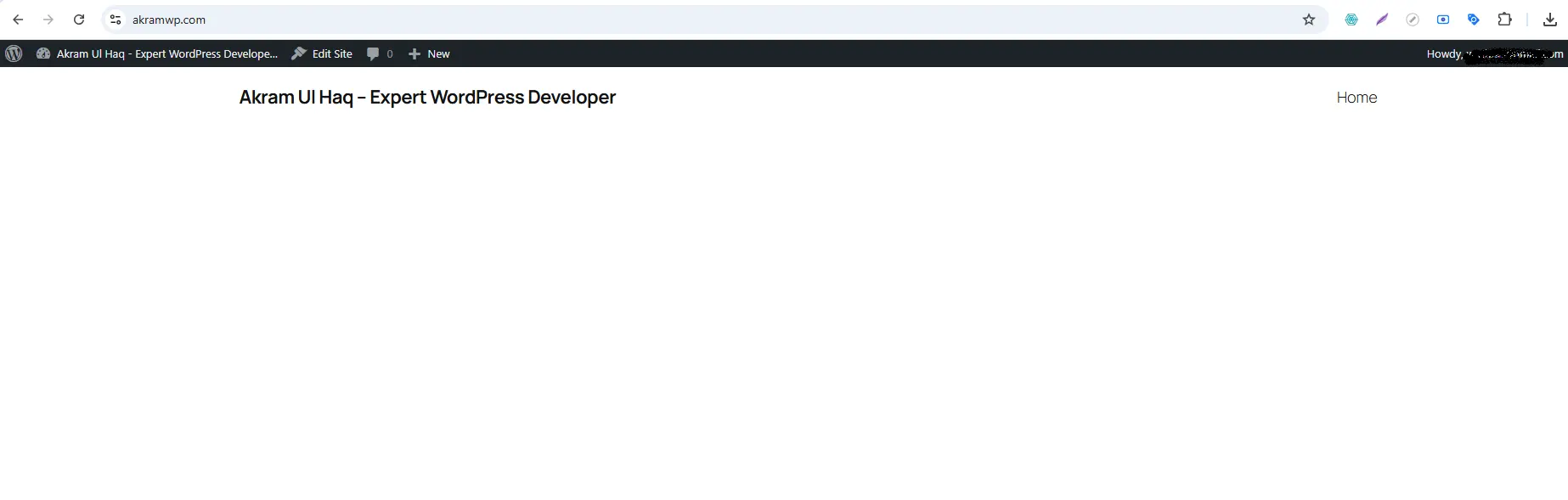
Just click “Dashboard” or “Site Admin” and you’ll be taken to the login page.
Method 4: Check Your Welcome Email
If you used a hosting company like Bluehost, SiteGround, or Hostinger to install WordPress, they likely sent you a welcome email containing:
-
Your WordPress admin URL
-
Your username
-
Instructions for first login
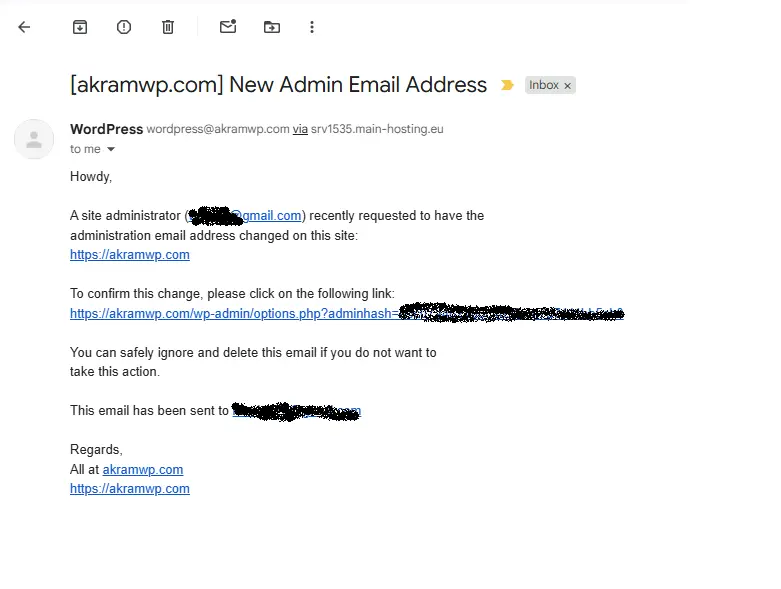
Search your inbox for:
-
“Welcome to WordPress”
-
“Your WordPress installation is ready”
-
“Login details”
Step-by-Step: Logging Into WordPress Admin
Now that you’ve found your login page, let’s actually log in.
Step 1: Enter Your Username or Email
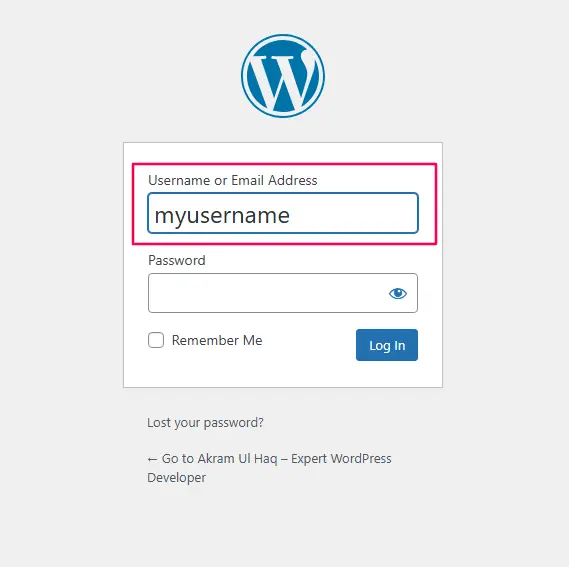
On the login screen, you’ll see two empty fields. The first field asks for your Username or Email Address.
What to enter:
-
If you remember your username (like “admin” or “john123”), type it here
-
Most modern WordPress sites also let you use your email address
💡 Pro Tip: If you’re not sure which one to use, try your email first. It’s easier to remember and works on most WordPress sites.
Step 2: Enter Your Password
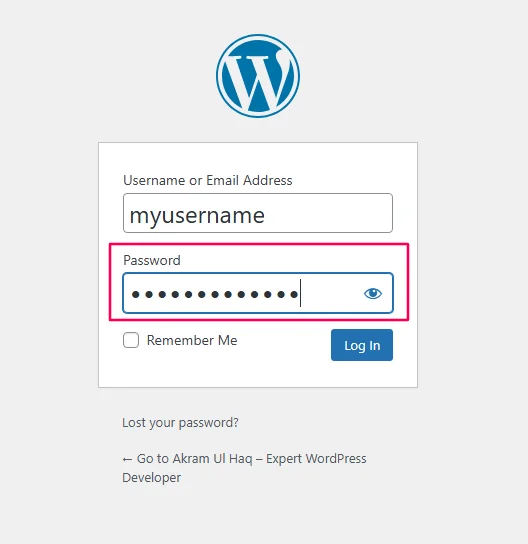
The second field is your password. As you type, you’ll see dots instead of letters—this keeps your password hidden from anyone looking at your screen.
Step 3: Check “Remember Me” (Optional)
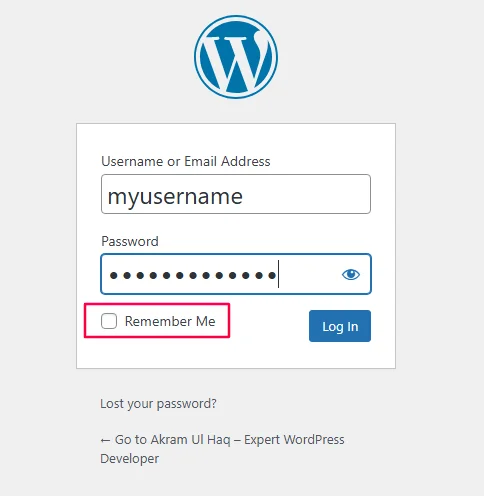
If you check this box, WordPress will keep you logged in for a longer period (usually 14 days). This is handy for your personal computer, but avoid it on public or shared devices.
Step 4: Click “Log In”
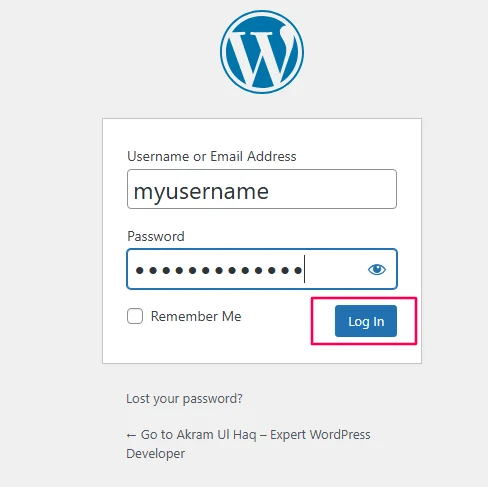
Click the blue “Log In” button. If your credentials are correct, you’ll be whisked away to your WordPress dashboard!
Welcome to Your WordPress Dashboard!
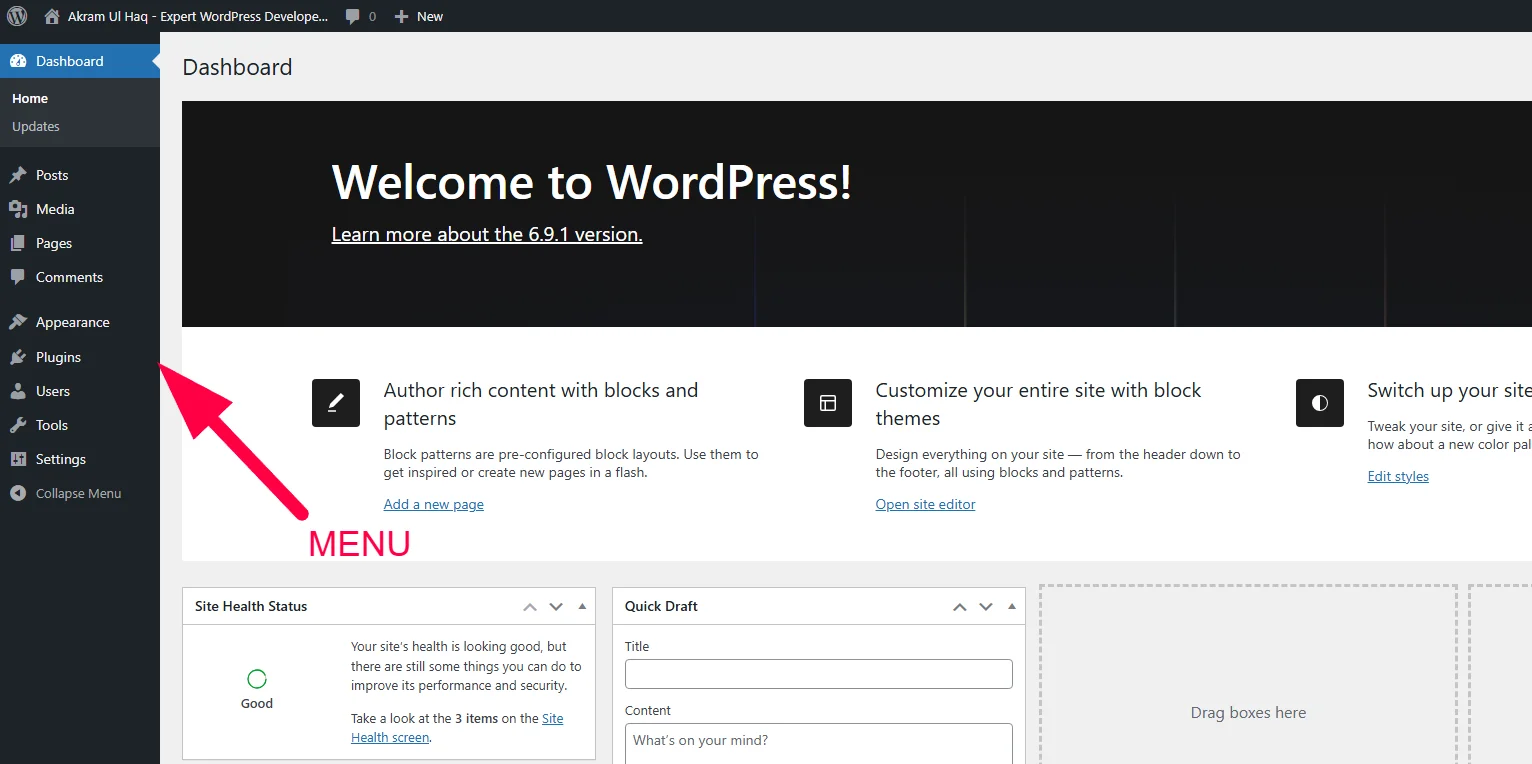
Congratulations! You’ve successfully logged into your WordPress admin. Here’s a quick tour of what you’re looking at:
| Number | Area | What It Does |
|---|---|---|
| 1 | Admin Bar (Top Black Bar) | Quick links to your site, add new posts, view comments |
| 2 | Left Sidebar Menu | Main navigation – where you access ALL WordPress features |
| 3 | Dashboard Home | Welcome messages, news, and quick overview |
| 4 | Screen Options (Top Right) | Customize what you see on each page |
| 5 | Welcome Panel | Helpful links for first-time users |
Take a moment to look around. Don’t worry—you can’t break anything just by looking!
What If You Can’t Log In? (Common Problems & Fixes)
Sometimes things go wrong. Here are the most common login issues and exactly how to fix them:
Problem 1: “Error: The password you entered for the username [name] is incorrect.”
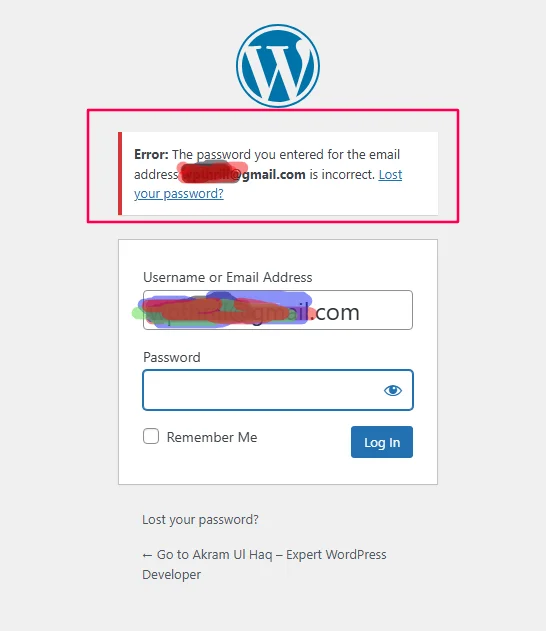
This means: You typed the wrong password.
Fixes:
-
Double-check for Caps Lock – passwords are case-sensitive!
-
Try the “Lost your password?” link (see below)
-
Clear your browser cache and cookies, then try again
Problem 2: You Forgot Your Password – The “Lost Password” Method
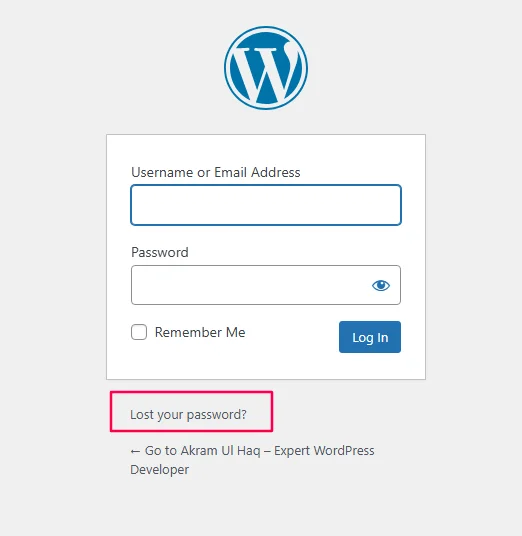
This is the easiest fix:
-
Click “Lost your password?” on the login screen
-
Enter your username or email address
-
Check your email for a password reset link
-
Click the link and create a new password
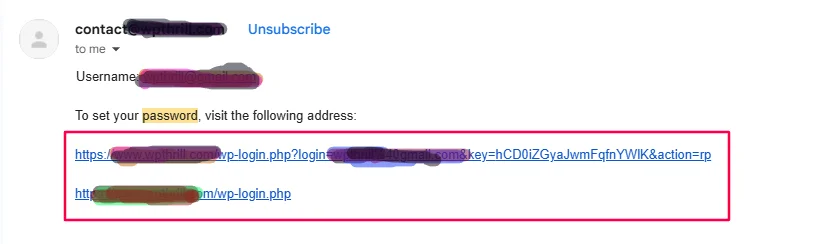
Time estimate: 2-3 minutes, email may take a few minutes to arrive (check spam folder!)
Problem 3: You Never Received the Reset Email
If you clicked “Lost your password” but never got the email:
Fixes:
-
Check your Spam/Junk folder
-
Wait 10-15 minutes (email can be slow)
-
Add
wordpress@yoursite.comto your contacts and try again -
Contact your hosting provider – they may have email issues
Follow our step by step guide to check why emails are not working.
Problem 4: You Forgot Both Username AND Password
If you can’t remember your username OR password, you have two options:
Option A: Check Your Database via phpMyAdmin (Advanced)
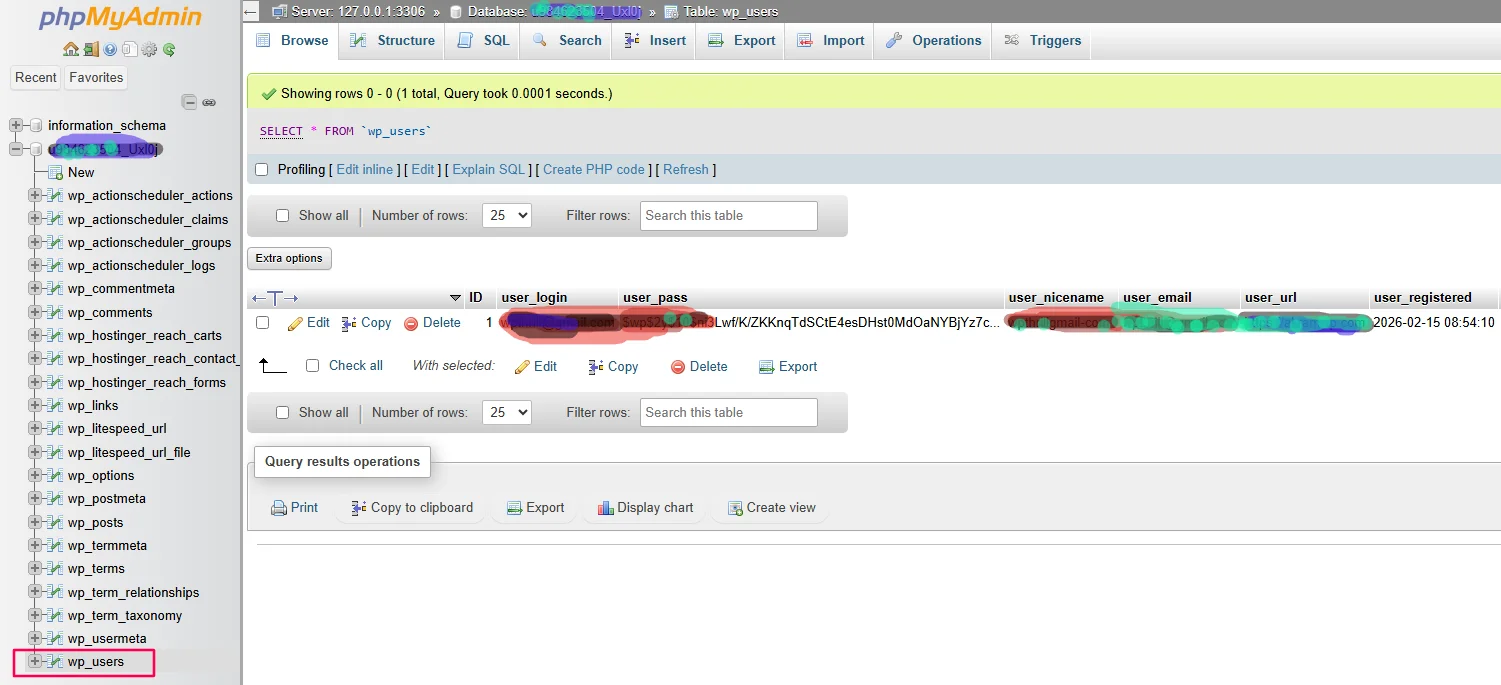
-
Log into your hosting cPanel
-
Open phpMyAdmin
-
Select your WordPress database
-
Find the
wp_userstable (may bewp2_usersor similar) -
Look for your username in the
user_logincolumn -
Use the “Lost password” method now that you know your username or follow our guide about how to reset WordPress password if emails are not working.
Option B: Ask Your Hosting Support
Most hosting companies can help you reset WordPress login credentials. Contact their support and prove you’re the site owner.
Problem 5: “Too Many Failed Login Attempts”
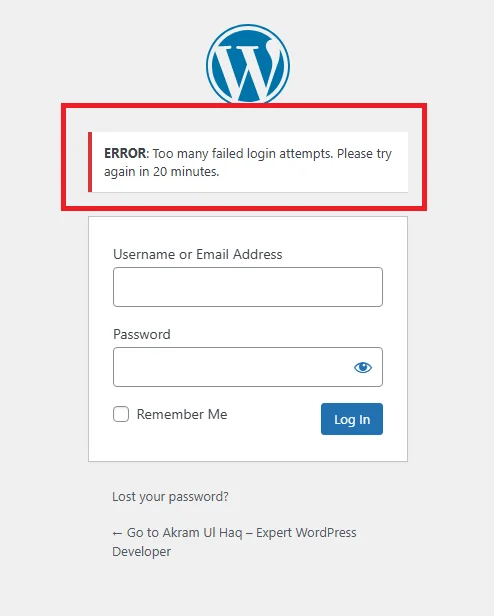
Security plugins often lock you out after too many wrong passwords.
Fix:
-
Wait 15-30 minutes and try again
-
If you have a security plugin, check your email for unlock instructions
-
Contact your hosting support
Problem 6: “404 Error – Page Not Found” When Visiting wp-admin
If you get a 404 error when visiting your login page:
Fixes:
-
Try
yoursite.com/wp-login.phpinstead ofwp-admin -
Check if your site is actually installed at that address
-
Contact your hosting provider – something may be wrong with your installation
Problem 7: “Redirected Too Many Times” Error
This usually happens with SSL/HTTPS issues. Here is, how to fix too many redirects error in WordPress.
Fixes:
-
Clear your browser cache and cookies
-
Try accessing in Incognito/Private mode
-
Temporarily disable any security plugins via FTP (rename the plugin folder)
-
Contact hosting support
How to Secure Your WordPress Login (Essential for Beginners)
Now that you can log in, let’s make sure bad guys can’t. Here are simple security steps everyone should take:
1. Use a Strong Password
A strong password is:
-
At least 12 characters
-
Mix of uppercase, lowercase, numbers, symbols
-
NOT “password123” or your business name
WordPress has a built-in password generator – use it!
2. Change the Default “admin” Username
If your username is “admin,” change it immediately. Hackers love guessing this.
How to change username:
-
Go to Users → Your Profile
-
Can’t change username here? Create a new admin user, then delete the old “admin”
3. Add Two-Factor Authentication (2FA)
2FA adds a second step to login – usually a code from your phone. Check our guide about How to Set Up WordPress Two-Factor Authentication (2FA)
Easy plugins:
-
Wordfence Login Security
-
Google Authenticator
-
WP 2FA
4. Limit Login Attempts
By default, WordPress lets people guess passwords forever. Install a plugin to limit attempts:
-
Limit Login Attempts Reloaded
-
Wordfence (includes this feature)
Check our full guide about How to Limit WordPress Login Attempts Without a Plugin
5. Change Your Login URL (Optional)
Some security plugins let you change wp-admin to something custom like yoursecretlogin. This hides your login page from automated attacks.
Plugins for this:
-
WPS Hide Login
-
Perfmatters (premium)
Logging Into WordPress Admin on Mobile
Need to log in from your phone? No problem!
Option 1: Use the WordPress Mobile App
Download the official WordPress app:
-
iPhone: Apple App Store
-
Android: Google Play Store
Benefits:
-
Optimized for small screens
-
Push notifications for comments
-
Quick photo uploads
Option 2: Use Mobile Browser
Just visit yoursite.com/wp-admin in your phone’s browser. The login screen works fine, though the dashboard can be cramped.
What to Do After You Log In (Next Steps)
You’re in! Now what? Here’s what most beginners do first:
1. Change Your Site Title and Tagline
Go to Settings → General and set:
-
Site Title (your website name)
-
Tagline (short description)
2. Install a Beginner-Friendly Theme
Go to Appearance → Themes → Add New
Search for: “Astra,” “Kadence,” or “GeneratePress” – all great for beginners
3. Remove Unnecessary Plugins
Go to Plugins → Installed Plugins
Delete anything you don’t need (like “Hello Dolly”)
4. Create Your First Page
Go to Pages → Add New
Create an “About” or “Contact” page
5. Set Up a Contact Form
Install WPForms or Contact Form 7 from Plugins → Add New
WordPress Login Cheat Sheet
| Task | URL or Location |
|---|---|
| Login page | yoursite.com/wp-admin or yoursite.com/wp-login.php |
| Lost password | Click link on login screen |
| Change password | Users → Your Profile |
| Create new user | Users → Add New |
| Security settings | Plugins → Add New → Search “security” |
Frequently Asked Questions
Q: What is the default WordPress login URL?
A: The default WordPress login URL is yoursite.com/wp-admin or yoursite.com/wp-login.php. Both will take you to the same login page.
Q: What is the default WordPress username and password?
A: There is no default. WordPress creates a username and password during installation. If you used a hosting company’s “one-click install,” check your welcome email for credentials.
Q: I forgot my password. How do I reset it?
A: Click “Lost your password?” on the login screen, enter your username or email, and check your inbox for a reset link.
Q: Can I change my WordPress login URL?
A: Yes! You can use plugins like “WPS Hide Login” to change /wp-admin to something custom. This adds security through obscurity.
Q: Why does WordPress keep logging me out?
A: This could be due to:
-
Browser cookies cleared
-
Security plugin settings
-
Caching issues
-
WordPress not recognizing your “Remember Me” setting
Try checking “Remember Me” when logging in.
Q: Someone is trying to hack my login page. What do I do?
A: Install a security plugin like Wordfence immediately. It will block repeated failed attempts and alert you to suspicious activity.
Q: Can I log in with my email instead of username?
A: Yes! Most modern WordPress installations allow login with either username OR email address.
Q: How do I log in if my site is still “Coming Soon”?
A: The login page is still accessible at yoursite.com/wp-admin even if your site is hidden from visitors. Just go there directly.
Q: I’m getting a “white screen” after login. What happened?
A: This is usually a plugin or theme conflict. Rename your plugins folder via FTP to disable all plugins, then log in and investigate.
Next Tutorial: WordPress Dashboard Explained for Beginners
Previous Tutorial: How to Install WordPress Step by Step



