





This guide is part of our complete WordPress tutorial series — a structured roadmap designed to take you from absolute beginner to advanced WordPress user step by step.
If you’re just starting your journey, we highly recommend following the tutorials in order so you build a strong foundation instead of jumping randomly between topics.
Start here: Complete WordPress Tutorial: Beginners to Experts
And if you haven’t accessed your dashboard yet, make sure you first read How to Login to WordPress (WP-Admin Guide)
If you are new to WordPress, one of the first points of confusion you will encounter is the difference between Posts and Pages. Over the years, I’ve seen many websites structured incorrectly because the owner didn’t understand this difference — entire service sections built as Posts, blogs built as Pages, and navigation menus that made no logical sense.
At first glance, Posts and Pages look almost identical in the editor. They both have a title, a content area, and the ability to add images. But behind the scenes, they serve completely different structural purposes.
Using them incorrectly doesn’t just create confusion — it can damage your internal linking structure, hurt user experience, and weaken your SEO foundations. Think of it like building a house: a Page is the static foundation (like your kitchen or living room), while Posts are the daily conversations happening inside those rooms.
Before we dive deep, if you’re completely new to WordPress, I recommend checking out my beginner’s guide on What Is WordPress and How Does It Work? to understand the platform basics first.
In this comprehensive guide, we will break down the core differences between Posts vs Pages in WordPress, show you exactly how to use each one, and explain how your choice impacts your site’s SEO.
Quick Summary: WordPress Posts vs Pages
| Feature | Posts | Pages |
|---|---|---|
| Purpose | Timely, blog-style content | Static, evergreen content |
| Display Order | Reverse chronological | No chronological order |
| Categories & Tags | Supported | Not supported by default |
| Hierarchy | Non-hierarchical | Parent/Child structure |
| RSS Feed Inclusion | Included | Excluded |
| Best Used For | Blog posts, news, updates | About, Contact, Services, Legal pages |
What are WordPress Pages?
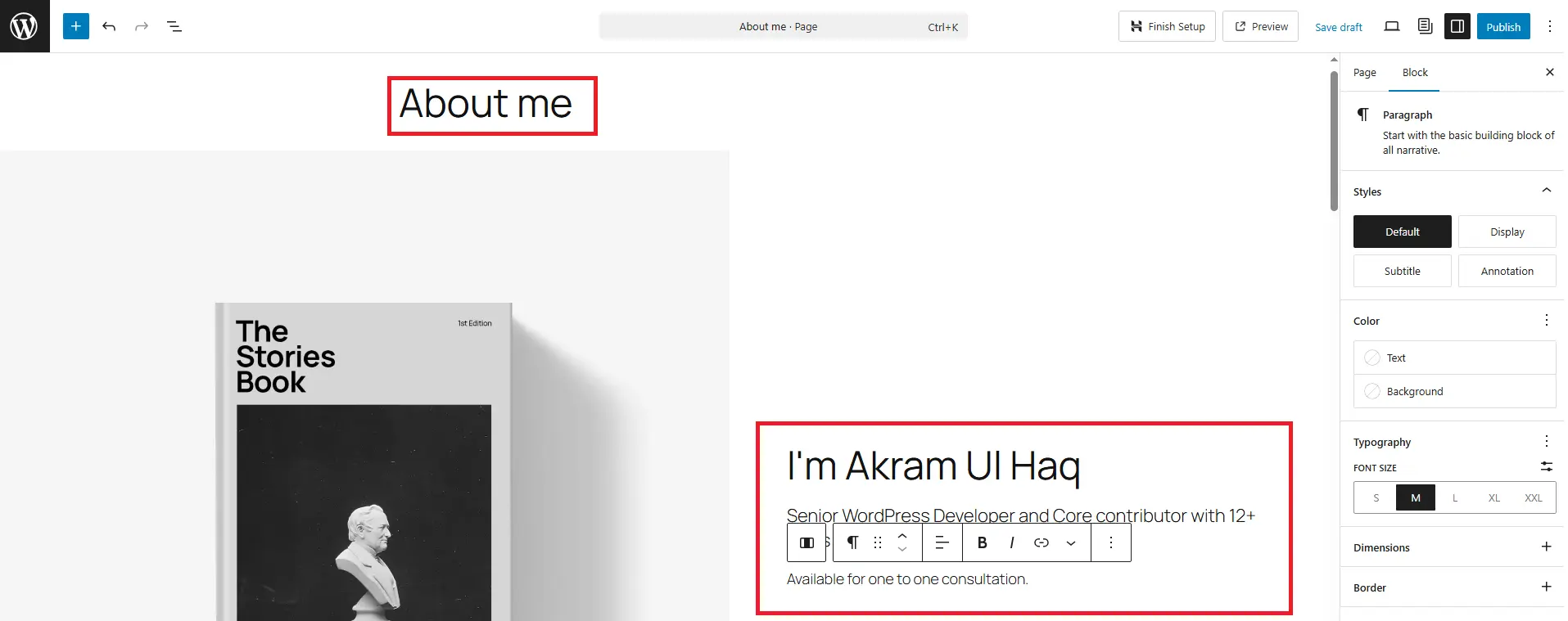
Pages in WordPress are designed for static, timeless content. This is the “About Us,” “Contact,” or “Services” information that doesn’t change very often and doesn’t usually have a timestamp.
Key Characteristics of Pages:
-
Hierarchical: Pages can be nested. You can have a parent page (e.g., “Services”) and child pages (e.g., “Web Design,” “SEO”).
-
No Categories or Tags: You cannot organize Pages using taxonomies like categories. They stand alone in the structure.
-
No Date Prominence: By default, the date an article was published is not prominently displayed in page templates. This reinforces the idea that the content is evergreen.
-
Custom Templates: Many WordPress themes allow you to assign specific templates to Pages (like a full-width template or a landing page template without a sidebar).
-
External to the Blog Stream: Pages are not included in your website’s main blog feed (the reverse-chronological list of articles).
When to Use a Page:
-
Contact Page: Your contact information and form.
-
About Page: Your story and mission.
-
Homepage: The front door of your website (often a static Page). Learn how to set this up in my guide on How to Make a WordPress Page Non-Indexable Until You’re Ready to Publish if you’re building pages before they’re live.
-
Landing Pages: Dedicated pages for marketing campaigns.
-
Privacy Policy or Terms of Service: Legal pages that rarely change.
What are WordPress Posts?
Posts power the dynamic content engine of a WordPress website and are designed for regularly updated, time-sensitive content. They are intended to be timely, fresh, and organized by date. If you want to write news, tutorials, or opinions, you will use Posts.
Key Characteristics of Posts:
-
Reverse Chronological Order: Posts are displayed with the newest ones first on your blog page. This signals to visitors that your content is current.
-
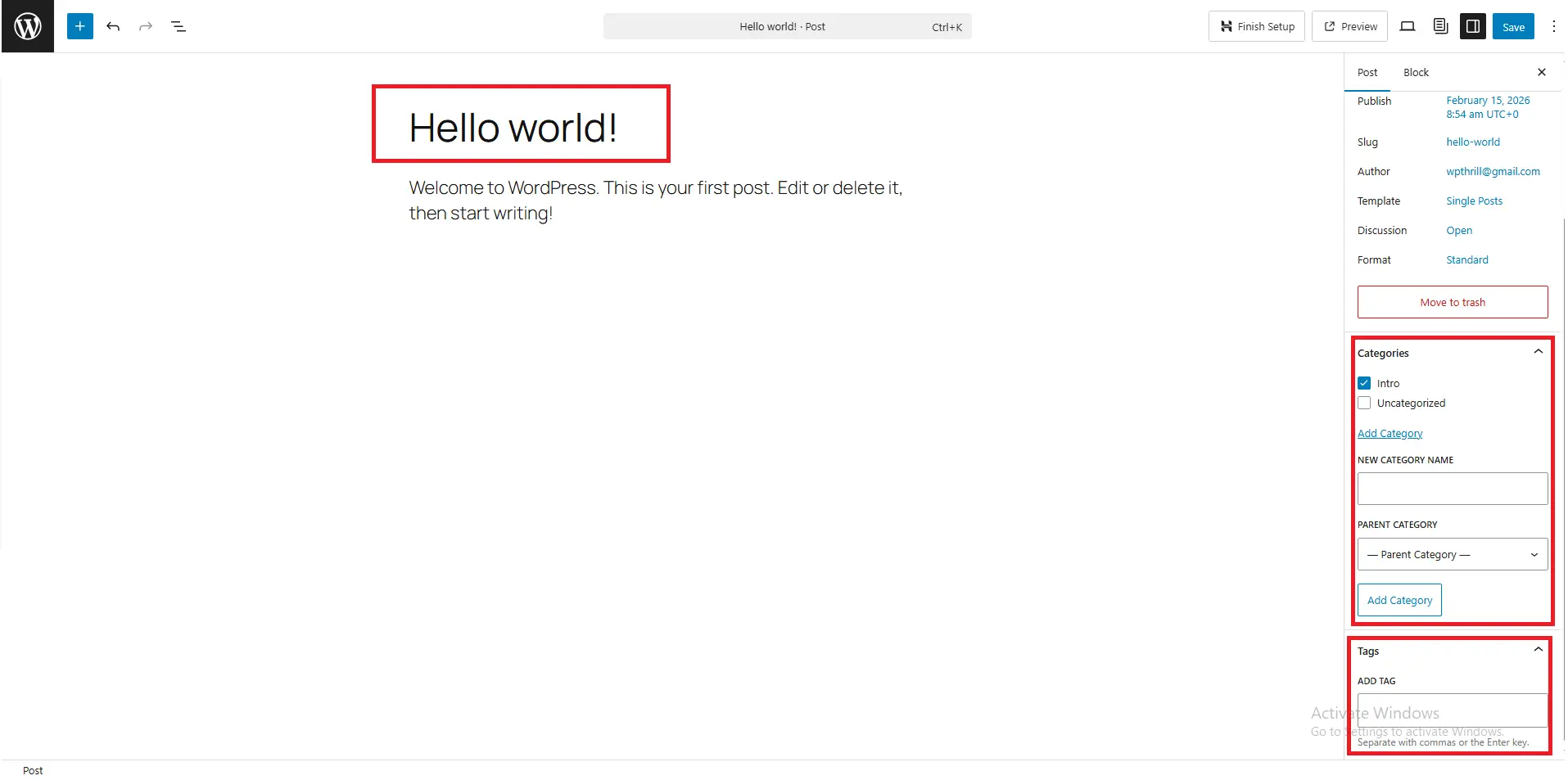
Categorized and Tagged: Posts rely heavily on Categories and Tags. This helps users discover related content and helps search engines understand your site’s structure.
-
Categories: Broad topics (e.g., “Marketing Tips”).
-
Tags: Specific keywords (e.g., “Facebook Ads”).
-
-
Authors and Dates: Post templates almost always display the author’s name and the publication date, emphasizing timeliness. If your post dates are showing incorrectly, check out How to Fix Date/Time Wrong on WordPress Posts.
-
Syndication: Posts are designed to be syndicated via RSS feeds, allowing users to subscribe to your content.
-
Social Sharing: Posts are the primary type of content that gets shared on social media to drive traffic.
When to Use a Post:
-
Blog Articles: Any new entry in your blog.
-
News & Announcements: Company updates or industry news.
-
Tutorials & How-To Guides: Educational content (though these can also be “Pages” if they are permanent knowledge bases).
-
Press Releases: Time-sensitive announcements.
The Head-to-Head Comparison: Posts vs Pages
To make the distinction crystal clear, let’s look at the specific differences in a side-by-side comparison.
1. Organization and Taxonomy
-
Pages: Use a hierarchical structure (Parent/Child). It’s a tree-like structure. Example:
About Us > Our Team > Meet the Founder. -
Posts: Use a non-hierarchical tag and category system. It’s a web of connections. Example: A post categorized under “Recipes” and tagged with “Vegan” and “Quick Meals.”
2. Display on Your Site
-
Pages: Are typically found in navigation menus (Header or Footer). They are the “pillars” of your site.
-
Posts: Are found in the main blog feed, archives, category pages, and search results. They are the “leaves” that grow and fall.
3. RSS Feeds and Subscriptions
-
Pages: Are excluded from RSS feeds. If a user subscribes to your site, they will only get your new Posts.
-
Posts: Are automatically included in your site’s RSS feed. This is crucial for building an email list or retaining readers.
4. URLs and Permalinks
-
Pages: Usually have a simple URL structure based on the page name (e.g.,
yoursite.com/contact). If it’s a child page, it might beyoursite.com/about/team. -
Posts: Can have more complex permalinks. A common SEO-friendly structure includes the date or category, such as
yoursite.com/2024/seo-tipsoryoursite.com/blog/seo-tips.
5. SEO Implications
This is a critical section. How you structure Posts vs Pages sends signals to Google about your site’s hierarchy and freshness.
-
Pages (Pillar Content): Pages should target your most important, high-volume keywords. They are your cornerstone content. Because they are static, they accumulate authority over time through internal and external links. You should link from your posts to your pages.
-
Posts (Cluster Content): Posts are perfect for long-tail keywords (specific, less competitive phrases). Because Google loves fresh content, regularly publishing Posts signals that your site is active and relevant. Posts should link back to your pillar Pages. If your posts aren’t appearing in Google, check How to Fix WordPress Pages Not Updating in Google Search – the same principles apply to posts.
Real-World Example: Wrong Structure vs Correct Structure
Let’s look at a practical example I’ve encountered multiple times.
Incorrect Structure (Common Beginner Mistake)
-
Creating 15 separate “Service” Posts instead of one main Services Page.
-
No parent page hierarchy.
-
Services buried inside blog archives over time.
-
Navigation menu linking directly to random posts.
This structure confuses users and sends mixed signals to search engines about what the primary service offering actually is.
Correct Structure (SEO-Optimized Setup)
-
One main “Services” Page targeting the primary keyword.
-
Child Pages for individual services (Web Design, SEO, Consulting).
-
Supporting blog Posts linking back to the main Services Page.
-
Clear navigation structure reflecting site hierarchy.
This approach builds authority around your core Pages while using Posts to support them strategically. It strengthens internal linking and improves crawl clarity.
Common Mistakes to Avoid with Posts and Pages
Even experienced users sometimes blur the lines. Here are the most common pitfalls:
Mistake 1: Creating a Post for Static Content
Don’t create a “Contact” post. It will eventually get buried in your blog archives under newer posts, making it hard for users to find your contact information. Use a Page for this.
Mistake 2: Using Pages for a Blog
You cannot easily display a list of your recent Pages in chronological order. If you try to write a news update on a Page, it won’t appear in your main blog feed, and users won’t see it unless you manually link to it.
Mistake 3: Ignoring Categories and Tags on Posts
Just writing a post and publishing it without assigning it to a category is like writing a chapter of a book and not telling the reader which chapter it belongs to. It hurts your site’s internal linking and user experience. If you’re having issues with category pages, read How to Fix WordPress Category/Tag Pages Showing Duplicate Titles.
Mistake 4: Duplicating Content
Avoid having a “Services” Page and then writing a “Services” Post. You will be competing against yourself in search results. Choose the right tool for the job (Page) and stick to it. If you’re dealing with duplicate content issues, see How to Fix “Duplicate Without User-Selected Canonical” in Google Search Console.
Advanced Feature: Converting Posts to Pages (and Vice Versa)
What happens if you make a mistake? You write a “Services” overview as a Post, or you write a blog post that became so important it should be a static Page. While WordPress doesn’t have a built-in one-click converter, you have two options:
-
-
Manual Rebuild: Copy the content from the old Post/Page, create a new one of the correct type, paste the content, and delete the old one. This is the safest method as it ensures you set up the correct template and permalink structure from the start.
-
Use a Plugin: There are plugins like “Post Type Switcher” that allow you to change a Post to a Page directly in the quick edit screen.
-
Warning: Switching the post type can sometimes break your theme layout or confuse the URL structure. Always check the front end of your site after using a switcher plugin. If things break, you might need Emergency WordPress Support.
-
-
FAQs
Can I convert a WordPress Page into a Post?
Yes, you can. While WordPress doesn’t have a native feature for this, you can use a free plugin like “Post Type Switcher.” Alternatively, the safest method is to manually copy the content from the Page, create a new Post, paste the content, and then delete the original Page. Always double-check your formatting and URLs after converting.
Should I put my blog on a Page or a Post?
Your blog content is made up of Posts. However, the page that displays your list of blog posts is usually a Page. In WordPress, you designate a specific Page (often called “Blog” or “News”) to be your “Posts Page” in Settings > Reading. So, you use a Page to display your Posts.
Do Pages or Posts rank better in Google?
Neither inherently ranks “better.” It depends on the content. Pages are great for ranking for broad, authoritative terms (like “Digital Marketing Agency”). Posts are excellent for ranking for specific, timely queries (like “Best Digital Marketing Strategies for 2024”). A healthy site uses both to create a comprehensive content strategy.
Can I add comments to a Page?
Yes, you can. While comments are disabled by default on Pages, you can enable them. In the Page editor, click on “Screen Options” at the top, ensure “Discussion” is checked, and then in the editor settings, check the box to “Allow comments.” However, this is rarely a good idea for static pages like “Contact” or “About.”
Conclusion
Understanding the distinction between Posts vs Pages in WordPress is fundamental to building a website that is logical for your users and optimized for search engines. Think of Pages as the permanent structure of your house and Posts as the ongoing conversations and news that keep it lively.
Use Pages for your core information. Use Posts for your dynamic content. By respecting these roles, you create a website that is easy to navigate, easy to maintain, and ready to rank.
Do you still have questions about organizing your WordPress content? Let us know in the comments below!
Next Tutorial: What Are Themes in WordPress – Which Should You Choose?
Previous Tutorial: WordPress Dashboard Explained for Beginners – Complete Guide



